Overview
What Siwenoid does, the parts of a Siwenoid system, the core concepts and where each reader should start.
| At a glance | |
|---|---|
| Product | Siwenoid v2 |
| Purpose | Supervision of fire, intrusion, I/O and video systems |
| Parts | Server, MySQL database, desktop clients, optional second server, optional web access |
| Operating system | Windows |
| Client connection | the server's REST port (default 8080) |
Siwenoid is a security management system. It connects to the fire alarm panels, intrusion panels, I/O modules and cameras of a site and brings their alarms, faults and states to one screen. Operators see every new event in the signal log, acknowledge and handle it, send commands to the devices and look up what happened in the event log. Engineers describe the devices, the maps, the automatic tasks and the users in the same program.
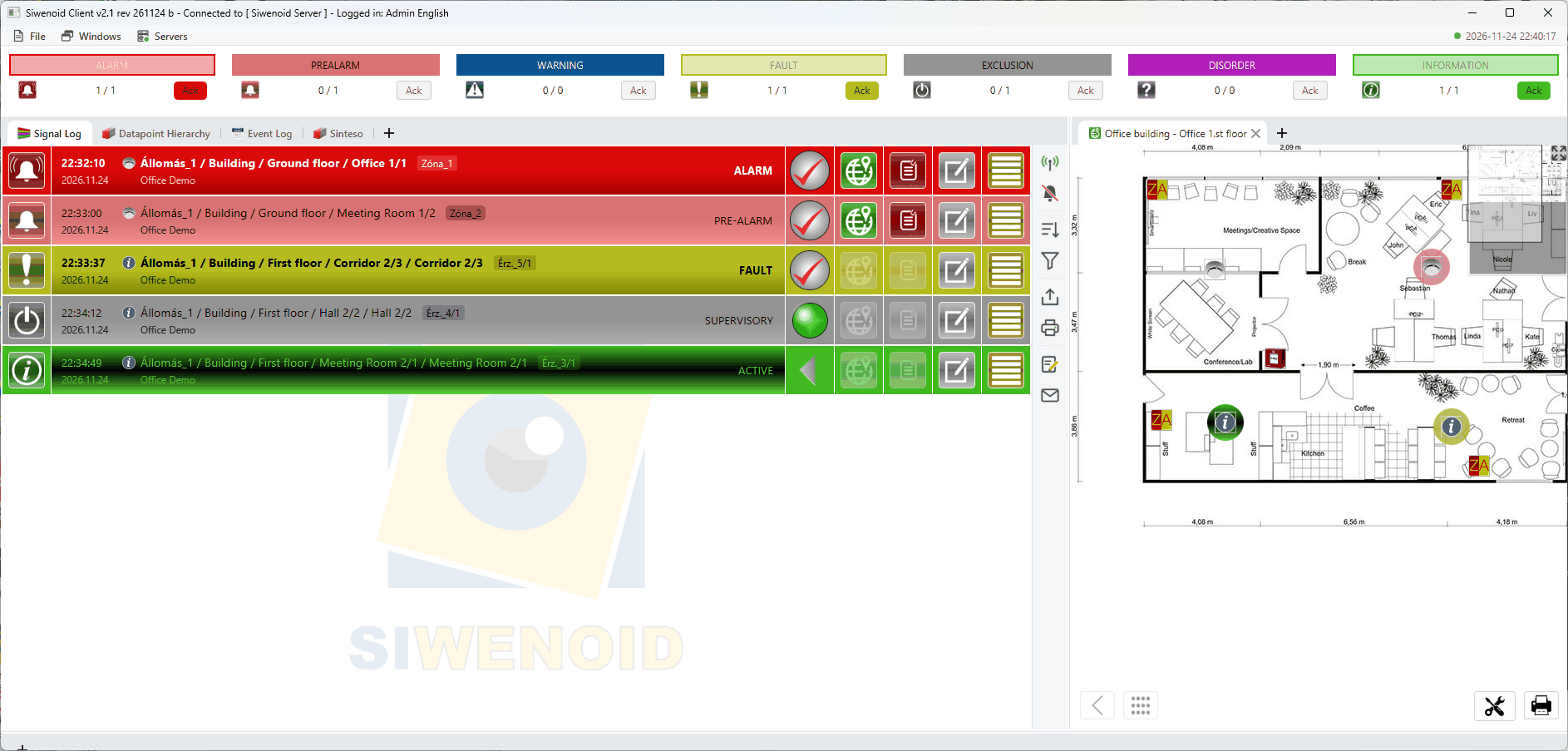
The main window with a few alarms in the signal log.
The parts of a system
A Siwenoid system has a server in the middle. The devices are on one side of it, the operators' workstations on the other.
| Field devices | Siwenoid server | Workstations |
|---|---|---|
| Fire alarm panels, intrusion panels, I/O modules, cameras and video recorders | The server program and its MySQL database | Desktop clients, and optionally web browsers |
| Connected to the server over the network, each with its own protocol | Optionally paired with a second server that takes over when it fails | Connected to the server's REST port (8080 by default) |
- Server. The server program talks to the devices, decides what each message means, stores the statuses and the event log, runs the tasks and serves the clients. It runs on a Windows computer as a normal desktop program with its own window and a tray icon, so the computer needs a logged-in Windows session.
- Database. Everything Siwenoid knows is stored in a MySQL 8 database on the server computer. The installer brings its own MySQL and installs it as the Windows service
MySQL for Siwenoid v2. - Desktop clients. The client is the program operators and engineers work in. Any number of workstations can run it, up to the number of licence seats. A client needs only the server's REST port and updates itself when the server is upgraded (see Updates).
- Second server (optional). A redundant server pair: both servers run, one serves, and the other takes over when the serving one is lost. Each server has its own database, and the two databases replicate each other. See Hot standby server pair.
- Web access (optional). A browser front end, delivered separately, uses the same REST port. Each web login takes a licence seat like a desktop client. See REST service and web access.
- Licence. The licence sets how many datapoints, clients and servers the system may use. See Licensing.
How an alarm reaches the operator:
- A panel reports a new state, for example a detector in alarm.
- The server finds the datapoint of that detector and the treatment that belongs to the reported state.
- The server records the new status, writes an event log entry and starts the tasks that belong to it (an e-mail, a map to open, a camera to show).
- Within about a second the status appears on every logged-in client: in the signal log, on the maps and in the datapoint hierarchy.
- The operator acknowledges it and may add a note or fill in a form. When the device returns to normal, the status leaves the signal log; an alarm that nobody acknowledged stays until an operator clears it. Each step is written to the event log.
Core concepts
Container. A container is one connection to a subsystem: a fire panel, a panel network, an intrusion panel, a video recorder. Its handler type and protocol decide how Siwenoid talks to the device, and its connection parameters say where the device is. The System container is always there and holds the datapoints of the Siwenoid servers, database and clients. See Physical structure.
Datapoint. A datapoint is one element of a device that Siwenoid follows: a detector, a zone, a loop, an area, a relay, a camera. Every datapoint has a type, a name, a parent and a current state, and the licence counts datapoints. Operators find them in the Datapoint Hierarchy, where engineers can also regroup them in logical containers. See Datapoint hierarchy and Logical containers.
Datapoint type. The datapoint type says which states a datapoint can be in and which commands it accepts. Each handler type brings its own datapoint types; engineers can add custom ones. See Datapoint types, treatments and commands.
Treatment. A treatment is one named state of a datapoint type, such as "Fire alarm", "Fault" or "Normal". It maps a state reported by the device to a category, a colour, a sound and an effect. See Datapoint types, treatments and commands.
Category. The treatment category (category for short) is the severity class of a treatment. The default categories are ALARM, PREALARM, WARNING, FAULT, EXCLUSION, DISORDER, INFORMATION and NORMAL, each with its own priority, colour and sound. Categories colour the signal log, the maps and the tree, and the category strip counts the statuses per category. See Treatment categories and Category strip.
Status. A status is a treatment that is currently active on a datapoint; one datapoint can have several at once. New statuses appear in the Signal Log, where operators acknowledge them and add notes. A status ends when the device returns to normal; one that nobody acknowledged stays in the signal log until an operator clears it. See Signal log.
Event log. The event log is the permanent history of the system: device events, operator actions such as commands, acknowledgements and logins, configuration changes and system events. Its entries are never edited. Operators filter, export and print it; old entries are archived to files on a schedule. See Event log.
Command. A command is an action sent to a datapoint, for example arming an area, switching a relay or resetting a panel. Operators send commands from the datapoint hierarchy, a map or the signal log; some commands ask for a passcode. See Datapoint hierarchy and Datapoint types, treatments and commands.
Map. A map is a floor plan with buttons for datapoints. The buttons show the datapoints' states in their category colours and can send commands or show live values. See Maps and Map preferences and the map editor.
Intervention text. An intervention text is an instruction assigned to datapoints: what to do when one of them is in alarm. Operators open or print it from the alarm. See Intervention texts and Intervention texts (setup).
Forced action. A forced action is a form that operators must fill in when an alarm of selected categories arrives, the digital version of a paper checklist. The answers are saved in the event log. See Forced actions.
Task. A task is an automatic action. It can run when a status arrives (send an e-mail or SMS, open or print a map or an intervention text, show a camera), on a schedule (send a command, make a backup) or when a condition on datapoint states holds. See Tasks.
Users, permissions and restrictions. Every user belongs to a user group, and the group's permissions decide which windows, menus and functions the user can use. Object restrictions hide chosen datapoints, categories, maps or commands from users and groups. Administrators have every permission and are never restricted. See Users and groups and Object restrictions.
The Glossary explains the other terms used in this wiki.
Supported subsystems
Siwenoid connects to these families of systems:
- Fire alarm panels, such as Siemens Sinteso, Cerberus PRO and Cerberus, Esser, Notifier, Aritech, INIM, Minimax, Schrack and Bosch.
- Intrusion alarm panels, such as Vanderbilt SPC, Honeywell Galaxy, Satel, DSC, Texecom, Sintony and Paradox.
- I/O and automation: Relaydroid I/O modules and devices that speak Modbus TCP.
- Cameras and video recorders: ONVIF, Hikvision and Dahua devices and RTSP streams.
The full list, with the setup page of each system, is in Supported subsystems.
Where to start
| You are | Start with | Then read |
|---|---|---|
| Operator | The main window | Signal log, A typical shift, step by step |
| Commissioning engineer | Installation | First start, Physical structure, Supported subsystems |
| Administrator | Users and groups | Backup and restore, Updates, Hot standby server pair |