Intervention texts
Reading and printing intervention texts: the written instructions attached to datapoints, how they open, the viewer and its messages.
An intervention text is a written instruction attached to datapoints: what to do when this detector or zone gives an alarm. It can be an evacuation procedure, a phone list, or a short note such as "the zone cannot be reset while the windows are open". Operators read and print the texts; the commissioning engineer writes them and assigns them to datapoints (see Intervention texts (setup)).
A datapoint can have several texts, and one text can belong to many datapoints. A text is one of two kinds:
| Kind | Tag | Content |
|---|---|---|
| Local text | LOCAL | Formatted text stored on the Siwenoid server. |
| External text (URL) | URL | A web page. The Siwenoid server fetches it, so your computer does not need access to that site. |
Opening the texts
| Where | What opens |
|---|---|
| The intervention button of a signal log row (document icon) | All texts of the alarmed datapoint. Hold the mouse over the button to see their names. A grey, disabled button means the datapoint has no text. |
| Automatically, when an alarm arrives | All texts of the datapoint, if the engineer has set up an Open intervention task for that alarm (see Tasks). Without an assigned text nothing opens. |
| The Intervention texts: links in the information pane of the datapoint hierarchy | The one text you click. |
You see only the texts of datapoints your administrator allows you to see. If the intervention button is missing from the signal log, your administrator has not given you access to it.
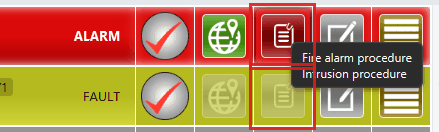
Signal log rows: one with the intervention button and the tooltip listing its texts, one with the grey button.
The viewer
The texts open in a tab titled Intervention · . If the same texts are already open, that tab is brought to the front instead.
| Part | Content |
|---|---|
| Header | The alarm the texts belong to: the category (in the category colour), the treatment, the time of the alarm with how long ago it was (just now, 5 min ago, 2 h ago, 1 d ago, refreshed every 30 seconds) and the datapoint's path with its name in bold. When you opened a text from a link, without an alarm, the header shows only what applies. |
| Print and Print all (N) | Print the text shown, or all texts of the tab (see Printing). |
| Text list (left) | Shown when there is more than one text: Intervention texts · N, a row for each text with its name and its LOCAL or URL tag. Click a row to read that text. A greyed row is a text that can no longer be read. The first text is shown when the tab opens. |
| Reader | The text on a "sheet": its name, its kind (Local text or External text (URL)) and the content. An external text also has an Open in browser button that opens the page in your computer's web browser. |
The texts cannot be edited here. Links in a text open in your web browser. While a text loads, grey placeholder bars show.
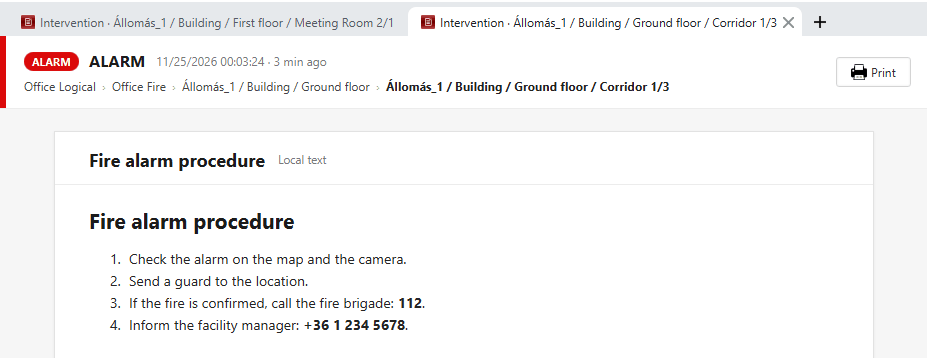
The viewer with one local text: the header, the sheet and the Print button.
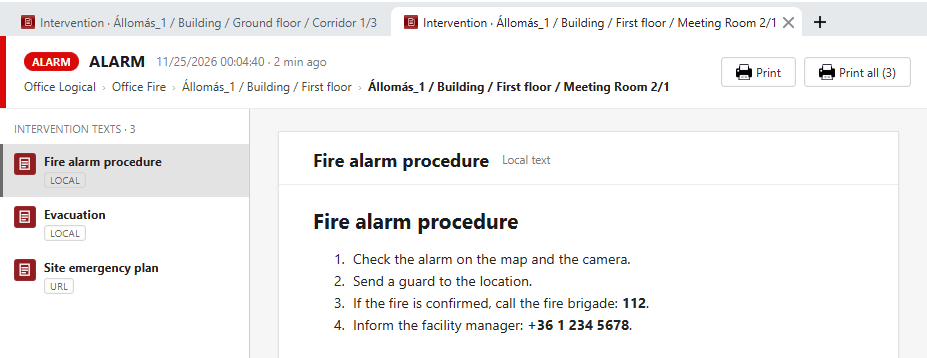
The viewer with three texts: the list on the left with LOCAL and URL tags, and Print all (3).
Messages in the reader
| Message | Meaning and what to do |
|---|---|
| The external source cannot be reached | The server could not fetch the web page. The address is shown under the message. Click Retry. If it still fails, try Open in browser (if your computer can reach the site) and tell the engineer. |
| This text is no longer available | It was deleted, or it is no longer assigned to you through a datapoint you can see. |
| The text could not be loaded | The server did not answer. Try again later. Click Retry. |
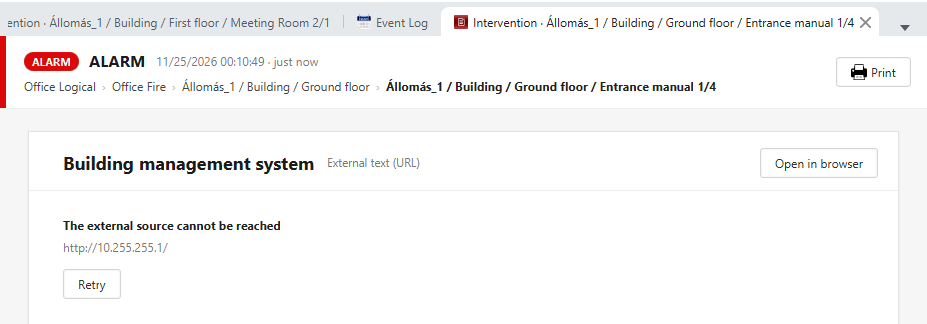
An external text whose page cannot be reached, with the Retry button.
Where the viewer opens
Each user chooses the pane in which the texts open:
- Open the workspace windows you use (see The main window).
- Open File › Settings › Appearance, tab General Settings.
- In Automatic intervention text opening place selector, every open window is drawn as a small screen (Main workspace and each Workspace window) with its centre, right and bottom pane. Click the button in the pane you want, for example the right pane next to the signal log. The choice is saved at once.
The default is the centre pane of the main window. The texts also open there when the chosen workspace window is not open.
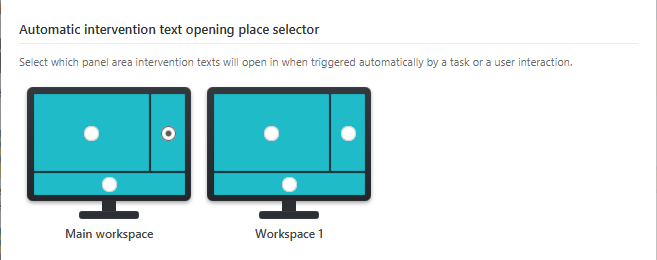
The opening place of intervention texts in the Appearance settings.
Printing
- Open the texts in the viewer.
- Click Print to print the text shown, or Print all (N) to print every text of the tab.
The texts go straight to the printer set in File › Settings › Printer, without a print dialog. If no printer is set, nothing is printed. All texts of one alarm are printed in one print job, each on as many pages as it needs. On top of every text the printout shows the alarm (category, treatment, time, the datapoint's path), the text's name and its kind. A local text without its own formatting is printed in black and white; an external page as it was fetched.
An engineer can also set up a Print intervention task that prints the texts by itself when an alarm arrives (see Tasks).
Typical tasks
Reading the instructions of an alarm
- In the signal log, hold the mouse over the alarm's intervention button to see which texts it has.
- Click the button. The viewer tab opens. You can do this before or after acknowledging the alarm.
- Read the text. If there are several, click the next one in the list.
Giving a printed copy to the patrol
In the viewer click Print, or Print all (N) for every text of the alarm.