Intervention texts (setup)
Writing, loading and organising the intervention texts that operators read at alarms: local and external texts, groups, the editor, datapoint assignments and moving texts.
| At a glance | |
|---|---|
| Where | Preferences › Intervention texts |
| Permission | Manage Intervention, Add / Edit / Delete Intervention, Edit Intervention assignments |
| Content | Local (stored on the server) or External (a web page) |
| Groups | at most 4 levels |
An intervention text is a page of instructions that the operator reads at an alarm: an action plan, an escape route description, a contact list. Each text is assigned to datapoints; when one of them raises a status, the operator can open the texts from the signal log, and tasks can open or print them automatically.
Intervention texts are set up in Preferences › Intervention texts (the Preferences window opens from File › Settings; see The Preferences window). How operators read and print them: Intervention texts.
Local and external texts
| Content source | Where the content comes from | Edited here |
|---|---|---|
| Local | Stored on the Siwenoid server. Written in the editor, or loaded from a file or a web address once. | yes |
| External | A web page. The server fetches it from its URL each time an operator opens the text; it is not stored. | no |
An external page is fetched with http or https, following at most 3 redirects; it may be at most 1 MB and must arrive within 10 seconds. A fetched page is reused for 60 seconds. If the server cannot reach the address, the operator sees no content. Use a Local text when the instructions must be available even without the web server.
The texts are HTML pages. A text that has its own stylesheet (a <style> in its <head>) is shown as written; any other text is shown with Siwenoid's own style, and printed in black and white.
In a redundant server pair the local contents are copied to the other server too (see Hot standby server pair).
Permissions
| Permission | Allows |
|---|---|
| Manage Intervention | Opening the Intervention texts tile; reading every text, group and assignment. |
| Add / Edit / Delete Intervention | Adding, changing, moving and deleting texts and groups. Without it the screen is read-only. |
| Edit Intervention assignments | The Datapoint assignments section of a text. |
| Signal log view intervention | For operators: opening the texts from the signal log. |
An operator without Manage Intervention reads only the texts assigned to datapoints that their object restrictions let them see. Every change is written to the event log and the open clients follow it at once.
The Intervention texts screen
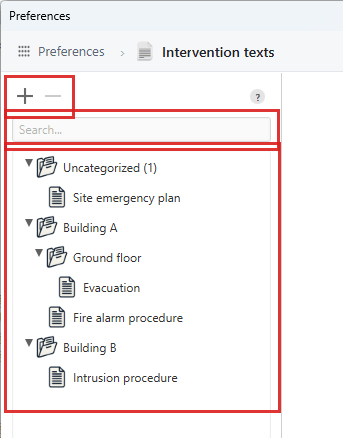
The texts and groups on the left, with the search field and the + and − buttons.
The left side holds:
- at the top, + with the menu New intervention text and New intervention text group, and −, which deletes the selected text or group after a question;
- the search field (Search...): a search term lists the matching texts, and the matching groups with everything in them; clearing the field brings back the tree;
- the tree of groups and texts. Texts without a group are under Uncategorized. A group's content loads when you open it.
With nothing selected the right side says Select an intervention text or a group on the left.
A new text or group is created at the top level; move it into a group afterwards (see below). If you leave a text with unsaved changes, Siwenoid asks Unsaved changes: Save, Discard or cancel.
Groups
A group has one field, Group name (required, at most 255 characters, unique), and Save.
- Groups can be nested at most 4 levels deep. A deeper move is refused with The groups cannot be nested this deep.
- A group cannot be moved into itself or into one of its subgroups.
- Deleting a group does not delete its content: its texts and subgroups move to the top level.
The text editor
The editor of a text is one scrolling page with three sections: General, Content and Datapoint assignments.
General and Content
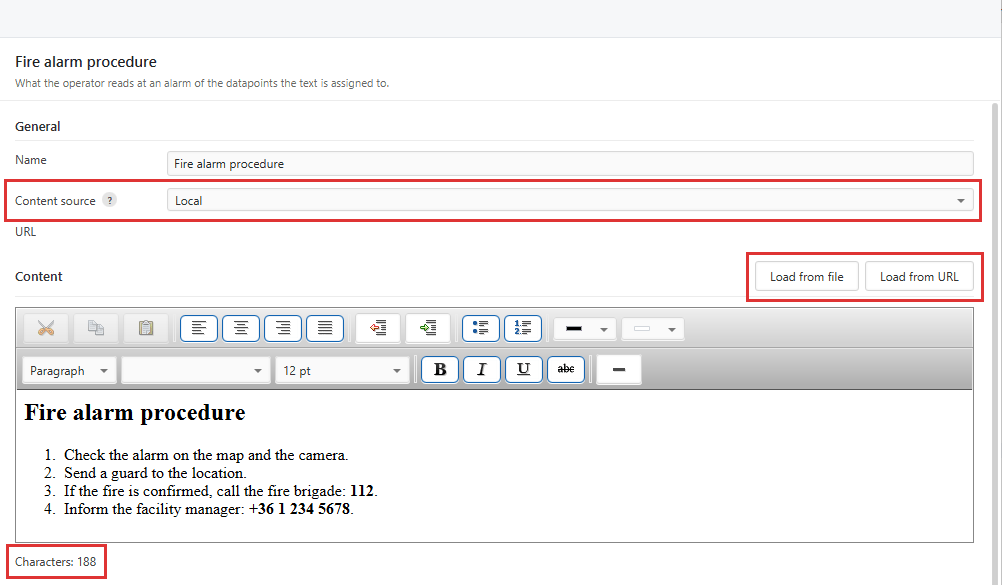
A local text in the editor, with the content source, the load buttons and the character counter.
| Control | Meaning | Rule |
|---|---|---|
| Name | The name operators see. | Required, at most 250 characters, unique (upper and lower case count as the same). Not allowed: \ / : * ? " < > \|, and a dot or space at the end. Do not use the number of another text as a name. |
| Content source | Local or External. | |
| URL | The address the content comes from (filled by Load from URL). | Required for an external text, at most 500 characters. |
| Load from file | In the Content section: loads the content from an HTML file (*.htm, *.html) or a text file (*.txt) on this computer. |
Only for a local text. |
| Load from URL | In the Content section: asks for an address (Enter URL address:) and loads the page. | The page is loaded by this computer, within 10 seconds. |
| Content | The HTML editor with its formatting toolbar. Under it Characters: counts the visible characters. | A local text must have visible content. |
What Load from URL does depends on the content source:
- Local: the loaded page becomes the text's own content, a copy stored on the server. Later changes of the web page do not reach it.
- External: the address becomes the text's URL. The editor shows the page read-only: The content of an external text comes from its URL each time it is shown; it is not edited here.
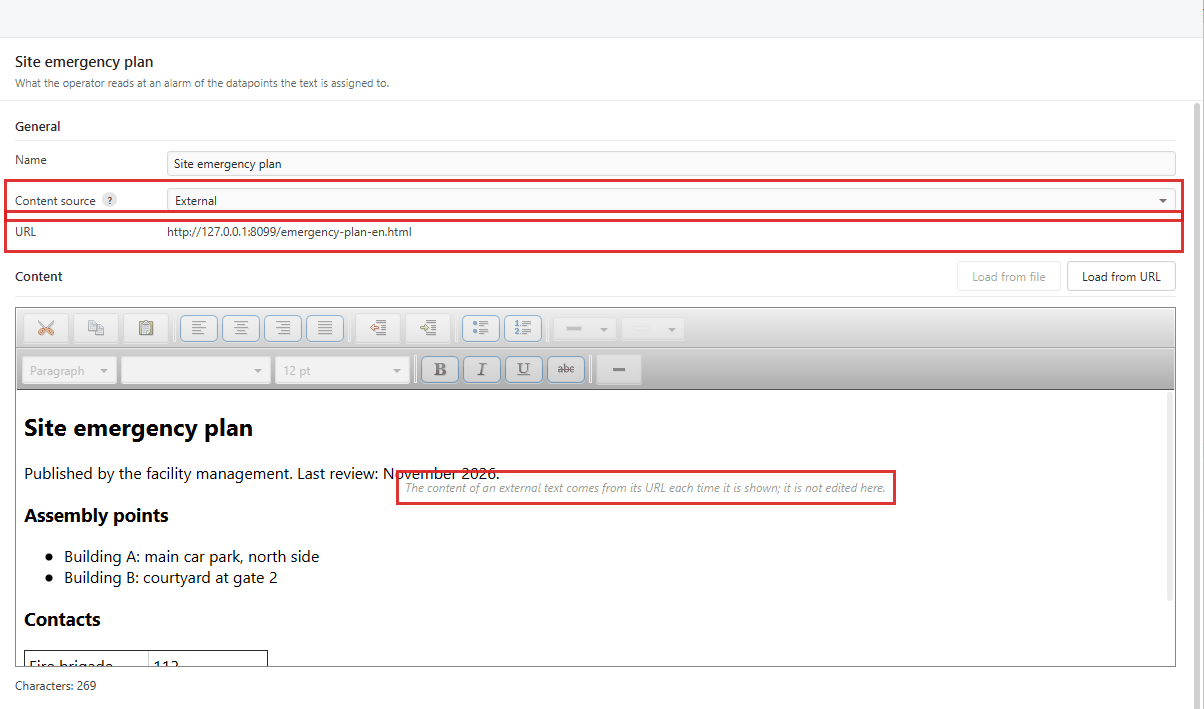
An external text: the URL and the read-only page.
Files are read as UTF-8 or, when the file is not valid UTF-8, as Central European (ISO-8859-2) text; a file with a byte order mark is read accordingly.
When you switch an external text back to Local, it keeps the local content it had before; the page shown is not saved. Edit the content or load a new one to replace it. A text that never had local content needs one before it can be saved as Local.
If another user saves the content of the same text while you edit it, your save is refused with Another user saved the content of this text meanwhile. Click Read again to see their version; your content edits are dropped.
Datapoint assignments
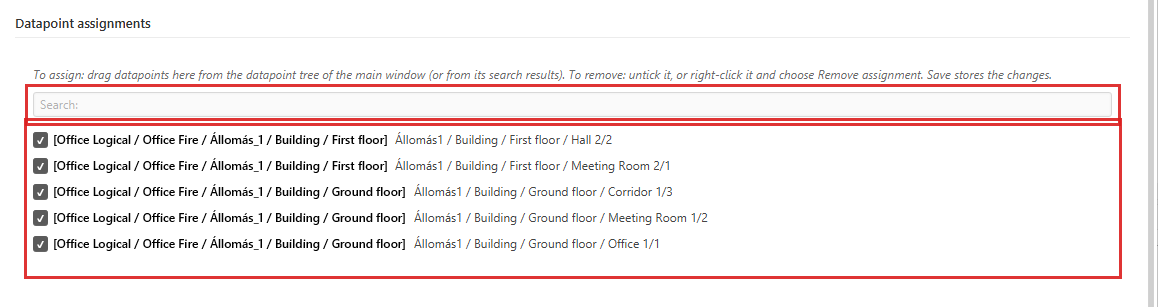
The Datapoint assignments section with a few datapoints of a fire panel.
This section, at the bottom of the page, lists the datapoints the text belongs to. A text can belong to many datapoints, and a datapoint can have many texts (the operator then sees one tile per text).
- To assign: drag datapoints from the datapoint hierarchy of the main window (or from its search results) into the list. An empty list says Drag datapoints here from the datapoint tree to assign them.
- To remove: untick the datapoint, or right-click it and choose Remove assignment.
- Search: filters the list by name or technical text. Each entry starts with the datapoint's path in the hierarchy in bold brackets, for example Office Logical / Office Fire / … / First floor, followed by the datapoint.
- Show on map and Show in hierarchy open the selected datapoint in the main window.
- Save stores the changes.
The assignments decide which texts the signal log offers for a status, and which texts the Open intervention and Print intervention tasks open or print (see Tasks).
Moving texts
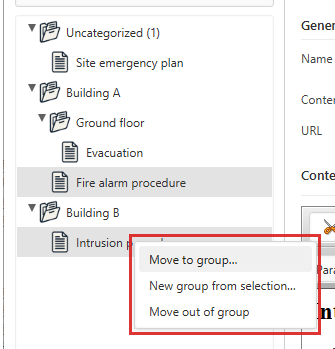
The right-click menu of several selected texts.
- Drag a text or a group onto a group to move it there. Drag onto Uncategorized to take a text out of its group.
- Select several texts with Ctrl or Shift; Ctrl+A selects every item of the current level.
- Right-click the selection:
- Move to group… asks for the target group and moves the selected texts with Move;
- New group from selection… asks for a group name, creates the group and moves the texts into it;
- Move out of group moves the texts to the top level.
While several texts move, the progress is shown (Moving texts: 3 / 10…). If some of them cannot be moved, Siwenoid lists them and the others stay moved.
Procedures
Create a group
- Open Preferences › Intervention texts, click + and choose New intervention text group.
- Type the Group name (for example
Building A) and click Save. - To nest it, drag it onto another group.
Create a local text
- Click + and choose New intervention text.
- Type the Name and leave Content source on Local.
- Write the instructions in the editor, or click Load from file and choose an HTML or text file.
- Click Save.
- Scroll down to Datapoint assignments, drag the datapoints from the main window into the list (for example the zones of a fire panel), and click Save.
- Drag the text onto its group.
Create an external text
- Click + and choose New intervention text, type the Name.
- Choose External as Content source.
- Click Load from URL, enter the address (
http://orhttps://) and confirm. - Click Save, then assign the datapoints.
- Check from an operator's computer that the page opens: it is the server that must reach the address.
Test
- Raise or simulate a status on an assigned datapoint (simulation: see Datapoint hierarchy).
- In the signal log the intervention button of the status is active; click it and check the text.
Delete a text or a group
Select it, click − and confirm. Deleting a text removes its assignments; deleting a group moves its content to the top level.