Tasks
Automatic actions on alarms and at set times: opening and printing maps and intervention texts, e-mail and SMS, cameras, receipt printing, automatic acknowledgement, backups, scheduled and conditional commands.
| At a glance | |
|---|---|
| Where | Preferences › Tasks |
| Permission | Manage Tasks |
| Task types | 12 |
| Triggers | new status of a category, schedule, events with a logical function |
A task is an action that Siwenoid carries out by itself: when a new alarm of certain treatment categories arrives, at a set time, or when a combination of datapoint states comes true. Tasks open maps and intervention texts on the operators' screens, print, send e-mails and SMS messages, open cameras, acknowledge statuses, make backups and send commands to devices.
The tasks are kept on the server and apply to the whole system. They are set up in Preferences › Tasks (the Preferences window opens from File › Settings; see The Preferences window).
Task types and triggers
Every task has one of twelve types. The type decides what triggers the task and which settings it has.
| Task type | What it does | Triggered by | Runs on |
|---|---|---|---|
| Open map | Opens the maps assigned to the datapoint, the alarming point highlighted | new status of the ticked categories | the operators' computers |
| Print map | Prints the maps assigned to the datapoint, the alarming point marked | new status of the ticked categories | the operators' computers |
| Open intervention | Opens the intervention texts assigned to the datapoint | new status of the ticked categories | the operators' computers |
| Print intervention | Prints the intervention texts assigned to the datapoint | new status of the ticked categories | the operators' computers |
| Send email | Sends an e-mail to the listed addresses | new status of the ticked categories | the server |
| Send sms | Sends an SMS to the listed numbers | new status of the ticked categories | the server |
| Open CCTV | Opens the cameras assigned to the datapoint and calls their PTZ presets | new status of the ticked categories | the server and the operators' computers |
| Print event | Prints one line per event on a receipt printer | new status of the ticked categories | the operators' computers |
| Automatical acknowledge | Shows the statuses of the ticked categories as already acknowledged | new status of the ticked categories | the operators' computers |
| Create backup | Backs up the server and its database | schedule | the server |
| Scheduled command | Sends commands to datapoints | schedule | the server |
| Conditional command | Evaluates a logical function and sends commands | listed events (activation or clearing) | the server |
The category-triggered tasks run when a new status appears on a datapoint. They do not run when the status clears. Only the Conditional command task can react to a status that ceases.
Note
In a redundant server pair, the scheduled tasks and the conditional command tasks run on the serving server only. E-mail and SMS messages may be sent by both servers when it is not certain that the other one sent them: a message twice is better than none. See Hot standby server pair.
Permissions
| Permission | Allows |
|---|---|
| Manage Tasks | Opening the Tasks tile and reading the tasks. |
| Add / Remove task | Adding (together with Edit task) and deleting tasks. |
| Edit task | Saving changes. Without it the editor is read-only and Save is hidden. |
| Enable / Disable task | Changing the Enabled check box. |
| Create Backup | Additionally needed to add, change or delete a Create backup task. Without it the folder and the components of a backup task are not shown. |
Saving a task is not the same as sending a command: the commands of a scheduled or conditional command task are not checked against the editor's own command permissions. Every datapoint a task uses must be visible to the user who edits it. Every change of a task is written to the event log with the user's name and address.
The Tasks screen
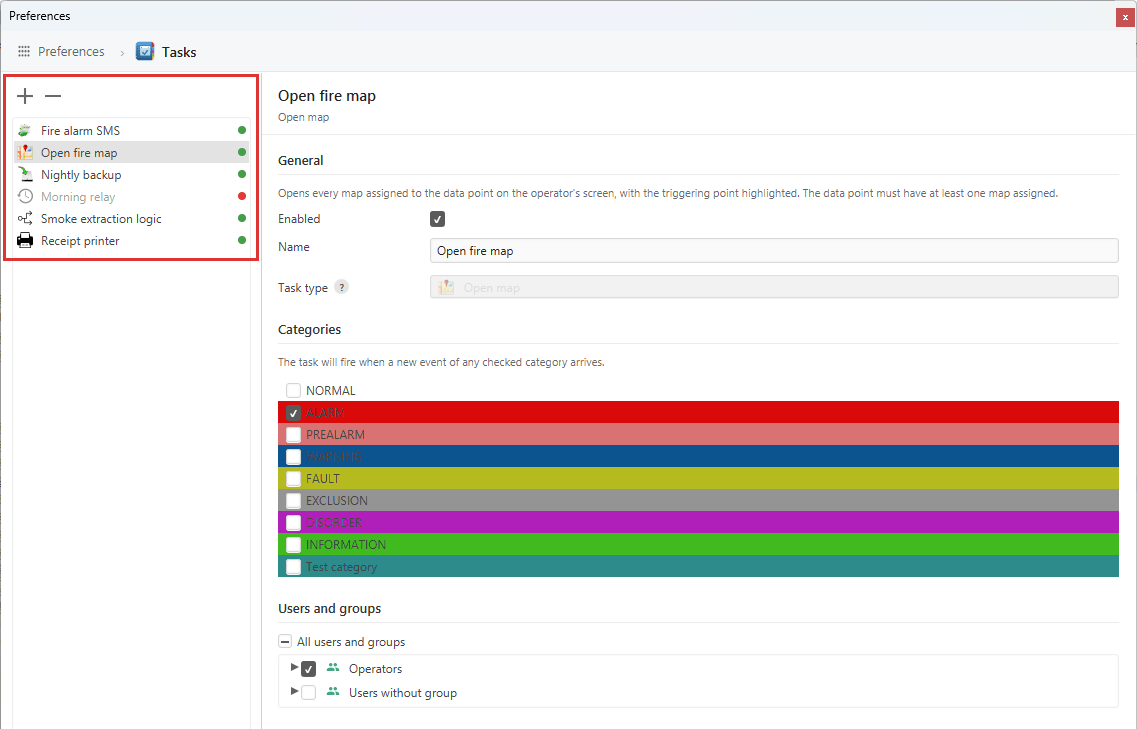
The Tasks screen: the task list on the left, the editor of the selected task on the right.
- Left: the list of tasks, each with the icon of its type and its name. Disabled tasks are dimmed. A new task that has not been saved yet shows as New task (unsaved). Under the list, + adds a task and − deletes the selected one.
- Right: the editor of the selected task. With nothing selected it says Select a task on the left, or add a new one.
- If the categories, users, groups or modules cannot be read, a Try again button appears instead of the list.
- Save at the bottom stores the task. If you select another task with unsaved changes, Siwenoid asks whether to Discard them.
Fields of every task
The General section is the same for every type. Under it a short text explains what the chosen type does.
| Field | Meaning | Rule |
|---|---|---|
| Enabled | When unchecked, the task does not run even if its trigger conditions are met. | New tasks start enabled. |
| Name | A name that identifies the task in the list. | Required, at most 250 characters, unique. |
| Task type | What the task does. | Chosen for a new task and cannot be changed after the first save. |
A new task without a type shows Select a task type to continue.
Categories
The category-triggered types have a Categories list: one check box per treatment category, in the category's colour. Tick at least one. The task runs when a new status of any ticked category arrives.
Users and groups
Open map, Print map, Open intervention, Print intervention, Open CCTV, Print event and Automatical acknowledge act on the operators' computers. Their Users and groups section is a tree of the user groups with their users; users without a group are under Users without group. Tick All users and groups, or at least one group or user.
The server delivers the task only to the computers where a ticked user, or a member of a ticked group, is logged in. An operator receives it only for statuses that their object restrictions let them see.
Status tasks on the operator's computer
Open map and Print map
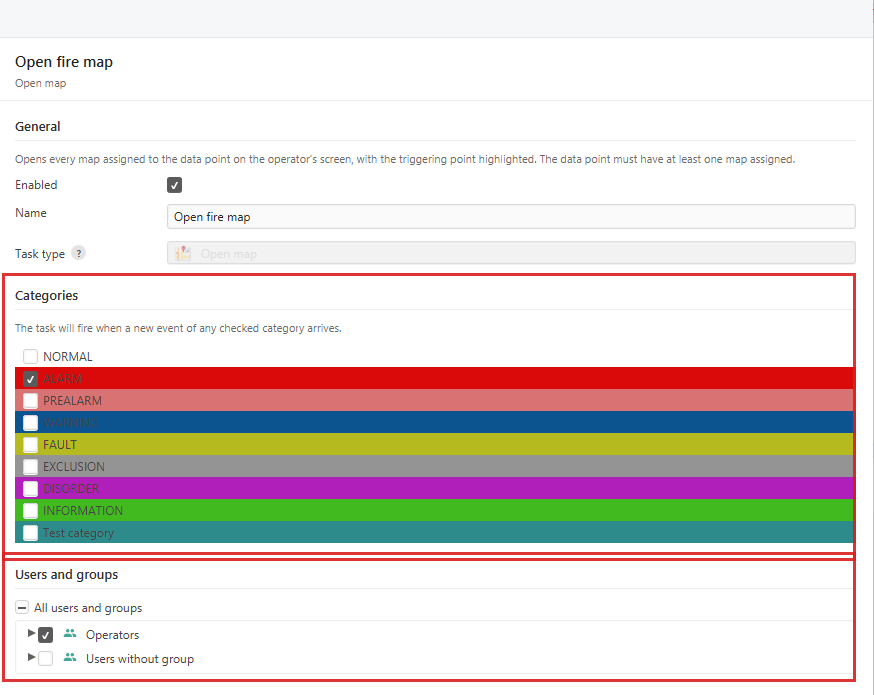
An Open map task: the categories and the users and groups who get the map.
Open map opens every map assigned to the datapoint of the new status, with the alarming point highlighted. Print map prints these maps with the point marked. Nothing happens for a datapoint without a map assignment (maps are assigned in Preferences › Map, see Map preferences and the map editor).
Print map prints on the printer selected in Preferences › Printer of the operator's computer (see System settings). The printer is set per computer. Without a printer the editor shows No printer is configured. This task requires a printer to be set in Printer preferences before it can work.
Open intervention and Print intervention
These open or print the intervention texts assigned to the datapoint, one page per text. Nothing happens without an assigned text. Print intervention needs a printer on the operator's computer, as Print map. Writing and assigning the texts: Intervention texts (setup); what the operator sees: Intervention texts.
Open CCTV
The server calls the PTZ presets of the cameras assigned to the datapoint, and the operators' computers open the live view of these cameras. An operator gets only the cameras their object restrictions allow. The client needs the CCTV service (see Configuration files and Cameras (CCTV)); cameras and presets are assigned to datapoints in the physical structure (see CCTV cameras (ONVIF, RTSP, Hikvision, Dahua)).
Print event
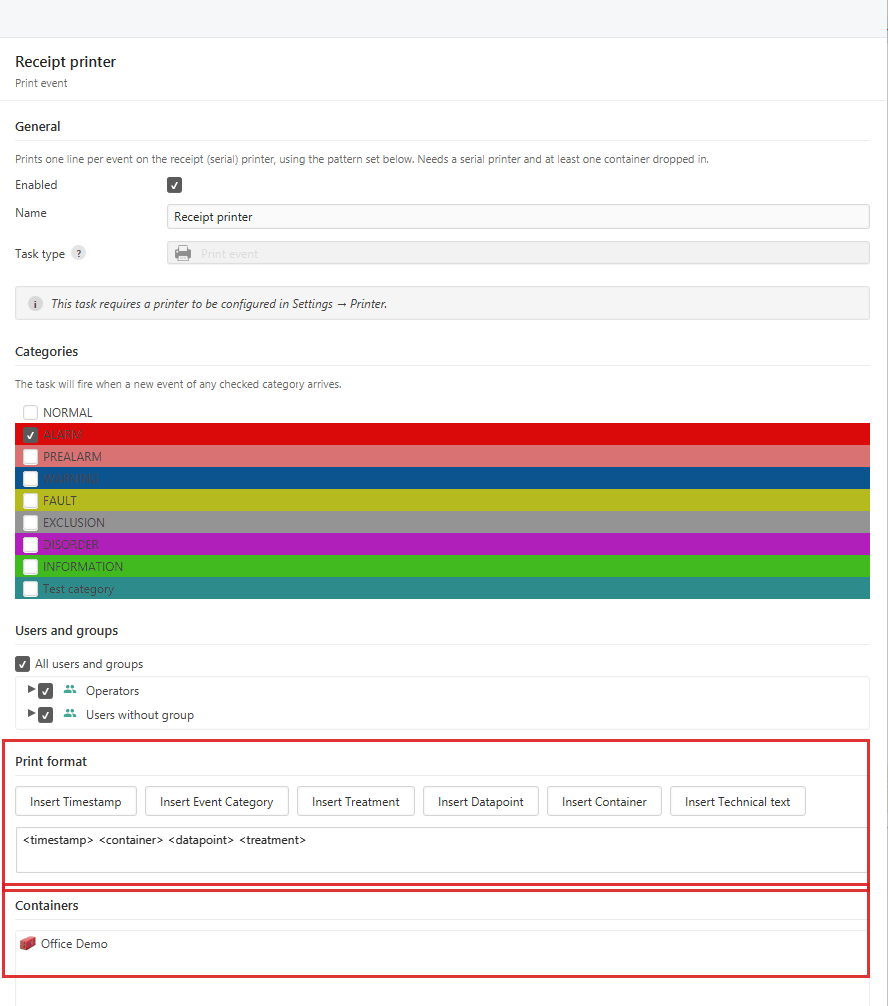
A Print event task: the print format built with the insert buttons and the containers.
Prints one line per event on the receipt (serial) printer selected in Preferences › Printer of the operator's computer. The editor reminds you of this: This task requires a printer to be configured in Settings → Printer. On a computer without a receipt printer it also warns No receipt (serial) printer is configured. This task requires one to be set in Printer preferences before it can work.
| Field | Meaning | |
|---|---|---|
| Print format | The text of the line, at most 255 characters. Type text and insert fields with the buttons below. Required. | |
| Containers | The task prints only events of datapoints under these containers. Drag container datapoints here from the datapoint hierarchy of the main window; right-click and Delete removes one. Add at least one, otherwise nothing is printed. | |
| Button | Inserts | Printed as |
| --- | --- | --- |
| Insert Timestamp | <timestamp> |
time of the status, dd/MM/yyyy HH:mm:ss |
| Insert Event Category | <category> |
treatment category |
| Insert Treatment | <treatment> |
treatment |
| Insert Datapoint | <datapoint> |
datapoint name |
| Insert Container | <container> |
name of the datapoint's physical container |
| Insert Technical text | <technicaltext> |
technical text of the datapoint |
The texts are printed in the language of the operator who is logged in. A field without a value stays in the line as typed.
Automatical acknowledge
The statuses of the ticked categories arrive already acknowledged for the ticked users, so they do not have to acknowledge them. This is not recorded as an acknowledgement by a user.
Message tasks: Send email and Send sms
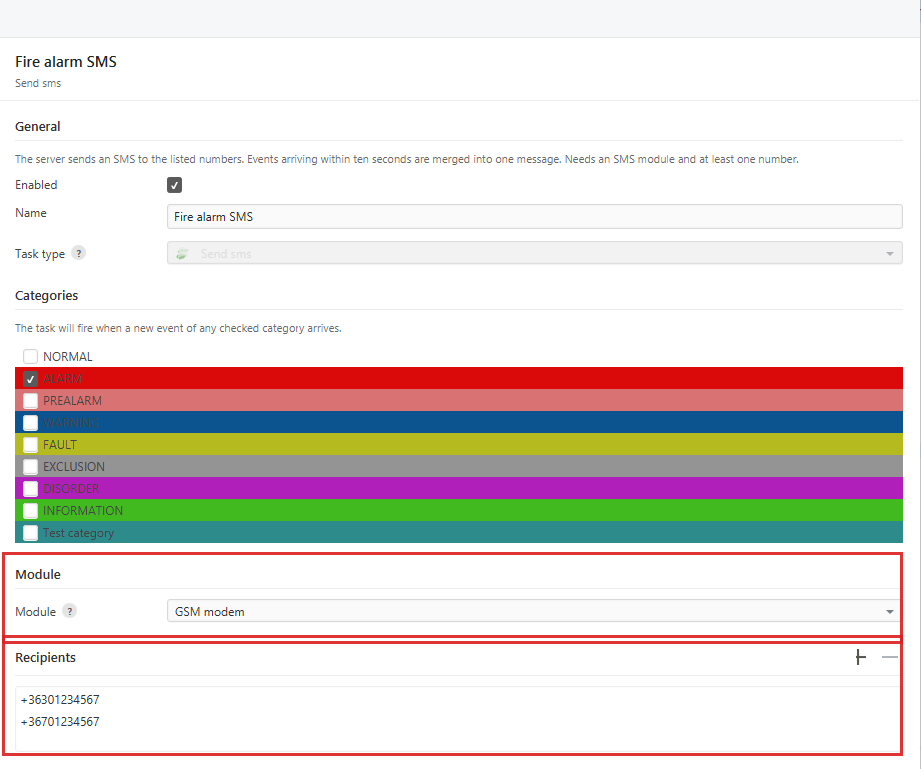
A Send sms task with its module and recipients.
The server sends the message; it does not depend on any operator being logged in.
| Field | Meaning | Rule |
|---|---|---|
| Categories | The categories that send a message. | At least one. |
| Module | The e-mail module (Send email) or SMS module (Send sms) that sends the message. | Only modules of the matching kind are offered. |
| Recipients | E-mail addresses or phone numbers. + opens a small window: type the value in Address and click Save; − removes the selected entries. | 1 to 100 entries. A phone number has digits only, with an optional leading +. |
If no module of the kind exists, the editor shows No module configured. and, for users who may edit modules, the link Go to module settings. Modules: E-mail and SMS modules.
The message has one line per event (date and time for example 2026.11.24. 14:05:31):
[<physical container>] <datapoint> - <treatment> - <date and time>
- E-mail: the events of 10 seconds are sent as one mail with the subject
Siwenoid notification. All recipients are put in the CC field, so they see each other's addresses. - SMS: messages to the same number through the same modem are collected for 10 seconds and joined while they stay under 155 characters. Accented letters are sent without accents.
Scheduled tasks
The schedule
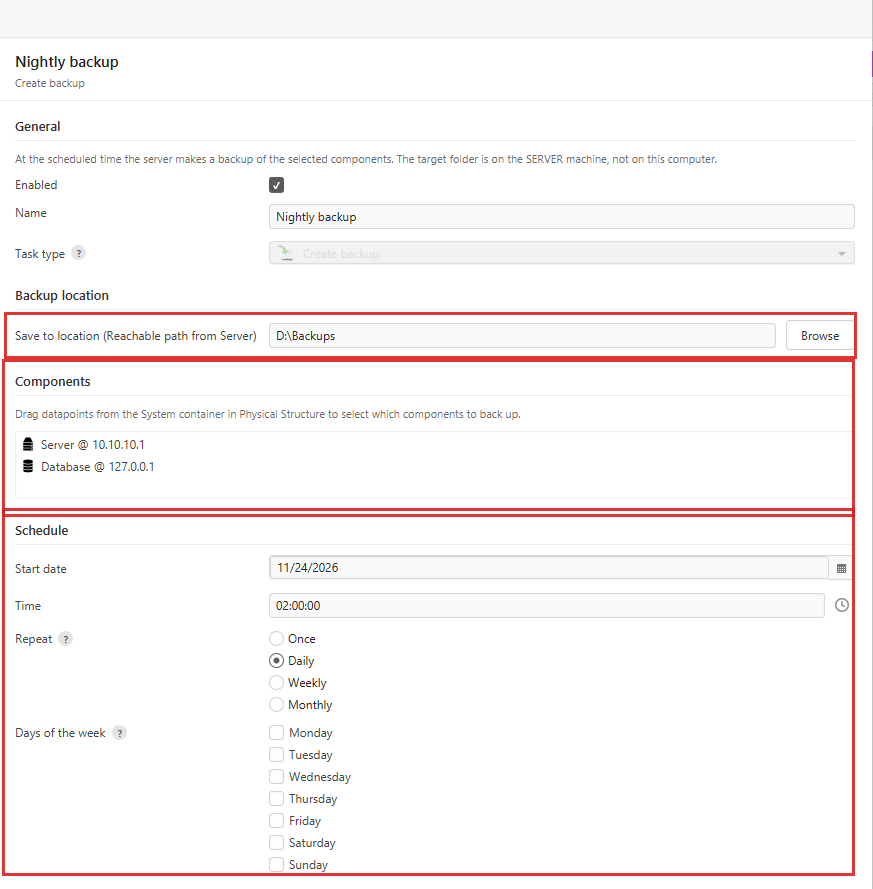
A Create backup task with its folder, components and schedule.
Create backup and Scheduled command have a Schedule section. Times are the server's clock.
| Field | Meaning |
|---|---|
| Start date: | The first day. Required. |
| Time: | The time of day, HH:mm:ss (default 00:00:00). |
| Repeat | Option 1: Once, Daily, Weekly or Monthly, from the start date at the set time. |
| Days of the week | Option 2: Monday … Sunday, at the set time. The start date does not limit these runs. |
The two options exclude each other: ticking a day clears the repeat choice, and choosing a repeat clears the days. A start in the past is moved forward to the next occurrence; a Once task whose time has passed does not run. Saving, disabling or deleting a task cancels its pending run. After saving, check that the task runs at the first time you expect.
Create backup
At the scheduled time the server writes a backup file SWNBackup_<time>.swnbackup into the folder. The file is restored with the installer like a manual backup (see Backup and restore).
| Field | Meaning | Rule |
|---|---|---|
| Save to location (Reachable path from Server): | The target folder on the server computer, or a network share. Browse opens a folder chooser on this computer, so it helps only when the client runs on the server. | An absolute path (D:\Backups) or a share (\\nas\siwenoid), at most 1500 characters, no ... Its existence is not checked when saving. |
| Components | Server and Database. Drag them from the System container in the datapoint hierarchy of the main window; right-click and Delete removes one. | At least one. Clients are not backed up by this task. |
| Schedule | When to back up. | See above. |
If a run fails, the first administrator gets a user message on the System container. A failed run does not stop the next ones.
Scheduled command
At the scheduled time the server sends the commands of the table to their datapoints, in the listed order.
- Drag one or more datapoints from the datapoint hierarchy of the main window into the table. Each row has the columns DataPoint and Command; choose the command of each row from the commands of that datapoint's type.
- Every row needs a command.
- A command that the type sends to the children or to the parent is passed on as when an operator sends it.
- One failing datapoint does not stop the others.
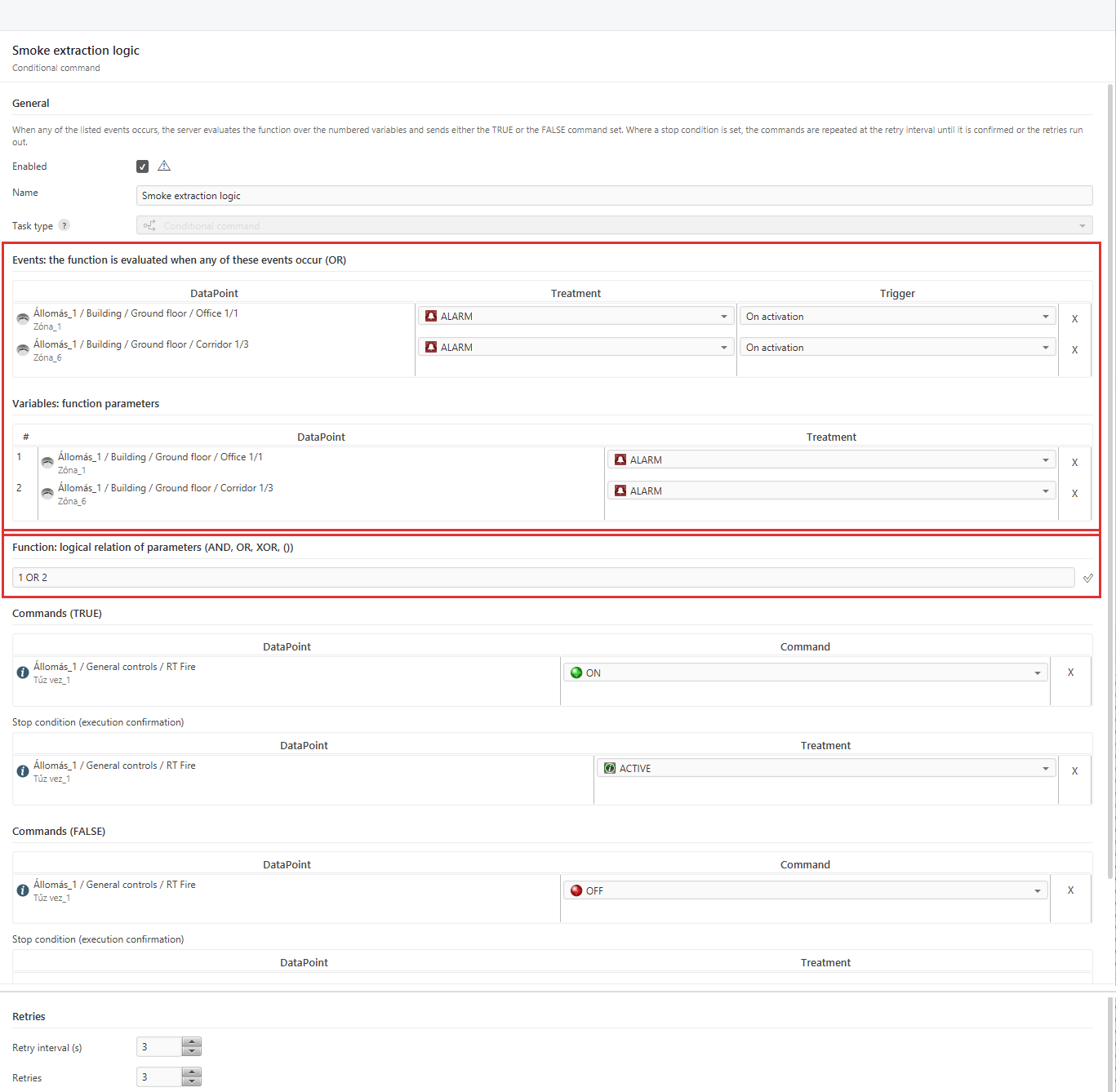
A Conditional command task: events, variables, function, the TRUE and FALSE commands, stop conditions and retries.
Conditional command
A conditional command task watches datapoint states and sends one of two command sets depending on a logical function.
Editor sections
- Events: the function is evaluated when any of these events occur (OR): rows of DataPoint, Treatment and Trigger. The trigger is On activation, On clear or On activation and clear. Any listed event starts an evaluation.
- Variables: function parameters: numbered rows (1, 2, 3 …) of DataPoint and Treatment. A variable is true while that treatment is active on that datapoint.
- Function: logical relation of parameters (AND, OR, XOR, ()): the function over the variable numbers, for example
(1 OR 2) AND 3. Errors are shown under the field as you type. - Commands (TRUE) and Commands (FALSE): rows of DataPoint and Command, sent when the function is true or false. One of the two lists may stay empty.
- Stop condition (execution confirmation) under each command list: rows of DataPoint and Treatment that confirm the commands took effect.
- Retries: Retry interval (s) (1 to 60, default 3) and Retries (1 to 20, default 3).
Datapoints are dragged into every table from the datapoint hierarchy of the main window. A warning next to Enabled reminds you that deleting a datapoint, treatment or command used here deletes the task too.
The function
| Element | Meaning |
|---|---|
1, 2, … |
The variable with that number. |
AND, OR, XOR |
Logical and, or, exclusive or. Several terms joined by XOR are true when an odd number of them is true. |
NEG |
Negation: NEG 1 is true when variable 1 is false. |
( ) |
Grouping. |
Without parentheses NEG binds strongest, then AND, then OR, then XOR. Upper or lower case does not matter. The function may use only existing variable numbers, at most 1000 characters.
How it runs
- A listed event occurs (the datapoint and the treatment match, and the timing fits the row's trigger).
- The server evaluates the function with the current states of the variables.
- It sends the Commands (TRUE) or the Commands (FALSE). An empty list sends nothing.
- Without a stop condition the commands are sent once. With stop conditions they are sent again at every retry interval until all stop conditions of that branch are met or the number of Retries is reached (it counts all attempts, the first one included).
A task runs one execution at a time: the same branch again is ignored while it runs, the opposite branch stops it and starts. The commands are sent by the server, not by a user.
A datapoint for the task
To follow and test a conditional task from the operator's screens, give it a datapoint: in Preferences › Physical structure create a container with the handler type ConditionalCommandDataPoint, add a child datapoint to it and choose the task on the child's Task assignment tab (see Physical structure). The datapoint shows the state of the task:
| Status | Meaning |
|---|---|
| NORMAL | Idle. |
| EXECUTING TRUE / EXECUTING FALSE | Sending the commands of that branch. |
| EXECUTED TRUE / EXECUTED FALSE | The branch finished. |
| NOT EXECUTED | The stop conditions were not met within the retries. |
Its commands: EXECUTE (evaluate the function now), EXECUTE TRUE, EXECUTE FALSE (run that branch) and RESET (stop a running execution and return to NORMAL).
Server options in config.xml
Two settings of the server's config.xml (in <Task>, see Configuration files) change the status tasks:
| Element | Meaning | Shipped value |
|---|---|---|
<Map-printer><print-full-path> |
true: Print map also prints the maps of every parent container of the datapoint. |
false |
<denied-category-dependencies><parent-status-categories> |
Comma-separated category priorities. While the datapoint's parent has a status of such a category, the operator tasks (maps, intervention texts, event printing) are skipped for the child. E-mail, SMS and camera tasks always run. Leave it empty unless Siwena advises a value. | empty |
Procedures
Send an SMS on alarms
- Create the SMS module in Preferences › Modules (see E-mail and SMS modules).
- Open Preferences › Tasks and click +.
- Choose Send sms as Task type, type a Name and leave Enabled ticked.
- Tick the categories, for example the fire alarm category.
- Choose the Module.
- Under Recipients click +, type a phone number in Address and click Save. Repeat for every number.
- Click Save.
- Test it: raise an alarm of a ticked category (or simulate one, see Datapoint hierarchy). The SMS arrives about 10 seconds later.
An e-mail task is set up the same way with Send email and an e-mail module.
Open the map and the intervention text for a group
- Click +, choose Open map, type a name.
- Tick the categories and, under Users and groups, the operators' group.
- Click Save.
- Repeat with Open intervention.
- Check that the datapoints have maps and intervention texts assigned.
Back up every night
- Click + and choose Create backup (this needs the Create Backup permission).
- Type the target folder as the server sees it, for example
D:\Backupsor\\nas\siwenoid. - Drag the Server and Database datapoints of the System container from the main window into Components.
- Under Schedule set the Start date:, the Time:
02:00:00and choose Daily. - Click Save. Check the folder the next morning.
Switch an output every weekday morning
- Click + and choose Scheduled command.
- Drag the datapoint into the table and choose its Command.
- Set the Time:, tick Monday to Friday and set a Start date:.
- Click Save.
Set up a conditional command
- Click + and choose Conditional command.
- Under Events drag in the datapoints, choose the treatment and the Trigger of each row.
- Under Variables add the datapoints and treatments the function uses; note their numbers.
- Type the Function, for example
1 AND 2. - Fill Commands (TRUE) and/or Commands (FALSE), and if needed their stop conditions, retry interval and retries.
- Click Save. Test the task with the EXECUTE and RESET commands of its datapoint.
Print a line per event
- Select the receipt printer in Preferences › Printer on the computer that prints.
- Click + and choose Print event.
- Tick the categories and the users or groups.
- Build the Print format with the insert buttons, for example
<timestamp> <container> <datapoint> <treatment>. - Drag the containers into Containers.
- Click Save.
Disable or delete a task
- To disable: untick Enabled and click Save.
- To delete: select the task, click − and confirm Delete task.
A command that a Scheduled command task sends cannot be deleted from its datapoint type while the task uses it. Deleting a datapoint, treatment or command that a Conditional command task uses deletes the task as well.