System settings
The General, Appearance, Printer, Logging, Sound and Branding screens of the Preferences window: acknowledgement mode, MAC filtering, automatic login, display, printers, event log colours and archiving, sounds, branding.
| At a glance | |
|---|---|
| Where | File › Settings |
| Screens | General, Appearance, Printer, Logging, Sound, Branding |
| Branding | administrators only |
These screens of the Preferences window hold the settings that are not tied to a device: how acknowledgements are shared, who may log in from where, how the client looks and sounds, where it prints, how the event log is coloured and archived, and the product's branding. Open them with File › Settings and click the tile (see The Preferences window for the Preferences window in general).
Where the settings apply
Each setting is stored in one of three places, and that decides whom it affects:
| Scope | Settings | Stored |
|---|---|---|
| Whole system | General › Server settings, Logging, Branding | On the server. Every change is recorded in the event log and reaches every client at once. |
| One user | Appearance: map tooltips, hierarchy rows, opening places | On the server, for the logged-in user, whichever computer they use. |
| One computer | General › Client settings (automatic login), Appearance: window positions and font, Printer, Sound | On that computer, for every user who logs in there. |
A screen opened without the permission to edit it is read-only: its fields are disabled and the footer says You can view these settings, but you do not have the permission to change them. If you leave a screen with unsaved changes, the client asks whether to discard them.
General
The General screen has two tabs: Client settings and Server settings.
| Permission | Allows |
|---|---|
| Manage General settings | Opening the screen (read-only). |
| Edit auto login | Changing the automatic login on the Client settings tab. |
| Edit server settings | Changing the Server settings tab. |
Client settings: automatic login
Automatic login makes this computer log in a given user whenever the client starts, for example on a wall display. The setting belongs to this computer only.
| Field | Meaning |
|---|---|
| User name | The name of the user to log in. Type it in. |
| Password, Password again | The user's password. |
| Save | The server checks the password, then the login is stored encrypted on this computer. |
| Delete | Removes the saved automatic login from this computer. |
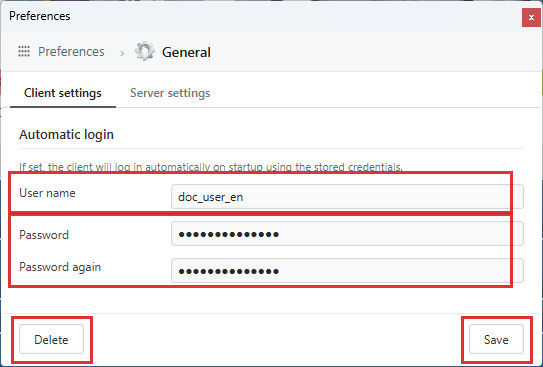
The automatic login of a computer.
- Open General › Client settings.
- Type the User name and the Password twice, and click Save.
- Restart the client to check that it logs in by itself.
A wrong password is refused, and too many attempts within a minute are refused for a while. Only an administrator can store an administrator's login.
Tip
Use an operator account with the permissions the display needs, not an administrator. To work as another user on that computer, use File › Switch User.
Server settings
The Server settings apply to every client. Each change is saved as soon as you click it.
Status acknowledgement decides how far an acknowledgement reaches:
| Mode | Effect |
|---|---|
| Acknowledge by clients | Each client acknowledges on its own; the acknowledged state is not shared between clients. |
| User synchronized acknowledge | When a user acknowledges an event on one client, it is acknowledged on every client that user is logged in to. |
| Synchronized acknowledge | Any acknowledgement by any user on any client applies to the whole system. |
Server security › Require authentication: when ticked, restarting or shutting down the Siwenoid server from the server's own window asks for a user name and password. The user also needs the restart or shutdown permission. It does not affect the clients.
Server MAC address filtering › Filter by MAC address: when ticked, a user who is not an administrator can log in only from a workstation listed in the user's Dedicated client(s) (see Users and groups). The workstations are client datapoints under System in the physical structure, each with its MAC address.
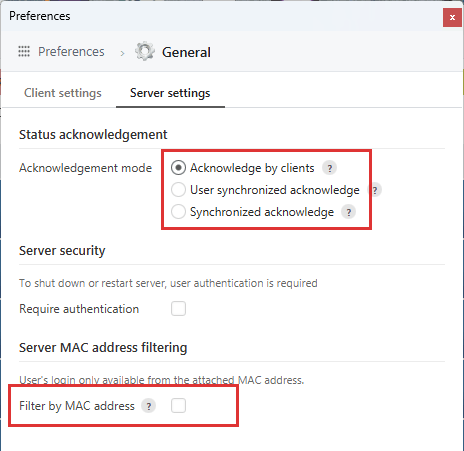
The Server settings tab: acknowledgement mode, server security, MAC filtering.
To switch MAC filtering on safely:
- Enter the MAC address of every workstation on its client datapoint in the physical structure.
- Add the workstations to the Dedicated client(s) of every user who is not an administrator.
- Make sure an administrator can log in.
- Tick Filter by MAC address.
Warning
With the filter on, every user who is not an administrator and has no dedicated workstation with a MAC address is locked out of every client.
Appearance
Appearance holds display settings. Opening it needs Manage appearance; each tab needs its own permission: Manage general appearance, Manage map tooltip appearance and Manage data point hierarchy appearance. Changes are saved as you make them.
General Settings
| Section | Setting | Scope |
|---|---|---|
| Window Positions | Reset Window States › Reset: puts every panel and window back to its default place. Use it when panels are off-screen after a monitor change. Log out to apply. | This computer |
| Font | Font family and Font size of the client, with a sample line; Default returns to the built-in font. Takes effect when the client is restarted. | This computer, every user |
| Automatic map opening place selector | The workspace (Main workspace or Workspace n) where maps open when a task or an action opens them automatically. | The user |
| Automatic intervention text opening place selector | The same for intervention texts. | The user |
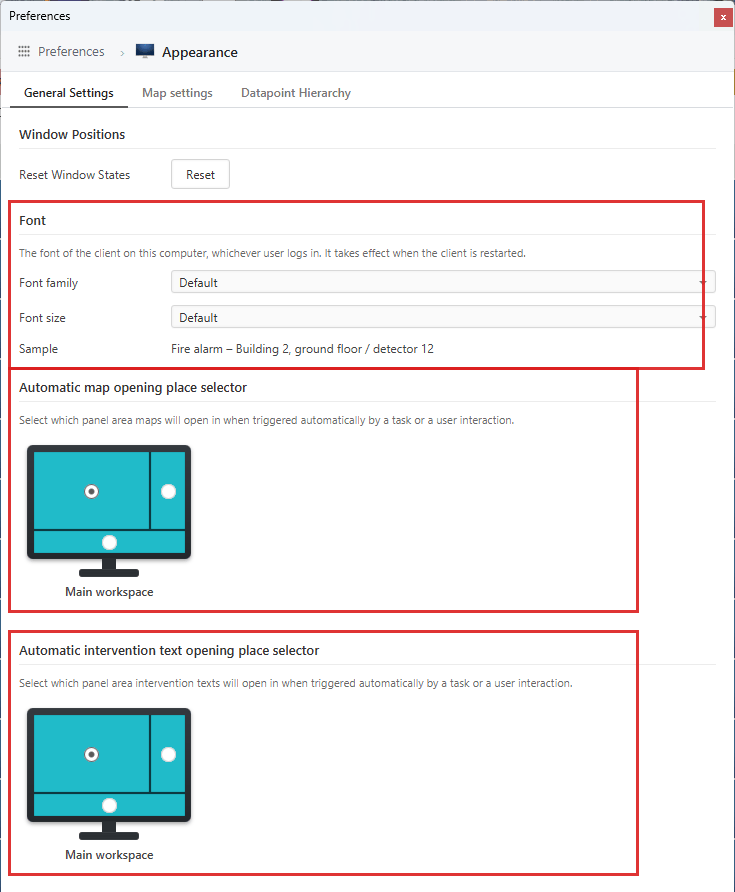
The General Settings tab of Appearance.
Map settings
Under Tooltips, tick what the tooltip of a datapoint on a map shows: DataPoint Name, Technical Text, Container, Physical Container, DataPoint Handler, DataPoint Protocol Type.
Datapoint Hierarchy
Under Line settings, each option adds one more piece of information to every row of the datapoint hierarchy. Hover an option to see a preview.
| Option | Adds |
|---|---|
| Show technical text | The datapoint's technical text. |
| Show status as button | The current status as a clickable button. |
| Show status as background | The whole row in the current status colour. |
| Show if datapoint is on a map | A mark when the datapoint is drawn on a map. |
| Show if datapoint has CCTV assignment | A mark when a camera is assigned. |
| Show if datapoint is assigned to a map | A mark when the datapoint is assigned to a map. |
| Show modified type | A mark when the datapoint's type was changed from its default. |
| Show intervention text | A mark when an intervention text is assigned. |
| Show renamed icon | A mark when the datapoint has a custom name. |
| Show licensed icon | A mark when the datapoint counts in the licence. |
Printer
Printer chooses the printers of this computer. Manage printers opens it; Edit printer settings changes it.
| Section | Setting | Meaning |
|---|---|---|
| Printers | Selected printer | Prints the event log, the signal log, intervention texts and maps, when you print them and when a task prints them. |
| Selected serial printer | Prints each event as one line of text as it happens (the print event task). Meant for a continuous-feed line printer. | |
| Page orientation | Page orientation | Portrait or Landscape for the event log, the signal log and intervention texts on the selected printer. |
| Page orientation for maps | Portrait or Landscape for maps on the selected printer. |
A print task on a computer without these printers set shows a warning in the task editor (see Tasks).
Logging
Logging has two tabs. Manage logging opens the screen; Manage default logging is needed for Log records and Manage archive logging for Archiving settings. Both tabs apply to the whole system. Click Save to store the changes.
Log records
| Section | Setting | Meaning |
|---|---|---|
| Logging | Acknowledgement logging | Each acknowledgement by an operator is saved as a separate event log entry. On large sites this makes the event log grow much faster. |
| Row colours | Color of commands, Color of user events, Color of notes, Color of acknowledgements | The row background of these entry types in the event log. Defaults resets all four. |
| Row colouring | Category badge (default): only the category cell shows the category's colour. Whole row: the whole row is painted in its colour, with dark or light text as needed. Applies to the event log and the 24-hour log of the information panel on every client. |
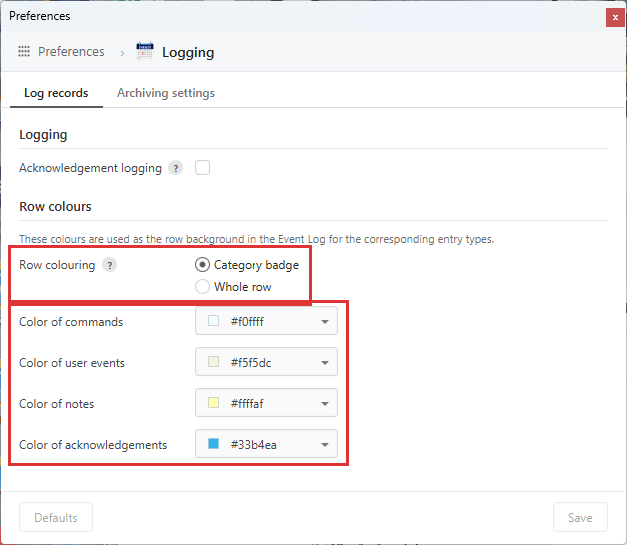
The Log records tab with the row colours and row colouring.
Archiving settings
Archiving moves old event log entries from the database into files and deletes them from the database, so the event log stays fast. The server writes the files.
| Section | Setting | Meaning | Default |
|---|---|---|---|
| Schedule | Archiving from date: | Date and time (hh:mm:ss) of the first scheduled run. |
|
| Archiving period: | one time, daily, weekly or monthly. | ||
| Archive files | File format: | HTML or CSV. | |
| Archive language: | The language of the files: English, Hungarian, Czech, Russian, Bulgarian, Romanian, Croatian. Entries without a translation keep their default text. | ||
| Save to location: | A folder on the server computer: an absolute path or a network share (\\host\share\...). Empty: the server's default folder, shown greyed. |
C:\ProgramData\Siwenoid\EventLogArchives |
|
| Filename prefix: | Start of the file names; files are named [prefix]_[date]_[index].html or .csv. At most 100 characters, without : \ / * ? \| < > . ". |
||
| Limits | Archive threshold: | When the event log reaches this many entries, archiving starts (if a schedule is set). Must be larger than Keep in DB:. | 25 000 |
| Keep in DB: | This many of the newest entries stay in the database after archiving. | 10 000 | |
| Max entries / file: | More entries are split into several files. | 10 000 |
The path cannot point inside the Siwenoid program or data folders, and cannot contain a .. part.
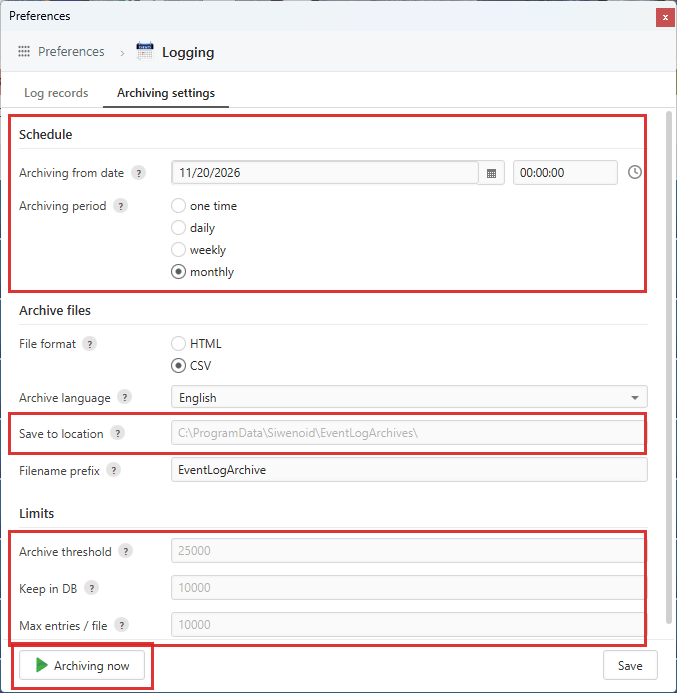
The Archiving settings tab.
To set up archiving:
- Open Logging › Archiving settings.
- Set Archiving from date: and Archiving period: (for example monthly).
- Choose File format: and Archive language:, and type a Save to location: on the server, or leave it empty.
- Set the limits and click Save.
- To test it, click Archiving now and confirm Start archiving event logs now?. The question tells how many entries will be archived.
The progress appears as a notice card in the main window: Archiving in progress..., then Archiving has finished. If there are fewer entries than needed, the card says There are not enough EventLogs waiting for being archived. with the minimum and the number found.
On a hot standby pair archiving runs on the serving server, and only while the database replication between the two servers works.
Sound
Sound sets the alarm sounds of this computer. Manage sound settings opens it; Edit sound settings changes it. Changes are saved as you make them.
| Section | Setting | Meaning |
|---|---|---|
| Sounds | Enable sounds | Switches every sound of the client on or off. |
| Volume | Master | Overall volume of all category sounds. |
| one row per treatment category | A volume slider, Mute, Loop (the sound repeats until the event is acknowledged) and Preview. |
The sound file of each category is chosen in File › Settings › Categories (see Treatment categories). Until a category's own sound file has reached the computer, the category's default sound plays.
Warning
Whoever may edit this screen can silence the alarm sounds of the workstation. Grant Edit sound settings only to those who need it.
Branding
Branding replaces the product name and pictures shown by every client. Only administrators can open it; for anybody else the screen says Branding can only be edited by administrators.
| Section | Meaning |
|---|---|
| Product name | Shown in window titles and on printed reports. Empty: "Siwenoid". At most 150 characters. |
| Window icon | The icon of every window. PNG, ideally 256x256 pixels. |
| Signal log watermark | A picture centred in the background of the signal log. |
| Printed reports header | A small picture next to the page title on printed reports. |
For each picture, Browse... chooses a PNG or JPG file (at most 5 MB) and Reset to default returns to the built-in picture. Each picture shows Default or Unsaved selection.
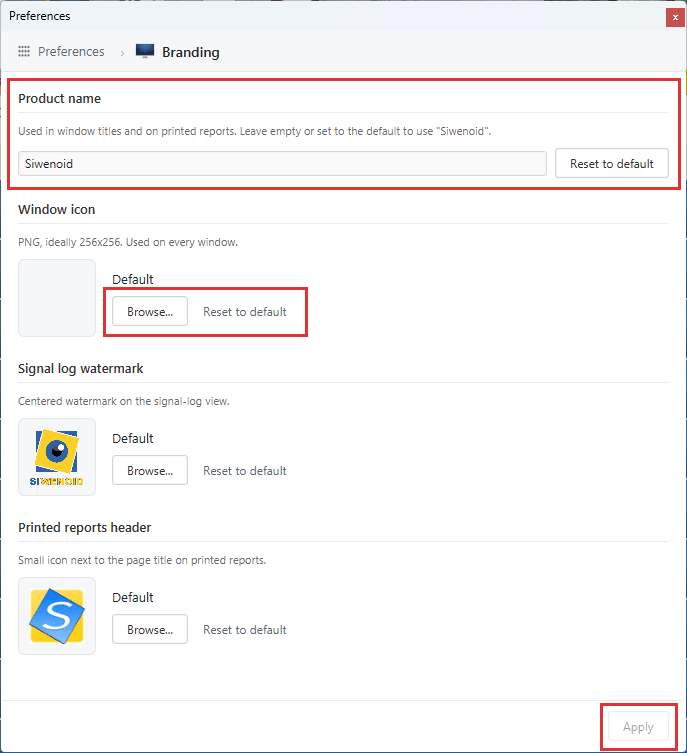
The Branding screen.
- Open Branding.
- Type the Product name.
- Choose the pictures with Browse....
- Click Apply. The screen says Branding applied. Connected clients will refresh shortly.
The pictures are stored on the server; on a hot standby pair they are copied to the other server too. A client shows its last known branding on the login screen.