Treatment categories
Creating, editing, ordering and deleting treatment categories: name, colour, icon, sound, priority and the behaviour flags.
| At a glance | |
|---|---|
| Where | File › Settings › Categories |
| View permission | Manage categories |
| Change permission | Edit categories |
| Icon | PNG, at most 5 MB |
| Sound | WAV, at most 20 MB |
Every treatment belongs to a treatment category (category for short): ALARM, PREALARM, FAULT, DISORDER and so on. The category decides how its statuses look and behave everywhere in Siwenoid: their colour and icon in the category panel, the signal log, the event log, on maps and in the tree, the sound they play, whether they bring the client window to the front, and which status wins when several are active on the same datapoint.
Which category a treatment belongs to is set in the treatment editor (see Datapoint types, treatments and commands). A treatment can override only the colour of its category. How operators use the category panel is described in Category strip.
Where categories are used
Before renaming or deleting a category in a running system, check where it is named:
- treatments (their category, see Datapoint types, treatments and commands),
- tasks triggered by statuses of a category (see Tasks),
- forced actions (see Forced actions),
- category restrictions (see Object restrictions),
- the category panel and the signal log of the operators (see Category strip, Signal log).
The Categories screen
Open File › Settings and click the Categories tile.
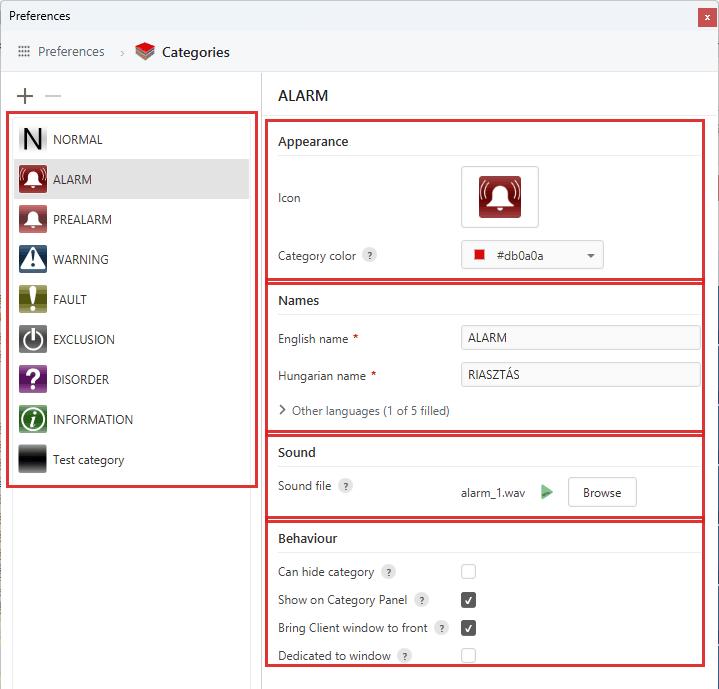
The Categories screen: the list of categories on the left, the editor of ALARM on the right.
- Left: every category with its icon and name, in priority order (see Priority and order below). Above the list, + creates a new category and − deletes the selected one. − is disabled for the categories delivered with the system.
- Right: the editor of the selected category, with Save at the bottom. Until you select one it says Select a category on the left.
| Action | Permission needed |
|---|---|
| Open the screen and see every category | Manage categories |
| Create, change, reorder and delete categories | Edit categories |
With only the first one the screen is read-only: no + and −, no dragging, every field disabled, and the bottom line says You can view the categories, but you do not have the permission to change them.
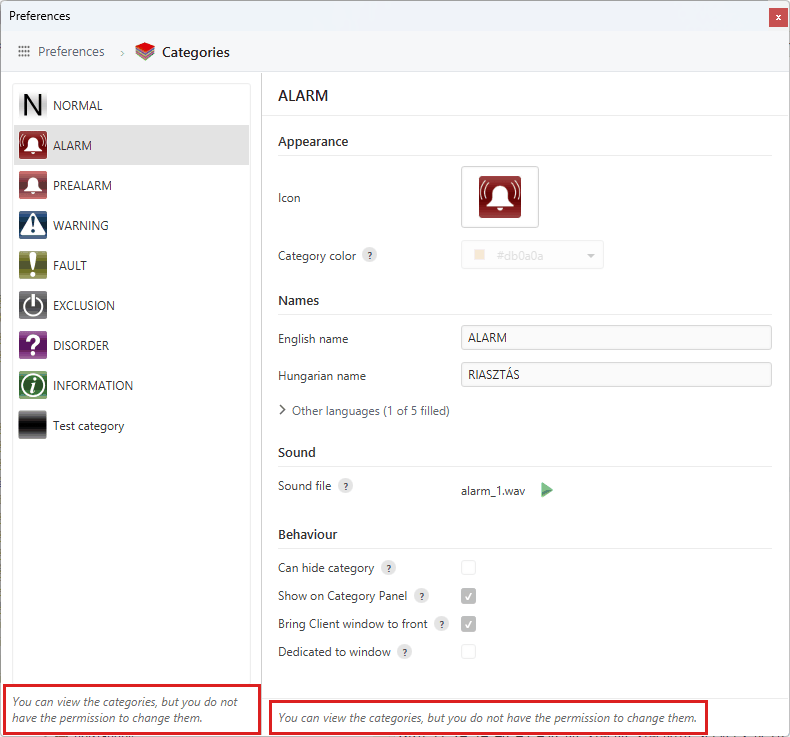
The Categories screen opened read-only.
Every change is recorded in the event log with the user's name and address and reaches the other clients at once: the operators' category panel, signal log and maps follow it.
The category editor
The editor has four sections. A new category's title is New category.
Appearance
| Field | Meaning |
|---|---|
| Icon | The category's icon in the signal log, on the category panel and on maps. Click the large icon button to choose from the category icon library or to upload your own picture. Right-click it and choose Reset image to return to the default. A picture must be PNG, at most 5 MB. |
| Category color | The colour of the category in the status bar, the signal log and on maps. A new category starts white. |
Names
One name per language: English name, Hungarian name, Czech name, Russian name, Bulgarian name, Romanian name, Croatian name (only the languages of the installation). The English and the Hungarian name are required, and so is the name in your own language if you work in another one; Save stays disabled until they are filled. A name may be at most 150 characters. The name must be unique among the categories, regardless of upper and lower case: otherwise Siwenoid says A category with this name already exists.
Sound
The Sound file row shows the file name, a play button to listen to it, and Browse to choose another one.
- Choose a WAV file of at most 20 MB. It is uploaded to the server when you click Save.
- Right-click the file name and choose Reset sound to return to the category's default sound.
- If the file is missing, the row says The sound could not be found or downloaded.
The clients download a new sound in the background. Until a client has it, that client plays the category's default sound. How long and how loud the sounds play is set in Preferences › Sound (see System settings).
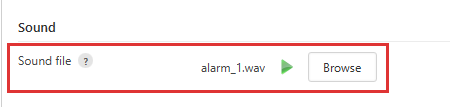
The Sound section with the file name, the play button and Browse.
Behaviour
| Box | When ticked | New category |
|---|---|---|
| Can hide category | Operators can click the category's name in the status bar to hide its statuses from the signal log for a while. Leave it off for alarm categories, so that alarms can never be hidden. | on |
| Show on Category Panel | The category appears as a button with its counter on the category panel. Switched off, its statuses do not appear in the signal log either: use this for purely informational states. Do not switch it off for alarm categories. | on |
| Bring Client window to front | The client window comes to the front when a new status of this category arrives. | on |
| Dedicated to window | The statuses of this category appear in a separate window instead of the main window: on a client that has a second workspace open (Windows › New workspace), the category's button and statuses are shown there. Without a second workspace they stay in the main window. | off |
While Show on Category Panel is off, the treatments' Show in Signal Log and Bring Client window to front boxes have no effect; the treatment editor shows a yellow badge to warn about it.
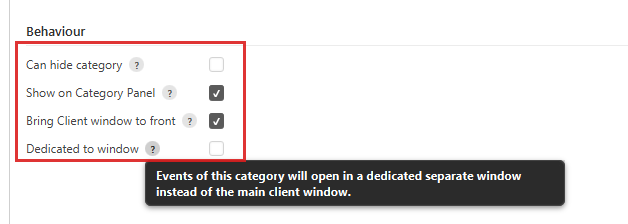
The Behaviour section with a tooltip open.
Creating a category
- Click + above the list. The editor shows New category with the default values.
- Fill the names: English, Hungarian and your own language.
- Choose the Category color, and if you want an Icon and a Sound file.
- Set the Behaviour boxes.
- Click Save. The footer shows Saving… and then Saved; the new category is selected in the list.
- The new category is added at the end of the list, with the lowest priority. Drag it to its place if needed (below).
- Assign treatments to it in Datapoint types (see Datapoint types, treatments and commands).
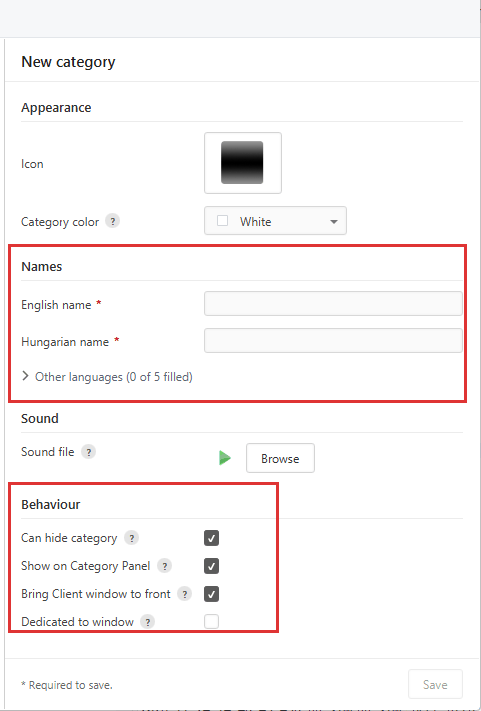
A new category before saving, with the required names marked.
Changing a category
- Select the category in the list.
- Change the fields. To replace the icon, click it; to replace the sound, click Browse.
- Click Save.
If you leave the screen with unsaved changes, Siwenoid asks before discarding them.
Priority and order
When several statuses of different categories are active on the same datapoint or area, the one whose category is higher in the list wins: its colour and icon are shown on maps, in the tree and in the intrusion view. For example, keep ALARM above FAULT so that an alarm is visible even on a faulty detector.
To change the order:
- Drag a category in the list and drop it onto the category whose place it should take.
- The new order is saved at once, without Save, and all clients follow it.
The categories of the normal (idle) states stand at the top of the list and cannot be moved; their statuses never appear in the signal log. If someone else changed the categories meanwhile, Siwenoid says The categories have changed meanwhile; the list has been read again. Please try again.
Deleting a category
- Select the category. Categories delivered with the system cannot be deleted.
- Click −. The Delete category question names the category and tells where it is used: how many treatments, tasks, forced actions and category restrictions name it.
- Click Delete to confirm.
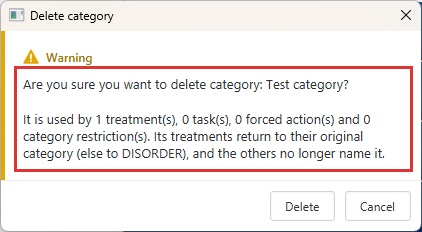
The Delete category question with the usage counts.
What happens on deletion:
- The treatments of the category return to their original category, or, if they have none, to DISORDER.
- The tasks, forced actions and category restrictions no longer name the category.
- The deletion cannot be undone.
If the DISORDER category does not exist, the deletion is refused: The category cannot be deleted: its treatments would move to the category DISORDER, which does not exist.
Messages
| Message | Meaning |
|---|---|
| A category with this name already exists. | Choose another name. |
| The name in your language is required. | Fill the name in the language you work in. |
| A system category cannot be deleted. | The category was delivered with the system. |
| The file is too large: an icon may be at most 5 MB, a sound at most 20 MB. | Use a smaller file. |
| Only PNG icons and WAV sounds are accepted. | Convert the file. |
| The chosen icon or sound is not on the server. Please choose it again. | Choose the file again and save. |