Object restrictions
Hiding datapoints, treatments, commands, categories and maps from chosen users and groups with object restrictions.
| At a glance | |
|---|---|
| Where | File › Settings › Object restrictions |
| View permission | Manage object restrictions |
| Changes | administrators only |
| Kinds | Simple, Category, Map |
An object restriction hides objects from the users and groups it names. Without restrictions every user sees everything their permissions allow; a restriction takes the listed datapoints, treatments, commands, categories or maps out of the view of its restricted users and groups. Objects that no restriction names stay visible to everybody.
Permissions decide what a user may do; restrictions decide on which objects. Use them, for example, to keep the operators of one building from seeing another building, or to stop a group from sending engineering commands.
How restrictions work
- A restriction lists what to hide, and from whom. It has no effect on users and groups it does not name.
- Restrictions add up. A user is affected by every enabled restriction that names the user or the user's group. An object is hidden if any of them hides it. There is no rule that allows an object back.
- There is no exception for alarm categories. A category restriction that hides an alarm category hides those alarms from the restricted users too.
- Administrators are never restricted. A restriction cannot name an administrator, and administrators see everything even when their group is named.
- A container hides everything below it. You do not need to list its datapoints one by one.
- The server keeps working as before. Devices still report, the event log still records everything, tasks still run. A restriction only hides objects from the screens of the restricted users.
What a hidden object means for the restricted user:
| Hidden | Effect for the restricted user |
|---|---|
| Datapoint or container | Missing from the datapoint hierarchy, the search, the signal log, the event log, the maps (its icon is not drawn) and the datapoint lists of the preferences. Its alarms do not sound and do not pop up. |
| Treatment | Statuses with this treatment are not shown. |
| Command or command type | Missing from every command list; the command cannot be sent. |
| Category | Statuses and event log rows of the category are not shown. |
| Map or map group | The map does not appear in any map list and cannot be opened. A hidden map group hides its maps. |
Warning
Hiding an alarm category or a fire panel's container from operators means they will not see those alarms. Check every restriction with a test login before you put it into use.
Who may change restrictions
| Who | What they can do |
|---|---|
| Administrator | Create, change and delete restrictions. |
| User with the Manage object restrictions permission | Opens the screen and sees every restriction, read-only. |
| Anybody else | The Object restrictions tile is greyed. |
Every change is recorded in the event log with the name and address of the person who made it. The logged-in users get the new restrictions at once; their screens update without a new login.
The screen
Open File › Settings and click the Object restrictions tile.
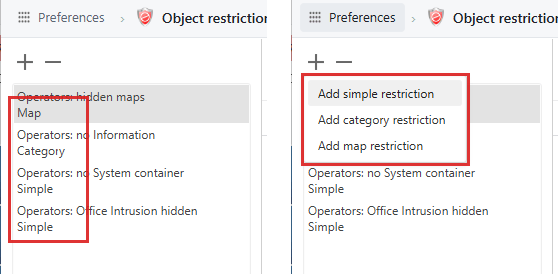
The list of restrictions with the + menu open.
- Left: the list of restrictions with their name and kind (Simple, Category or Map). A disabled restriction looks different from an enabled one.
- + opens a menu: Add simple restriction, Add category restriction, Add map restriction.
- - deletes the selected restriction after the question Do you want to delete the restriction "…"?.
- Right: the editor of the selected restriction. Until you select one it says Select a restriction on the left. A new restriction's editor is titled New simple restriction, New category restriction or New map restriction.
The kind of a saved restriction cannot be changed. Click Save to store the changes.
Fields of every restriction
These fields are on the General tab of every kind.
| Field | Meaning |
|---|---|
| Name | Required and unique (upper and lower case and spaces are ignored when comparing). |
| Enabled | When cleared, the restriction is kept but has no effect. Use it to pause a rule. |
| Restricted users and groups | The users and groups the restriction applies to. Administrators cannot be chosen. In the category editor the label is Restricted Users & Groups:. |
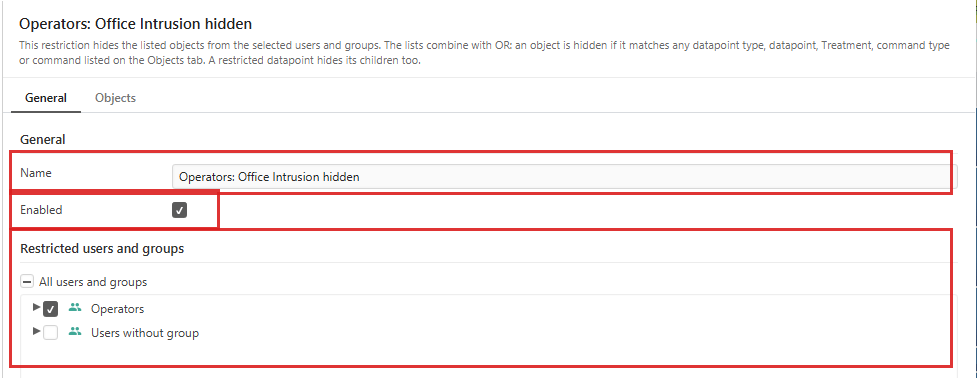
The General tab of a simple restriction.
Simple restriction
A simple restriction hides datapoints, datapoint types, treatments, command types and commands. Its Objects tab has five lists. The lists work together: an object is hidden if it matches any entry of any list.
| List | What to drop on it | Effect |
|---|---|---|
| Datapoint types | A datapoint from the datapoint hierarchy: its type is added. | Every datapoint of that type is hidden. |
| Datapoints | Datapoints or containers from the datapoint hierarchy. | The datapoint and everything below it is hidden. |
| Treatments | A treatment from the Treatments table of the information panel. | Statuses with that treatment are hidden. |
| Command types | A command from the Commands table of the information panel: its type is added. | Every command of that type is blocked. |
| Commands | A command from the Commands table of the information panel. | That command is blocked. |
The lists are filled by drag and drop from the main window. To drop a treatment or a command, select a datapoint in the datapoint hierarchy: the information panel lists its treatments and commands. An empty list shows Drag and drop a Datapoint here., Drag and drop a Treatment here. or Drag and drop a Command here.
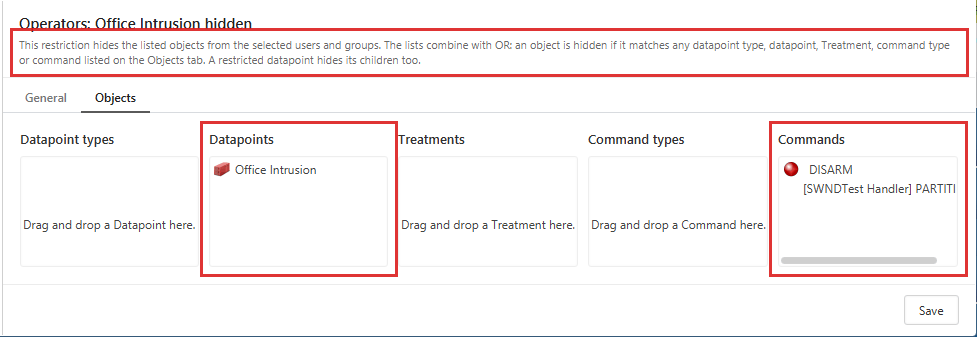
The Objects tab of a simple restriction with a container and a command added.
Category restriction
A category restriction hides every event of the chosen treatment categories. On the Categories tab, tick the categories to hide. The restricted users do not see the statuses and event log rows of these categories.
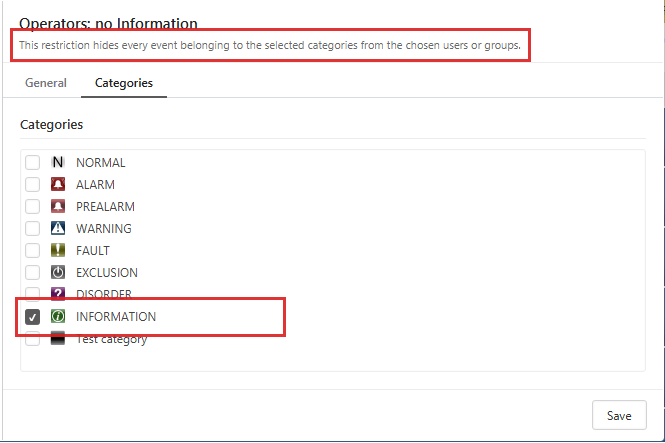
A category restriction with one category ticked.
Map restriction
A map restriction hides maps and map groups. On the Map / Map Group tab, tick the maps and map groups to hide in the tree. A ticked map group hides all of its maps. For the restricted users the hidden maps disappear from every map list, menu and tab.
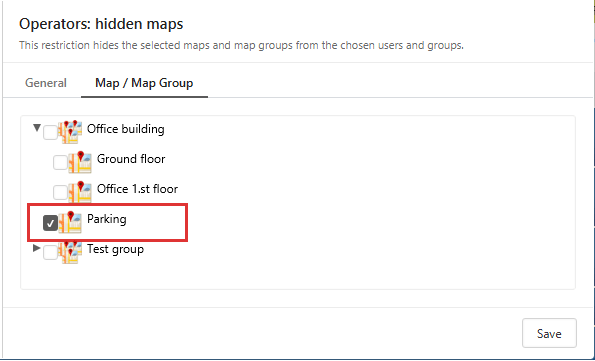
A map restriction: the tree of map groups and maps.
Procedures
Hide a building from a group of operators
- Open File › Settings › Object restrictions.
- Click + and choose Add simple restriction.
- On the General tab, type a Name (for example
Operators: building B hidden), leave Enabled ticked and choose the group under Restricted users and groups. - Arrange the Preferences window and the main window side by side. On the Objects tab, drag the building's container from the datapoint hierarchy onto Datapoints.
- Click Save.
- Log in as a member of the group and check that the building is hidden in the hierarchy, the signal log and the maps.
Block a command for a group
- Create a simple restriction for the group as above.
- In the main window, select a datapoint that has the command. In the information panel's Commands table, drag the command onto Commands to block only this command, or onto Command types to block every command of its type.
- Click Save.
Hide a category
- Click + and choose Add category restriction.
- Type a Name, choose the users and groups.
- On the Categories tab, tick the categories to hide.
- Click Save.
Hide maps
- Click + and choose Add map restriction.
- Type a Name, choose the users and groups.
- On the Map / Map Group tab, tick the maps or map groups to hide.
- Click Save.
Pause or delete a restriction
- To pause it, clear Enabled and click Save. Tick it again to switch the rule back on.
- To delete it, select it, click - and confirm.