Users and groups
Creating users and user groups, granting permissions, administrators, password rules, passcodes, languages and automatic login.
| At a glance | |
|---|---|
| Where | File › Settings › Users & Groups |
| View permission | Manage users and groups |
| Changes | administrators only |
| Languages | Hungarian, English, Czech, Russian, Bulgarian, Romanian, Croatian |
Every person who works with Siwenoid logs in with a user account. A user's permissions decide which screens, buttons and functions the client offers to that user; the user's group gives the same permissions to many users at once. What a user may see (datapoints, categories, maps) is limited separately, with object restrictions.
The server checks the permissions as well, so a missing permission cannot be bypassed from another client.
Who may change users
| Who | What they can do |
|---|---|
| Administrator (the Admin box is ticked) | Everything: add, edit and delete users and groups, move users between groups, set permissions, grant or revoke the administrator flag. |
| User with the Manage users and groups permission | Opens the screen and sees every user, group and permission, read-only: no buttons, every field disabled (the password fields too). A line at the bottom says You can view these settings, but you do not have the permission to change them. |
| Anybody else | The Users & Groups tile is greyed. |
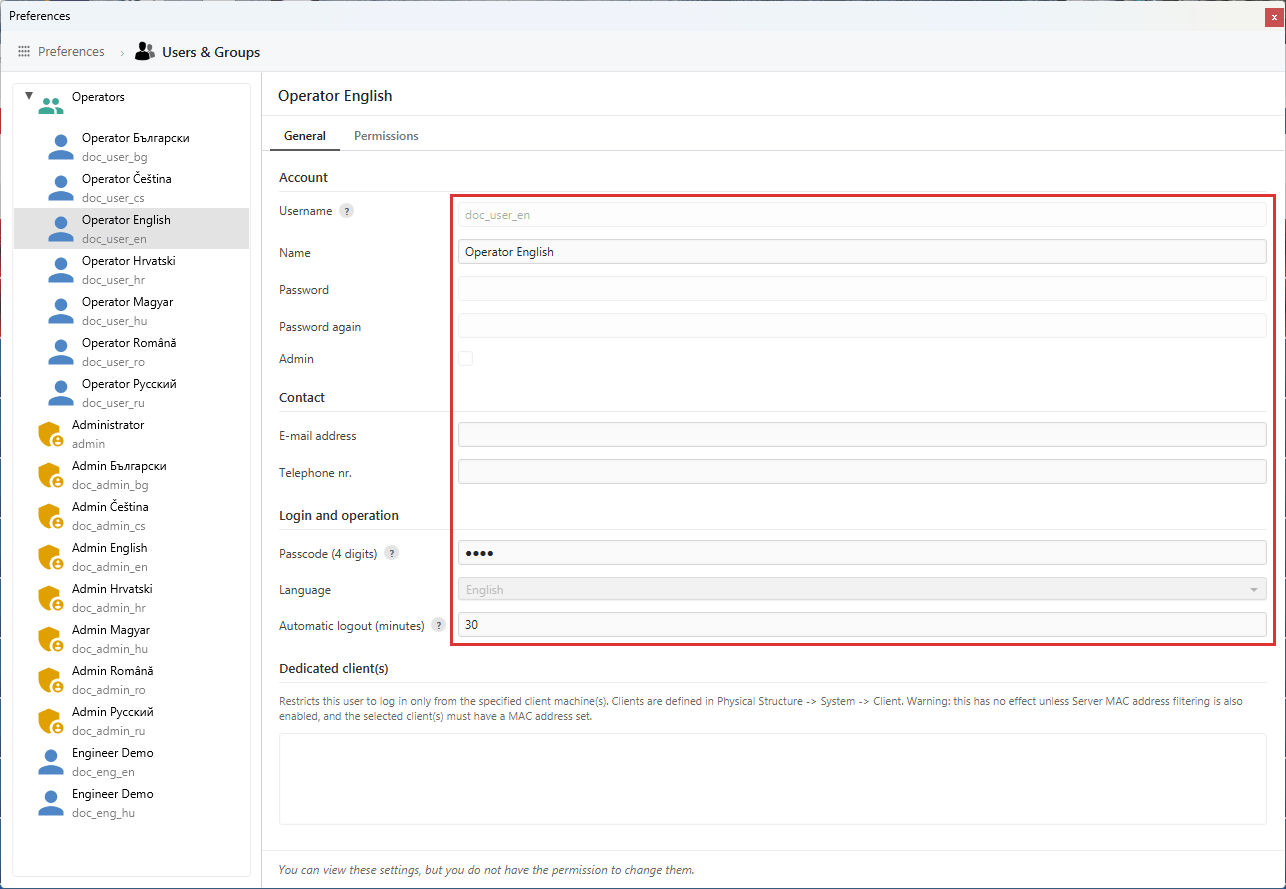
The screen opened by a user who may view but not change it.
Only an administrator may change or delete another administrator. At least one administrator must remain, and nobody can delete their own user. Every change is recorded in the event log with the name and address of the person who made it, and reaches the other clients at once. A user who is deleted while logged in is logged out.
The screen
Open File › Settings and click the Users & Groups tile.
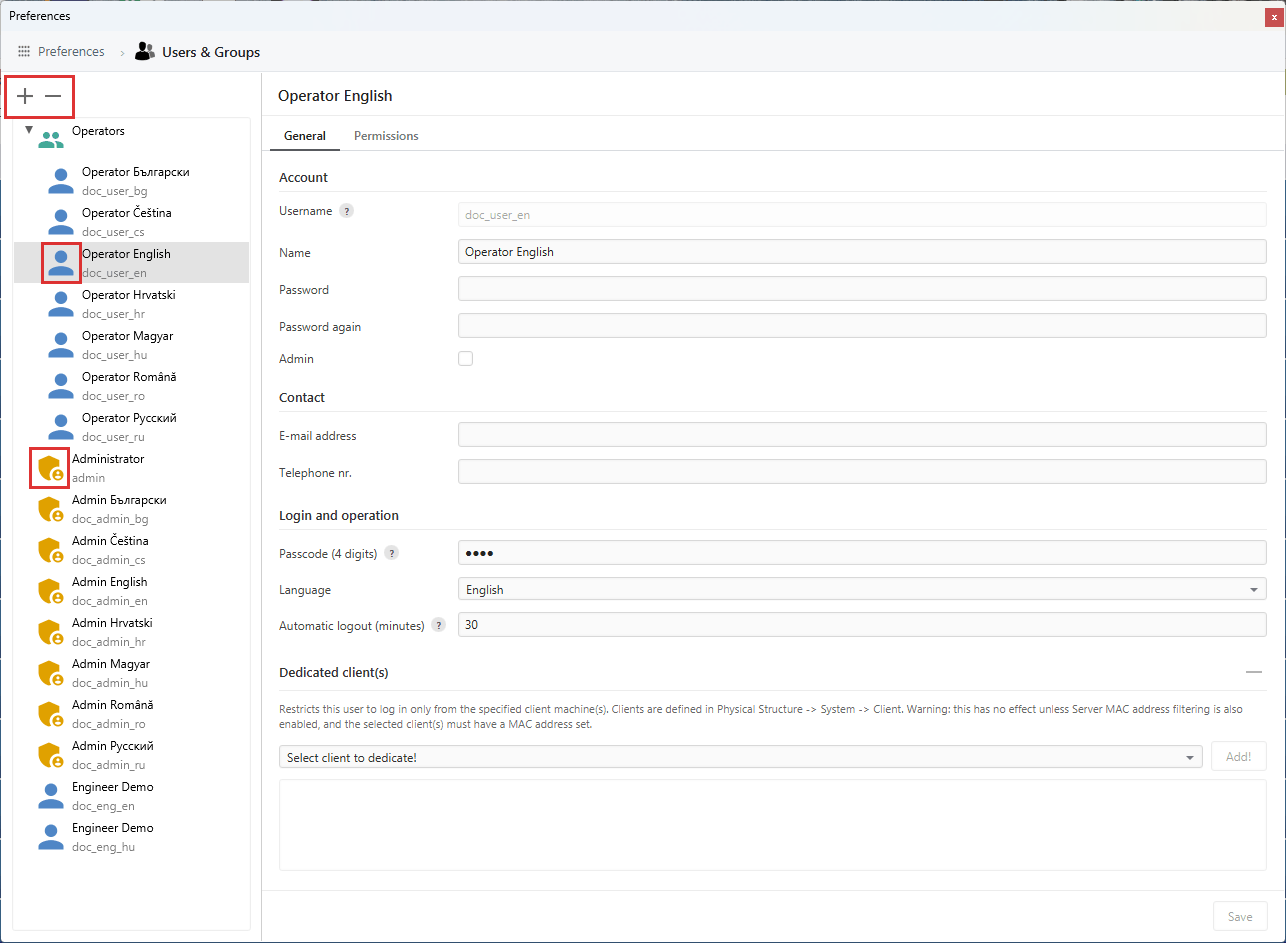
The Users & Groups screen: groups with their users on the left, the editor of the selected user on the right.
- Left: the tree of groups with their users beneath them. Users without a group are at the top level. Administrators and other users have different icons. Above the tree, + opens a menu with Add new user and Add new group; - deletes the selection (it is disabled for your own user).
- Right: the editor of the selected user or group. Until you select one it says Select a user or group on the left.
- A new, not yet saved item appears in the tree as New user (unsaved) or New group (unsaved).
Save is enabled only when the form is valid and something has changed.
Permissions and groups
How the effective permission is decided
- An administrator has every permission. Their editor has no Permissions tab; the permission editor shows The user has got all permissions.
- Otherwise a permission is granted if it is among the user's own Allowed Permissions,
- or if the user's group grants it and it is not among the user's own Denied Permissions.
- Everything else is denied.
A user belongs to at most one group. A user without a group has only their own permissions. Groups have no deny list and cannot be nested.
The permission editor
Both the user editor (Permissions tab) and the group editor have the same three columns:
| Column | Content |
|---|---|
| Denied Permissions | The permissions not granted, grouped by permission group. |
| Allowed Permissions | The permissions granted, grouped the same way. |
| Description | What the selected permission allows, where it applies and what else it needs, in the user's language. |
The arrow buttons between the lists move the selected permission to the other side. Select a permission group to move all of its permissions at once.
For a user who is in a group, grey rows mark the user's own exceptions: on the Denied Permissions side a permission the group grants but this user is denied; on the Allowed Permissions side a permission the group does not grant but this user is allowed. When you save, only these exceptions are stored for the user; everything else follows the group.
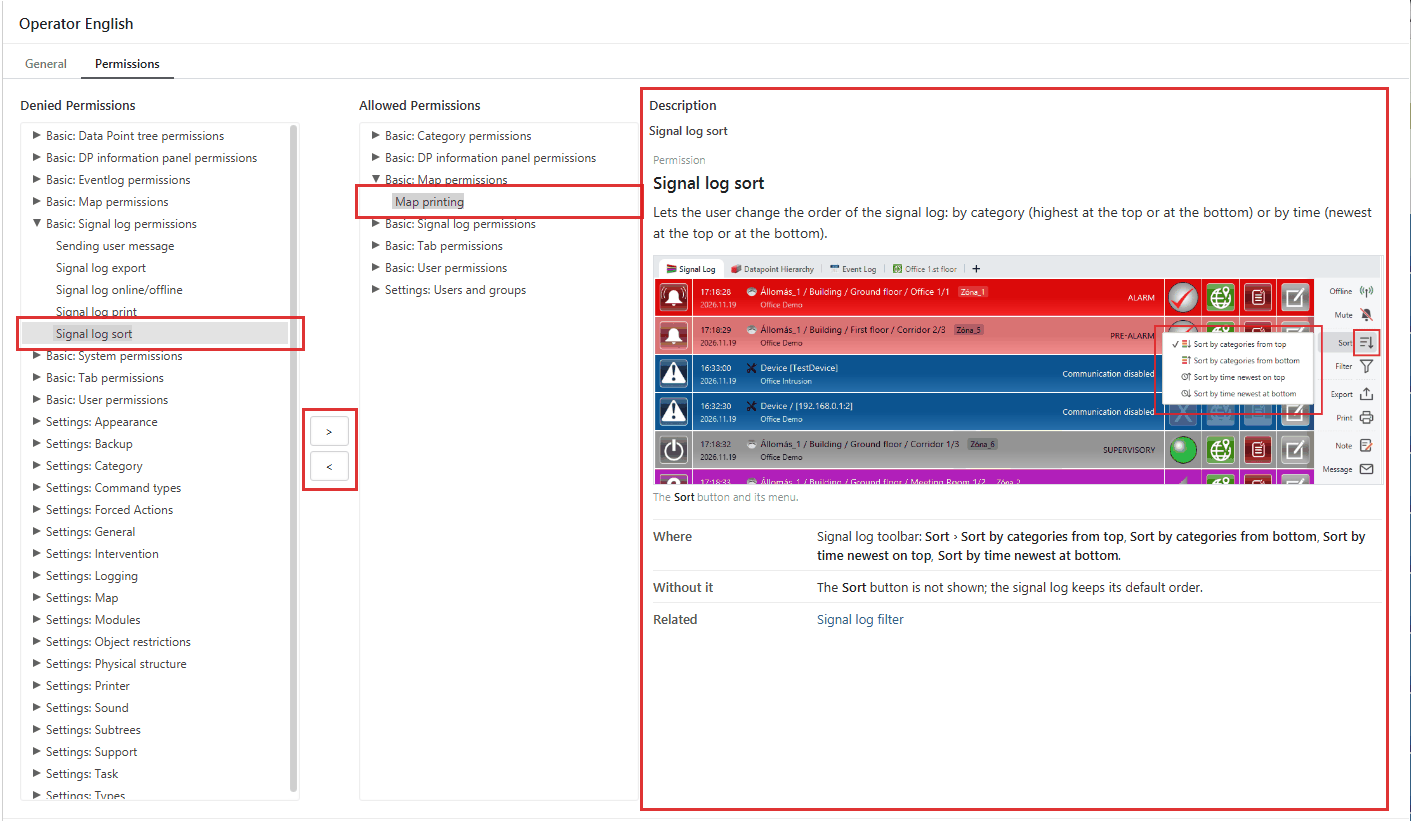
The Permissions tab of a group member, with grey rows marking the user's exceptions.
Permission groups
The permissions are arranged in groups. The Description column of the permission editor explains every single permission; the table below only summarises what each group controls.
| Permission group | What it controls |
|---|---|
| Basic: Signal log permissions | The signal log toolbar, the optional columns of alarm rows (command, map, intervention text, note, jump to the hierarchy), notes, user messages, acknowledging and removing. |
| Basic: Category permissions | The category boxes: hiding and showing a category's alarms, acknowledging a whole category. |
| Basic: Eventlog permissions | Printing and exporting event log results, saving and deleting named filters. |
| Basic: Tab permissions | Which views open as tabs (maps, datapoint hierarchy, subtrees, event log, forced actions, intrusion panel, web browser), and adding, pinning and dragging tabs. |
| Basic: User permissions | The user's session and windows: log out, exit, new workspace window, close tabs and windows, save the window layout. |
| Basic: System permissions | Restarting and shutting down the Siwenoid server from the server computer. |
| Basic: DP information panel permissions | What the information panel shows (details, treatments, commands, last 24 hours) and the treatment simulation. |
| Basic: Data Point tree permissions | Restarting a container's communication, logical containers, sorting and reordering the hierarchy. |
| Basic: Map permissions | Printing maps, creating a map, and which changes the map editor allows on a map tab. |
| Settings: Map | The Map preferences screen and editing maps in tabs. |
| Settings: Subtrees | Creating and maintaining subtrees. |
| Settings: General | The General screen: automatic login of a computer, server-wide settings. |
| Settings: Appearance | The user's own display settings. |
| Settings: Printer | Printer, serial printer and page orientation. |
| Settings: Logging | Event log record settings and colours, archiving. |
| Settings: Sound | Alarm sounds of the computer and the mixer. |
| Settings: Modules | E-mail and SMS modules. |
| Settings: Users and groups | Viewing this screen (changes are reserved to administrators). |
| Settings: Task | Tasks: open, add and remove, enable and disable, edit. |
| Settings: Backup | Manual and scheduled backups. Grant it only to administrators: a backup holds the whole database and the server's configuration. |
| Settings: Support | Licence information, telegram tracker, client status cache, server cache. |
| Settings: Physical structure | Containers, datapoints, imports, browsing, CCTV assignments. |
| Settings: Types | Datapoint types, treatments, commands, treatment files. |
| Settings: Category | Treatment categories. |
| Settings: Command types | Command types. |
| Settings: Object restrictions | Viewing the object restrictions (changes are reserved to administrators). |
| Settings: Forced Actions | Forced actions: open read-only, edit. |
| Settings: Intervention | Intervention texts: open, add, edit and remove, assignments. |
The Branding screen has no permission of its own: only administrators can open it.
The user editor
The General tab has three sections: Account, Contact and Login and operation.
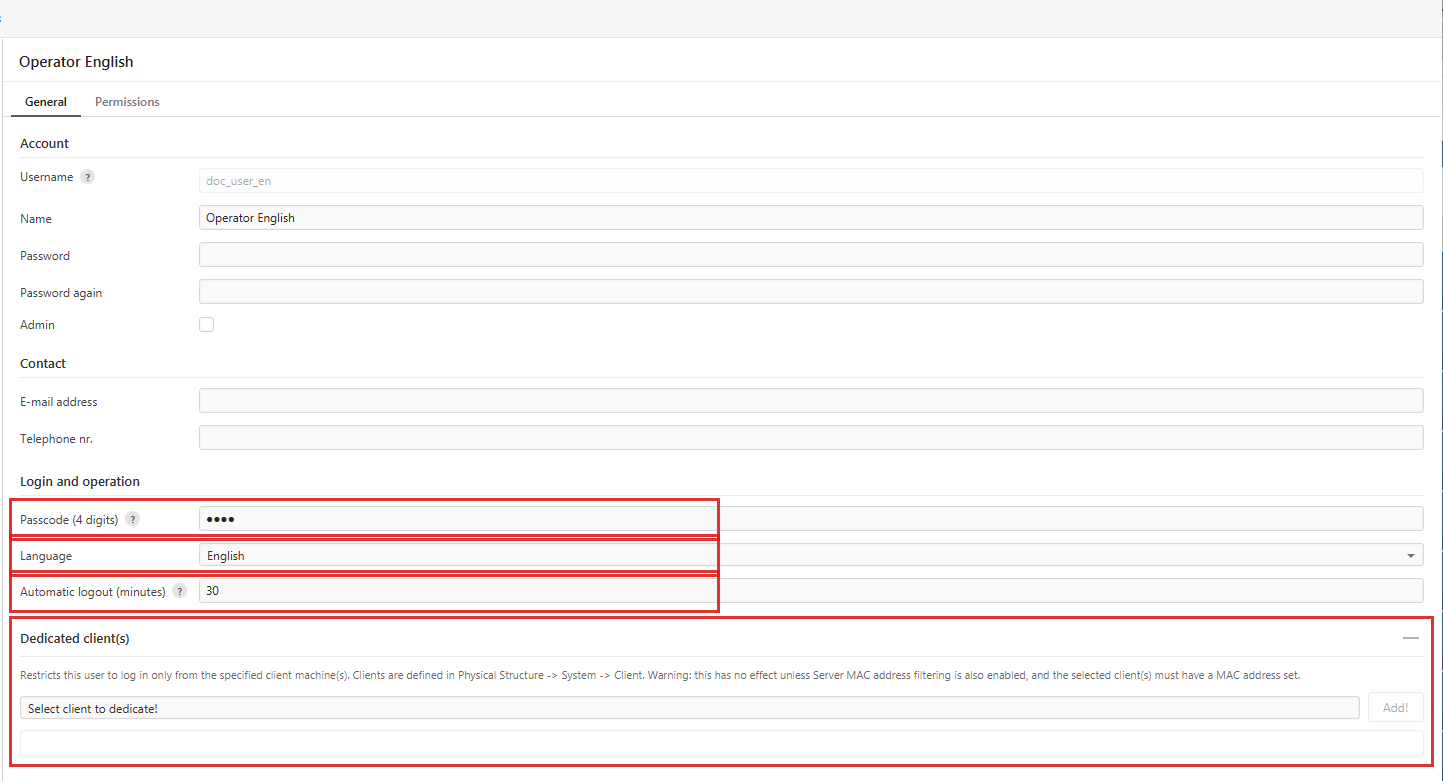
The General tab of a user.
| Field | Meaning | Rules |
|---|---|---|
| Username | The login name. | Required, at most 150 characters, unique (upper and lower case count as the same). Cannot be changed once the user is saved. |
| Name | The display name shown everywhere in the client. | Required, at most 150 characters. |
| Password, Password again | The login password. | Required for a new user. On an existing user, leave both empty to keep the current password. Must follow the password rules below. |
| Admin | Makes the user an administrator. | Removes the Permissions tab and the Dedicated client(s) list. Only an administrator can set or clear it. |
| E-mail address | Contact address. | Optional, must be a valid address. |
| Telephone nr. | Contact number. | Optional; digits, spaces and + - ( ) / only. |
| Passcode (4 digits) | A PIN for commands that require a passcode. | Optional, exactly 4 digits. Empty clears it. It is never shown back. |
| Language | The language of the user's interface and of the texts the server sends (event log, statuses). | Hungarian, English, Czech, Russian, Bulgarian, Romanian, Croatian. |
| Automatic logout (minutes) | Logs the user out after this many minutes without activity. | Empty or 0 switches it off. |
| Dedicated client(s) | The workstations the user may log in from. | Only for users who are not administrators; works only together with MAC address filtering (see below). |
When a saved user is selected, the editor shows the display name with an administrator or user icon at the top.
Password rules
A password must:
- be at least 8 and at most 128 characters long,
- contain at least one lowercase letter, one uppercase letter, one digit and one special character,
- contain no spaces.
A weaker password is refused with The password is too weak: it needs at least 8 characters with a lowercase and an uppercase letter, a digit and a special character, and no spaces. The server stores passwords only in hashed form and never sends them back. If a user forgets the password, an administrator types a new one.
Passcode
Some commands (for example disarming an intrusion area) can be marked as requiring a passcode in the command's settings (see Datapoint types, treatments and commands). When a user sends such a command, the client asks for the user's 4-digit passcode. A user without a passcode cannot send these commands.
After several wrong passcodes in a short time, passcode entry is locked for a while on that workstation, and for the user after many wrong attempts from anywhere. Every lock is recorded in the event log.
Dedicated clients and MAC address filtering
Dedicated client(s) restricts a user to the listed workstations. The workstations are the client datapoints under System in the physical structure, each with its MAC address. Choose a workstation in Select client to dedicate! and press Add!.
The list has an effect only when Filter by MAC address is switched on in General › Server settings (see System settings). Administrators are never filtered.
Warning
With MAC filtering on, every user who is not an administrator and has no dedicated client with a MAC address can no longer log in. Set up the dedicated clients before you switch the filter on.
Procedures
Create a group
- Open File › Settings › Users & Groups.
- Click + and choose Add new group.
- Type the Group name (required, unique, at most 150 characters).
- In the Permissions part, move the permissions the group needs from Denied Permissions to Allowed Permissions. Select a permission group to move all its permissions at once.
- Click Save.
Create a user
- Click + and choose Add new user.
- On the General tab, fill in Username, Name, Password and Password again, and choose the Language.
- Fill in the optional fields as needed: E-mail address, Telephone nr., Passcode (4 digits), Automatic logout (minutes).
- Click Save.
- Drag the new user onto a group in the tree. The user gets the group's permissions.
Give one user an exception
- Select the user and open the Permissions tab.
- Move a permission the group grants to Denied Permissions, or a permission the group does not grant to Allowed Permissions. The exception appears as a grey row.
- Click Save.
Move users between groups
- Drag one or more users (select several with Ctrl or Shift) onto a group.
- To take users out of their group, select them, right-click and choose Remove user(s) from group.
A group that is not saved yet cannot receive users.
Make a user an administrator
- Select the user, tick Admin and click Save.
- To take the right away, clear Admin and click Save. The last administrator cannot lose the flag.
Delete a user or a group
- Select the user or group and click -.
- For a user, confirm Do you want to delete the user "…"?. The user's messages are deleted too, and the user is removed from restrictions and tasks.
- For a group, choose:
- Delete group: the group goes, its users stay without a group;
- Delete group with users: the users are deleted too.
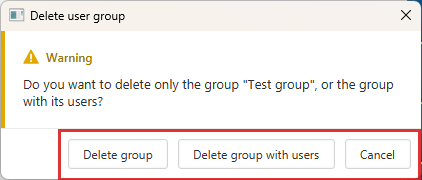
Deleting a group: with or without its users.
When an administrator's password is asked
Some menu items of the Windows menu (New workspace, Close Tabs, Close Windows, Save Window Statuses) need a permission. A user without it gets the Admin authentication required window: an administrator types an Admin Username and Admin Password, and the action runs once. The logged-in user does not change. After too many attempts the window asks to wait a minute.
Automatic login
A computer can log in a chosen user automatically when the client starts, for example a wall display. It is set per computer in General › Client settings › Automatic login (see System settings). The password is checked by the server before it is stored. Do not use an administrator for automatic login.
Licence seats
Every logged-in client, desktop or web, holds a licence seat. When all seats are in use, a further login is refused until a seat is freed. Administrators can see and free the seats in Support › License informations (see Support tools and Licensing).