Datapoint types, treatments and commands
Handler types, datapoint types and custom types, treatments and their effect mask, commands, command types, treatment files and translation files.
| At a glance | |
|---|---|
| Where | File › Settings › Datapoint types, Command types, Custom datapoint types |
| View permission | Manage types |
| Administrators only | new commands, passcode flag, command type, protocol parameters, effect mask |
| Treatment file | CSV, at most 20 MB |
| Translation file | CSV, UTF-8, at most 10 MB |
Every datapoint has a datapoint type, and the type decides which treatments (states) the datapoint can enter and which commands an operator can send to it. This page describes the screens where a commissioning engineer adjusts them: how a status looks and behaves, which state clears which, which commands are offered, and how the names are translated.
Treatments and commands map the device's protocol. Change them only if you know the device: a wrong protocol parameter means that a state of the panel no longer raises a status, or that a command does nothing.
Concepts
| Term | Meaning |
|---|---|
| Handler type | A family of devices that Siwenoid can connect (for example a fire panel family). The installation provides the handler types; they cannot be added or removed here. |
| Datapoint type | A kind of element of one handler: zone, area, detector, panel, output... Each datapoint of a container has one. |
| Treatment | A named state a datapoint of that type can enter ("Alarm", "Fault", "Normal"...). It maps the device's codes to a status and decides its category, colour and behaviour. |
| Command | What an operator can send to a datapoint of that type ("Reset", "Switch on"...). It holds what is actually sent to the device. |
| Command type | The common kind of commands across handlers (reset, switch on, switch off...). It gives the command its icon and links the commands of different handlers. |
| Custom datapoint type | A copy of a shipped datapoint type, made by the engineer, for example to give one group of detectors their own colours or categories. It can be deleted again. |
The handler supplies the shipped (built-in) types, treatments and commands. Changes are applied at once: the server and every client follow them without a restart.
The Datapoint types screen
Open File › Settings and click the Datapoint types tile.
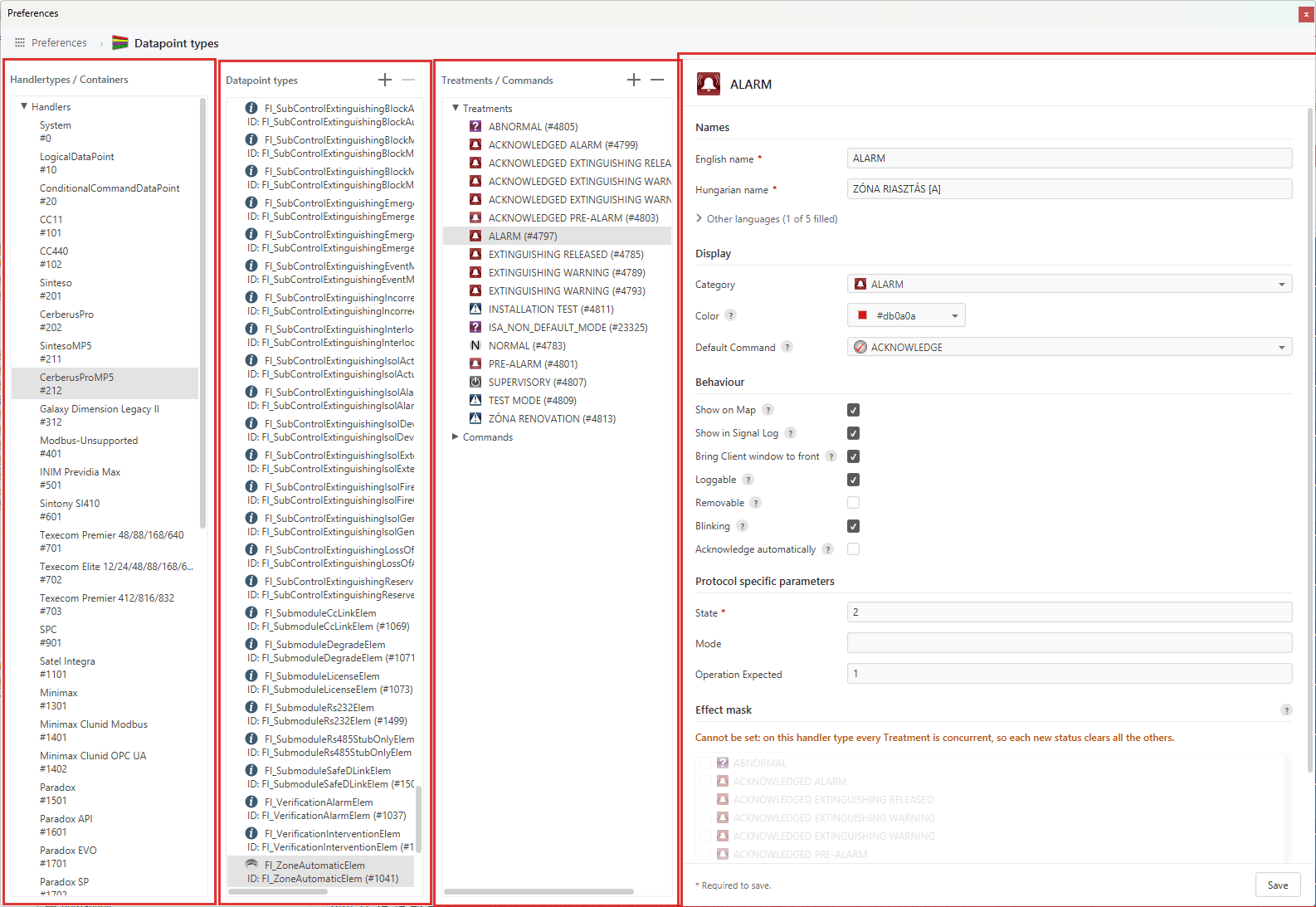
The Datapoint types screen: handler, datapoint type and treatment selected, the treatment editor on the right.
The screen is built from left to right. At first only the first column shows; each selection opens the next one.
| Column | Content |
|---|---|
| Handlertypes / Containers | A tree with two groups. Handlers: every handler type with its number. Containers: every physical container with its handler's name. Selecting a container selects its handler. Right-click a handler or a container for the treatment file and translation menu. |
| Datapoint types | The datapoint types of the selected handler, with their icons. + creates a custom type, − deletes the selected custom type. |
| Treatments / Commands | The treatments of the selected type (with their category icons) and its commands. + opens New Treatment and New Command; − deletes the selected one. |
| Editor | The editor of the selected type, treatment or command, with Save at the bottom. Until you select one it says Select a datapoint type, treatment or command to edit it. |
If a column cannot be read, it shows Could not be read. Click to try again.
You can also jump here from the operator's info pane in the datapoint hierarchy: the datapoint type link and the Edit treatment / Edit Command items open this screen at that item (see Datapoint hierarchy).
Who may do what
The permissions below are the ones listed in Users & Groups (see Users and groups).
| Action | Permission needed |
|---|---|
| Open the Datapoint types and Custom datapoint types screens, read everything | Manage types |
| Create and delete custom datapoint types; rename any datapoint type and change its icon | Add / Remove data point type |
| Create, edit and delete treatments; edit and delete commands | Edit treatment |
| Import and export treatment files | Import default treatments and commands |
| Export and import translation files | Import and export treatment translations |
| Open the Command types screen, read it | Manage command types |
| Create, change and delete command types | Edit command types |
| Create a command; change a command's passcode flag, command type or protocol parameters; change a treatment's effect mask | administrators only |
With only the right to view, the + and − buttons are hidden, every field is disabled and the editor says, for example, You can view this treatment, but you do not have the permission to change it. Every change is recorded in the event log with the user's name and address.
Datapoint types
The editor of a datapoint type has one section, General:
| Field | Meaning |
|---|---|
| Icon | The icon of the type in the datapoint tree. Click it to choose from the image library or to upload a PNG (at most 5 MB). After an upload Siwenoid asks Would you like to set the background transparent? Right-click the icon and choose Reset image to return to the default. |
| Name | The name of the type. Required, at most 150 characters. |
| Type | The number and identifier of the type. Read-only. |
| Based on | Only for a new type: the shipped type it is copied from. Disabled for a saved type; a custom type shows its base type here. |
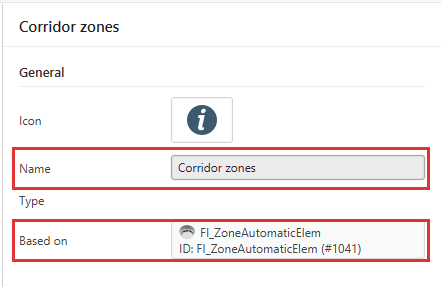
A new custom datapoint type with its base type chosen.
Creating a custom datapoint type
- Select the handler in the first column.
- Click + in the Datapoint types column. The editor's title is New datapoint type until you type a name; then it shows the name.
- In Based on, choose the shipped type to copy. Only shipped types can be a base, never another custom type.
- Type the Name and, if you want, choose an Icon.
- Click Save. The new type gets the treatments and commands of its base type.
- Change its treatments as needed (see below).
- Give the type to the datapoints in Preferences › Physical structure: in the datapoint editor, or for several datapoints of the same type at once in the multi-selection editor (see Physical structure).
Deleting a custom datapoint type
Only custom types can be deleted; for a shipped type − is disabled.
- Check where the type is used in the Custom datapoint types screen (below).
- Select the custom type and click −. Confirm Are you sure to delete Datapoint Type: '…'?
The datapoints that had the type return to its base type. If a scheduled command task sends one of the type's commands, the deletion is refused and the message lists those tasks: remove the command from them first (see Tasks).
The Custom datapoint types screen
Open File › Settings › Custom datapoint types. It is a read-only overview: the custom types grouped by their base type with the number of datapoints using each, and for the selected type the Datapoints list. Double-click a datapoint to open it in the datapoint tree.
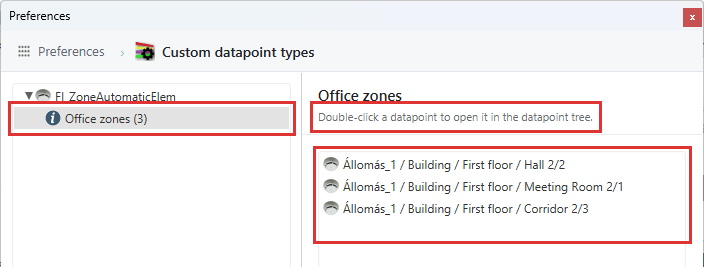
The Custom datapoint types screen with the datapoints of one custom type.
Treatments
Select a treatment in the Treatments / Commands column. The editor's title shows its name and category icon.
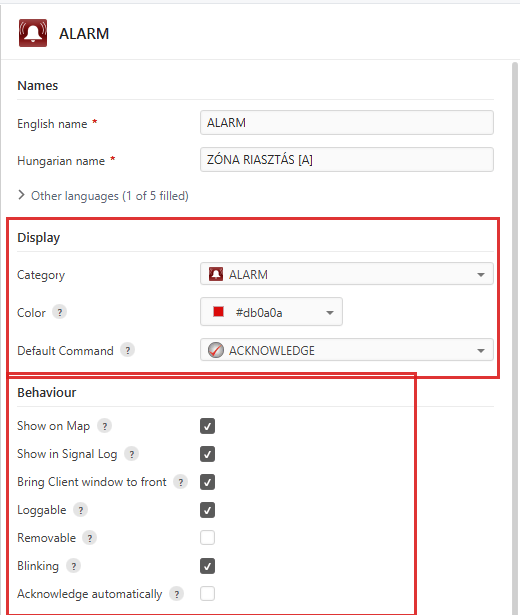
The treatment editor with its Names, Display and Behaviour sections.
Names
One name per language: English name, Hungarian name, Czech name, Russian name, Bulgarian name, Romanian name, Croatian name (only the languages of the installation). The English and the Hungarian name are required, and so is the name in your own language if you work in another one. The other languages are optional; the section shows how many of them are filled. Each name may be at most 150 characters. Save stays disabled until the required names are filled.
Display
| Field | Meaning |
|---|---|
| Category | The treatment category of the status. It decides the status's priority, icon, sound and alarm behaviour (see Treatment categories). Choosing a category also sets Color to the category's colour. |
| Color | Overrides the category colour for this status. A colour equal to the category's means the category colour is used. The status keeps its category and its behaviour whatever the colour; avoid the colours of other categories, or operators will misread the status. |
| Default Command | The command offered first in the signal log when this status arrives. Choose a command of the same datapoint type, or - No Default -. |
Behaviour
Each box has a tooltip with the same explanation.
| Box | When ticked |
|---|---|
| Show on Map | The status can appear as a background on maps and in the datapoint hierarchy. |
| Show in Signal Log | The status appears in the signal log. |
| Bring Client window to front | The client window comes to the front when the status arrives. |
| Loggable | An event log entry is written when the status arrives. Leave it as shipped unless you have a reason. |
| Removable | Operators can clear the status from the signal log with its X, even if it has not returned to normal. |
| Blinking | The datapoint's icon blinks on maps and in the signal log while the status is active and unacknowledged. |
| Acknowledge automatically | The server acknowledges the status by itself, without an operator. |
Show in Signal Log and Bring Client window to front work only while the treatment's category is shown on the category panel. If it is not, the editor shows a yellow badge: No effect: the status's category does not appear on the category panel.
Protocol specific parameters
This section lists the device codes that map to this treatment. The fields depend on the handler; their meaning is on the subsystem pages (see Supported subsystems). Required fields carry a red asterisk. A stored secret shows (stored; type a new value to replace it).
Effect mask
The Effect mask decides when this status ends because another state arrives. It is a check list of the other treatments of the same type:
- A tick means: this treatment is cleared when that treatment becomes active on the same datapoint.
- No tick means: the two states can be active at the same time.
For example, tick Normal in the mask of Fault so that the fault status ends when the detector reports normal again.
Only administrators can change the effect mask; for anyone else the list is disabled. On some handlers every treatment clears all the others; there the list is disabled for everyone and reads Cannot be set: on this handler type every Treatment is concurrent, so each new status clears all the others.
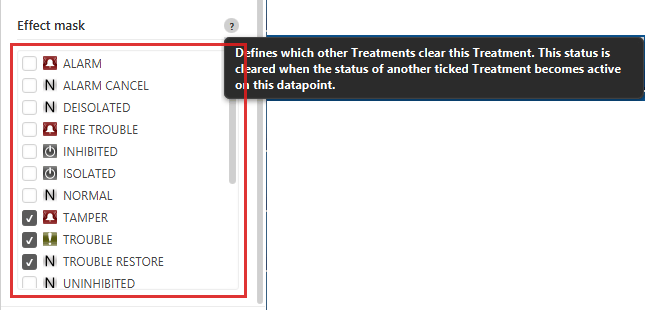
The Effect mask of a treatment, edited by an administrator.
Creating and deleting treatments
- New treatment: select the datapoint type, click + in the Treatments / Commands column and choose New Treatment. Fill the names, the display and behaviour fields and the protocol parameters, then click Save.
- Delete: select the treatment, click − and confirm Are you sure to delete Treatment: '…'? For a built-in treatment the question warns that the state of the panel will no longer raise a status, and that the conditional tasks using this treatment are deleted with it. The treatment is also removed from the forced actions that name it.
Commands
Select a command in the Treatments / Commands column. The command editor has the same Names section as the treatment editor, then Sending and Protocol specific parameters.
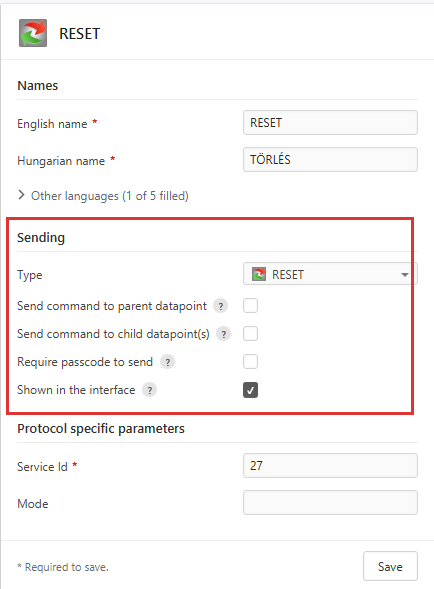
The command editor with its Sending section.
| Field | Meaning | Who may change it |
|---|---|---|
| Type | The command type of the command (see below), or - No Type -. | administrators |
| Send command to parent datapoint | The command goes to the datapoint's parent instead of the datapoint itself. The parent's type must have a command of the same command type, otherwise nothing is sent. | Edit treatment |
| Send command to child datapoint(s) | The command goes to every child of the datapoint that the operator may command, instead of the datapoint itself. Each child's type must have a command of the same command type. | Edit treatment |
| Require passcode to send | Before sending, the operator has to enter their own passcode (set on their user, see Users and groups). Without a matching passcode the command is not sent. | administrators |
| Shown in the interface | Switched off, the command appears nowhere (signal log, maps, intrusion view, web), only in the info pane of the datapoint hierarchy with its All switch, and it can be sent only from there. | Edit treatment |
| Protocol specific parameters | What is actually sent to the device. The fields depend on the handler (see the subsystem pages). | administrators |
A command is sent either to the parent or to the children, never both. For a command sent to the parent or the children, fill the fields marked with an asterisk with any value: the receiving datapoints send their own command of the same command type.
- New command: only administrators. Click + and choose New Command; other users see New Command (administrators only) greyed out.
- Delete: select the command, click − and confirm Are you sure to delete Command: '…'? For a built-in command the question warns that the panel's command can then no longer be sent, and that the conditional tasks sending it are deleted with it. A command that a scheduled command task sends cannot be deleted: remove it from those tasks first.
Command types
Open File › Settings › Command types. The list of command types is on the left with + (New command type) and −; the editor on the right has two sections:
| Section | Content |
|---|---|
| Icon | The icon shown for commands of this type. PNG, at most 5 MB. |
| Names | One name per language; English, Hungarian and your own language are required, at most 150 characters each. |
Click Save to store. To delete, select the type, click − and confirm Are you sure to delete command type: …? The commands of a deleted command type are kept, without a type. Which type a command has is set in the command editor (administrators only).
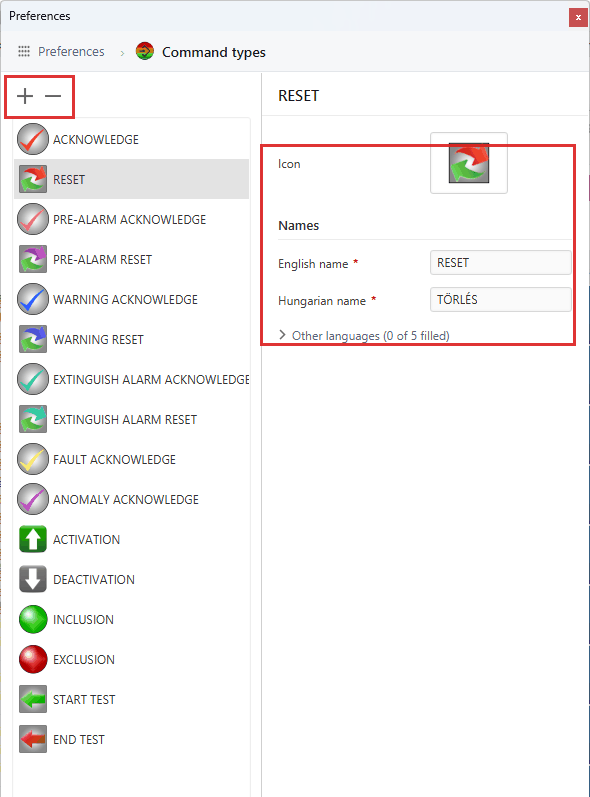
The Command types screen.
Treatment files
A treatment file holds the shipped treatments and commands of one handler, as CSV. Right-click the handler (or one of its containers) in the first column.
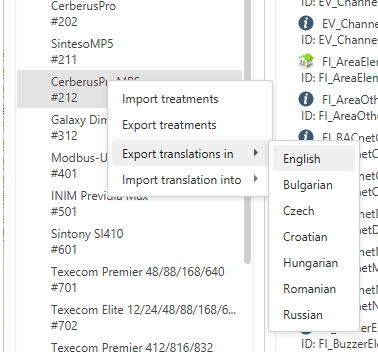
The handler's menu: treatment file and translation items.
Exporting
- Right-click the handler and choose Export treatments.
- Choose where to save the CSV file.
Handlers without a treatment file refuse the export with This handler has no treatment file to export.
Importing
An import replaces the treatments and commands of the handler's shipped datapoint types with the content of the file. Custom types stay as they are. Changes made by hand to the shipped treatments and commands are lost, so import at commissioning, not during operation.
- Right-click the handler and choose Import treatments.
- Choose the file (at most 20 MB, not empty).
- Read the warning: Importing a treatment file into '…' switches off the communication of every container of this handler and replaces the treatments and commands of its shipped types (custom types stay). Continue? and confirm.
- Wait for Treatment import has been finished.
- Open Preferences › Physical structure and check that every container of this handler is switched on again. Switch on the ones that are off (see Physical structure).
Warning
During the import the handler's containers are switched off, and their alarms do not reach Siwenoid. Always check afterwards that the containers are switched on again.
Only one treatment import can run on the server at a time.
Translation files
The names of treatments and commands can be translated in a spreadsheet and imported back. English is the source language: every row is matched on its English text.
File format
- CSV, fields separated by
;, values in double quotes (a quote inside a value is doubled), UTF-8 with a byte order mark, so that a spreadsheet shows accented letters correctly. - Lines starting with
#are comments. - The first data line names the language:
"#L";"hr". - Every other line is one entry:
"T"(treatment) or"C"(command), the English text, the translation, and the identifier of the datapoint type the entry applies to. An empty type column applies to every type of the handler, so the same English text can be translated differently per type (a fire detector's and an intrusion detector's "ALARM"). - In an exported file, a cell still to be translated holds
TRANSLATE. A cell left asTRANSLATEor empty is skipped. Importing never removes a translation.
"#L";"hr"
"T";"FIRE ALARM";"POŽARNI ALARM";"FIRE_DETECTOR"
"C";"RESET";"RESETIRAJ";""
Translating the names of a handler
- Right-click the handler and choose Export translations in › the target language. Save the file (it is named
translations_<handler>_<language>.csv). The translation column holds the translations that already exist in that language andTRANSLATEwhere there is none. Every language of the client is offered for the export, English too. - Fill the translation column in a spreadsheet. Save it as CSV with
;as separator, in UTF-8. A translation may be at most 255 characters. - Right-click the handler and choose Import translation into › the same language. English is not offered.
- Choose the file (at most 10 MB). The Import preview shows what would change, with warnings, for example when the file names another language. Click Import.
- Siwenoid reports how many translations it applied. Open the handler again to see the new names.
Typical tasks
Make a state look like an alarm
- In Datapoint types, select the handler, the datapoint type and the treatment.
- Choose another Category, optionally a Color, tick Show on Map and Show in Signal Log as needed, choose the Default Command.
- Click Save.
Give one group of detectors its own treatments
- Create a custom datapoint type based on the detectors' type.
- Change its treatments.
- In Physical structure, set the type of those datapoints to the custom type.
- Check the result in Custom datapoint types.
Make a state end another one (administrator)
- Open the treatment that should end, tick in its Effect mask the treatments whose arrival clears it, click Save.