Forced actions
Forms that operators must fill in for alarms of chosen categories: fields, choices, users and groups, trigger categories and the acknowledge rule.
| At a glance | |
|---|---|
| Where | Preferences › Forced actions |
| Permission | Manage Forced Actions, Edit Forced Actions |
| Field types | Text, Select one radio button, Multiple selection |
| Trigger | new status of a treatment category |
A forced action is a form that an operator must fill in for an alarm: the digital version of a paper checklist. It appears when a new status of a chosen treatment category arrives, for the users and groups it is set for. The status is acknowledged only after the form has been filled in, and the answers are written to the event log.
Forced actions are set up in Preferences › Forced actions (the Preferences window opens from File › Settings; see The Preferences window). Operators fill the forms in the Forced Actions tab of the main window and from the signal log (see Signal log).
Permissions
| Permission | Allows |
|---|---|
| Manage Forced Actions | Opening the Forced actions tile and reading the forced actions. |
| Edit Forced Actions | Adding, changing and deleting forced actions. Without it the screen is read-only and Save is hidden. |
| Using forced actions tab | For operators: the Forced Actions tab of the main window. |
Every change is written to the event log with the user's name and address, and the open clients follow it at once.
The Forced actions screen
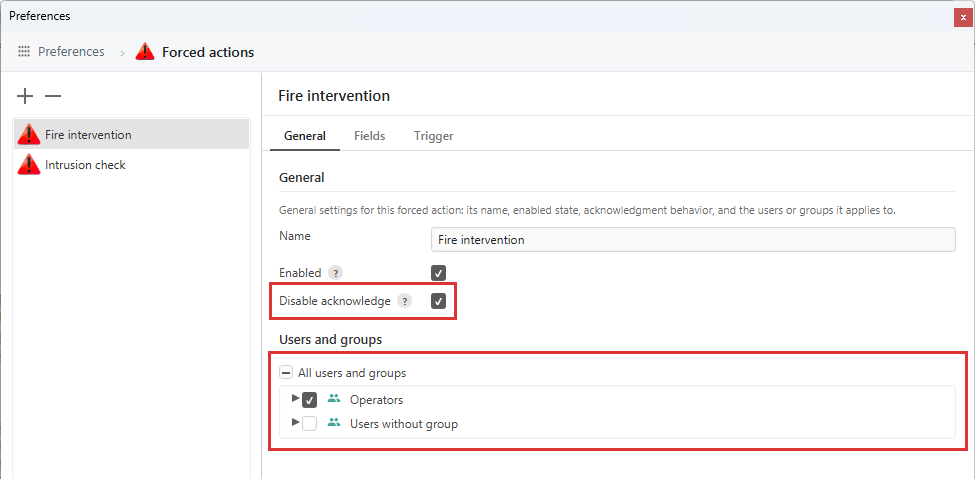
The General tab of a forced action.
- Left: the list of forced actions by name. + adds a new one (New forced action), − deletes the selected one after the question Delete forced action.
- Right: the editor of the selected forced action, with three tabs: General, Fields and Trigger. With nothing selected it says Select a forced action on the left, or add a new one.
- Save at the bottom stores all three tabs at once.
General tab
| Field | Meaning | Rule |
|---|---|---|
| Name | The name of the forced action. | Required, at most 150 characters, unique (upper and lower case count as the same). |
| Enabled | When unchecked, the form does not appear even if its trigger conditions are met. | |
| Disable acknowledge | When checked, the alarm keeps sounding for the operator until the form is filled in and saved. When unchecked, the operator's acknowledge stops the alarm sound while the form still waits. | |
| Users and groups | Who has to fill in the form: tick All users and groups, or groups and users of the tree (users without a group are under Users without group). | At least one user or group, or All users and groups. |
Without a choice in Users and groups, saving is refused with Select at least one user or group, or tick "All users and groups".
Fields tab
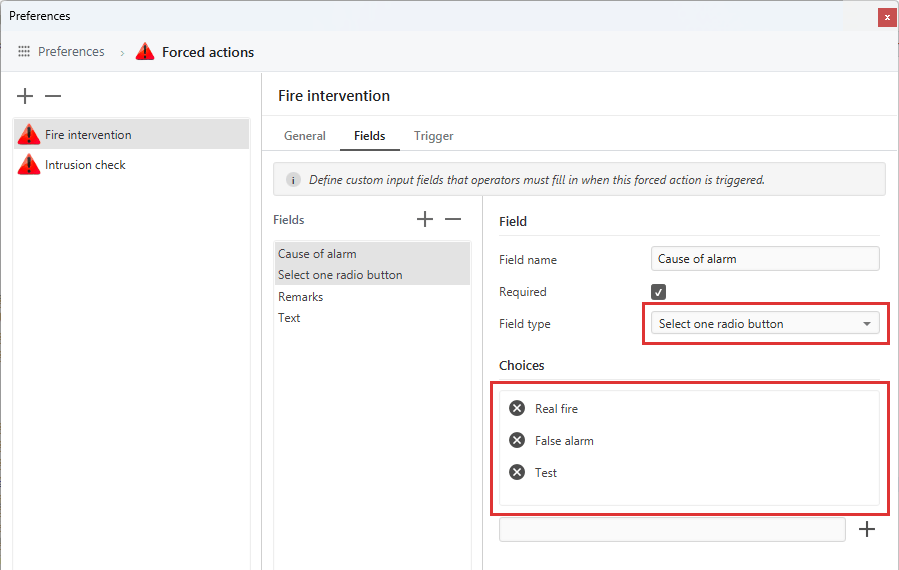
The Fields tab: the list of fields on the left, the selected field on the right.
The Fields list on the left shows each field's question with its type in grey. + adds a blank field, − removes the selected one. The selected field is edited on the right:
| Control | Meaning | Rule |
|---|---|---|
| Field name | The question the operator sees. | Required, at most 150 characters. |
| Required | The form cannot be saved until this field is answered. | |
| Field type | Text, Select one radio button or Multiple selection. | Required. |
| Choices | The options of a choice field. Type an option in the field under the list and click +; delete an option from the list. | Only for the two choice types; at least one choice, each at most 150 characters. |
The three field types:
| Field type | The operator sees | Answer |
|---|---|---|
| Text | a multi-line text box | free text |
| Select one radio button | radio buttons | exactly one choice |
| Multiple selection | check boxes | any number of choices |
A forced action has at most 100 fields and a field at most 100 choices.
Trigger tab
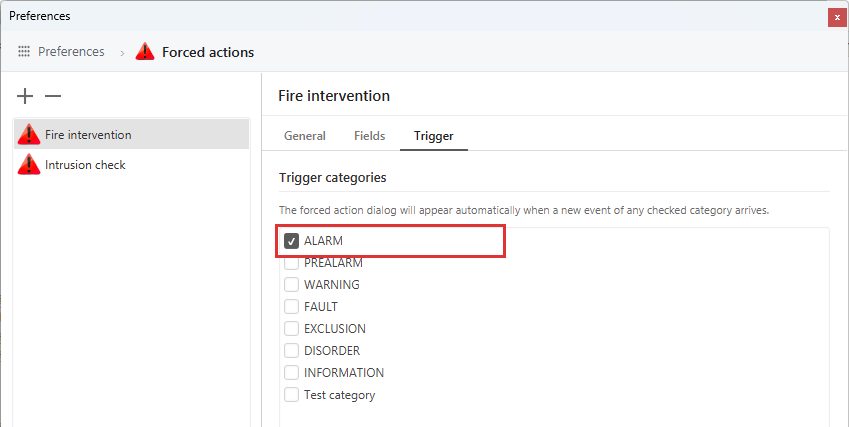
The Trigger tab with the trigger categories.
Trigger categories lists the treatment categories as check boxes, in order of priority. The form appears automatically when a new status of any ticked category arrives. Categories without a priority (such as the normal state) are not offered: they start no forced action.
One forced action per category, user and group
A category, a user and a group can each belong to one forced action only. If a ticked category, user or group is already used by another forced action, the save is refused and the message names the other forced action, for example:
A chosen category already starts the forced action "Fire intervention"; a category can start one forced action only.
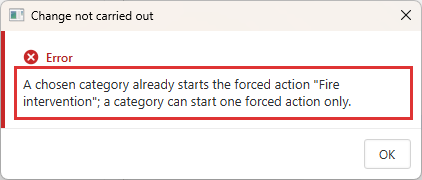
The save refused: the chosen category already starts another forced action.
Plan the forced actions so that each operator group has one form per category. All users and groups does not name anybody, so it does not block users or groups; the rule then applies to the categories.
What the operator does
A status needs a form when an enabled forced action lists its category and the operator belongs to its users or groups (or the forced action is for all).
- The alarm arrives. The operator presses acknowledge: the form is attached to the status, and the status stays unacknowledged until the form is filled in.
- In the Forced Actions tab the operator selects the status (the category chips filter the list, ALL shows every one). One form can be filled for several selected statuses at once when they need the same forced action.
- The operator answers the fields and clicks Save selected. The button is enabled only when every required field is answered.
- The status becomes acknowledged.
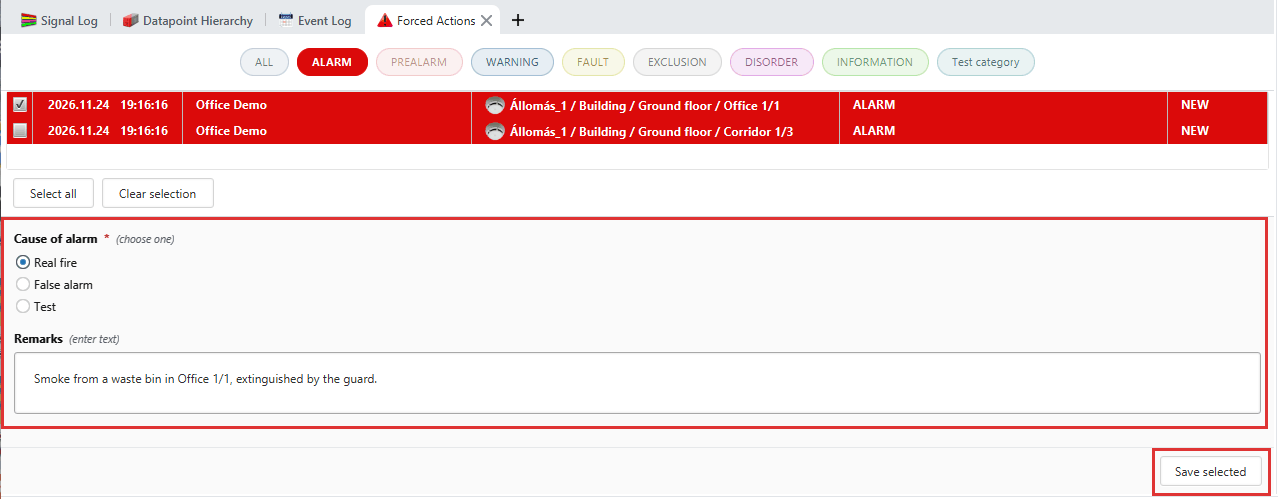
The operator's Forced Actions tab: a status waiting for its form and the form below it.
The form is filled once for everybody: when one operator has saved it, another operator's acknowledge completes at once. If the forced action is changed while an operator is typing, the typed answers are discarded and the new form appears. The text answers of one form may be at most 500 characters together.
The filled form is recorded in the event log as a row of type FORCED ACTION: the user and the time, the datapoint with its container and treatment, and each field with its answers. The event log is the permanent record of the answers. See Event log.
Note
In a redundant server pair, the forms are filled on the serving server. See Hot standby server pair.
Procedures
Create a forced action for fire alarms
- Open Preferences › Forced actions and click +.
- On the General tab type the Name (for example
Fire intervention) and leave Enabled ticked. - Tick Disable acknowledge if the alarm must keep sounding until the form is filled in.
- Under Users and groups tick All users and groups, or the operators' group.
- On the Fields tab click +. Type the Field name
Cause of alarm, choose Select one radio button as Field type, tick Required, and add the choicesReal fire,False alarmandTest. - Click + again: Field name
Remarks, Field type Text. - On the Trigger tab tick the fire alarm category.
- Click Save.
Test it
- Raise or simulate a status of the ticked category (simulation: see Datapoint hierarchy).
- Log in as an operator of the chosen group and press acknowledge on the status.
- Open the Forced Actions tab, select the status, fill in the form and click Save selected.
- Check that the status is acknowledged and that the event log has the
FORCED ACTIONrow with the answers.
Change or delete a forced action
- To change: select it, change the tabs and click Save. A category, user or group used by another forced action is refused with that action's name.
- To disable it for a while: untick Enabled and click Save.
- To delete: select it, click − and confirm.