Category strip
The category strip under the menu bar: one chip per treatment category with its counter, the Ack button for acknowledging a whole category, hiding and showing categories, and the shortcut keys.
The category strip is the row of coloured chips directly under the menu bar of the main window. Each chip stands for a treatment category, such as ALARM, PREALARM, FAULT or DISORDER. At a glance it shows which kinds of events are waiting for the operator, and it lets you acknowledge or hide a whole category at once.
The strip belongs to the window, not to a tab, so it stays visible whichever tab you are working on.

The category strip with several categories, one of them with new alarms.
Which categories appear
The chips are ordered by the categories' priority: the most important category is on the left. A category has a chip when:
- the engineer marked it Show on Category Panel,
- its priority is not 0, and
- your user may see it (your administrator can leave categories out for a user).
The normal state is not a category: it never appears on the strip or in the signal log.
A category marked Dedicated to window shows its chip in the strip of a separate workspace window (Windows › New workspace) while one is open, and in the main window otherwise.
Parts of a chip
| Part | What it shows |
|---|---|
| Name row | The category's name in the category colour. Click it to hide or show the category (see Hiding and showing categories). |
| Icon | The category's icon, if it has one. |
| Counter | waiting / total, for example 2 / 5 (see below). |
| Ack | Acknowledges every waiting row of the category (see Acknowledging a whole category). |
Hover a chip to see its shortcut keys, for example Filter (show/hide): Ctrl+F2 and Acknowledge: F2.
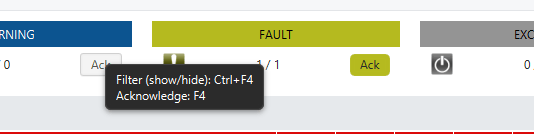
The tooltip of a chip with its shortcut keys.
The counter
The counter shows two numbers, for example 2 / 5:
| Number | Counts |
|---|---|
| First (waiting) | Rows of the category in the signal log that wait for the operator: NEW and REMOVED rows, including those whose forced action form is still open. |
| Second (total) | All rows of the category in the signal log: new, acknowledged and removed. |
So 0 / 3 means three rows exist, all acknowledged, and 2 / 5 means five rows, two of them waiting. Only rows that the signal log can show are counted: states shown only on maps add nothing.
While a category has at least one waiting row, its chip blinks: the name row fades in and out and the Ack button takes the category colour. When nothing waits, the chip is steady and its Ack button grey.

The same chip with a waiting alarm and after acknowledging.
The counters follow the whole signal log: hiding a category or a container does not change them, so a hidden category with new alarms still blinks.
Acknowledging a whole category
- Read the rows of the category in the signal log.
- Click the chip's Ack button (tooltip: Acknowledge category "…"), or press the F key shown in the chip's tooltip.
- Every new and removed row of the category is acknowledged in one step. The chip stops blinking and the category's sound stops.
To acknowledge every category at once, press Ctrl+F12. Use it only when you have really read all the rows.
Like acknowledging a single row, the Ack button only records that you have seen the events: it sends no command to any device. Whether the acknowledgement also counts on other workstations depends on your site's setting (see Signal log).
Warning
Ack acknowledges every waiting row of the category, also the rows you have hidden with the category filter or with the signal log's container filter. Only the rows left out by the Types filter are not acknowledged.
Rows whose forced action form is not filled in yet are not fully acknowledged by Ack: they stop driving the sound, and their form opens under the row. Fill in the form to complete the acknowledgement (see Signal log).
If you do not see the Ack buttons, your administrator has not given you access to acknowledging whole categories. You can still acknowledge rows one by one in the signal log.
Hiding and showing categories
You can hide the rows of a category from the signal log, for example the disablements while a panel is being serviced.
| Action on the chip's name row | Effect |
|---|---|
| Left click | Hides the category, or shows it again. Hide as many categories as you like, one by one. |
| Right click | Shows only this category: every other category that can be hidden is hidden. |
| Shift + right click (after a right click) | Adds this category to the ones shown. |
| Shift + left click (after a right click) | Removes this category from the ones shown. When none is left, every category is shown again. |
| Ctrl+F1 … Ctrl+F11 | Hides or shows the category with that priority number. |
A plain left click always returns to the one-by-one mode, a plain right click always to the "only this one" mode.
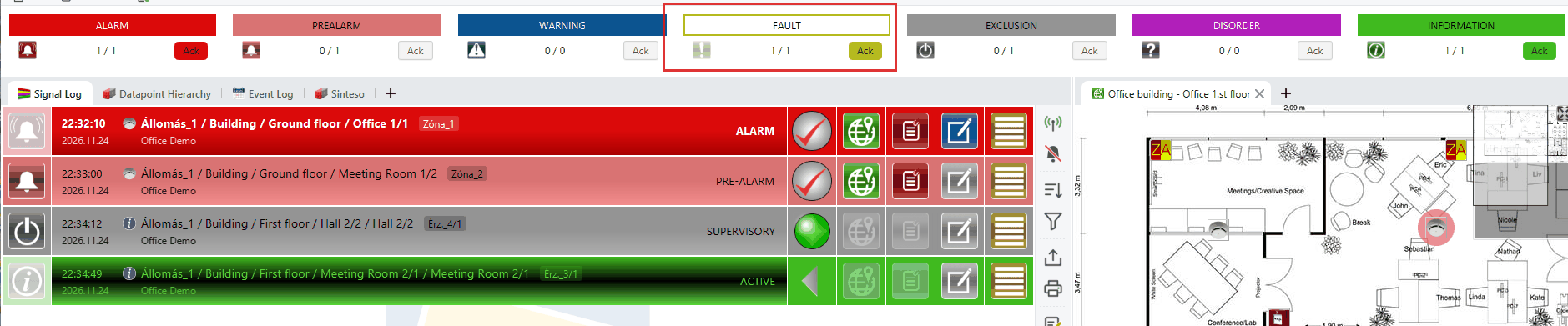
A hidden category: its name row is transparent and its rows are gone from the signal log.
A hidden chip's name row turns transparent, with a border in the category colour. Its rows disappear from the signal log, but they are still counted, they still play their sound, and the Ack button still acknowledges them.
Hiding is a temporary view setting of your workstation: the other operators still see every row.
Only categories the engineer marked Can hide category can be hidden; the name row of any other category (typically ALARM) cannot be clicked. If no category reacts to clicks, your administrator has not given you access to hiding categories.

"Only this one": a right click on a chip hid the other categories.
What else a category decides
The engineer sets these in Preferences › Categories (see Treatment categories). You see them as the behaviour of the alarms:
| Property | What you notice |
|---|---|
| Priority | The order of the chips and of the signal log, the F key of the chip, and which category's sound plays first. |
| Colour and icon | The colour of the chip, the rows, the map buttons and the tree. |
| Sound | The sound that plays while the category has waiting rows. It can be muted, set to loop or turned down per workstation in File › Settings › Sound. |
| Bring Client window to front | A new alarm of the category brings a minimised client window to the front. |
| Can hide category | Whether the category can be hidden. |
| Show on Category Panel, Dedicated to window | Whether and where the chip appears. |
Quick reference
| Task | How |
|---|---|
| Acknowledge all new rows of one category | Ack on its chip, or its F key |
| Acknowledge everything | Ctrl+F12 |
| Silence the sound without acknowledging | F12, or Mute on the signal log toolbar |
| Hide or show one category | Left click its name, or Ctrl+ its F key |
| See only one category | Right click its name |
| Show everything again | Left click each hidden chip, or right click and Shift+left click the shown one |