E-mail and SMS modules
The sending channels of the message tasks: an SMTP e-mail account or a GSM modem with its SIM PIN, and how Siwenoid merges and sends the messages.
| At a glance | |
|---|---|
| Where | Preferences › Modules |
| Permission | Edit modules |
| Module types | E-mail (SMTP), Sms (GSM modem) |
| Used by | Send email and Send sms tasks |
A module is the channel through which the server sends the messages of the Send email and Send sms tasks (see Tasks). An E-mail module is an SMTP account; an Sms module is a GSM modem connected to the server computer, with the PIN of its SIM card. Each message task names one module of its own kind.
Modules are set up in Preferences › Modules (the Preferences window opens from File › Settings; see The Preferences window). The Edit modules permission is needed both to see and to change them; without it the tile is greyed out. Every change is written to the event log with the user's name and address.
The Modules screen
- Left: the list of modules with their names and types (Sms, E-mail). + adds a module, − deletes the selected one. With no module it says No module has been created yet.; a new module not yet saved shows as New module (unsaved).
- Right: the editor of the selected module. Its General section has the Name and the Type, then comes the section of the type. Save stores the module.
| Field | Meaning | Rule |
|---|---|---|
| Name | The name the task editor offers. | Required, at most 250 characters, unique (upper and lower case count as the same). |
| Type | E-mail or Sms. | Chosen for a new module; it cannot be changed later. |
The password and the PIN are never shown again after saving. Their field then shows Stored: a stored value is kept while the field stays empty; type a new value to replace it.
E-mail module
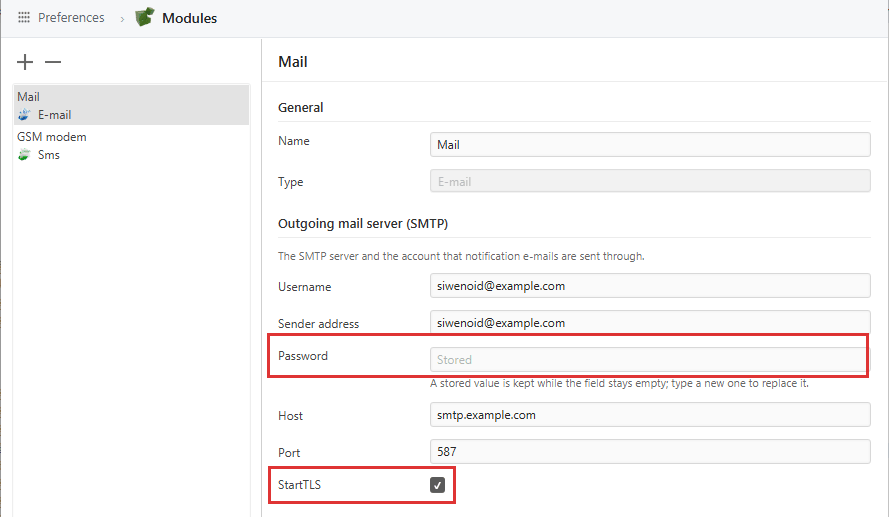
An e-mail module with its SMTP settings; the stored password shows as Stored.
The section Outgoing mail server (SMTP) holds the SMTP server and the account that sends the notification e-mails.
| Field | Meaning | Rule |
|---|---|---|
| Username | The login name of the SMTP account. | Required, at most 250 characters. |
| Sender address | The address the e-mails come from. The sender's display name is Siwenoid. |
Optional; when filled in, a valid e-mail address. |
| Password | The password of the SMTP account. | Required for a new module, at most 250 characters. |
| Host | Name or IP address of the SMTP server. | Required, no spaces. |
| Port | The SMTP port of the server. | 1 to 65535. |
| StartTLS | Switch the connection to encrypted with STARTTLS. | Tick it when the mail server requires or offers STARTTLS. |
Siwenoid always logs in to the SMTP server with the user name and password. It supports plain SMTP and STARTTLS; a port that needs an encrypted connection from the first byte (SSL/TLS on connect) is not supported, so use the mail server's STARTTLS port. If the mail provider requires an application-specific password for SMTP access, create one at the provider and enter it as Password.
When you change the Host of a saved module or switch StartTLS off, the stored password is not reused: type it again. The editor shows The host changed or STARTTLS was switched off: give the password again.
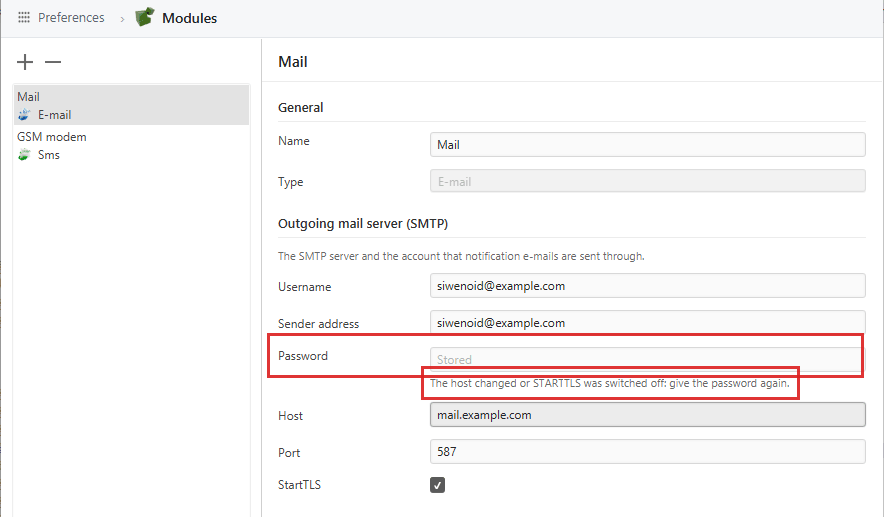
The host of a saved module changed: the password must be typed again.
The e-mails have the subject Siwenoid notification and one line per event. The events of 10 seconds go in one e-mail. All recipients of a task are put in the CC field, so they see each other's addresses.
SMS module
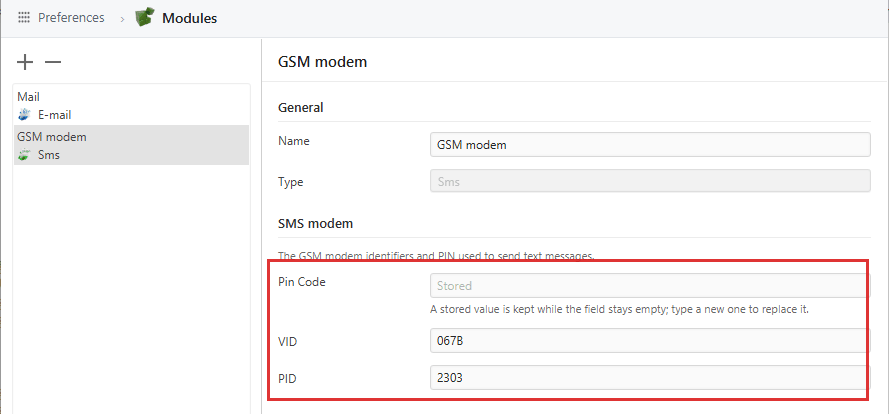
An SMS module: the PIN of the SIM and the VID and PID of the modem.
The section SMS modem holds the identifiers of the GSM modem and the PIN of its SIM card.
| Field | Meaning | Rule |
|---|---|---|
| Pin Code | The PIN of the SIM card in the modem. | 1 to 9 digits; a leading zero is kept. Required for a new module. |
| VID | The USB vendor ID of the modem. | Required. A new module offers 067B. |
| PID | The USB product ID of the modem. | Required. A new module offers 2303. |
The modem is connected to the server computer (USB or a USB serial adapter). SMS sending needs a 64-bit Windows server.
Warning
Siwenoid enters the PIN at every SMS it sends. A wrong PIN uses up the SIM's PIN attempts, and after three wrong PINs the SIM needs its PUK code. If the PIN is wrong, correct the module before more alarms are sent.
Finding the VID and the PID
-
On the server computer open the Windows Device Manager.
-
Find the modem (under Ports or Modems) and open its Properties.
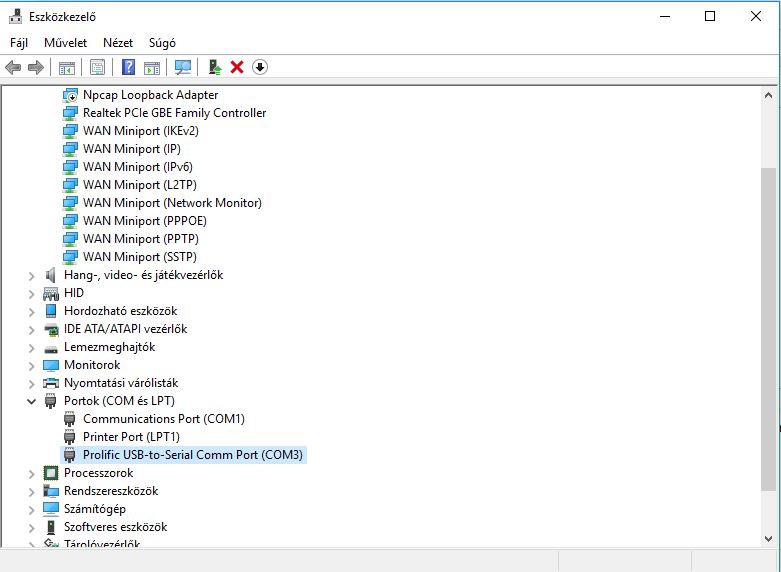
The modem in the Windows Device Manager. -
On the Details tab choose the property Hardware Ids. The value contains
VID_xxxx&PID_yyyy:xxxxis the VID andyyyyis the PID.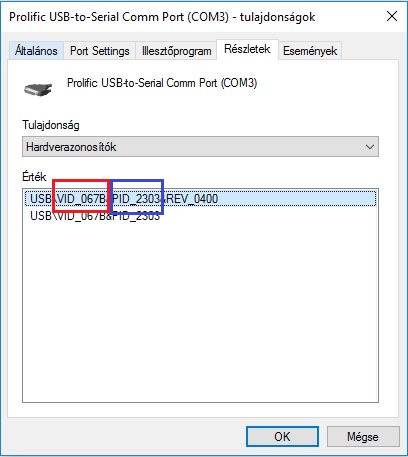
The hardware IDs of the modem: here VID 067B and PID 2303.
How the SMS messages are sent
- Each message line is
[<physical container>] <datapoint> - <treatment> - <date and time>. - Messages to the same phone number through the same module are collected for 10 seconds and joined into one SMS while the text stays under 155 characters; the next message then starts a new SMS. Different modules never share an SMS.
- Accented letters are sent without accents (plain ASCII text), so every phone shows them.
- A phone number has digits only, with an optional leading
+(for example+36301234567). - The SMS messages are sent one after the other through the one modem. If one fails, the error is written to the server's log and the others are still sent.
Redundant server pair
On a hot standby pair both servers can send messages (see Hot standby server pair). If SMS sending must survive the failure of one server, connect a modem to both server computers and use a module that matches both (the same VID and PID, SIMs with the same PIN), or the modem of the server that is down cannot send.
Procedures
Create an SMS module
- Connect the modem to the server computer and insert the SIM card.
- Look up its VID and PID in the Device Manager (see above).
- Open Preferences › Modules and click +.
- Type a Name (for example
GSM modem) and choose Sms as Type. - Type the SIM's PIN in Pin Code, and the VID and PID values.
- Click Save.
- Create a Send sms task that uses this module (see Tasks) and test it.
Create an e-mail module
- Open Preferences › Modules and click +.
- Type a Name (for example
Mail) and choose E-mail as Type. - Fill in Username, Password and Sender address.
- Type the SMTP server in Host and its port in Port; tick StartTLS if the server uses it.
- Click Save.
- Create a Send email task that uses this module and test it.
Change a stored password or PIN
Type the new value in Password or Pin Code and click Save. Leave the field empty to keep the stored value.
Delete a module
- Select the module, click − and confirm Delete module.
- The message tasks that used it stay, but they cannot send until you choose another module for them in Preferences › Tasks.
Troubleshooting
| Symptom | Check |
|---|---|
| No e-mail arrives | Host, port and StartTLS; the user name and password; that the server computer can reach the mail server through the firewall. The server's log records the reason. |
| No SMS arrives | The modem is connected to the server computer and its VID and PID match; the PIN is correct; the SIM has credit and network. The server's log records each failed SMS. |
| The SIM asks for its PUK | The PIN was wrong several times. Unlock the SIM in a phone, then correct Pin Code. |
For the logs see Troubleshooting.