Troubleshooting
Where Siwenoid writes its logs, how to find the cause of common problems (no connection, licence seats full, server already running, database and replication, devices, cameras) and what to send to support.
| At a glance | |
|---|---|
| Server log | C:\ProgramData\Siwenoid\ServerLogs |
| Client log | C:\ProgramData\Siwenoid\ClientLogs |
| Updater log | updater.log in the client log folder |
| MySQL service | MySQL for Siwenoid v2 |
| Diagnostics | File › Diagnostics (administrators) |
This page lists where to look when something does not work, and the most common problems with their fixes. Start with the warning list of the client's main window and the server log: most problems are named there.
Where to look
| What | Where |
|---|---|
| Server log | C:\ProgramData\Siwenoid\ServerLogs\siwenoid.log for today; siwenoid_YYYY_MM_DD.log for earlier days. The server window shows the same lines. |
| Client log | C:\ProgramData\Siwenoid\ClientLogs\siwenoid.log on the client computer, with the same daily files. |
| Updater log | updater.log in the client log folder, written when the client updates itself. |
| Installer log | log\Siwenoid-Installer.log in the installer's folder. |
| MySQL | siwenoid_mysql.err (errors) and siwenoid_mysql-slow.log (queries over 10 seconds) in the data folder of MySQL (by default C:\Program Files\mysql-for-siwenoid-v2\data). |
| Warning list | The bottom of the client's main window: connection, alarm stream, hot standby and replication warnings (see The main window). |
| Event log | System rows for connections, the licence, logins and failed logins, hot standby role changes and replication state (see Event log). |
| Support tools | File › Settings › Support: licence and seats, the telegram tracker for device traffic (see Support tools). |
| Diagnostics window | File › Diagnostics or Ctrl+Shift+D (administrators): what the client on this computer is doing, for a slow or frozen client (see Support tools). |
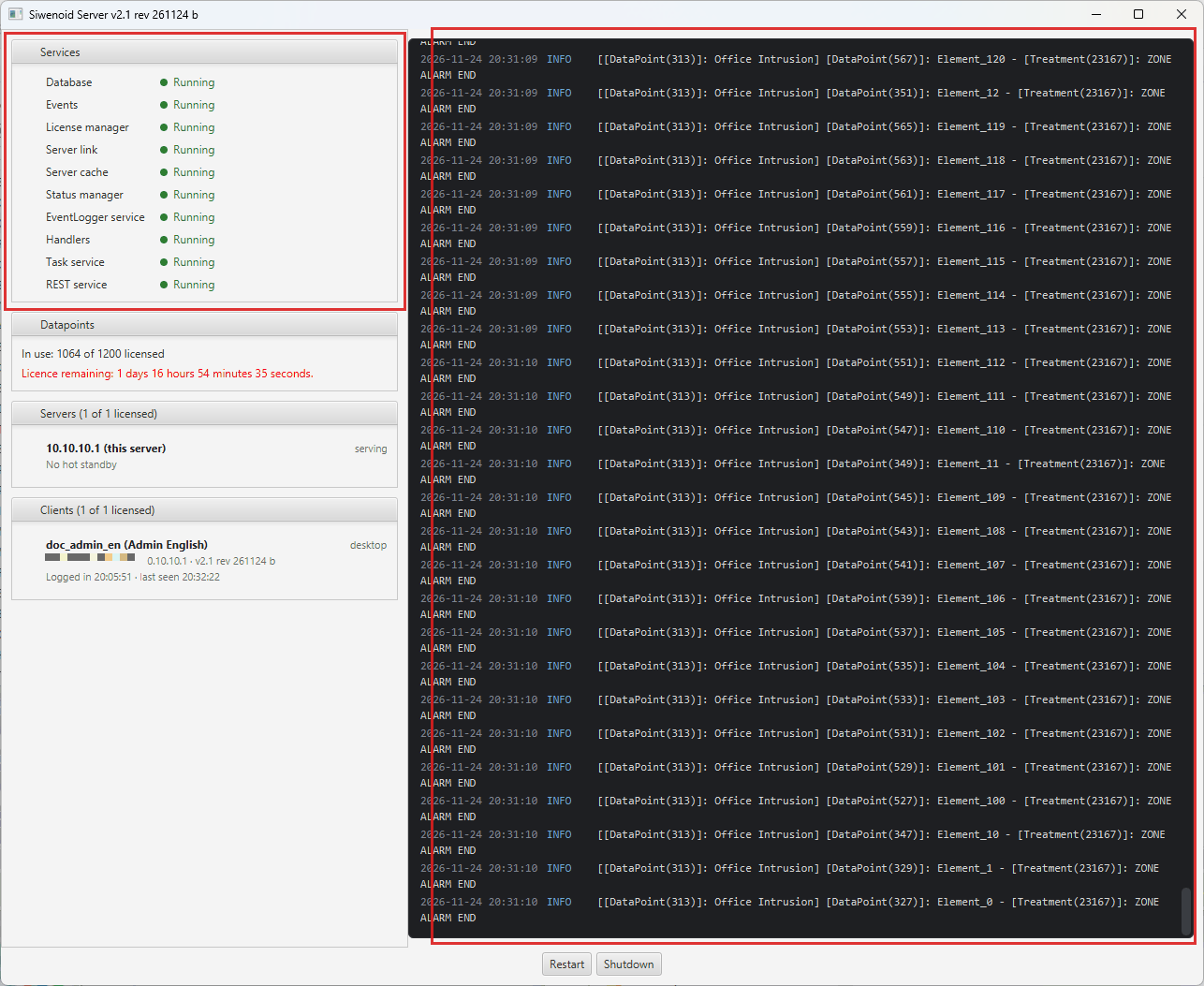
The server window with its services and the latest log lines.
Siwenoid does not delete old log files. Remove old ones now and then, or archive them.
The client cannot connect
Symptoms: a client started while no server answers shows Could not start client! with The server's version could not be read: no server answered on its REST API and Check that the server runs and its REST API is enabled. (buttons Try again and Close application). A login window that is already open, for example after File › Switch User, shows Waiting for server... while no server answers.
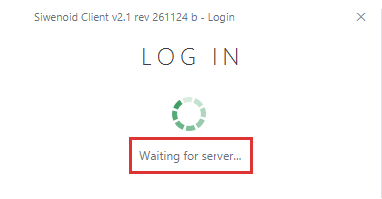
The login screen waiting for the server.
- Check that the server runs and that every service in the server window has started. After a start, the server needs some time before it answers.
- On the client computer, open
http://<server>:8080/api/v2/healthin a browser (with your server's address and REST port). If it answers with"isalive": true, the server and the network are fine: check the client's configuration. - Check the server address in the client's configuration (
<Server host>) and the port and HTTP/HTTPS setting (<RestClient>): they must match the server's<REST>element (see Configuration files, REST service and web access). - Check the firewalls: the client must reach the server's REST port (TCP 8080 by default).
- Check that
<REST>is present in the server's configuration. If another program already uses the port, the REST service cannot start: the server log names the port.
During operation, these rows in the warning list point to connection problems:
| Warning | Meaning |
|---|---|
| Disconnected! | Administrators only: one row per server the client does not reach, with the server's name (for example Server @ 10.10.10.1). Check that server and the network to it. |
| No connection to the server: new alarms do not arrive. | Shown to other users instead: the client has not heard from any server for 15 seconds. Check the server and the network. |
| The signal log is not updated: new alarms do not appear. | The live alarm connection is down. The client reconnects by itself; if the row stays, check the server log. |
| Alarms arrive late (more than 15 seconds). | The server or its database is overloaded. Check the server's CPU, disk and the MySQL settings (below). |
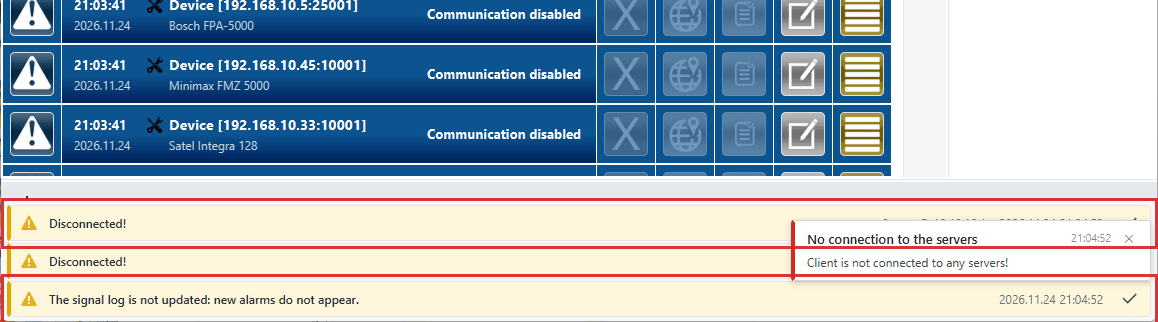
Connection warnings in the warning list of the main window, with the notice card.
When no server answers at all, a No connection to the servers card also appears in the bottom right corner of the main window (Client is not connected to any servers!). It closes by itself when a server answers again.
After a server restart the clients reconnect and log in again by themselves.
The server does not start
A server is already running
A second start of the server does nothing while one is running. Look for the Siwenoid icon in the system tray, or for a javaw.exe of the server folder in the Task Manager. Stop the running server with the tray icon › Shutdown, then start it again. If a crashed server still holds the program, end that process in the Task Manager.
The client behaves similarly when it is set to run only once on a computer: The application is already running!
The database cannot be reached
If the server window opens but the services do not start, and the server log says Could not start database!, the line before it names the cause (access denied, unknown database, connection refused).
- Check that the Windows service
MySQL for Siwenoid v2runs (Services in Windows administrative tools). It starts automatically with Windows. - Check the host, port, schema, user and password in
<DatabaseService>of the server configuration.
The MySQL service is missing or stops at once
This can happen after a major Windows upgrade. Open a command prompt as administrator and register the service again (adjust the folder if MySQL is installed elsewhere):
sc delete "MySQL for Siwenoid v2"
cd /d "C:\Program Files\mysql-for-siwenoid-v2\bin"
mysqld.exe --install "MySQL for Siwenoid v2" --defaults-file="C:\Program Files\mysql-for-siwenoid-v2\siwenoid.ini"
sc start "MySQL for Siwenoid v2"
Run the first line only if the service exists but is broken. If the service still stops, read siwenoid_mysql.err: common causes are another MySQL using the same port, or a damaged data folder.
The server warns about the MySQL memory
At start the server warns when the MySQL buffer pool is below the recommended 1 GB. Set innodb_buffer_pool_size=1G (or more) in siwenoid.ini, restart the MySQL service, then the server.
Login problems
| Message | Cause and fix |
|---|---|
| Invalid username / password | Wrong user name or password. User names ignore upper and lower case. |
| To login with this user is not permitted from this PC. | MAC address filtering is on and this computer is not allowed for the user (see System settings, Users and groups). |
| Connected clients exceeded the licence. | Every licence seat is taken. The client tries again by itself. Log out an unused client, or an administrator frees a seat in Support › License informations (see Licensing). |
| The server could not log you in now (it cannot be reached or is busy). Try again. | The server or its database is not available at the moment. Wait and try again; check the server. |
| Your user has been deleted, so you have been logged out. | An administrator deleted the user. |
| The server refused the sign-in of your session (for example, your password has been changed). | Log in again with the current password. |
| Version mismatch! | The client and the server versions differ: see Updates. |
No alarms from a device
- Check that the container's connection is switched on in Preferences › Physical structure (see Physical structure).
- Check the connection parameters (address, port, protocol) and the settings on the device side (see the subsystem pages).
- Open the telegram tracker (Support › Telegram tracker) for the container: it shows whether anything arrives from the device (see Support tools).
- Read the server log around the time of the problem.
If a container's connection cannot be switched on and the client says that the licence does not allow it (too many datapoints, or it has expired), the licence must be extended (see Licensing). When the licence expires or the number of datapoints exceeds it, the server stops the connection of every container at once; after the licence is fixed, switch the containers on again.
Cameras do not open
| Symptom | Cause and fix |
|---|---|
| No camera menu items, no cameras in the information panel | The CCTV service is not switched on in this client's configuration (<CCTV/> in <Services>), or the video viewer is missing from the client folder. See CCTV cameras (ONVIF, RTSP, Hikvision, Dahua). |
| The viewer opens but shows no picture | The client computer cannot reach the camera or recorder, or the camera is out of order. Check the network from the client computer to the camera. |
| The camera does not turn to its preset at an alarm | The CCTV service is not switched on in the server's configuration, or the camera's container is not connected. See CCTV cameras (ONVIF, RTSP, Hikvision, Dahua). |
Hot standby and replication
The warnings of a hot standby pair and their fixes are listed in Hot standby server pair. Work through them in this order:
- Warnings about the link between the servers (shared secret, network, configuration).
- Replication warnings: run
SHOW SLAVE STATUS\Gon both MySQL servers and fix the error it shows. - Failover active: repair the primary, then hand the role back.
The server log reports a clock difference between the two servers as Clock skew: check NTP on both servers.
Backups and updates
- A manual backup shows the reason of a failure beside each server; see Backup and restore.
- A scheduled backup that cannot write its folder logs Scheduled backup folder is not reachable (or unable to write)! The Windows account of the server must be able to write the folder or the network share.
- Client update messages are explained in Updates.
The disk fills up
Check these folders on the server:
- the MySQL binary logs (
siwenoid_mysql-bin.*in the MySQLdatafolder), kept for 30 days; - the event log archives (
C:\ProgramData\Siwenoid\EventLogArchives; the archive settings are described in System settings); - old Siwenoid log files;
- backup files of scheduled backups, which Siwenoid never deletes.
What to send to support
- the server log of the day of the problem, and the client log of the affected computer;
- a screenshot of the warning list;
- the License informations tab (it shows the licence, the servers and their state);
- the exact version from the title bar of the client (for example
2.1 rev 261124 b); - for a hot standby pair, the output of
SHOW SLAVE STATUS\Gfrom both MySQL servers.