Backup and restore
Making backups from the client, on a schedule and with the installer, what a backup contains, and restoring a system with the installer.
| At a glance | |
|---|---|
| Backup file | .swnbackup |
| Manual backup | File › Settings › Backup |
| Scheduled backup | Create backup task |
| Installer | Backup, Restore |
| Restore | installer only, offline |
A Siwenoid backup is one .swnbackup file. It holds everything needed to rebuild a server: the database, the program folder and the configuration. A backup can also hold the program and the settings of a client computer. You can make a backup from the client, let the server make one on a schedule, or make one with the installer. A backup is restored only with the installer.
Warning
A backup holds the server's configuration, with the database password and other secrets, and the whole database. Store backup files where only authorised people can read them, and copy them off the server computer.
Ways to make a backup
| Where | What it backs up | Needed | |
|---|---|---|---|
| Manual backup | File › Settings › Backup in the client | each selected server, and optionally this client computer | the Create Backup permission |
| Scheduled backup | a Create backup task, run by the server | the server and its database | the Create Backup permission to set it up |
| Installer backup | Backup in the installer, on the server computer | the Siwenoid components installed on that computer and the server's database | a Windows administrator |
The three kinds produce the same file layout, so the installer can restore any of them.
What a backup contains
| Part | Content |
|---|---|
| Database | A dump of the Siwenoid database. It is made while the system runs; operation does not stop. |
| Program | The server's program folder (for example C:\Program Files\Siwenoid\Server), with its Java runtime and start scripts. |
| Program data | The files of C:\ProgramData\Siwenoid with the server's configuration (ServerConfig), its logs and the event log archives. |
| Client (optional) | The client's program folder, its configuration and the Windows user's client settings (auto login, window positions, printer). |
Not in a backup: the MySQL program itself and other client computers. Each client computer is backed up from that computer, or reinstalled.
Important
The server can back up the database only when the database runs on the same computer as the server (the database address in the server's configuration is
127.0.0.1orlocalhost). For a database on another computer, back it up with the tools of that database server.
Manual backup from the client
- Open File › Settings and click the Backup tile.
- Under Hosts to back up, tick the servers to back up. Each server the client is connected to is listed by name; in a hot standby pair both servers are listed. Tick Local client to back up this computer too.
- Under Backup file, click Browse and choose the folder and the file name.
- Click Start backup.
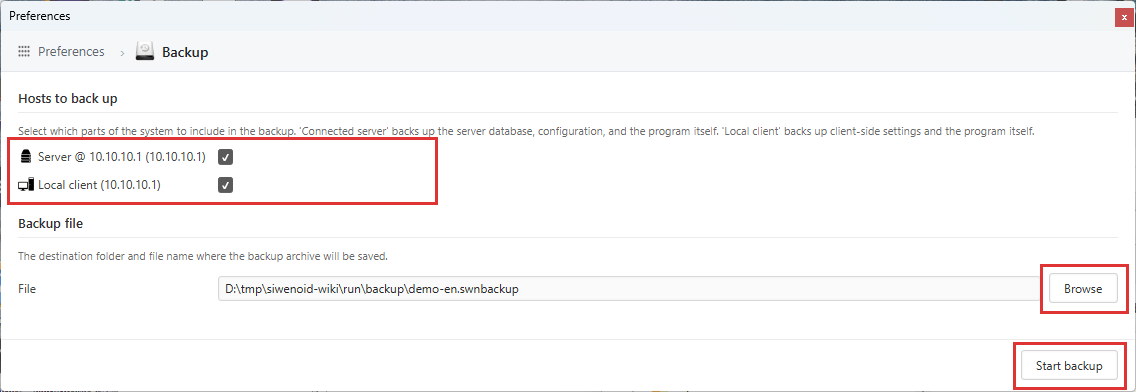
The Backup screen with a server and the local client selected.
The Progress section shows each step per host: Starting backup, Compressing database, Compressing program files, Compressing program data files, Downloading the backup, Encapsulating files, Finished. Each server prepares its own backup, and the client downloads it. When every host is done, the message The backup has been finished successfully! appears.
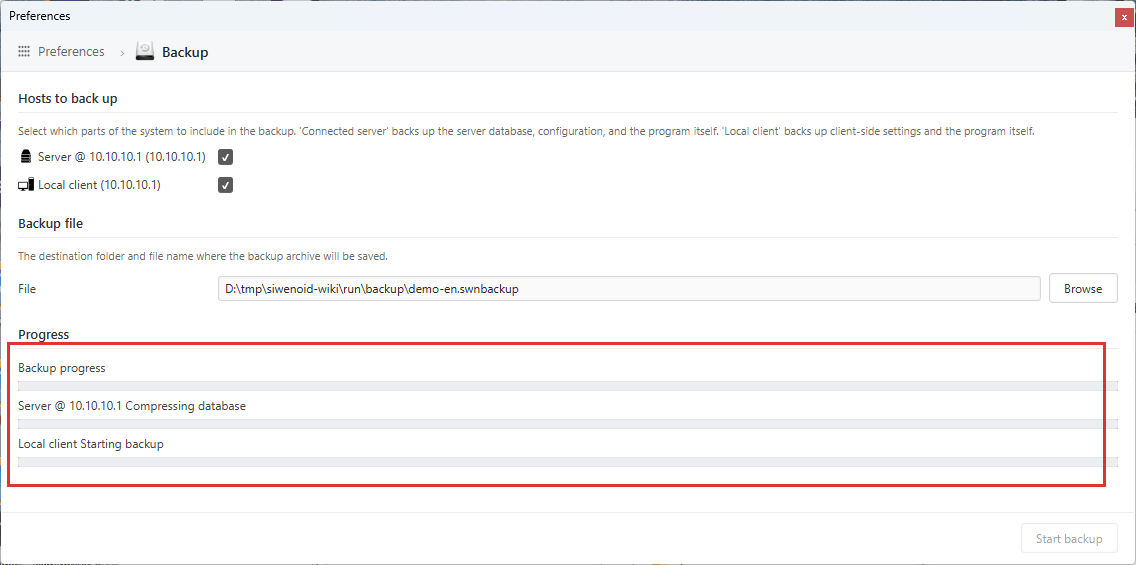
A backup in progress.
The file is written only if every selected host succeeded. Otherwise the screen says The backup was not saved: not every selected host could be backed up. The reason is shown beside each host.
| Reason beside a host | What to do |
|---|---|
| failed: a backup is already running on the server. Please try again later. | A server makes one backup at a time, manual or scheduled. Wait and start again. |
| failed: you do not have the permission to make backups. | Ask an administrator for the Create Backup permission. |
| failed: the database does not run on this server, it cannot be backed up there. | The database is on another computer: back it up there. |
| failed: the database backup tool (mysqldump) is missing on the server. | The MySQL installation on the server is incomplete: repair or reinstall MySQL. |
| failed: the server has no database login for the backup. | Check the database user and password in the server's configuration. |
| failed: the database could not be saved. / failed: the program files could not be saved. / failed: the program data could not be saved. | Check the free disk space on the server and the server log. |
| failed: the server could not be reached. / failed: the server did not answer. | Check that the server runs and the network. |
| failed: the backup could not be downloaded completely. | Start the backup again. |
Scheduled backup
A Create backup task makes a backup of the server and its database at set times, without a client. Set it up in File › Settings › Tasks; the fields are described in Tasks. At each run the server writes a file named SWNBackup_<time>.swnbackup into the task's folder.
- The folder is a path on the server computer (for example
D:\Backups) or a network share (\\nas\siwenoid). The Windows account that runs the server must be able to write it. - If the folder cannot be written, the run fails and the server log says Scheduled backup folder is not reachable (or unable to write)!
- In a hot standby pair only the serving server runs the task.
Important
Siwenoid never deletes old backup files. Plan the clean-up: delete or move old files regularly, for example with a Windows scheduled task, so the disk does not fill up.
Backup with the installer
Use the installer when no client is available, or before an update.
- Run
Siwenoid-Installer.baton the server computer and choose Backup. - The installer starts the MySQL service and searches the drives for Siwenoid components. Click Stop search when the components appear, or Browse to select an installation folder yourself.
- Under Select components to backup: tick the components to save. With a server, the database named in the server's configuration is saved too.
- Check the backup file path (by default
backup_<date>.swnbackupin your user folder; the name must end in.swnbackup). Click Next. - Wait for Backup file is successfully created.
The installer builds the file in the Windows temporary folder first: it needs free space at least the size of the data.
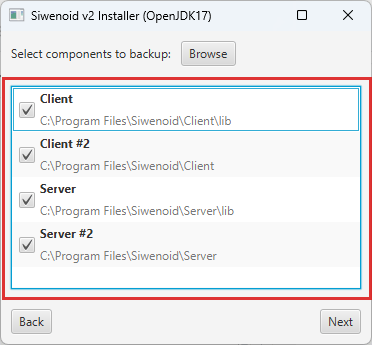
The installer's list of components to back up.
Restore
A backup is restored only with the installer, on the computer that will run the server. There is no restore in the client.
Warning
A restore replaces the database with the one in the backup: every change made since the backup is lost. It also deletes the content of the target program folders before it copies the backed-up files into them.
Before you start:
- On a new computer, install Siwenoid first with the installer (Install: Server and MySQL), so that MySQL runs and you know its root password. See Installation.
- The restored program files are of the version in the backup. To move to the newest version, run Update afterwards (see Updates).
Steps:
- Stop the server (tray icon › Shutdown) and close the clients.
- Run
Siwenoid-Installer.batand choose Restore. - Click the Browse button to select a backup file to restore: choose the
.swnbackupfile and click Next. - Select components with paths to restore: the list shows what the file holds per computer: Server, Program Data, Siwenoid MySQL Database, Client, User Data. Tick the parts to restore. Server and Client show Select path to restore to. until you choose their target folder with Browse; for the server, choose the server folder itself (for example
C:\Program Files\Siwenoid\Server). Program Data and User Data show their target folder (Restore to: …); change it with Browse if needed. - The database row shows Database parameters needs to be configured. until you set them: click Parameters. Check Host, Port, Schema, User and Password (the database user Siwenoid uses), enter the Root password and click Test. If the schema already exists, the installer asks whether to overwrite it: yes deletes it and creates it again from the backup. Click Apply.
- Click Next. The installer copies the files, loads the database, creates the database user and writes the database settings into the restored server configuration. Wait for The restore process has finished successfully.
- On the last page, Create shortcuts puts the icons of the restored components on the desktop. Click Finish.
- Start the server, then a client. Check the licence in File › Settings › Support › License informations: a licence is bound to the computer, so a new computer needs a new licence (see Licensing).
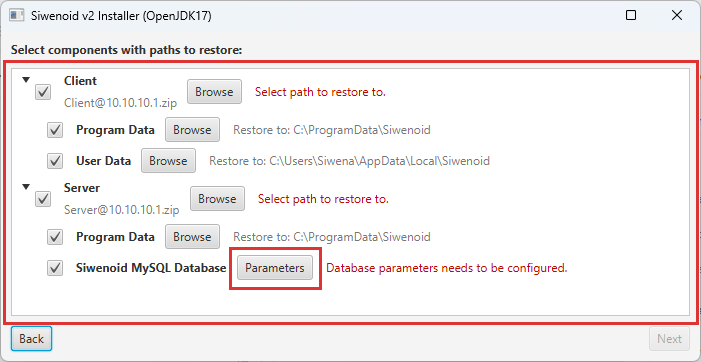
Choosing the components and target folders to restore.
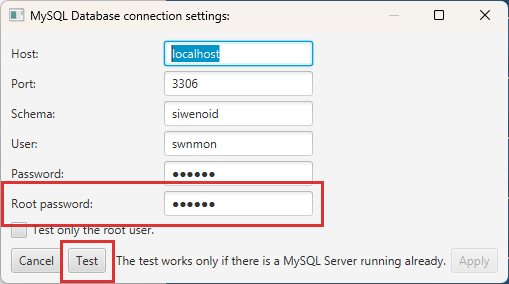
The database parameters of a restore.
The server's configuration is part of the backup, so the REST settings and the hot standby settings come back with it. For a member of a hot standby pair, restore the serving server's backup on that server, then rebuild the other server's database from it and set up the replication again (see Hot standby server pair).
Recommended practice
- Run a scheduled backup every day to a network share or a second disk, and remove old files regularly.
- Make a backup before every update.
- Now and then restore a backup on a spare computer to check that it works.