Installation
Installing the Siwenoid server, client, License Utility and MySQL database with the Siwenoid installer, and what the installation creates.
| At a glance | |
|---|---|
| Start | Siwenoid-Installer.bat |
| Components | Server, Client, License Utility, MySQL |
| Bundled | Java 17, MySQL 8.0.19 |
| Default folders | C:\Program Files\Siwenoid, C:\Program Files\mysql-for-siwenoid-v2 |
| Windows service | MySQL for Siwenoid v2 |
Siwenoid v2 is installed with the Siwenoid installer, a folder that you copy to the computer. It installs the Siwenoid server, the operator client, the License Utility and a MySQL database server, each with its own Java runtime. The same installer also updates, backs up and restores an installation.
Check the System requirements first.
Starting the installer
- Copy the installer folder to the computer. Any folder works; avoid special characters in its path.
- Double-click
Siwenoid-Installer.batand allow Windows to run it with administrator rights. - The window Siwenoid v2 Installer opens with four buttons:
| Button | Use |
|---|---|
| Install | A new installation. |
| Update | Upgrades an existing installation to the installer's version (see Updates). |
| Backup | Saves an installation into a backup file (see Backup and restore). |
| Restore | Restores a backup file (see Backup and restore). |
The installer is in English or Hungarian, following the language of Windows. There is no uninstall function.
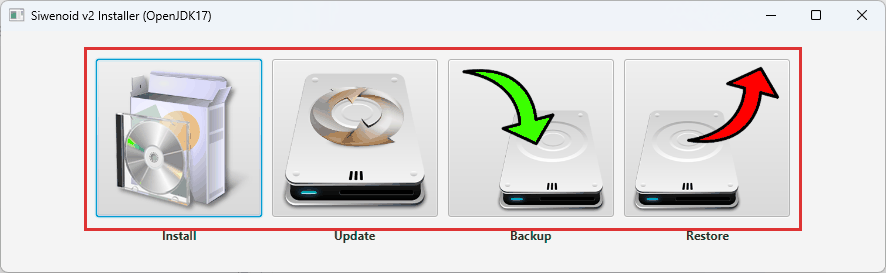
The main menu of the installer.
Choosing the components
| Component | What it is |
|---|---|
| Server | The Siwenoid server: connects the devices, processes the alarms, serves the clients. |
| Client | The operator's desktop program. |
| License Utility | The tool that prepares and renews USB licence keys (see Licensing). |
| MySQL | The database server that holds Siwenoid's data. |
Typical choices:
| Computer | Tick |
|---|---|
| Server with its own database and an operator workplace | Server, Client, MySQL |
| Additional operator PC | Client |
| Server whose database runs on another, existing MySQL server | Server |
| Each server of a redundant pair | Server and MySQL, then follow Hot standby server pair |
| PC used to maintain USB licence keys | License Utility |
Installing step by step
-
Click Install.
-
Tick the components and click Next.
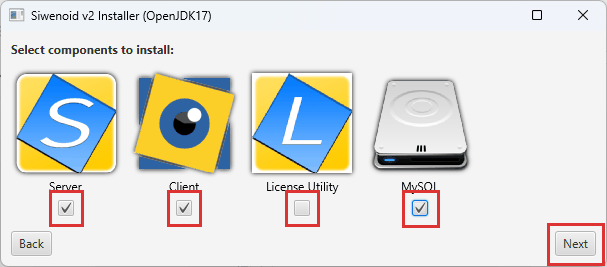
Selecting the components to install. -
Check the folders. Server / Client folder: defaults to
C:\Program Files\Siwenoid(each component gets its own subfolder), MySQL folder: toC:\Program Files\mysql-for-siwenoid-v2. The two must differ. To change one, click the button next to it. Click Next.If a chosen component is already installed in that folder, the installer asks whether to overwrite it.
Yes deletes the existing component folder and installs it fresh. For the MySQL component this deletes the database too. To upgrade a working system, use Update instead, never Install over it.
-
Fill in the MySQL Database connection settings: (shown when Server or MySQL is ticked).
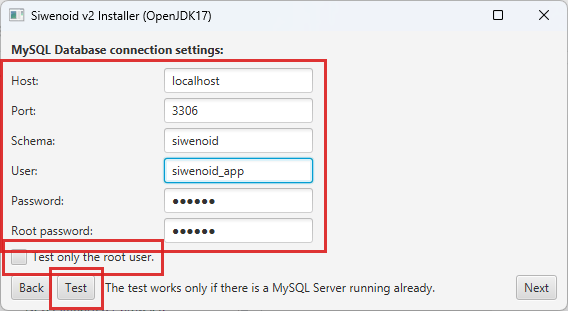
The database connection settings.Field Meaning Host: The computer that runs MySQL. localhostwhen MySQL is installed on this PC.Port: The MySQL port, normally 3306.Schema: The name of the Siwenoid database. User: The database user Siwenoid works with. Password: That user's password. Root password: The password of the MySQL administrator account ( root).Test only the root user. Test checks only the root account, for when the Siwenoid user does not exist yet. The fields come pre-filled with the product's default values. Enter a user name and passwords of your own and keep them with the site's records. Test works only with a MySQL server that is already running, so skip it when you install MySQL now. Click Next.
-
The installation runs. Total progress: shows how far it is. At the end the installer reports The installation has finished successfully.
-
Click Next, then Finish. Start the programs from their desktop icons (see First start).
Database with MySQL ticked
The installer unpacks MySQL, creates its configuration, registers and starts it as a Windows service, sets the root password, and creates the schema and the Siwenoid user with full rights on that schema.
Database on an existing MySQL server
When MySQL is not ticked, the installer only writes the connection settings into the server's configuration. Before the first start of the server, create on the MySQL server:
- the schema with the name you entered,
- the user with the password you entered, allowed to connect from the Siwenoid server and holding all privileges on that schema.
The server creates its tables at its first start. Ask Siwena which MySQL settings an existing database server needs.
Important
After the installation, make sure that the MySQL
rootaccount and the Siwenoid database user have passwords of your own, not the pre-filled ones. The database password is stored in the server's configuration file and in every server backup: keep both protected (see Configuration files).
What the installation creates
| Item | Where |
|---|---|
| Program folders | C:\Program Files\Siwenoid\Server, ...\Client, ...\LicenseUtility, each with its own Java runtime and start script (start_server.cmd, start_client.cmd, start_licenseutility.cmd) |
| Client update package | C:\Program Files\Siwenoid\Update\Client.zip, on a server: the server hands it to clients of another version (see Updates) |
| Configuration and logs | C:\ProgramData\Siwenoid: ServerConfig, ServerLogs, ClientConfig, ClientLogs (see Configuration files) |
| Database | C:\Program Files\mysql-for-siwenoid-v2, its data in the data subfolder, its settings in siwenoid.ini |
| Desktop icons | Server, Client, License Utility |
| Windows service | MySQL for Siwenoid v2, started automatically with Windows |
The user data of the client (automatic login, window positions, downloads) is kept per Windows user in C:\Users\<user>\AppData\Local\Siwenoid.
Starting the programs automatically
The only Windows service the installer registers is the database. The Siwenoid server and the client are desktop programs: the server runs with a window and an icon in the notification area (system tray) of the logged-on Windows user. Neither starts by itself after Windows restarts.
Arrange the automatic start as the site requires, for example:
- Choose the Windows account that runs the server (or the client on an operator PC).
- Place a shortcut to the program's desktop icon target (
start_server.cmdorstart_client.cmdin the program folder) in that account's Startup folder (typeshell:startupin the Windows Run dialog to open it). - If the computer must recover from a power failure unattended, let that account log on automatically, as far as the site's security rules allow.
Only one Siwenoid server runs on a computer: starting it a second time does nothing.
Additional operator PCs
- Run the installer on the PC and install Client only.
- Point the client at the server: edit
C:\ProgramData\Siwenoid\ClientConfig\config.xmland enter the server's address (see Configuration files). - Make sure the PC reaches the server's REST port (TCP 8080 by default).
- Start the client from its desktop icon. If its version differs from the server's, the client offers to update itself (see Updates).