Updates
Upgrading the server with the installer's Update, the automatic database upgrade, and the client's self-update from the server.
| At a glance | |
|---|---|
| Server upgrade | installer › Update |
| Database | upgraded at the server's first start |
| Client | updates itself from the server |
| Client needs | write access to its folder |
| Port | the server's REST port only |
A new Siwenoid version is installed on the server computer with the installer's Update. The database is upgraded when the new server starts for the first time. The clients do not need a visit: each client notices that the server runs another version and updates itself from the server.
Before you start
- Make a backup (see Backup and restore). The database upgrade cannot be undone; a backup is the only way back.
- Choose a quiet time. While the server is stopped, the operators receive no alarms.
- For a hot standby pair, follow the order given in the section on hot standby pairs below.
Upgrading the server
- Shut down the server (tray icon › Shutdown), so that no file is in use. Close the clients on the server computer too.
- On the server computer, run
Siwenoid-Installer.batfrom the new installer package and choose Update. - The installer searches the drives for installed Siwenoid components. Under Select components to update: tick the components to update, normally every one it found (Server, Client, License Utility). Use Browse to select an installation folder yourself, or Stop search once your components are listed.
- Click Next and wait for The update has finished successfully.
- Start the server. On its first start the server upgrades the database to the new version. After a big version jump this can take several minutes: wait until every service in the server window runs, and do not stop the server while it upgrades.
- Start a client and log in. It updates itself if needed (see below).
- Check File › Settings › Support › License informations and the warning list of the main window.
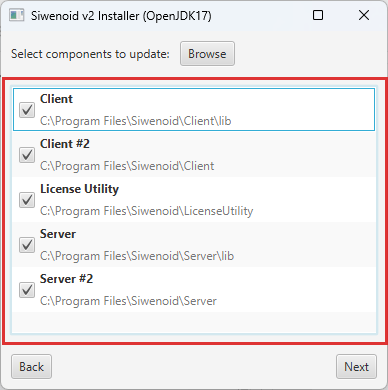
The installer's list of components to update.
What Update does:
| Changed | Not changed |
|---|---|
| The program files: new and changed files overwrite the old ones. | The configuration and the other files in C:\ProgramData\Siwenoid. |
| The bundled Java runtime is replaced. | The database (it is upgraded later, by the server). |
The start scripts (start_*.cmd) are replaced with the package's: repeat any local change you made in them. |
The licence. |
| The REST service is switched on in the server configuration if it was missing (every client needs it). | The MySQL program. |
| The client package of the new version is placed beside the server, so the clients can update from it. |
Note
Use Update for an existing system, never Install: Install over an existing component deletes its folder and installs it fresh.
Client update
The client compares its own version with the server's before the login screen. The two must be exactly the same version, including the revision (for example 2.1 rev 261124 b; the client shows its version in its title bar).
When they differ, the client shows Version mismatch!: Client version is not matching with server version!, with the two versions and Client update required!
| Button | Effect |
|---|---|
| Update now | Downloads the client of the server's version and installs it. |
| Close application | Closes the client without updating. |
After Update now the window Siwenoid updater shows Siwenoid updating... Downloading client from server and the progress (Downloading in progress...), then Installing the update; the client starts again in a moment. The client closes, its files are replaced, and the client starts again with the login screen. If replacing the files fails, the previous version is put back.
When the server is updated while operators are logged in, a client that meets the new version during its session does not block the screen: it shows a notice card in the bottom right corner with Update now. The session goes on; the operator updates when it suits the shift, or at the next start.
The update uses only the server's REST port: no other port or file share is needed. Several clients can update at the same time; the server makes the others wait briefly when many download at once.
Requirements on the client computer
The Windows user who runs the client must be allowed to write the client's folder (by default C:\Program Files\Siwenoid\Client). Standard Windows users usually may not write under C:\Program Files. Either give the operators' Windows group the Modify right on the client folder, or update those clients by hand (below).
Messages
| Message | Cause and fix |
|---|---|
| This user cannot write the client's folder | Missing write access. Grant it, or update the client as a user who may write it, or install it by hand. |
| The server holds no client package for its version: install the client of the server's version by hand. / Client update is missing on server directory! | The server has no client package. Run Update on the server with the installer, or install the client by hand. |
| The server is older than this client: it has no client update service. Install the client of the server's version by hand. | The client is newer than the server. Update the server, or install the matching client by hand. |
| The downloaded client is damaged (its checksum differs). Please try again. | The download was corrupted. Start the client again and choose Update now. |
| The server's version could not be read: no server answered on its REST API | The server does not run or cannot be reached. See Troubleshooting. |
The updater writes its own log, updater.log, into the client's log folder (C:\ProgramData\Siwenoid\ClientLogs).
Updating a client by hand
On a client computer that cannot update itself, run the installer of the server's version there, choose Update and tick Client. On a new computer, choose Install and Client (see Installation).
Providing the client package by hand
The installer puts the client package at <installation folder>\Update\Client.zip (for example C:\Program Files\Siwenoid\Update\Client.zip), and the server hands this file to the clients. If a server has no package (the clients report that the server holds no client package), copy Client.zip from the data folder of the installer package of the server's version to that place. The server hands it out at once; no restart is needed.
Upgrading a hot standby pair
Upgrade the two servers of a hot standby pair one at a time, never both at once. The database upgrade of the first server reaches the other database through the replication.
- Make a backup of both servers.
- Upgrade the server that does not serve (normally the secondary), start it and wait until it runs. Meanwhile the other server keeps serving; the warning list shows that the servers do not reach each other while one is stopped.
- Upgrade the other server and start it.
- Let the clients update themselves, then check that the warning list is empty.
While the two servers run different versions, the warning Hot standby: the other server answers but cannot be read (another peerSecret or version?); neither server changes its role. may appear. Keep this period short.
Going back to an older version
Installing an older package over a newer one does not take the database back. To return to an older version, restore the backup made before the update (see Backup and restore).