Cameras (CCTV)
Opening the live picture of cameras from the datapoint hierarchy, the information pane and maps, cameras opening by themselves at an alarm, and PTZ presets.
Siwenoid can show the live picture of the site's cameras. The picture appears in a separate viewer window next to the Siwenoid window. You can open a camera yourself from the datapoint hierarchy, the information pane or a map, and cameras can open by themselves when an alarm arrives.
Before you start
- The camera functions must be enabled on your PC. If you see no Show live video menu item and no cameras in the information pane, the CCTV service is not enabled on this PC: ask your engineer (see CCTV cameras (ONVIF, RTSP, Hikvision, Dahua)).
- You see only the cameras you may see. A camera hidden by your object restrictions is not offered to you. No other permission is needed to open a camera.
- Your PC fetches the video itself. The picture comes straight from the camera or the recorder to your PC, so your PC must reach it on the network.
The viewer starts when you log in and closes when you log out.
Opening a camera
Whichever way you open a camera, Siwenoid hands it to the viewer, and the picture appears in the viewer window.
From the datapoint hierarchy
Right-click a camera in the Datapoint Hierarchy tab and choose Show live video.
The item is offered only on camera datapoints. For an ordinary datapoint that has cameras assigned, use the information pane or the map.
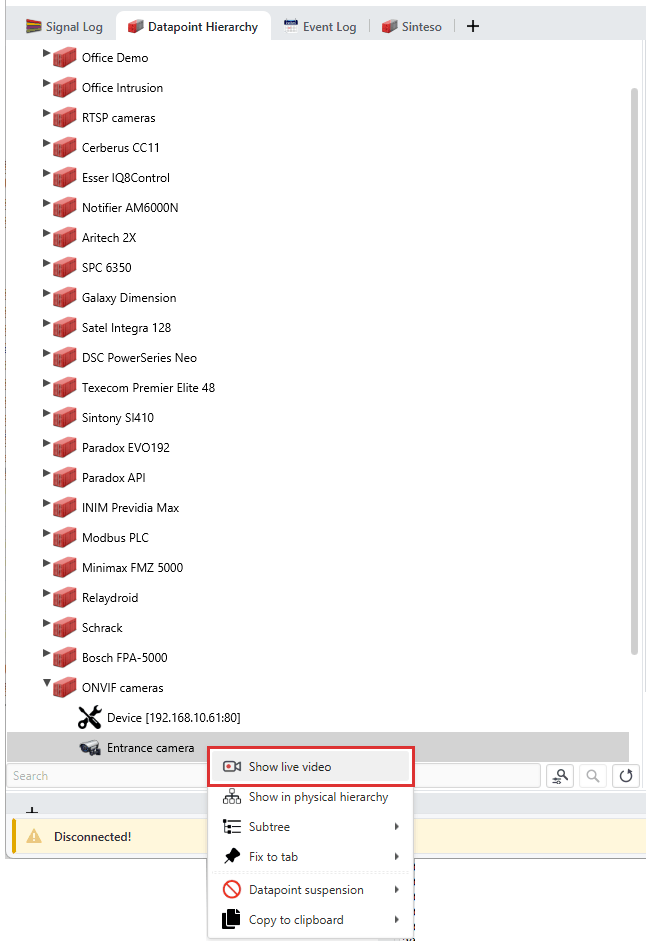
The menu of a camera in the datapoint hierarchy with Show live video.
From the information pane
- Select one datapoint in the datapoint hierarchy.
- In the Informations section of the information pane, the Cameras: row lists the cameras assigned to it.
- Click a camera's name to open it.
The row is shown only if the datapoint has cameras you may see. With several datapoints selected the section shows Multiple datapoints selected! and no cameras. See Datapoint hierarchy for the information pane.
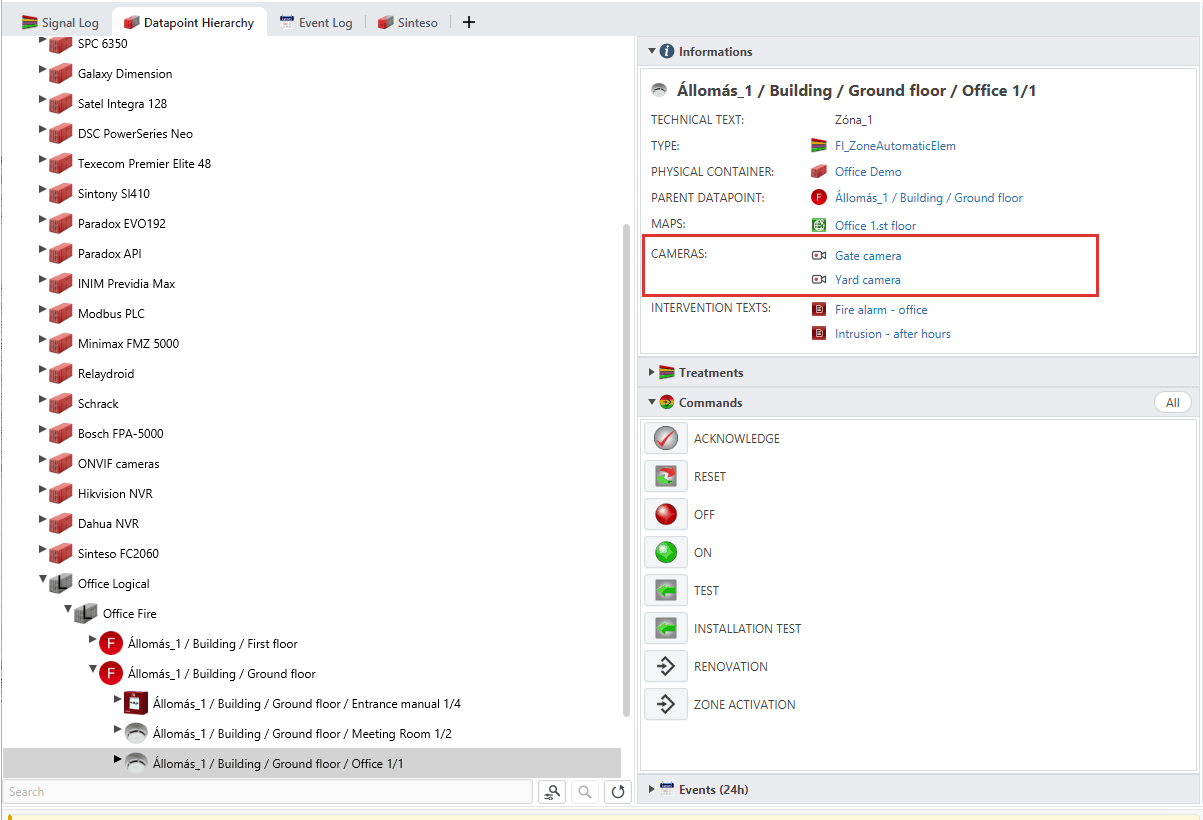
The Cameras row of the information pane with two cameras.
From a map
Right-click the datapoint's button on the map (only one button may be selected) and choose Show live video:
- If cameras are assigned to the datapoint, Show live video lists them: click the camera you want.
- If the button is itself a camera with no cameras assigned to it, Show live video opens it.
With several buttons selected the item is not offered. See Maps for maps.
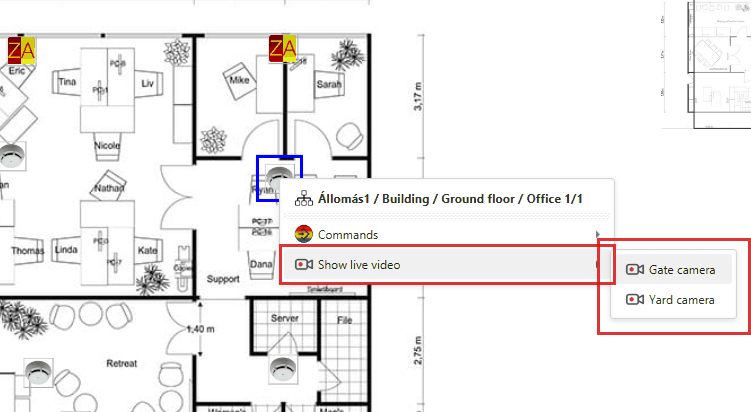
The Show live video submenu of a map button with the cameras assigned to the datapoint.
From the signal log
The signal log has no camera item. To see the cameras of an alarm, use the row's Show in datapoint hierarchy button and open the camera from the information pane, or open the map from the row and use the button's menu. See Signal log.
By dragging
Drag a camera from the datapoint hierarchy onto the viewer window. Siwenoid fetches the camera's details when you press the mouse button; if the server answers slowly, the drop does nothing: try again.
Automatically at an alarm
Your engineer can set up alarm categories that open cameras (see CCTV cameras (ONVIF, RTSP, Hikvision, Dahua)). When such an alarm arrives on a datapoint with assigned cameras, the viewer opens those cameras on your PC without a click. Nothing else appears in Siwenoid for it. Acknowledging the alarm does not close the video.
The viewer window
The viewer is a separate program with its own window; Siwenoid has no camera tab of its own. Siwenoid starts it in the language of the client. When several cameras are opened at once, for example by an alarm, they are all handed to the viewer together, each camera once.
PTZ presets
The Siwenoid client has no control to turn a camera. PTZ cameras turn by themselves: when an alarm opens the cameras, the server turns each camera to the preset assigned to the alarming datapoint, so the picture already shows the alarm's place. A camera without an assigned preset opens in its current position. RTSP cameras never turn.
Camera markers in the tree
You can have the datapoint hierarchy mark the datapoints that have cameras assigned: in Preferences › Appearance › Datapoint Hierarchy, tick Show if datapoint has CCTV assignment. A small camera icon then appears in their rows.
When the picture does not appear
| What you see | What to do |
|---|---|
| No camera menu items, no cameras in the information pane | The CCTV service is not enabled on this PC. Ask your engineer. |
| A camera is missing from the lists | Your object restrictions hide it, or it is not assigned to the datapoint. Ask your engineer. |
| You click the menu item, but nothing opens | The viewer may not be running or the camera's details could not be read. Log out and log in again: the viewer starts at every login. |
| The viewer opens but shows no picture | Your PC cannot reach the camera, or the camera is out of order. Report it to the maintainer. |
| The camera opens but does not turn to the alarm's place | The preset could not be called. Report it to the maintainer. |
Important
Do not wait for the picture before acting. If a camera does not show the alarm, handle the alarm as usual (intervention text, check on site) and report the camera problem.