Logical containers
Regrouping datapoints in the datapoint hierarchy: creating, renaming and deleting logical containers, moving datapoints, restoring them to their original parent, ordering and sorting.
| At a glance | |
|---|---|
| Where | Datapoint Hierarchy tab, context menu and drag and drop |
| Preferences tile | none |
| Permission | Edit logical datapoints |
| Effect | the same tree for every user |
The datapoint hierarchy first shows every datapoint under its physical container, as the panel organises it. A logical container is a named folder that you create in the hierarchy to regroup datapoints the way the site is used: by building, floor, area, function, tenant or the operator responsible for it. Logical containers can hold datapoints and other logical containers, to any depth (for example Building › Floor › Room).
A logical container exists only in Siwenoid: it changes nothing in the connected devices, and reorganising the tree during operation does not disturb monitoring. Like any container it shows the status of what it holds.
Before you start
- There is no Preferences tile for logical containers. Everything is done in the main window's Datapoint Hierarchy tab, with its context menu and by drag and drop.
- A datapoint has one parent. Dropping a datapoint into a logical container moves it there; it is not shown in two places. The datapoint remembers its physical container: the information pane shows it as Physical container:, and Restore to original parent puts it back.
- The tree is the same for everyone. Every change is stored on the server, every operator sees it at once, and it is recorded in the event log with the user and the address.
- Physical containers stay as they are. Their datapoints can be moved into logical containers and back, but the panels themselves are set up in Physical structure. Import a panel's metafile into its physical container as usual; moved datapoints are updated where they are.
- Logical containers are the usual unit of object restrictions and subtrees, and tasks can name them too.
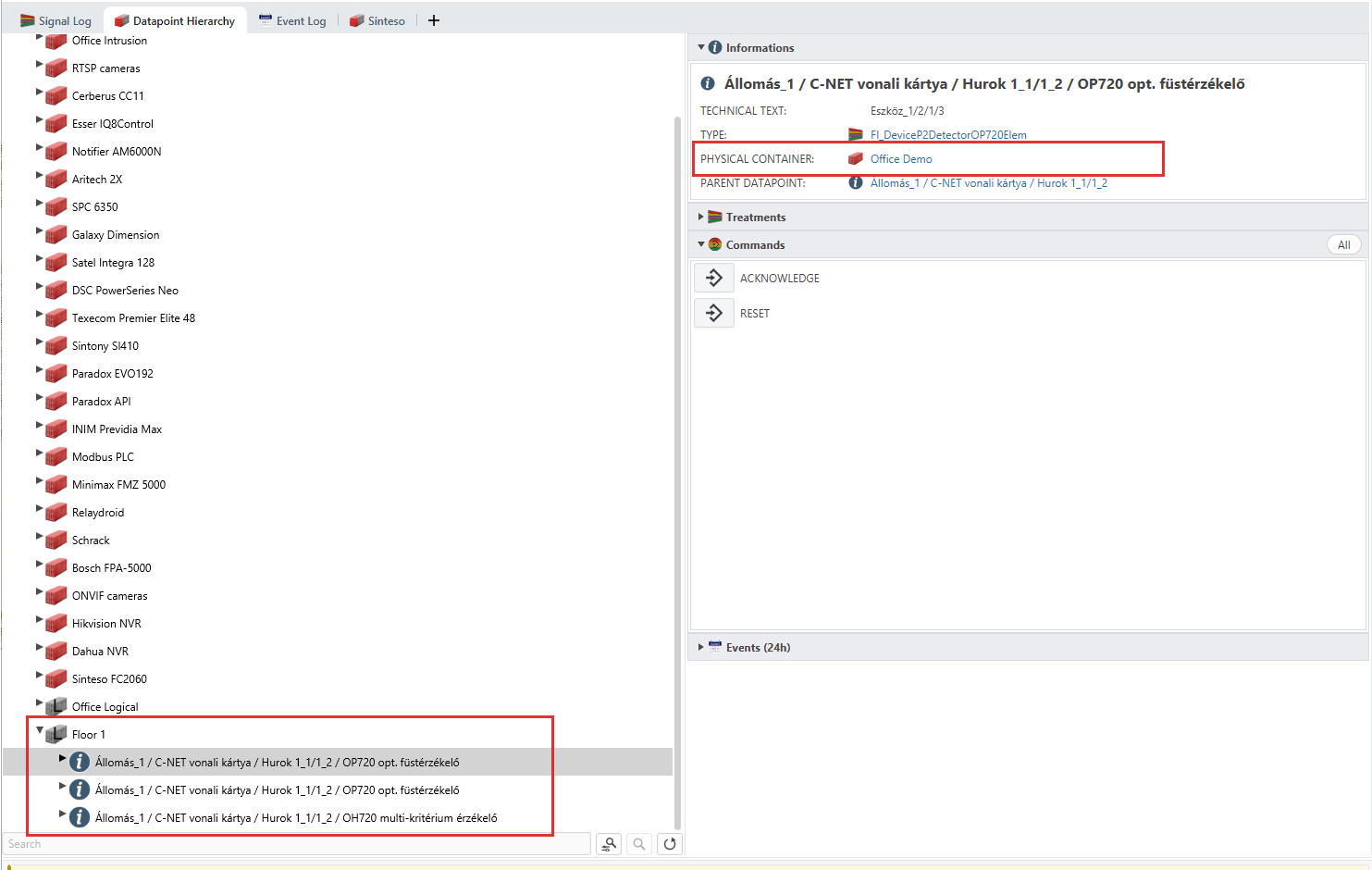
A logical container holding datapoints of a panel; the information pane shows their physical container.
Permissions
| Action | Permission (as named in Users and groups) |
|---|---|
| Open the Datapoint Hierarchy tab | Using datapoint hierarchy |
| Create, rename and delete logical containers; move datapoints into them; move a logical container to the top level; restore datapoints to their original parent | Edit logical datapoints |
| Order datapoints by dragging them next to a sibling | Tree reorder |
| Sort the children of a node | Tree sort |
Without Edit logical datapoints the Logical container submenu and Restore to original parent are not offered, and a drop cannot move anything. Without both it and Tree reorder the tree accepts no drop at all. Dragging datapoints out of the tree (onto a map, for example) needs none of these.
Creating a logical container
- Open the Datapoint Hierarchy tab.
- Right-click the root of the tree, or a logical container to create the new one inside it.
- Choose Logical container › New container.
- Type the name in the field of the menu (Name of container) and press Enter, or the button next to the field.
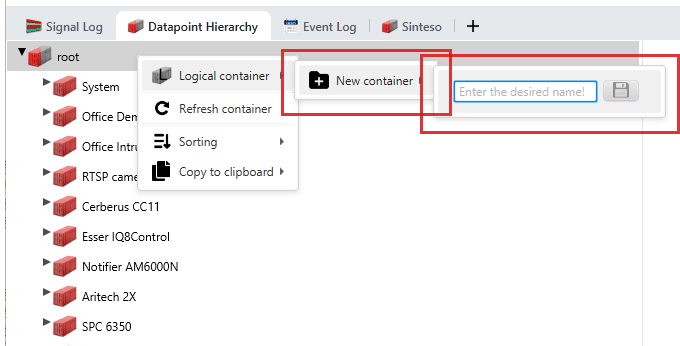
The Logical container submenu with the name field of a new container.
On the root the new container is added at the end of the top level; on a logical container, inside it. The menu is not offered on physical containers and their datapoints. The name must not be empty.
Moving datapoints into a container
- Arrange the view so that both the datapoints and the target container are visible. A second Datapoint Hierarchy tab in another pane helps (see The main window).
- Select one or more datapoints (Ctrl or Shift click). You can also select logical containers.
- Drag them onto the logical container. The row under the pointer is highlighted when it accepts the drop.
- The question Do you want to order or move the datapoint(s)? appears:
- Move: moves the selection into the container,
- Order: offered only when the dragged items have the same parent as the container: places them next to the container instead (see Ordering below),
- Cancel: nothing changes.
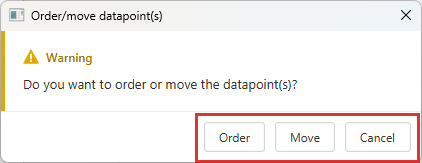
The question after a drop on a logical container.
The children of a moved node move with it. The moved datapoints now appear only in the logical container; the physical structure still shows them under their panel.
A drop is not accepted on a physical container or on a datapoint that is not a container, except to order siblings. A container does not accept a drop of its own children. You cannot move a container into itself or below itself: The datapoints cannot be moved into this container: it is one of them or below them. At most 1000 items can be changed at once.
Moving a logical container to the top level
Drag a nested logical container onto the root of the tree and answer Yes to Are you sure you want to move the datapoint(s) under root?.
Restoring datapoints to their original parent
- Right-click a datapoint that was moved into a logical container (or select several).
- Choose Restore to original parent.
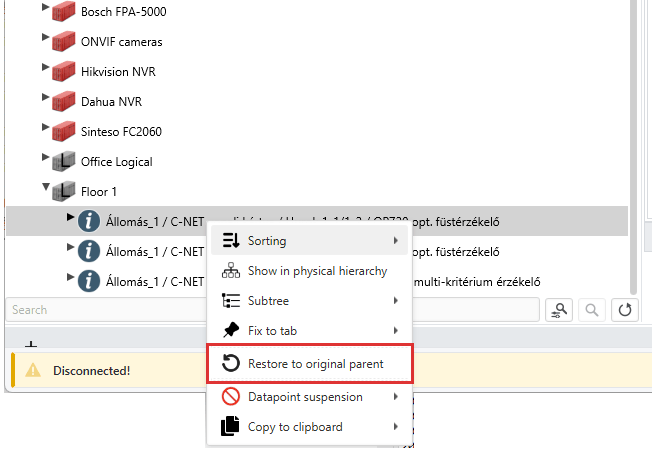
Restore to original parent in the context menu of a moved datapoint.
The datapoints go back under their physical parents. Datapoints that are not in a logical container are left alone.
To put back every moved datapoint of one panel at once, use Move back logical moved datapoints on the container in Physical structure.
Renaming a logical container
- Right-click the logical container.
- Choose Logical container › Rename container. The field shows the current name.
- Edit the name and press Enter.
Renaming does not change the members or the object restrictions. The signal log shows the new name in the path of the datapoints below it.
Deleting a logical container
- Right-click the logical container. To delete several, select them first; the selection must contain only logical containers.
- Choose Logical container › Delete container.
- Confirm the question (Are you sure you want to delete the selected container: "..." ?, or Do you want to delete the ... selected containers?).
Deleting a logical container does not delete what it holds: its datapoints go back under their physical parents, and the logical containers inside it move to the top level. Then the empty container is deleted. Review the object restrictions that named it.
If another user moves a datapoint into the container meanwhile, the delete is refused: The container could not be deleted: datapoints still belong to it.
Ordering and sorting
Ordering by hand
Drag one or more nodes onto a sibling (a node with the same parent) and answer Yes to Are you sure you want to order the datapoint(s)?. The dragged nodes are placed next to the target. Only nodes under the same parent can be ordered this way.
Sorting
Right-click a container, or any node with children, or the root, and choose Sorting:
| Item | Effect |
|---|---|
| Sort by name | Orders the children of this node by name. |
| Sort by technical text | Orders them by technical text. Not offered on the top level of logical containers. |
| Reset sorting | Returns to the original order. |
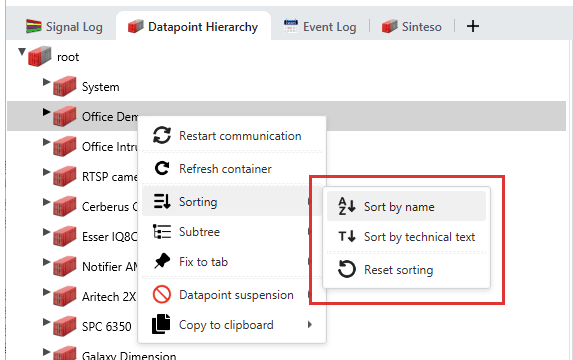
The Sorting submenu of a container.
The order is stored on the server and every user sees it.
Other items of the context menu
Refresh container reloads the open branches of a container. The Subtree and Fix to tab items are described in Subtrees and user subtrees; Restart communication, Datapoint suspension and Show in physical hierarchy in Datapoint hierarchy and Physical structure.
When a change is refused
If the server does not carry out a change, a dialog Action not carried out tells why. The usual reasons:
| Message | Meaning |
|---|---|
| You do not have the permission for this change. | Your user lacks the permission (see the table above). |
| Some of the datapoints no longer exist or are not visible to you. | Another user deleted or moved them, or your object restrictions hide them. Refresh the tree. |
| Only datapoints under the same parent can be ordered. | Order siblings only; use Move for others. |
| The datapoints cannot be moved into this container: it is one of them or below them. | Choose another target. |
| This action is not possible on the selected item(s). | For example a physical container in the selection. |
| The name must not be empty or too long. | Give a shorter, non-empty name. |
| Too many items are selected: at most 1000 can be changed at once. | Change them in smaller groups. |
| The server did not answer; the change may have been carried out anyway. | Refresh the tree and check before you try again. |