Subtrees and user subtrees
Shared subtrees of the datapoint hierarchy for operator workplaces, their editing in Preferences, and the operators' own pinned tabs (user subtrees).
| At a glance | |
|---|---|
| Where | Datapoint Hierarchy context menu › Subtree, and File › Settings › Subtrees |
| Permission | Edit subtrees |
| Operators open them | + › Subtrees (Using subtrees) |
| User subtrees | Fix to tab, no permission needed |
A subtree is a named, shared view of one or more branches of the datapoint hierarchy. An operator opens it as a tab of its own and sees only those branches instead of the whole tree: one building, one floor or one subsystem per workplace, for example. Subtrees are defined by the engineer and are the same for every user.
A user subtree is an operator's own shortcut: anyone can pin branches of the tree to a tab of their own with Fix to tab. It is personal and comes back at the next login.
A subtree only points at nodes of the tree, its roots. The nodes stay where they are, and what is below a root follows the live tree. Deleting a subtree deletes nothing in the tree. To regroup datapoints themselves, use logical containers.
Permissions
| Action | Permission (as named in Users and groups) |
|---|---|
| Create subtrees, add and remove roots (datapoint hierarchy context menu); rename and delete subtrees (Preferences) | Edit subtrees |
| Open a subtree tab | Using subtrees (and Open and close tabs for the + button) |
| Create and delete your own user subtrees | none |
A user sees only the roots that their object restrictions allow, in subtrees and in the editor alike.
Creating a subtree
- Open the Datapoint Hierarchy tab.
- Select the nodes that should be the roots of the subtree (Ctrl or Shift click). Do not select the root of the tree.
- Right-click the selection and choose Subtree › New Subtree.
- Type the name in the field of the menu and press Enter, or the button next to the field.
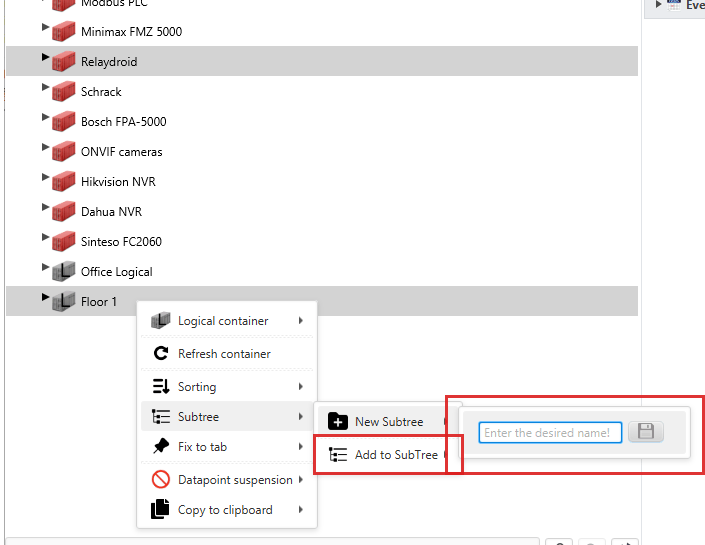
The Subtree submenu: the name field of a new subtree and the list of existing ones.
The selected nodes become the roots of the new subtree, in their order. If the name is empty or already used (letter case and surrounding spaces do not count), a dialog asks for another name: The name cannot be empty. or An item with this name already exists. Please choose a different name. A name can be at most 150 characters long.
Adding and removing roots
Add: select the nodes, right-click and choose Subtree › Add to SubTree › the subtree. The nodes are added to the end of its roots; a node that is already a root moves to the end. The item is offered when at least one subtree exists.
Remove, either:
- open the subtree's tab, right-click the root and choose Subtree › Remove item from SubTree, or
- in Preferences › Subtrees, select the subtree, right-click the root in the Roots list and choose Remove item from SubTree.
The Subtrees screen in Preferences
Open File › Settings › Subtrees. Here you can rename subtrees, remove roots and delete subtrees. New subtrees are created from the datapoint hierarchy, as described above.
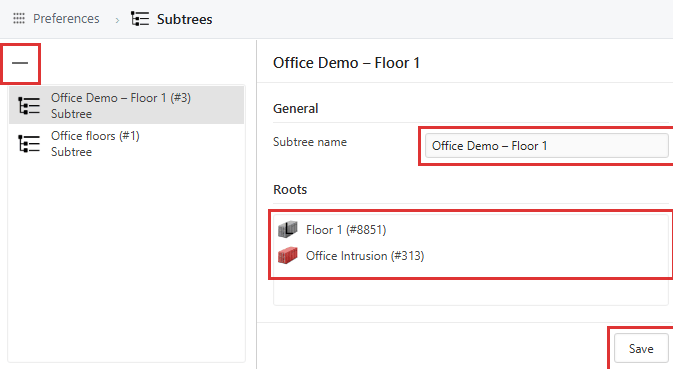
The Subtrees screen: the list of subtrees, and the selected subtree's name and roots.
Left: the subtrees. The - button above the list deletes the selected one. With no subtree the list says There is no subtree to show.
Right: the editor of the selected subtree (the first one is selected when the screen opens):
| Section | Field | Meaning |
|---|---|---|
| General | Subtree name: | The name the operators see. Required, unique among the subtrees, at most 150 characters. |
| Roots | the list | The roots with their icon, name and number. Select one or more, right-click and choose Remove item from SubTree: they are removed at once, without Save. |
Save stores the name only. A name that is already used or too long is shown in red under the field; if the server refuses it, a dialog Change not carried out tells why (for example A subtree with this name already exists.).
Renaming a subtree
- Select the subtree in the list.
- Edit Subtree name: and press Save.
The operators' open tabs of the subtree are rebuilt with the new name.
Deleting a subtree
- Select the subtree in the list.
- Click - and confirm Do you want to delete the subtree "..."? with Delete.
The subtree is removed for every user, and the open tabs of it close. The datapoints are not affected.
Every change of a subtree (creating it, adding and removing roots, renaming, deleting) is recorded in the event log with the user and the address.
Opening a subtree (operators)
- Click + at the end of a tab pane of the main window.
- Choose Subtrees › the name of the subtree.
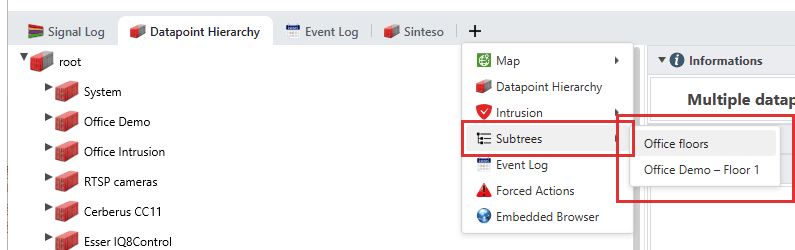
Opening a subtree from the + menu.
The new tab shows only the roots of the subtree, with the same context menu and information pane as the datapoint hierarchy. Pin the tab (right-click it, Pin Tab) if it should come back at the next login; see The main window and Datapoint hierarchy.
User subtrees: Fix to tab
Any user can keep a part of the tree one click away:
- In the datapoint hierarchy, select one or more nodes (not the root of the tree).
- Right-click and choose Fix to tab:
- for one node, the tab is created at once and named after the node,
- for several nodes, type a name in the field of the menu and press Enter. If you already have a user subtree of that name, you are asked for another one.
- To add nodes to one of your existing tabs, choose Fix to tab › Add › the tab. No subtrees is shown when you have none.
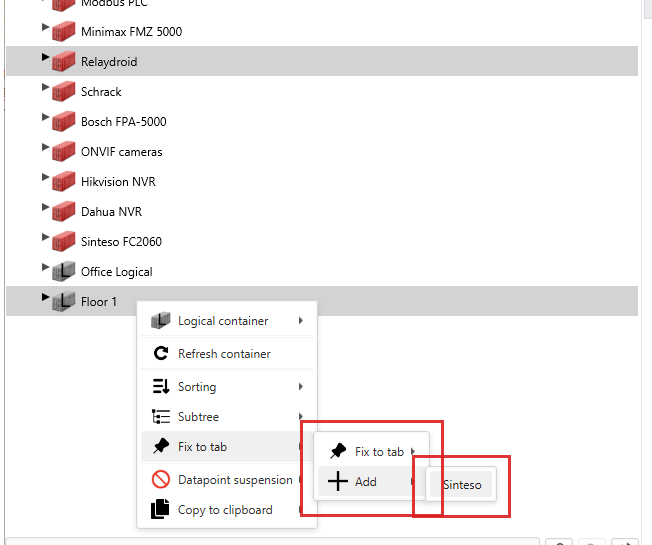
The Fix to tab submenu with the name field and the user's own subtrees.
The new tab appears in the main pane of the main window and comes back at every login of that user. A user subtree with a single root shows that node at the top of the tree.
To delete a user subtree, right-click its tab, choose Delete user subtree and confirm Are you sure you want to delete the "..." user subtree?.
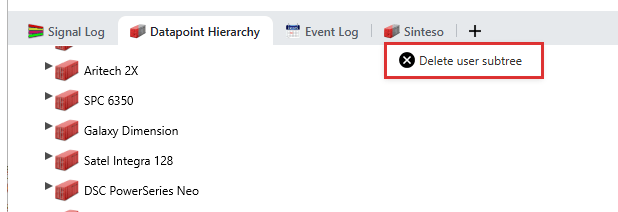
A user's own tab and its Delete user subtree menu.
User subtrees belong to their user only: other users do not see them, and they are not recorded in the event log.
Subtrees, user subtrees and logical containers
| Subtree | User subtree | Logical container | |
|---|---|---|---|
| Who creates it | Users with Edit subtrees | Any user | Users with Edit logical datapoints |
| Who sees it | Everyone (with Using subtrees) | Its own user | Everyone, in the datapoint hierarchy |
| What it changes | Nothing; it shows branches in a tab | Nothing; it shows branches in a tab | The place of the datapoints in the tree |
| Where it is edited | Context menu, Preferences › Subtrees | Context menu, the tab's menu | Context menu (Logical containers) |