Paradox EVO192 (PRT3)
Connecting a Paradox EVO192 intrusion panel through its PRT3 module and a serial-to-Ethernet converter: device settings, container parameters, browsing the areas and zones.
| At a glance | |
|---|---|
| Manufacturer | Paradox |
| Panels | EVO192 |
| Interface | PRT3 module (RS-232) and a serial-to-Ethernet converter |
| Connection | TCP |
| Handler type | Paradox |
| Protocol | Paradox |
| Datapoints | browsed from the panel |
| Import | none |
A Paradox EVO192 intrusion panel connects to Siwenoid through its PRT3 interface module. The PRT3 has an RS-232 port, so a serial-to-Ethernet converter makes it reachable over the network. Use an ATC-2000 converter: the ATC-1000 can freeze on a corporate network and is no longer recommended. Siwenoid shows the panel's areas and zones as datapoints, follows their states, and lets operators arm and disarm areas and bypass zones.
Paradox EVO, SP and MG panels connected through an IP150 module are not covered on this page. They connect with Siwenoid's own Paradox handlers, one per panel family: see Paradox EVO, SP and MG (IP150).
Preparing the PRT3 module
Program the PRT3 with the WinLoad software.
-
On the Programming › Partitions tab, tick every partition and zone that Siwenoid should monitor and control.
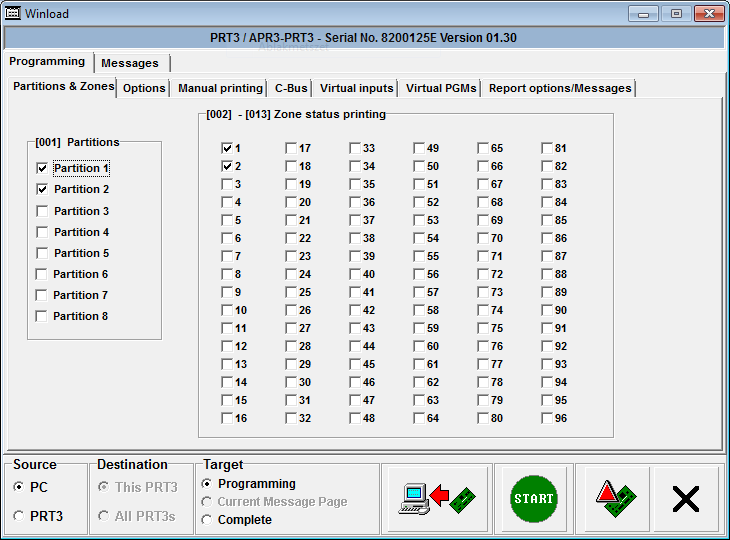
WinLoad: the partitions and zones the PRT3 passes on. -
On the Programming › Options tab, in section 016 Serial port setup options, set the options as in the picture. The baud rate is 2400; the converter must use the same rate.
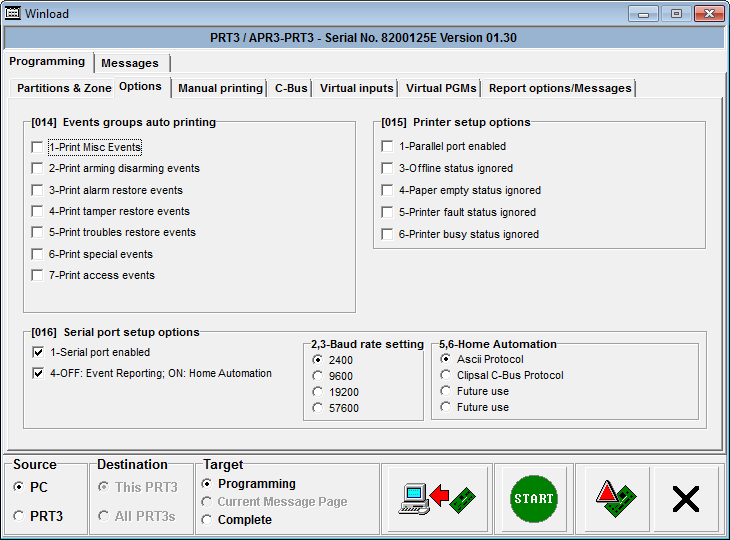
WinLoad: serial port options of the PRT3.
Preparing the converter
Open the converter's web page in a browser and log in. Change the converter's default password.
The menu names and pictures below come from the web pages of an ATC-1000. The ATC-2000's web pages differ: set the same values in its own menus.
-
In the UART menu, enter the serial settings below and save them.
Setting Value Mode RS232 Baudrate 2400 (the same as in the PRT3) Character Bits 8 Parity Type none Stop Bit 1 Hardware Flow Control none Delimiter all check boxes empty 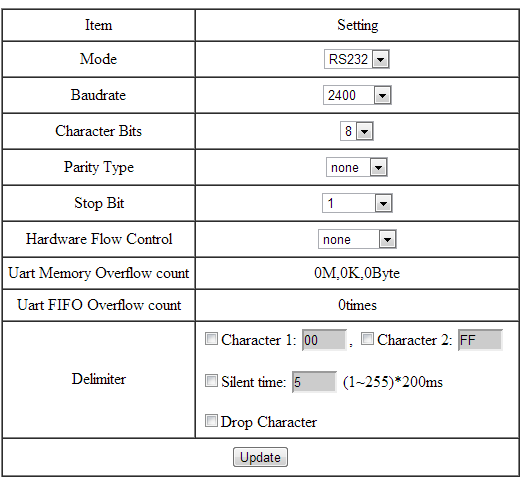
The UART settings of an ATC-1000 for the PRT3. -
Under Administrator › System IP Configuration, give the converter a fixed IP address. With DHCP you would have to correct the address in Siwenoid every time it changes.
-
Under TCP Mode, note or set the Data Port Number. Siwenoid connects to this port.
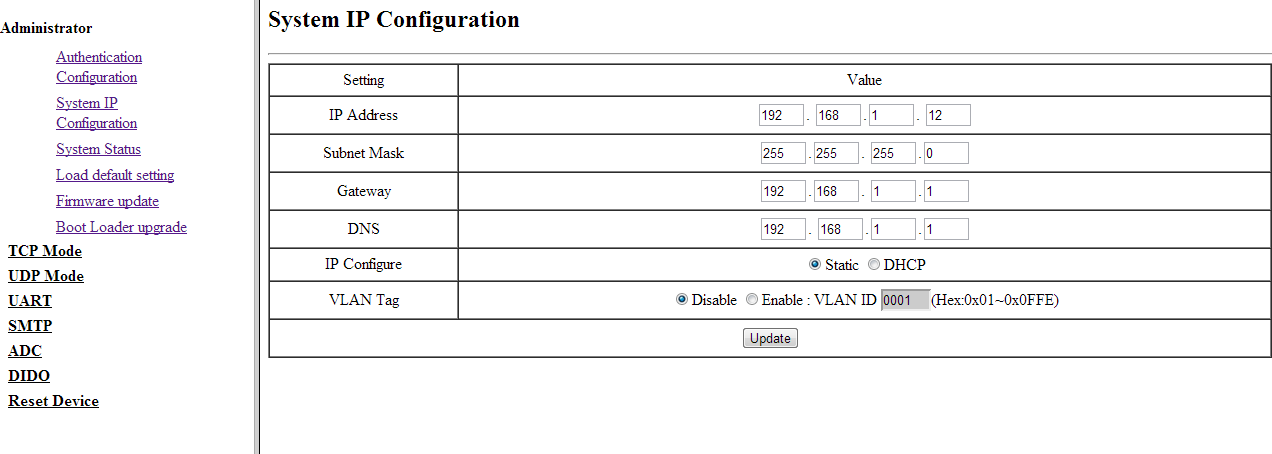
IP address and data port of an ATC-1000. -
Connect the converter's serial port to the PRT3's serial port with a standard serial cable.
Creating the container
Create the container in Preferences › Physical structure (see Physical structure for the editor in general). Choose Paradox as Handler type and Paradox as Protocol, then fill in the connection parameters.
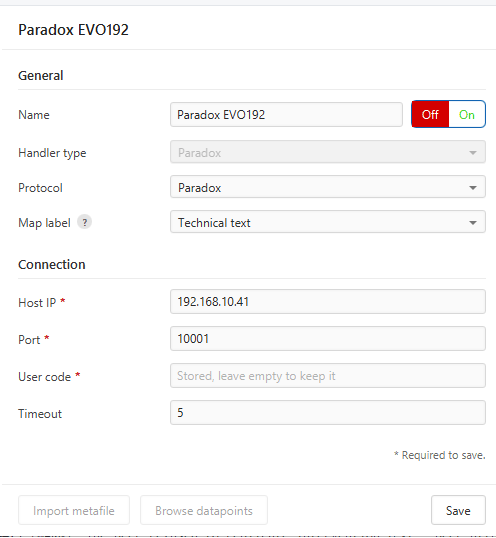
The container editor with the Paradox connection parameters.
| Field | Meaning | Default |
|---|---|---|
| Host IP | IP address of the converter. Required. | |
| Port | The converter's data port (Data Port Number). Required. | |
| User code | A user code programmed in the panel. Siwenoid sends it with arm, disarm and bypass commands, so the code's user must be allowed to do these on the panel. Required. | |
| Timeout | Seconds to wait for the panel's answer. Empty also means 5 seconds. | 5 |
The Protocol list also offers Paradox (slow connection), an alternative for slow links. Use Paradox unless Siwenoid support advises otherwise.
Save the container and switch it On with the toggle at the top of the editor.
Getting the areas and zones
The panel's datapoints are read from the panel itself; there is no file to import.
- Make sure the container is On and connected.
- Press Browse datapoints in the container editor.
- Wait for Browsing has been finished. Siwenoid reads the name of every area and zone one by one, so this takes a while.
The result is a Paradox system node with 8 areas and 192 zones under the container. The datapoints change from unknown to their current state as the panel reports them.
Treatments and commands
The treatment file of the Paradox handler (paradox.trt, in the TreatmentTables folder of the Siwenoid server) comes with the handler, and the server loads it by itself at its first start. A treatment file updated later must be imported by hand (see Importing a treatment file). The treatment file defines these commands (see Datapoint types, treatments and commands to change them):
| Datapoint type | Commands |
|---|---|
| Area | Area arm (Regular, Force, Stay, Instant), Area quickarm (Regular, Force, Stay, Instant), Area disarm, Emergency panic, Medical panic, Fire panic, Smoke reset |
| Zone | Bypass zone, Unbypass zone |
The areas and zones also appear in the intrusion view.
Checking the connection
- Open a zone on the panel and watch its datapoint in the datapoint hierarchy.
- Arm and disarm a test area from Siwenoid. If monitoring works but the commands are refused, check the User code and the rights of its user on the panel.
- If the container does not connect, check the converter's IP address and data port, the serial settings on both sides (2400 baud) and the cable.