Notifier AM6000 and AM6000N
Connecting Notifier AM6000 and AM6000N fire panels through the SIB card and a Moxa converter: converter settings, container parameters and the import of the panel's lists.
| At a glance | |
|---|---|
| Manufacturer | Notifier (Honeywell) |
| Panels | AM6000, AM6000N |
| Connection | SIB serial interface through a Moxa serial-to-Ethernet converter, TCP |
| Port | 4002 (Moxa default) |
| Handler type | Notifier AM6000N, Notifier AM6000 |
| Protocol | Notifier AM6000N SIA, Notifier AM6000 SIA |
| Import | the panel's lists as text files |
| Treatment file | notifiern.trt, notifiero.trt (loaded at the server's first start) |
Notifier AM6000 and AM6000N fire panels report to Siwenoid through the SIB card of the panel. A Moxa serial-to-Ethernet converter makes the SIB line reachable over the network, and Siwenoid connects to the converter over TCP. Siwenoid shows the events of the panel network as statuses of the imported zones, devices and modules, and operators can reset and acknowledge the panel, silence the sounders and disable or enable elements.
Handler types
Each panel family has its own handler type and protocol, and its own set of import files:
| Handler type | Protocol | Import files |
|---|---|---|
| Notifier AM6000N | Notifier AM6000N SIA | Zones, Devices, Modules, CRTs |
| Notifier AM6000 | Notifier AM6000 SIA | Zones, Devices, Input Modules, Output Modules, Loops |
Preparing the panel and the converter
- Configure the SIB card in the panel.
- The Moxa converter is configured through a configuration file on the SD card inside the device. Mount the card and edit the file with a text editor: set the IP address, the netmask, the DNS server and the password of the communication. Siwenoid needs this password.
- Note the converter's TCP port. The Moxa's default port is
4002.
Creating the container
Create the container in Preferences › Physical structure (see Physical structure for the editor in general). Choose the panel family as Handler type and its protocol as Protocol, then fill in the connection parameters.
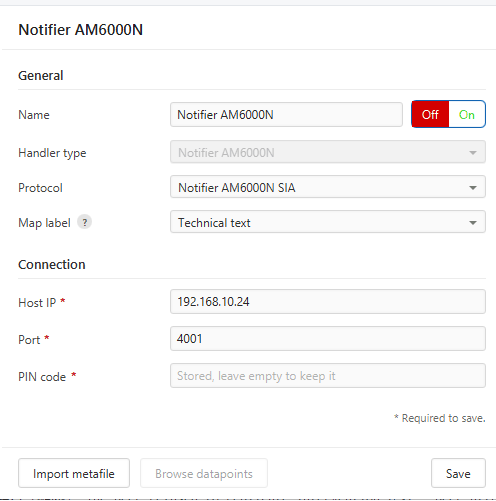
The container editor with the Notifier connection parameters.
| Field | Meaning | Default |
|---|---|---|
| Host IP | IP address of the Moxa converter. Required. | |
| Port | TCP port of the converter (Moxa default: 4002). Required. |
|
| PIN code | The password of the communication, as set in the converter's configuration. Required. Once saved, the field stays empty; leave it empty to keep the stored code. |
Save the container. Leave the connection off until the panels are imported and the treatments are checked.
Importing the datapoints
Notifier datapoints are created by the import only. Siwenoid does not read the structure of the panel over the connection: Browse datapoints cannot be used with this handler, and the Topológia lekérdezés (topology query) command does not create datapoints either (see Treatments and commands).
The import reads several text files at once: the panel's zone, device and module lists (and for AM6000N its CRT list, for AM6000 its loop list). Prepare all of them for the panel first; the import does nothing if one is missing.
- In the container editor, click Import metafile.
- Choose a file for every row of the dialog. The rows are the import files of the panel family (see the table in Handler types).
- In Node ID, enter the node number of the panel in the Notifier network.
- Click Save and wait for the progress bar.
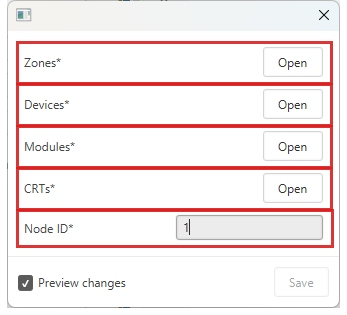
The metafile import of an AM6000N panel with its four files and the node ID.
Repeat the import for every panel (node) of the network with that panel's files. Each panel appears under the container by its node number (NODE 1, NODE 2 and so on), with these below it:
- its zones, each with its devices and modules (named "zone name - device name"),
- its loops (Loop #1, Loop #2 ...),
- on AM6000N, its CRT terminals (CRT #1 ...).
Devices and modules count toward the datapoint licence (see Licensing). Nodes, zones, loops and CRTs do not.
Import the panels before you switch the container's connection on. When the panel configuration changes (a new device, module or zone), produce its lists again and repeat the import.
Warning
Every time the connection starts, Siwenoid reads the current state of the panel. If no alarm is active, it then sends a signal reset to the panel. Expect this reset after switching the connection on, after a restart of the Siwenoid server and after a lost connection comes back.
Treatments and commands
The treatments and commands of the two panel families come with the Siwenoid server as one treatment file each, in the TreatmentTables subfolder of the server's installation folder (by default C:\Program Files\Siwenoid\Server\TreatmentTables):
- AM6000N:
notifiern.trt, - AM6000:
notifiero.trt.
The server loads them by itself at its first start. Before you switch the connection on, check in Preferences › Datapoint types that the handler's types have treatments. If they have none, or you received an updated treatment file, import the file of the panel family into the handler by hand (see Importing a treatment file). Without treatments the panel's events are not shown and no command can be sent.
A treatment is chosen by the panel's Event id. The files hold Hungarian names in every language; see Datapoint types, treatments and commands to change the names, categories or colours and to translate the names.
Commands include reset, acknowledge, gas acknowledge and gas reset, sounders off and back on, disabling and enabling devices, modules and zones, and switching outputs off and on. A command is defined by its Event id and Command parameter.
The Topológia lekérdezés (topology query) command of the panel (node) datapoint starts the topology mapping on the panel. Meanwhile Topológia feltérképezés folyamatban (mapping in progress) is shown, at the end Topológia feltérképezés befejeződött (mapping finished), and then Siwenoid reads all states of the panel again. The command does not create or change Siwenoid datapoints: new or changed devices get in by importing the panel's current lists.
Checking the connection
- After switching the connection on, check that the container is shown as connected and that the zones and devices receive their states in the datapoint hierarchy.
- If Siwenoid does not connect, check the converter's IP address and port, and the PIN code.
- If Siwenoid connects but no events are shown, check in Preferences › Datapoint types that the handler's types have treatments. If they have none, import the treatment file.
- If events arrive for some panels only, check that every node is imported with its own node ID.