Siemens Cerberus CC11 and CC440 (Algorex)
Connecting Siemens Cerberus CC11 and CC440 fire systems through a UDS1100 device server: gateway and device server settings, container parameters and the Algorex metafile import.
| At a glance | |
|---|---|
| Manufacturer | Siemens (Cerberus) |
| Panels | CC11 (Algorex CS11), CC440 |
| Connection | serial data line (ISO1745 or Cerban) through a UDS1100 device server, TCP |
| Handler type | CC11, CC440 |
| Protocol | Algorex, Algorex/Multi, CERBAN, CERBAN/Multi |
| Import | Algorex metafile (.txt) |
| Treatment file | cc11.trt, cc440.trt |
Siemens Cerberus CC11 (Algorex CS11) and CC440 fire systems report to Siwenoid through their serial data line. A Lantronix UDS1100 device server converts the line to the network, and Siwenoid connects to the device server over TCP. Siwenoid shows the alarms, faults and states of the control units as statuses of the imported datapoints, and operators can send the panel's commands.
The UDS1100 needs a special firmware supplied by Siwena; the device's standard firmware cannot be used.
Handler types and protocols
Siwenoid v2 supports two handler types. CC430 and CZ10 systems are not available in v2.
| Handler type | Protocols |
|---|---|
| CC11 | Algorex, Algorex/Multi, CERBAN, CERBAN/Multi |
| CC440 | CERBAN, CERBAN/Multi |
Choose the protocol that the gateway line uses: Algorex for the ISO1745 standard, CERBAN for the Cerban standard. The /Multi variants connect through the device server's dispatcher port; they are meant for redundant servers (see Hot standby server pair). With a single server, use the plain protocol.
Preparing the gateway and the device server
-
Connect the serial port of the UDS1100 to the gateway card (E3H020/21) of the fire system. One gateway can serve several control units.
-
Set the gateway to the ISO1745 protocol at 1200 or 2400 baud, or to the Cerban standard at 300 or 600 baud. Note the address of each control unit (unit address) as it is set on the panel. The same address goes into the device server (Unit Address) and into Siwenoid at the import (Device Address).
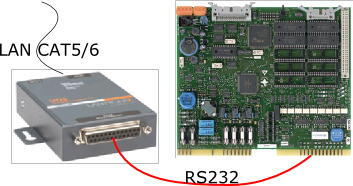
The UDS1100 device server on the gateway line. -
Configure the UDS1100 with telnet on port 9999:
telnet <address> 9999. On Windows, add the Telnet Client feature first. After connecting, press Enter within 3 seconds to open the setup menu. -
In menu 0 (Server configuration), set the IP address, the default gateway and the subnet mask. Leave the telnet config password at
N.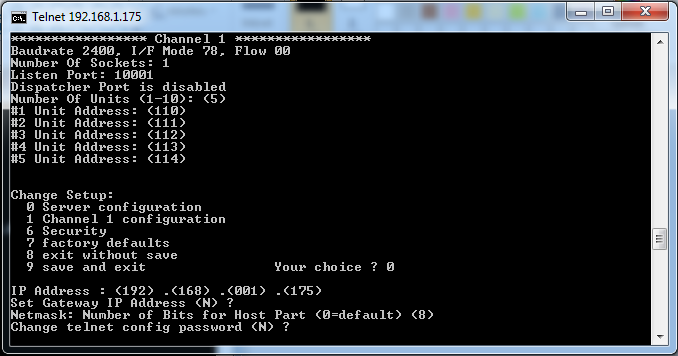
Network settings of the device server. -
In menu 1 (Channel 1 configuration), set the serial side:
- Baudrate: the same as the gateway.
- I/F Mode:
78(7 data bits, even parity, 1 stop bit). - Flow:
00(no flow control). - Number of Sockets:
1. More sockets are only needed with several servers. - Listen Port: the TCP port Siwenoid connects to, usually
10001. - Dispatcher port: only for the /Multi protocols.
- Number of Units: the number of subsystems on the gateway line, the gateway included.
- Unit Address: the unit address of each control unit, exactly as it is set on the panel.
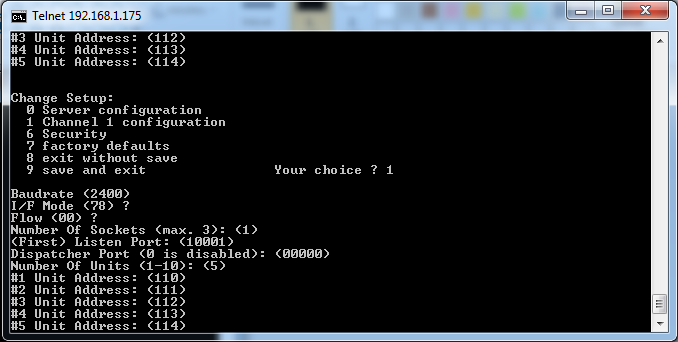
Serial settings of the device server. -
Choose 9 to save and exit. The device server restarts with the new settings.
Creating the metafile
Siwenoid needs one metafile per control unit. For CC11, generate it with the Siemens tool CC11li32.EXE, which comes with the Algorex editor package. Note for each metafile which control unit (unit address) it belongs to: you will need it for the import.
Creating the container
Create the container in Preferences › Physical structure (see Physical structure for the editor in general). Choose CC11 or CC440 as Handler type and the protocol of the gateway line as Protocol, then fill in the connection parameters.
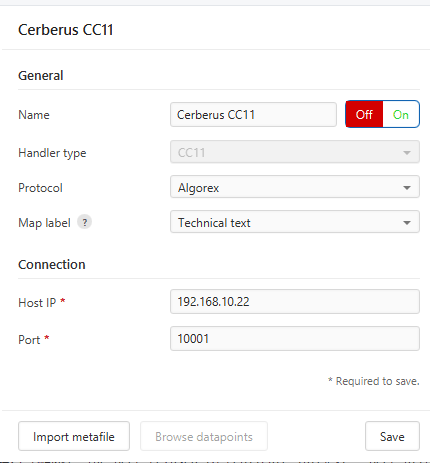
The container editor with a CC11 container on the Algorex protocol.
| Field | Meaning | Default |
|---|---|---|
| Host IP | IP address of the UDS1100. Required. | |
| Port | The Listen Port of the UDS1100; with a /Multi protocol, its dispatcher port. Required. |
The addresses of the control units are not entered in the container but at the import. Save the container.
Importing the datapoints
- In the container editor, click Import metafile.
- Choose the metafile of the control unit (Algorex metafile,
.txt). - In Device Address, enter the unit address of the control unit: the address you set on the panel and in the Unit Address setting of the UDS1100.
- To check the result first, tick Preview changes.
- Click Save and wait for the progress bar.
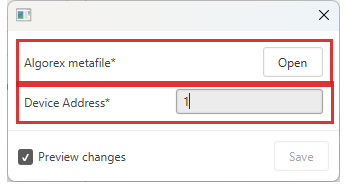
The metafile import with the device address.
Repeat the import for every control unit, each with its own metafile and unit address. Each control unit appears as a device node (#<address>) under the container, with its datapoints below it.
When you import a newer metafile of the same control unit, Siwenoid overwrites the changed datapoints and deletes those that are no longer in the file. A datapoint renamed in Siwenoid keeps its name.
When the import is done and the handler has treatments (see Treatments and commands), switch the container's connection on. Siwenoid connects to the device server, and the control units report themselves online.
Treatments and commands
The treatments and commands of CC11 and CC440 come with the Siwenoid server as treatment files, in the TreatmentTables subfolder of the server's installation folder (by default C:\Program Files\Siwenoid\Server\TreatmentTables):
- CC11:
cc11.trt, - CC440:
cc440.trt.
At start the server loads the file by itself only when the handler has no treatment at all. An updated file is therefore not loaded by itself.
Important
Before you switch the connection on, check in Preferences › Datapoint types that the handler's types have treatments. If they have none, or you received a newer treatment file, import the file by hand (see Importing a treatment file).
The CC11 table sorts the events into alarm, pre-alarm, warning, fault, off, abnormality and information categories. Commands are available where the panel accepts them, for example acknowledge, reset, and switching zones on, off or to test on CC440. To change the names, categories or colours, see Datapoint types, treatments and commands.
Checking the connection
-
Open
http://<address>/index.cgiof the UDS1100 in a browser. The page shows whether a client is connected to the listen port (its address appears as remote IP), the state of the serial line and whether each control unit is online or offline. No remote IP means Siwenoid is not connected.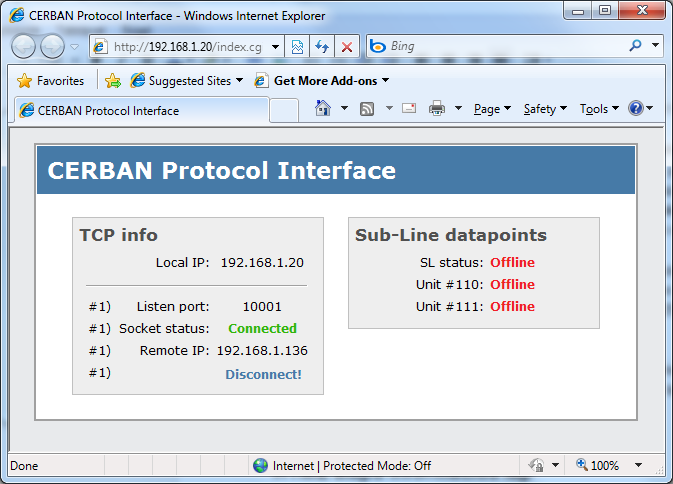
The status page of the device server firmware. -
If Siwenoid does not connect, check the IP address and the port in the container, and that telnet to port 9999 reaches the device server.
-
If the connection is up but no events arrive, check that the baud rate and the I/F Mode of the device server match the gateway.
-
If events arrive but some datapoints do not change, the metafile does not match the panel, or the Device Address of the import differs from the control unit's unit address. Import the current metafile with the right address.