Siemens Sinteso and Cerberus PRO (BACnet)
Connecting Siemens Sinteso and Cerberus PRO fire panels over BACnet/IP, standalone or in a SAFEDLINK network: panel settings, container parameters and the Sib-X import.
| At a glance | |
|---|---|
| Manufacturer | Siemens |
| Panels | Sinteso, Cerberus PRO (standalone or SAFEDLINK) |
| Connection | BACnet/IP (UDP) |
| Port | 47808 (BACnet/IP standard) |
| Handler type | Sinteso, CerberusPro, SintesoMP5, CerberusProMP5 |
| Protocol | Siemens BACnet |
| Import | Sib-X export (XML) |
| Treatment file | sinteso.trt, cerberuspro.trt, sintesomp5.trt, cerberuspromp5.trt |
Siemens Sinteso and Cerberus PRO fire panels talk to Siwenoid over BACnet/IP. Siwenoid connects to the panel as a BACnet client, receives its alarm, fault and state events and shows them as statuses of the imported datapoints. Operators can acknowledge and reset the panel and switch outputs from Siwenoid.
The panel is prepared in the Siemens programming software (FXS72xx editor). The datapoints come from the panel's Sib-X export, which Siwenoid imports.
Choosing the handler type
Every handler type uses the same protocol, Siemens BACnet. Choose the type by the panel's firmware:
| Handler type | Panel firmware |
|---|---|
| Sinteso, CerberusPro | up to MP4 |
| SintesoMP5, CerberusProMP5 | MP5 and later |
The Sinteso and Cerberus PRO variants of the same generation work the same way and use the same treatment table. Choose the one that matches the panel's name.
Preparing the panel
Do these steps in the FXS72xx editor and download the configuration to the panel.
-
On the Network tab, open Global System Configuration.
-
Enable BACnet communication.
-
Set the BACnet character set to UCS-2.
-
Create a BACnet client. Siwenoid communicates through this client.
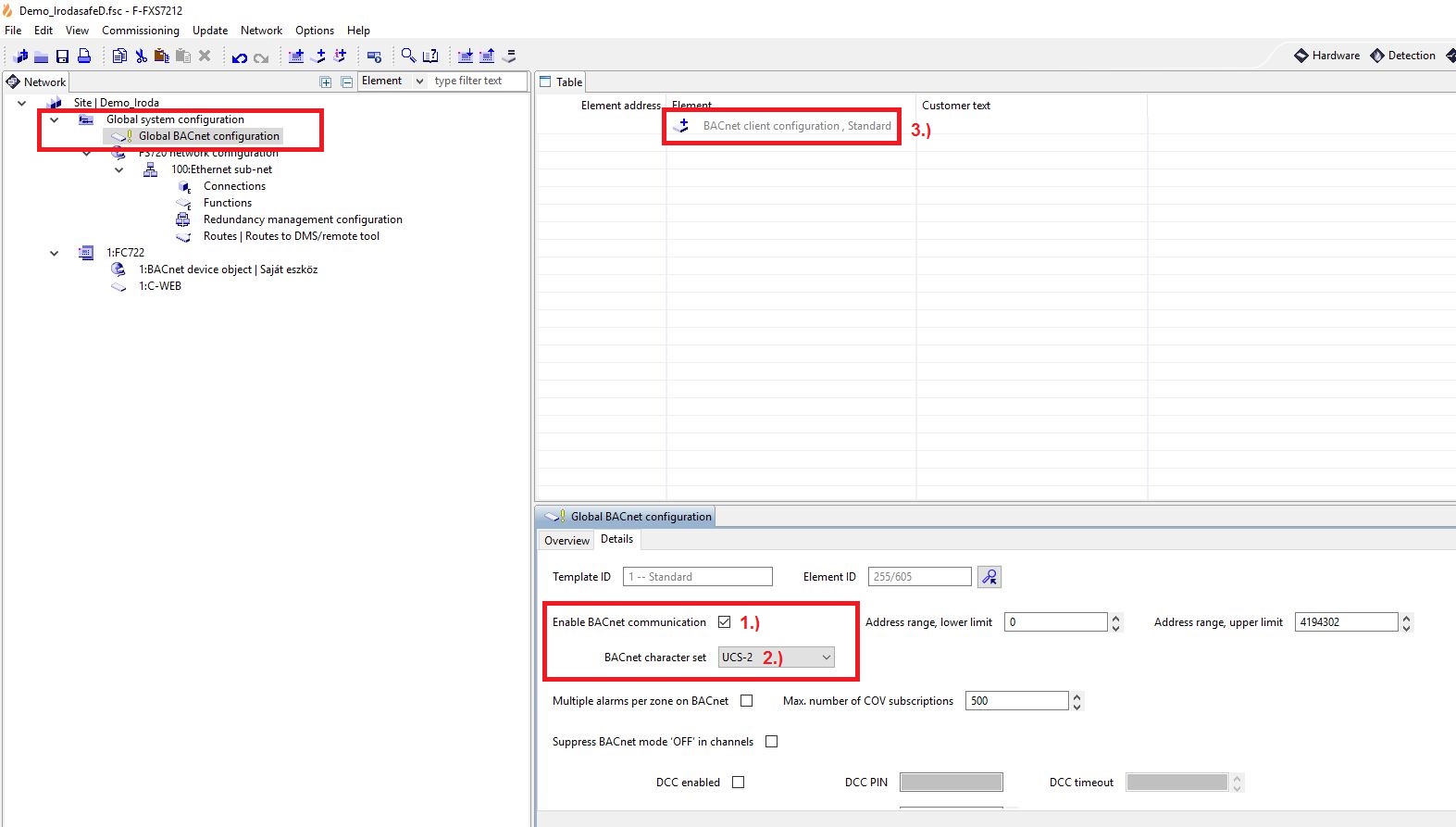
BACnet settings in the Global System Configuration. -
Set the BACnet device ID of the client to
100(the default is 0). You will enter the same number in Siwenoid as Local Device ID.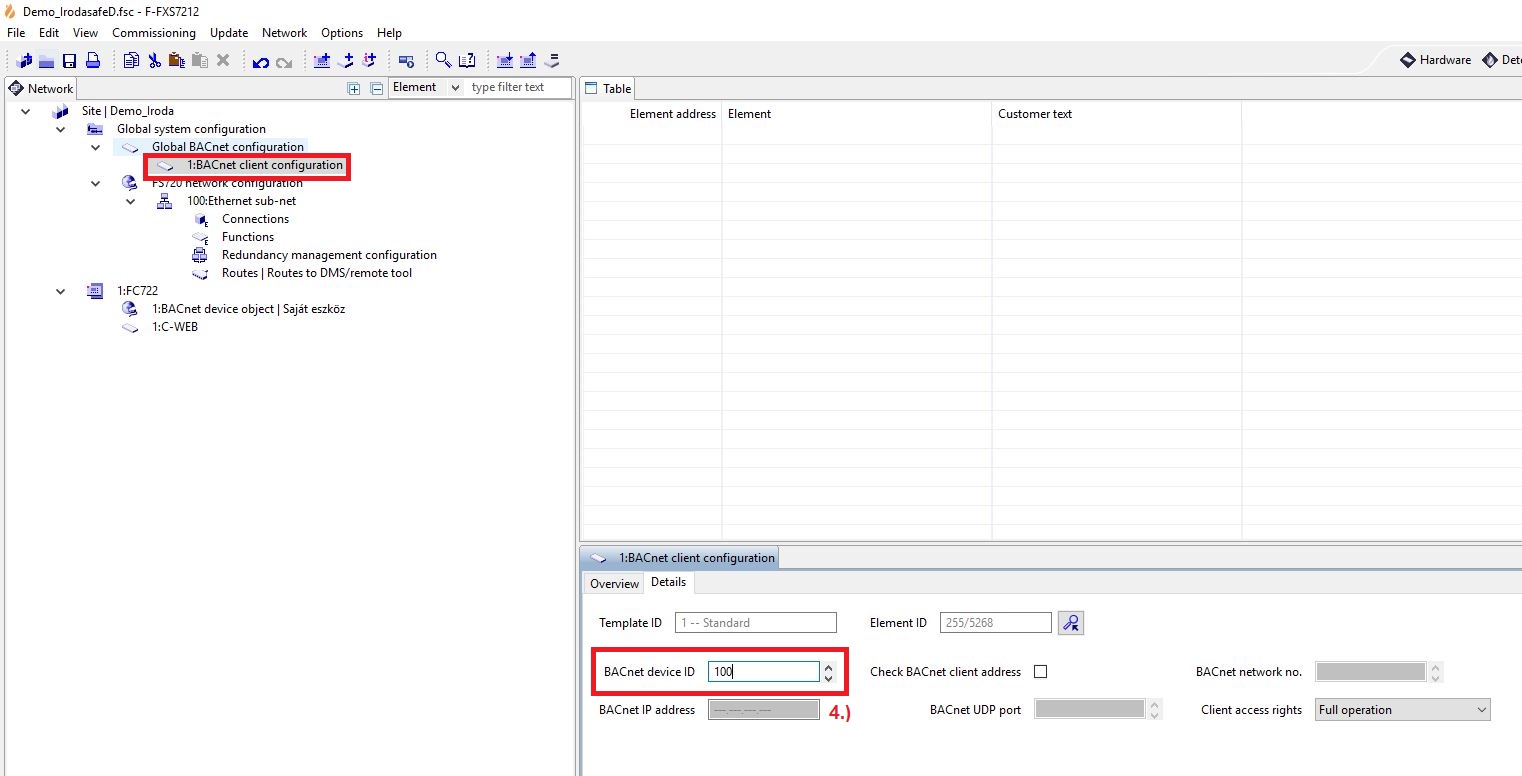
The device ID of the BACnet client.
Standalone panel
-
Open FS7XX Network configuration › Connections, right-click and choose Assign. Select the panel and click Assign.
-
Select the panel under Connections and set its IP address on the Overview tab and its UDP port on the Details tab. If several standalone panels are on the network, give each a different UDP port.
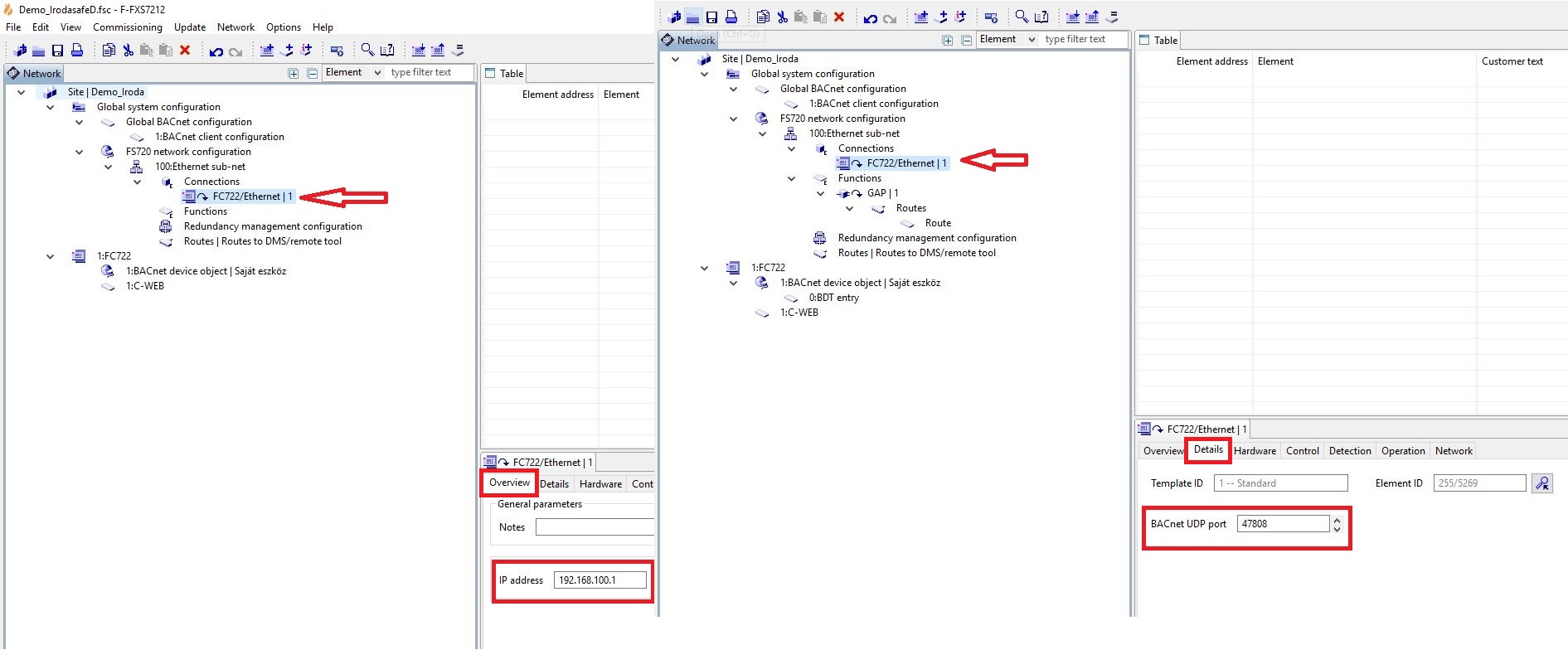
IP address and UDP port of the panel. -
Click 100:Ethernet sub-net and set the Netmask of the network segment.
If the panel and the Siwenoid server are in the same IP range, nothing else is needed on the network side.
With several standalone panels on one network, set these two values under 1:BACnet device object › Overview different for each panel but equal to each other on the same panel (1 and 1, 2 and 2, 3 and 3):
- Element address,
- BACnet device instance number.
Panel in another subnet
If the panel is in a different subnet from the Siwenoid server, add a route on the panel:
-
Open FS7XX Network configuration › Functions, right-click and choose Assign. Select GAP, find the panel in the tree and click Assign.
-
A route menu appears under Functions. Add a route whose gateway is the router address of the panel's subnet. As destination, enter the subnet of the Siwenoid server (or the server's address) with its netmask; if the connection does not come up that way, use destination
0.0.0.0and netmask0.0.0.0.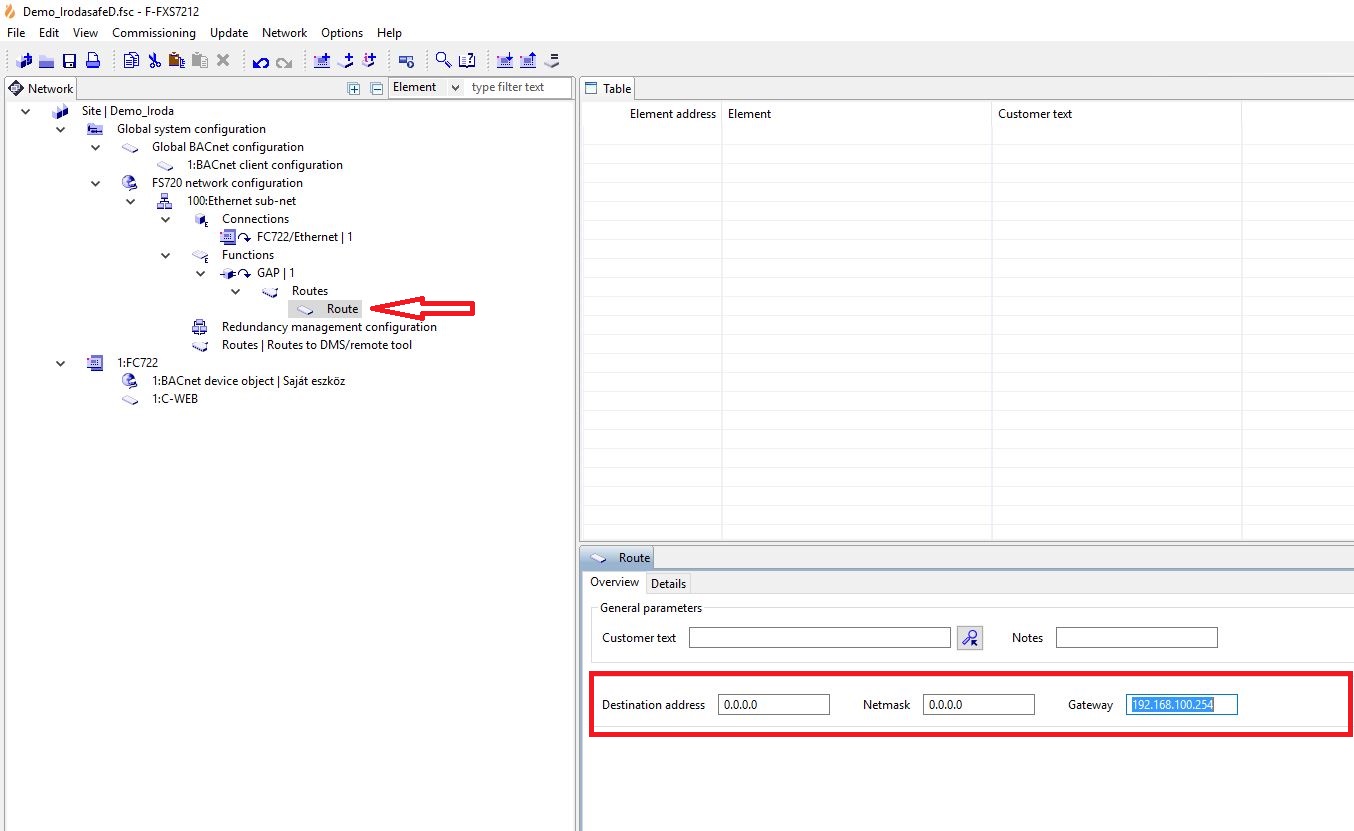
The route to the Siwenoid server's network. -
Download the configuration and ping the panel from the Siwenoid server.
If the panel does not answer the ping, or answers but Siwenoid does not communicate with it, enable BBMD on the panel:
-
Select the panel on the Network tab, then 1:BACnet device object › Details. Enable BBMD and create a BDT entry.
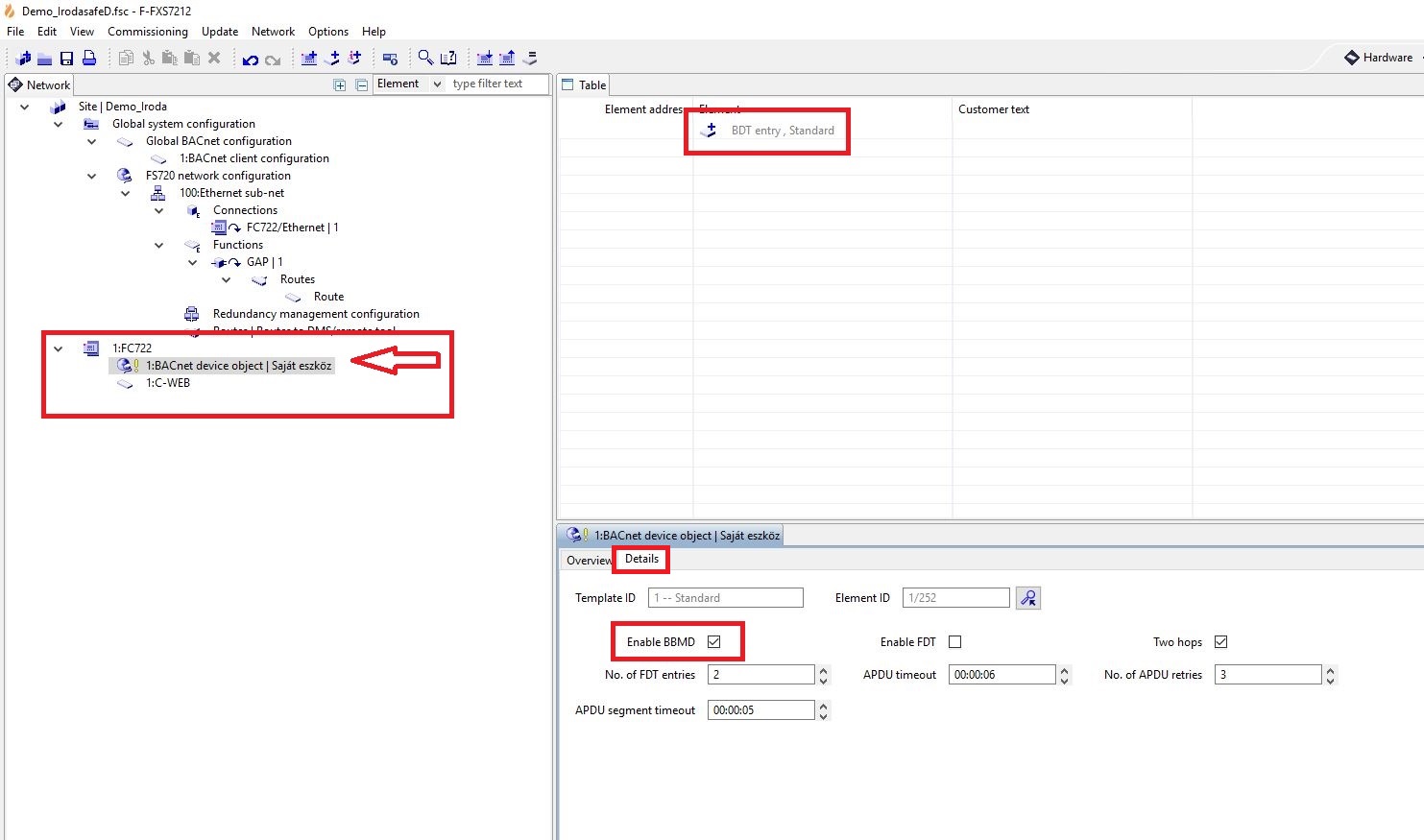
BBMD enabled on the BACnet device object. -
Set the BDT entry: UDP port = the panel's UDP port, IP address = the Siwenoid server, broadcast distribution mask =
255.255.255.255.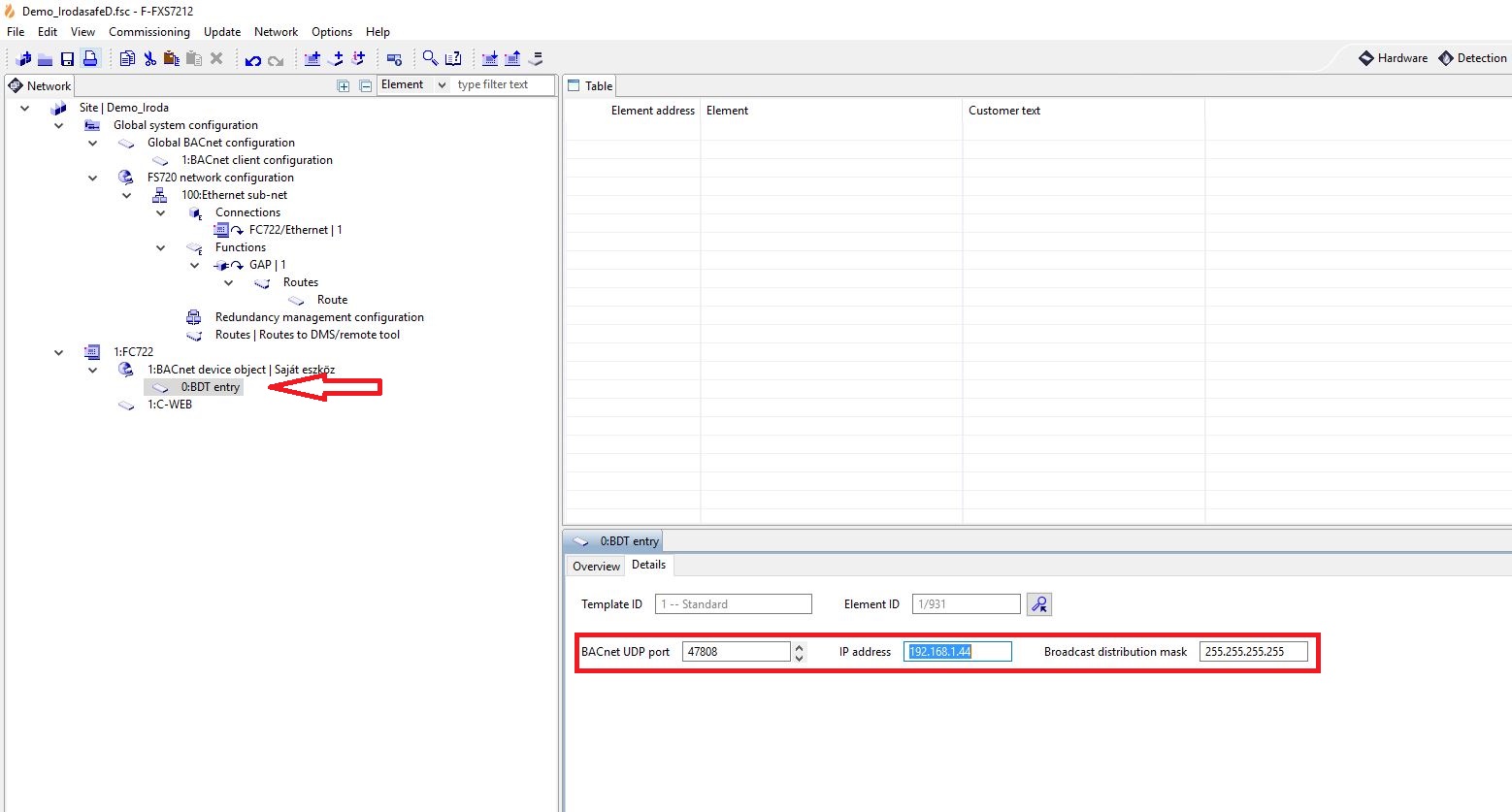
The BDT entry pointing to the Siwenoid server. -
Download the configuration and ping the panel again. If it still does not answer, check all the settings above.
With a BDT entry, set the Subnet of the Siwenoid container to 255.255.255.255 (see Server and panels in different subnets).
SAFEDLINK network
In a SAFEDLINK network, Siwenoid reaches every panel and secondary controller through the one panel that is connected to the building network.
-
Under SAFEDLINK sub-net › Connections, assign all panels and controllers, and give each an internal IP address in one range. Use a range that does not overlap any existing network.
-
Under Functions, assign a router on the panel that has the network cable, and give it an external IP address in the building network (different from the internal addresses).
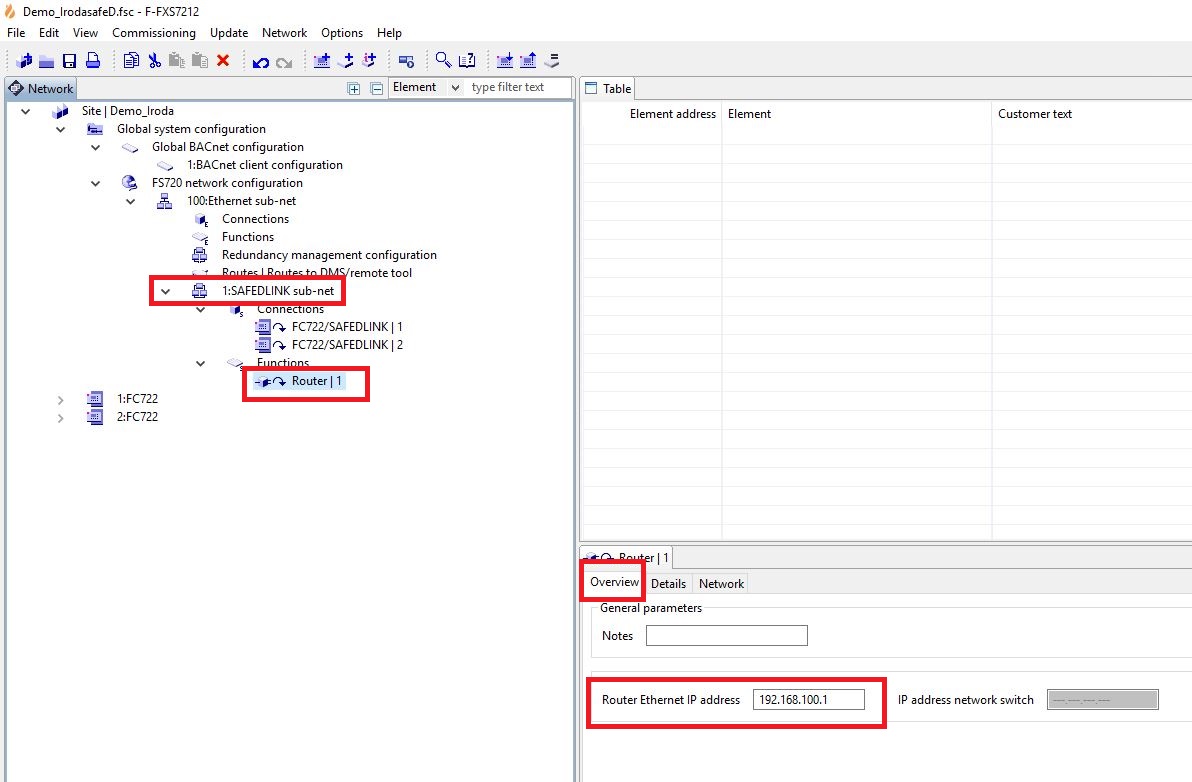
The external IP address of the router panel. -
Create a GAP on the connected panel (100:Ethernet sub-net › Functions › Assign) and set the Netmask of 100:Ethernet sub-net to match the building network. If the Siwenoid server is in another subnet than the panel's external address, also add a route under the GAP, as for a standalone panel in another subnet (gateway: the router of the external address's subnet).
-
On the same panel, enable BBMD under BACnet device object › Details and create a BDT entry: BACnet UDP port = the panel's UDP port, IP address = the Siwenoid server.
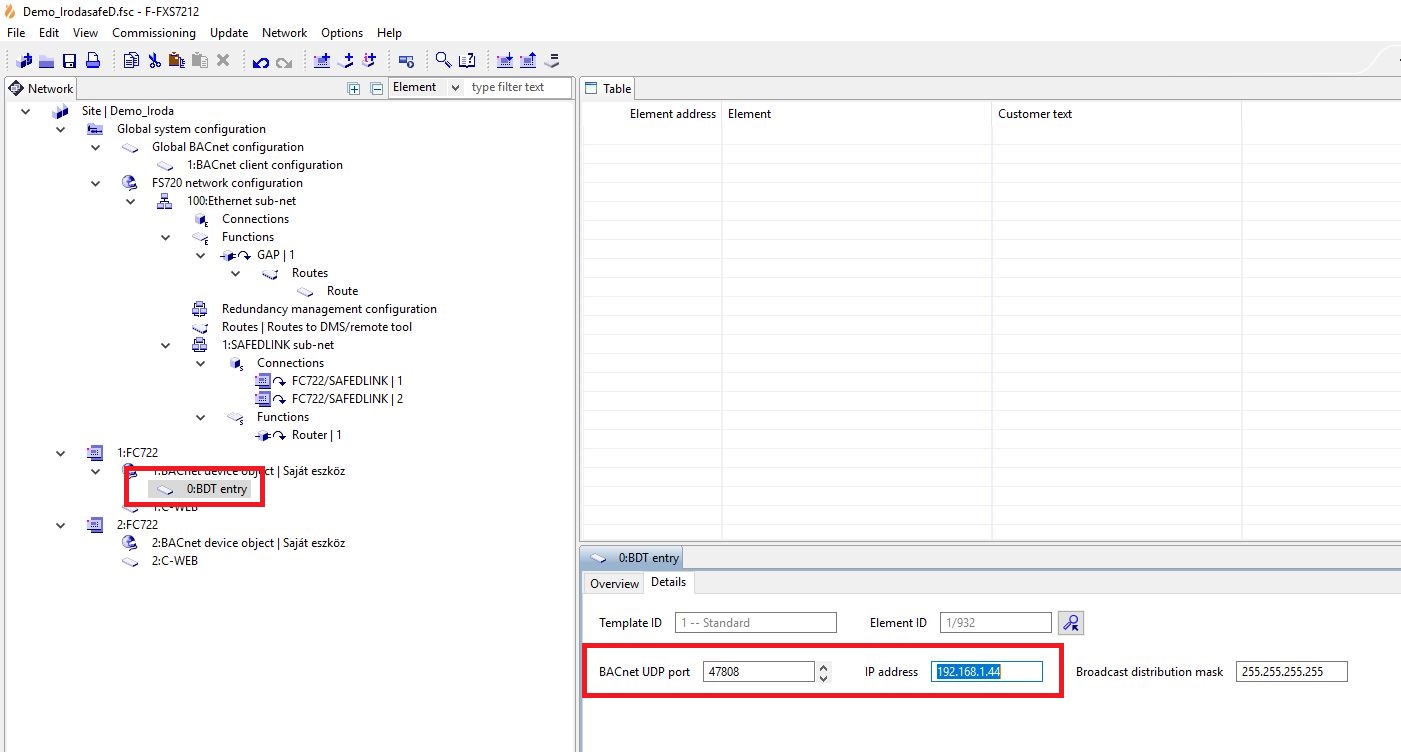
The BDT entry on the panel that carries the GAP. -
Download the configuration to all panels and controllers, then ping the external router address from the Siwenoid server.
-
Add a route on the Siwenoid server to the internal range, through the external router address. In a Command Prompt run as administrator, for example:
route -p add 192.168.1.0 mask 255.255.255.0 192.168.100.1Then ping every internal address.
route printlists the routes,route deleteremoves a wrong one. The gateway of a Windows route (here the external router address) must be in the server's own subnet. If the server is in another subnet, or more computers need the route, the site's IT staff create it on the network's routers. -
Fill in the Siwenoid container as follows (the fields are described in Creating the container):
- Host IP: the internal IP address of the panel that carries the GAP.
- Subnet:
255.255.255.255. - Port: the panel's UDP port (
47808by default). - Local address: the IP address of the Siwenoid server.
- Local Device ID: the ID of the BACnet client created on the panel (
100). - Local UDP port: the same as the panel's UDP port.
Tip
If only the first panel answers the ping after the route is added, check the server's firewall, or disable and enable the server's network adapter.
Server and panels in different subnets
Siwenoid finds the panel and announces itself to it with BACnet/IP messages, and the panel sends its events to the server over UDP. When a router lies between them, all of the following are needed, for a standalone panel and for a SAFEDLINK network alike:
- An IP route in both directions. On the panel (in SAFEDLINK, the panel that carries the GAP) the route of the GAP leads through the router of the panel's subnet towards the server's network. From the server, the panel's address (in SAFEDLINK, the internal range) is reached through a route. Check: every panel address answers a ping from the server.
- BBMD and a BDT entry on the panel. The BDT entry holds the IP address of the Siwenoid server and the panel's UDP port, with the mask
255.255.255.255. Siwenoid does not register as a foreign device with the BBMD: the panel's BDT entry names the server. - Subnet =
255.255.255.255in the container. Siwenoid sends its search messages to an address computed from Host IP and Subnet. With255.255.255.0that is the broadcast address of the panel's subnet, which routers usually do not forward; with255.255.255.255the messages go straight to the panel's address. - Local address and Local UDP port. If the server has more than one network card, Local address is the address of the card through which the panel is reached, and the BDT entry names the same address. Local UDP port matches the port of the BDT entry.
- UDP passes through. The panel's UDP port must pass in both directions through the server's firewall and every device in between.
Note
A multi-panel system with MP7 firmware may need BBMD even when the panel and the server are in the same subnet.
Exporting the Sib-X file
In the programming software, choose File › Sib-X export, set the save path and click Start. One Sib-X file can hold several panels: Siwenoid imports them one at a time.
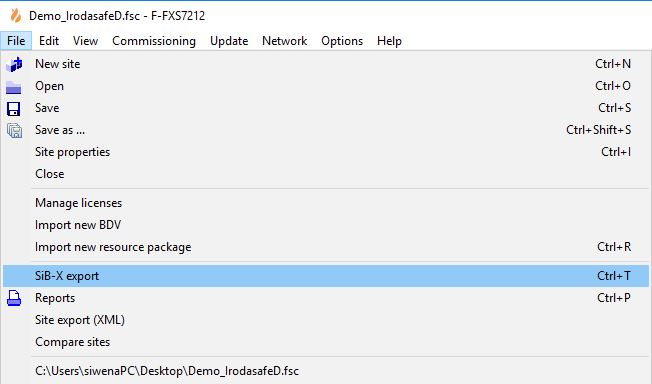
The Sib-X export menu.
Creating the container
Create the container in Preferences › Physical structure (see Physical structure for the editor in general). Choose the Handler type by the firmware and Siemens BACnet as Protocol, then fill in the connection parameters.
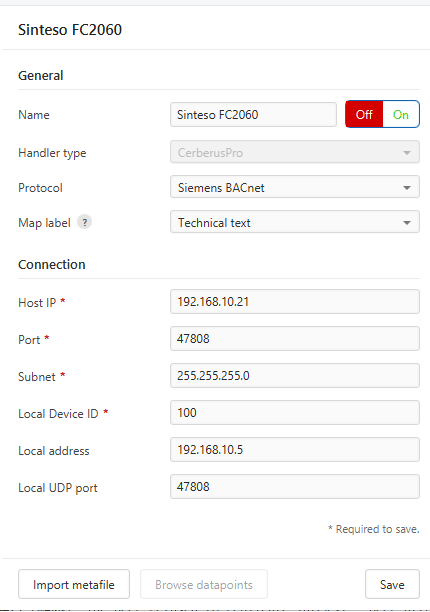
The container editor with the BACnet connection parameters.
| Field | Meaning | Default |
|---|---|---|
| Host IP | IP address of the panel. In a SAFEDLINK network: the internal address of the panel that carries the GAP. Required. | |
| Subnet | 255.255.255.0 if the panel is in the server's network segment; 255.255.255.255 if the panel is reached through a BDT entry (other subnet, SAFEDLINK). Required. |
255.255.255.0 |
| Port | UDP port of the panel. Required. | 47808 |
| Local address | The Siwenoid server address to use, if the server has more than one network card. Fill it in when the panel is reached through a BDT entry or several panels are in separate containers. | |
| Local Device ID | The BACnet device ID of the client created on the panel. Required. | 100 |
| Local UDP port | The UDP port Siwenoid uses. Empty: the same as Port. |
The standard BACnet/IP port is 47808. Local address and Local UDP port are often not needed.
Save the container. Leave the connection off until the datapoints are imported.
Important
The panel sends its events to the Siwenoid server over UDP. Allow the UDP port through the server's firewall. Siwenoid registers itself as an event recipient on the panel when it connects; no recipient has to be entered on the panel.
Importing the datapoints
- In the container editor, click Import metafile.
- Choose the Sib-X file (Sibix XML file).
- Fill in the two numbers:
- Number of device in site: the panel's number in the Sib-X file.
- Chosen BACnet Id: the BACnet device instance number set on that panel.
- To check the result first, tick Preview changes: Siwenoid lists the datapoints the import would create, update and remove.
- Click Save and wait for the progress bar.
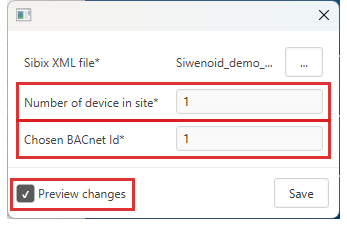
The metafile import with the panel number and the BACnet Id.
Repeat the import with the same Sib-X file for every further panel, for example 1 and 1 for the first panel, 2 and 2 for the second. Each panel appears as a device under the container, with its zones, detectors, inputs and outputs below it. After a change on the panel, export the Sib-X file again and repeat the import: Siwenoid updates the existing datapoints.
Detectors, manual call points, inputs, outputs, effect groups and extinguishing channels count toward the datapoint licence (see Licensing). Panels and zones do not.
When every panel is imported and the handler type has treatments (see Treatments and commands), switch the container's connection on.
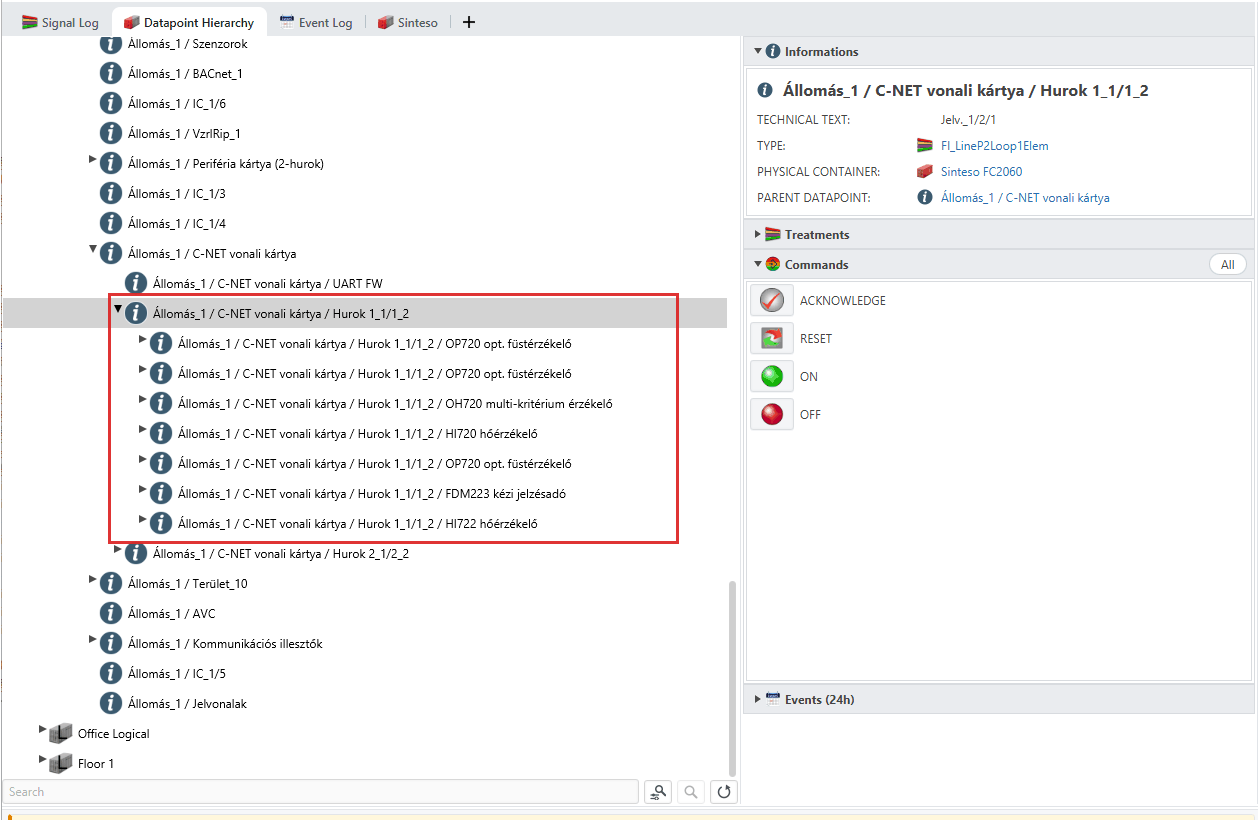
The imported panel in the datapoint hierarchy.
Treatments and commands
The treatments and commands come with the Siwenoid server as one treatment file per handler type, in the TreatmentTables subfolder of the server's installation folder (by default C:\Program Files\Siwenoid\Server\TreatmentTables):
- Sinteso:
sinteso.trt, - CerberusPro:
cerberuspro.trt, - SintesoMP5:
sintesomp5.trt, - CerberusProMP5:
cerberuspromp5.trt.
The server loads the file by itself at its first start, while the handler type has no treatments yet. An updated file, for example after a Siwenoid update, is not loaded by itself.
Before you switch the connection on, check in Preferences › Datapoint types that the datapoint types of the chosen handler type have treatments. If they have none, or you received an updated treatment file, import the file into the handler type by hand (see Importing a treatment file). Without treatments the panel's events are not shown and no command can be sent.
A treatment is chosen by the event's State, Mode and Operation Expected values; see Datapoint types, treatments and commands to change the names, categories or colours.
Commands depend on the object type: acknowledge and reset on the panel, zones and detectors; switch on, switch off and test on outputs and other controllable elements.
Checking the connection
- After switching the connection on, check that the container is shown as connected and the datapoints receive their states in the datapoint hierarchy.
- If it does not connect, ping the panel from the Siwenoid server. No answer: check the IP address, netmask, GAP and route. Answer but no communication: set up BBMD and the BDT entry.
- Check that the UDP port, the character set (UCS-2) and the client device ID (100) are the same on the panel and in Siwenoid.
- If every event arrives twice or more, the panel's notification classes still list recipients of an earlier installation. Remove the stale entries on the panel.