Vanderbilt SPC
Connecting an SPC intrusion panel over EDP (UDP): panel settings, the five connection parameters, browsing the datapoints, commands.
| At a glance | |
|---|---|
| Manufacturer | Vanderbilt (formerly Siemens) |
| Panels | SPC5300, SPC6000 series |
| Connection | EDP over UDP, without encryption |
| Handler type | SPC |
| Protocol | EDP (UDP master) |
| Datapoints | Browse datapoints |
| Import | none |
SPC is an intrusion alarm panel family. Siwenoid connects to it with the panel's EDP protocol over UDP: the panel sends its events to the Siwenoid server, and Siwenoid polls the state of the panel, its areas, zones, doors, outputs and X-BUS devices. Areas, zones, doors and outputs can be controlled from the datapoint hierarchy, from maps and from the intrusion view.
Siwenoid sets the panel clock when the connection is established.
Preparing the panel
Do these steps in the panel's web interface.
-
Log in as engineer and switch to Full Engineer mode.

Switching to Full Engineer mode.In Full Engineer mode the panel sends no alarms or events to its receivers, Siwenoid included. While you are in this mode the keypad shows "Engineer on site", and Siwenoid shows the status Engineer Mode Active. Log off as engineer when you have finished.
-
Under Communications › Ethernet, check the panel's IP settings. Siwenoid will connect to this address.
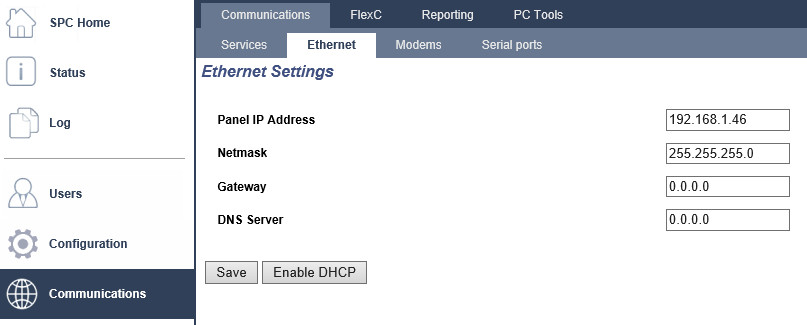
The panel's Ethernet settings. -
Open Communications › Reporting › EDP. Add a new EDP receiver for Siwenoid with Add, or open an existing one with the button in the Edit column.
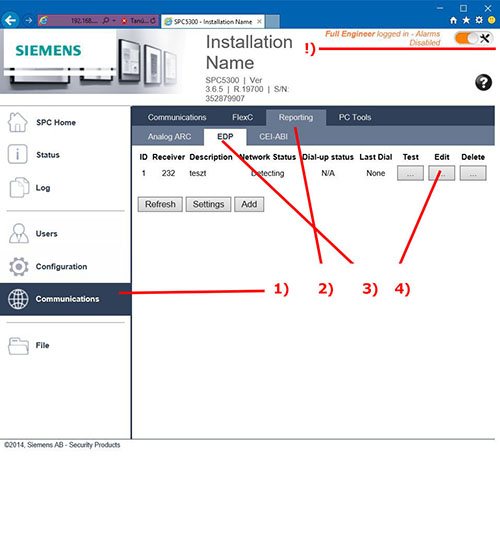
The EDP menu of the panel. -
Fill in the Edit Receiver page in the order of the picture (a number in brackets is the picture's marker):
- Description: any name for the receiver, for example Siwenoid.
- Receiver Id (1): the ID Siwenoid logs in with (1 to 999997). Enter the same number in Siwenoid as Local ID.
- Protocol version: Version 2.
- Commands Enable (2): ticked, so that Siwenoid can send commands.
- Encryption Enabled: not ticked. Siwenoid communicates without EDP encryption.
- Network Enable: ticked.
- Network Protocol: UDP/IP.
- Receiver IP Address (3): the IP address of the Siwenoid server.
- Receiver IP Port (4): the UDP port on the Siwenoid server that receives the panel's events. Enter the same number in Siwenoid as Local port. Several SPC panels on one server need different ports.
- Always Connected (5): ticked. This is required.
Press Save (6).
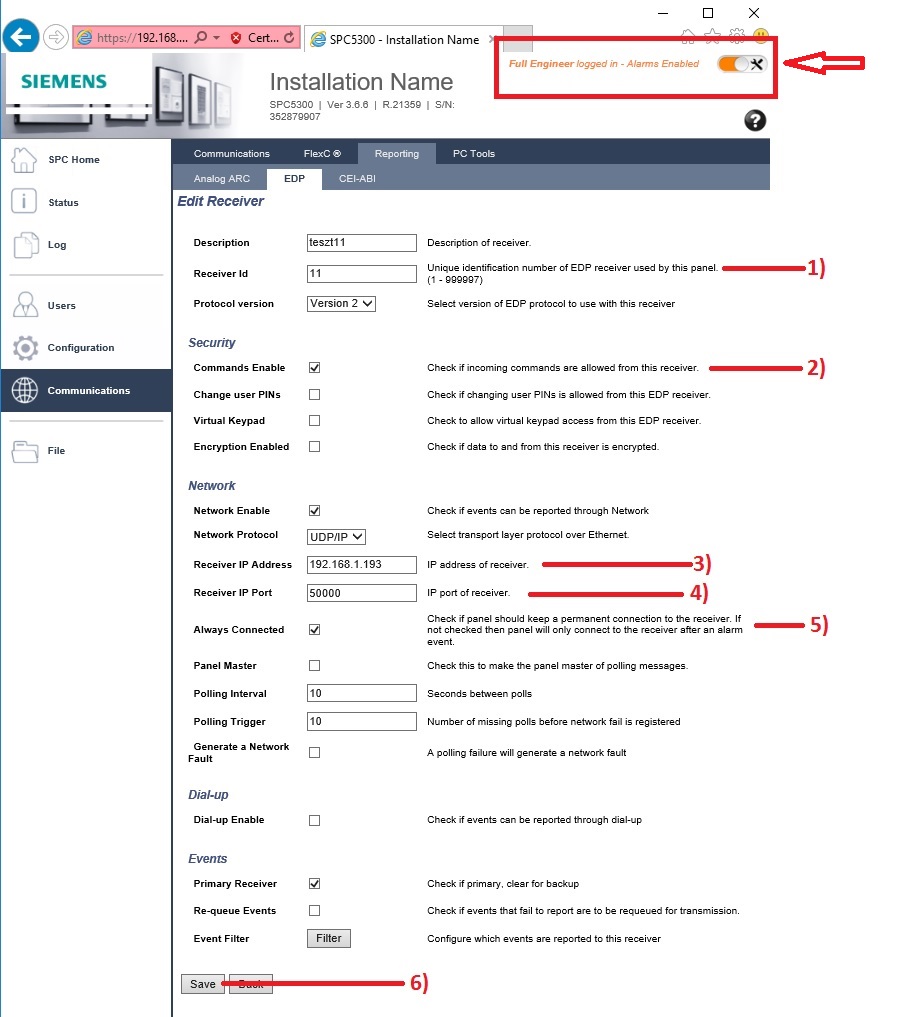
The EDP receiver for Siwenoid on the Edit Receiver page, with the numbered fields. -
At the bottom of the same page, in the Event Filter row, press Filter and tick every event. Siwenoid only receives the events that are ticked here.
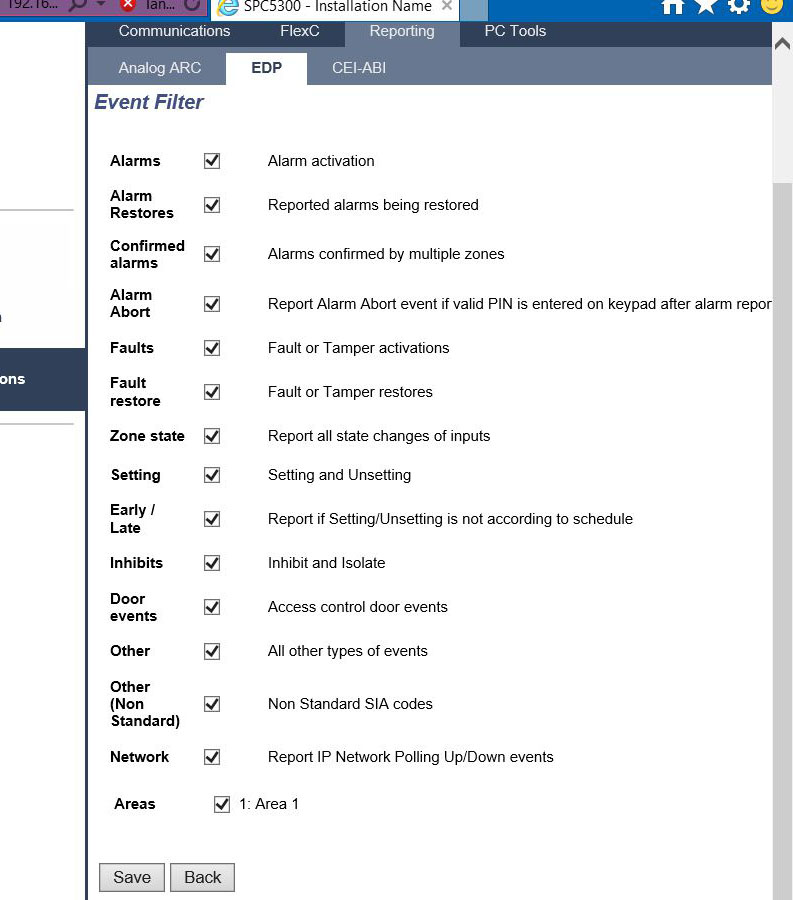
The EDP event filter: every box ticked. -
Open Configuration › System › System Timers, and set Dialer Delay to 0 seconds. By default the panel sends its messages with a 30-second delay.
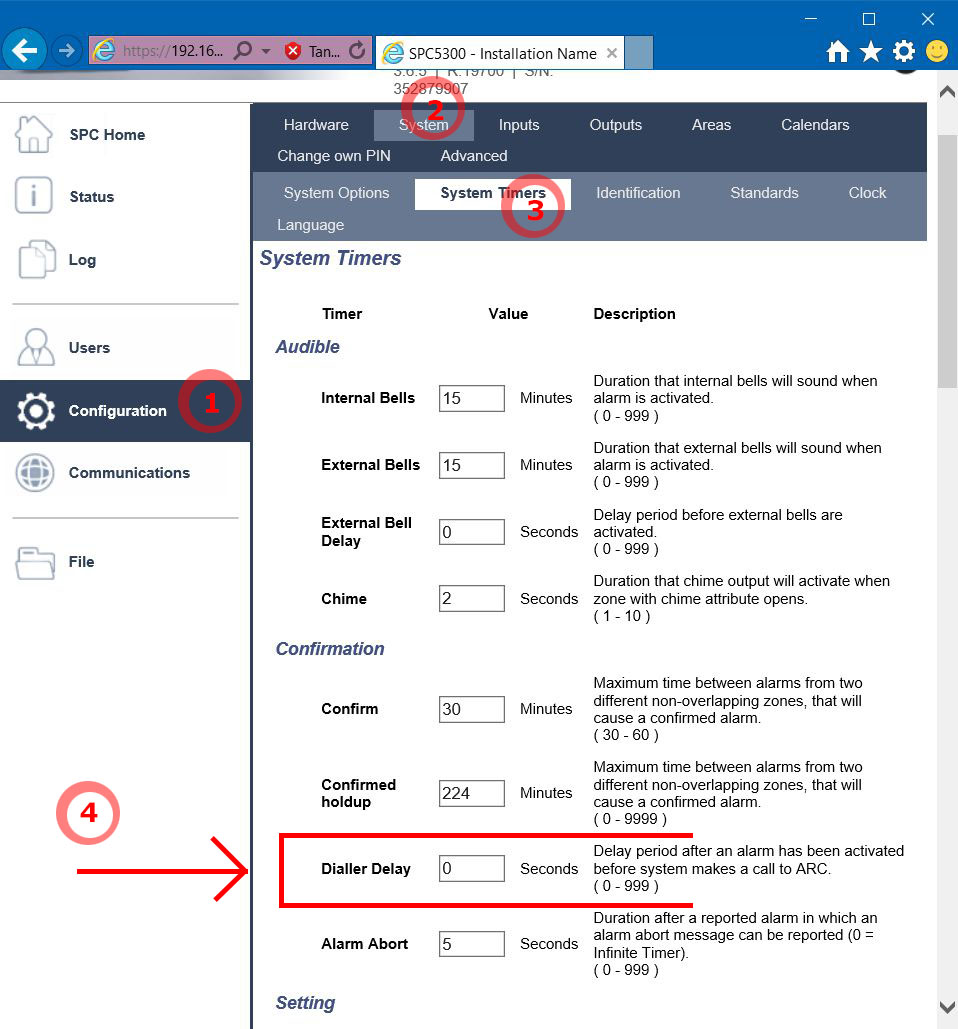
Dialer Delay set to 0 seconds. -
Log off as engineer.
Important
The panel's events arrive on the Siwenoid server over UDP. Allow the chosen port through the server's firewall.
Creating the container
Create the container in Preferences › Physical structure (see Physical structure for the editor in general). Give it a name, choose SPC as Handler type and EDP (UDP master) as Protocol, then fill in the connection parameters. All five are required.
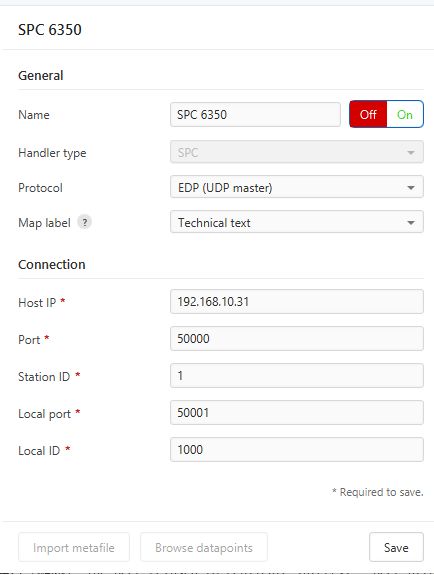
The container editor with the SPC connection parameters.
| Field | Meaning | Default |
|---|---|---|
| Host IP | IP address of the SPC panel. | |
| Port | UDP port of the panel's EDP communication. | |
| Local ID | Siwenoid's own EDP ID: the Client identifier of the receiver set in the panel. | |
| Station ID | The panel's own EDP ID. | 1000 |
| Local port | UDP port on the Siwenoid server where the panel sends its events: the communication port of the receiver set in the panel. Each SPC container on a server needs its own local port. |
Save the container and switch its connection on.
Getting the datapoints
SPC has no configuration file to import: Siwenoid reads the datapoints from the panel.
- Wait until the container is connected. Browse datapoints works only while the container is online.
- Press Browse datapoints. Siwenoid reads the panel and builds the hierarchy:
- the panel, with its areas under it, and the zones under their areas,
- doors under their zone (or area, or the panel),
- X-BUS devices, users and outputs directly under the panel.
- In Select datapoints to import, untick what you do not need and press Import.
If browsing does not work right after you added the container, switch the connection off and on again, then try again.
The datapoint editor shows what browsing read from the panel; leave these as they are:
- Original Id,
- Type,
- Subtype,
- Area,
- Zone.
Only zones count toward the datapoint licence.
Treatments and commands
The treatment file of SPC (spc.trt, in the TreatmentTables folder of the Siwenoid server) comes with the handler, and the server loads it by itself at its first start. A treatment file updated later must be imported by hand (see Importing a treatment file). The commands by datapoint:
| Datapoint | Commands |
|---|---|
| Area | Set Area, Unset Area, Partset A, Partset B, Reset |
| Zone | Inhibit Zone, Deinhibit Zone, Isolate Zone, Deisolate Zone, Reset |
| Door | Open Momentarily, Open Permanently, Normal Mode, Lock, inhibit, deinhibit, isolate and deisolate the door zone, Reset |
| Output | Set Output, Reset Output |
| Panel | Restore Alerts, Silence All Bells |
| X-BUS, user | Reset |
Checking the connection
- The container's panel datapoint shows connected in the datapoint hierarchy.
- Open or close a zone, and check that its state changes in Siwenoid.
- If nothing arrives:
- check that the panel is not in Full Engineer mode,
- check these fields against the panel's EDP settings:
- Host IP,
- Port,
- Local ID,
- Station ID,
- Local port,
- check that every event is ticked in the EDP filter and Dialer Delay is 0,
- check that the server's firewall lets the local port through.
- If a zone's events do not appear, browse the datapoints again: Siwenoid only shows events of datapoints it knows.