Schrack fire alarm system
Connecting a Schrack fire alarm panel network as a management system: the site settings in the Configurator, container parameters, importing the site's XML file.
| At a glance | |
|---|---|
| Manufacturer | Schrack |
| Connection | TCP over LAN, as a management system of the site |
| Port | 11113 (fixed) |
| Handler type | Schrack |
| Protocol | Schrack |
| Datapoints | from the site's XML file |
| Import | XML |
Siwenoid connects to a Schrack fire alarm site as its management system over the LAN. It shows the site's zones and their elements, inputs, outputs, loops and other elements as datapoints, follows their states, and lets operators send the panel's commands, such as switching an element off or on, resetting it or putting it in revision.
The site needs a management system and a user account for Siwenoid, both set up in the site's programming tool, the Configurator. The datapoints come from the site's XML file.
Preparing the site
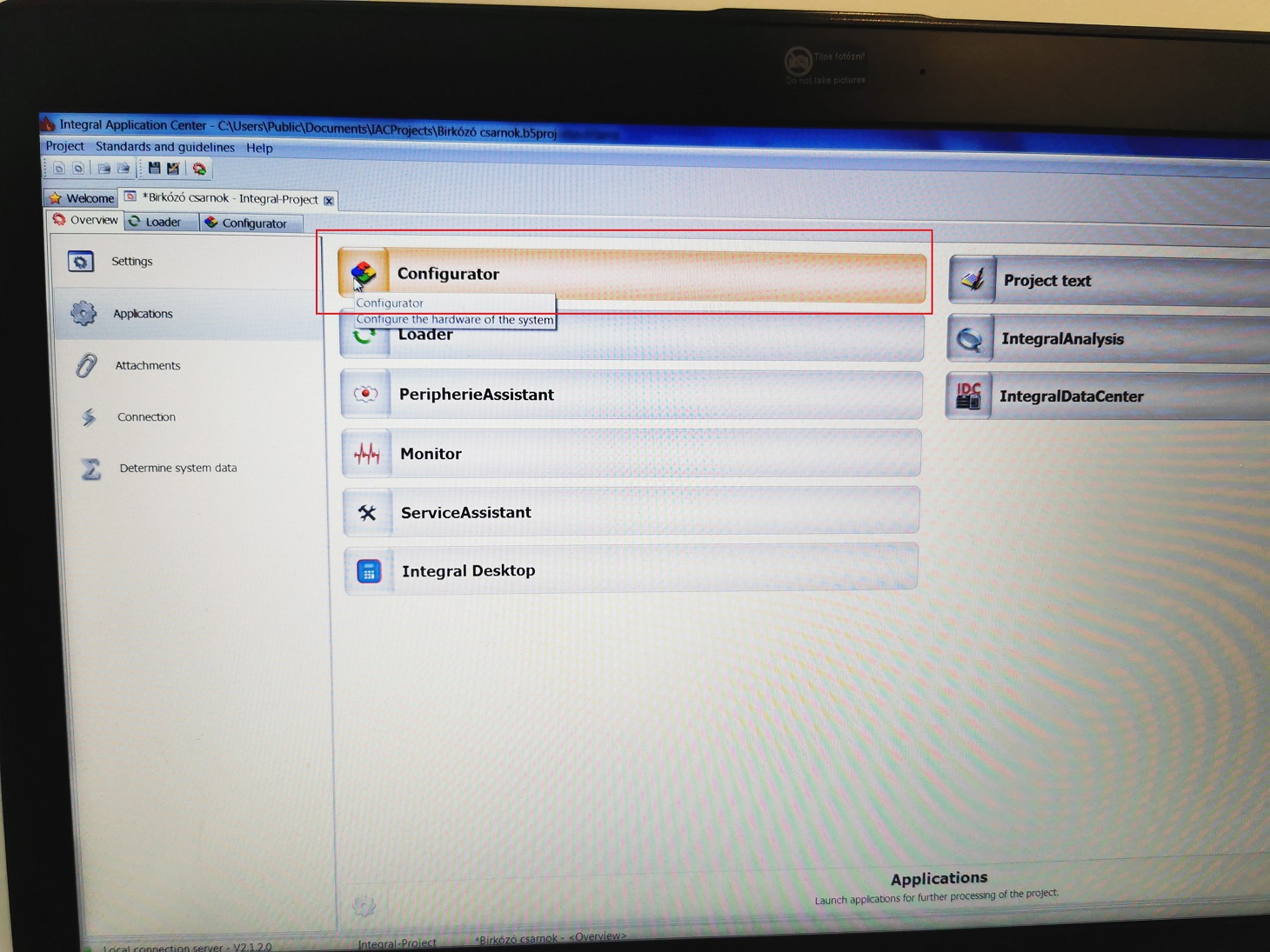
Do these steps in the Configurator.
-
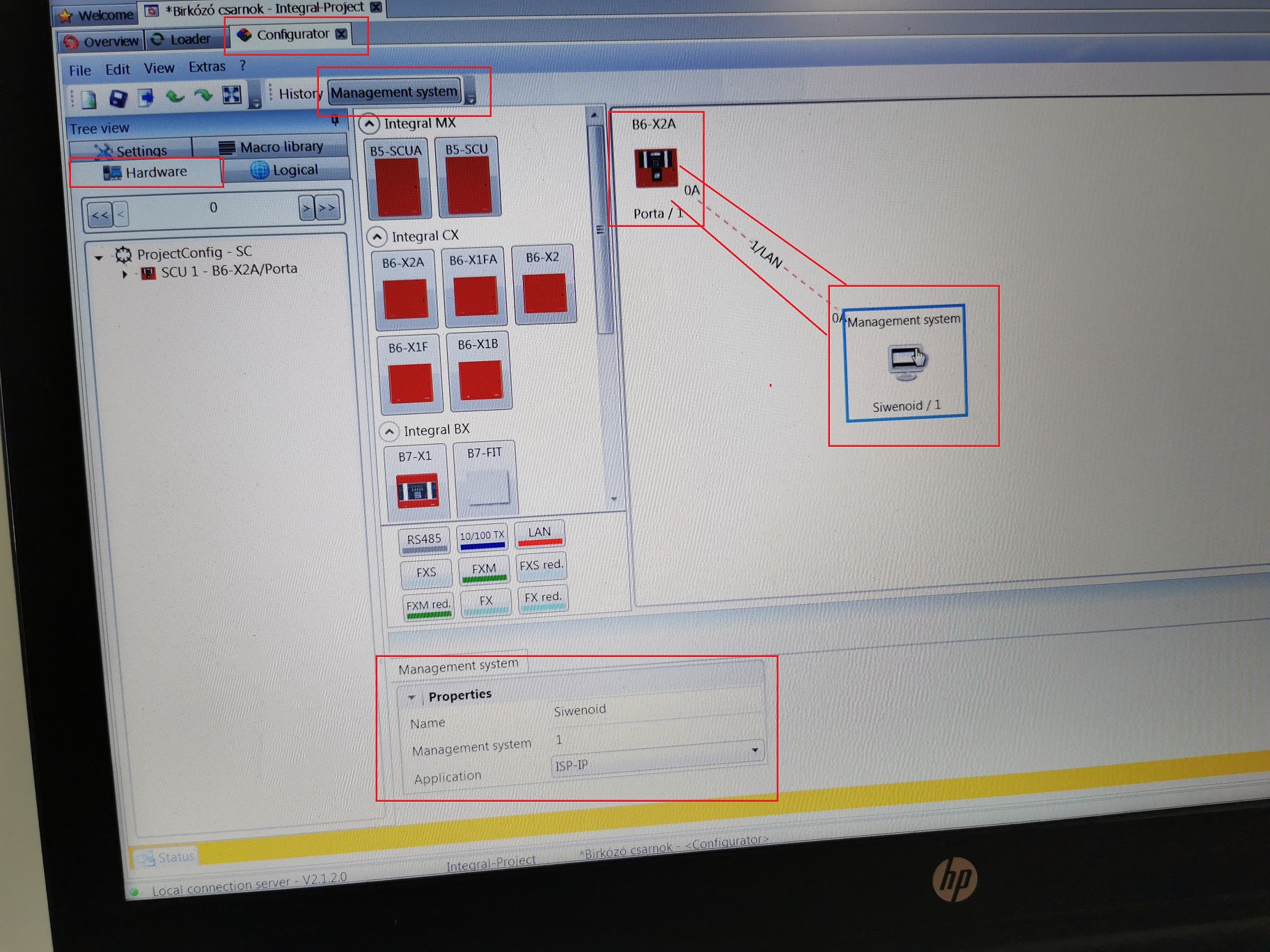
Open the Hardware tab. Next to the existing panel, add a Management System from the list and connect it to the panel with a LAN connection.
Configurator, Hardware tab: the management system connected to the panel. -
In Properties at the bottom, give the management system a name and set Application to ISP-IP.
Properties of the management system. -
Open the Logical tab and find Management System among the logical elements. Create a user account there; Siwenoid logs in with it.
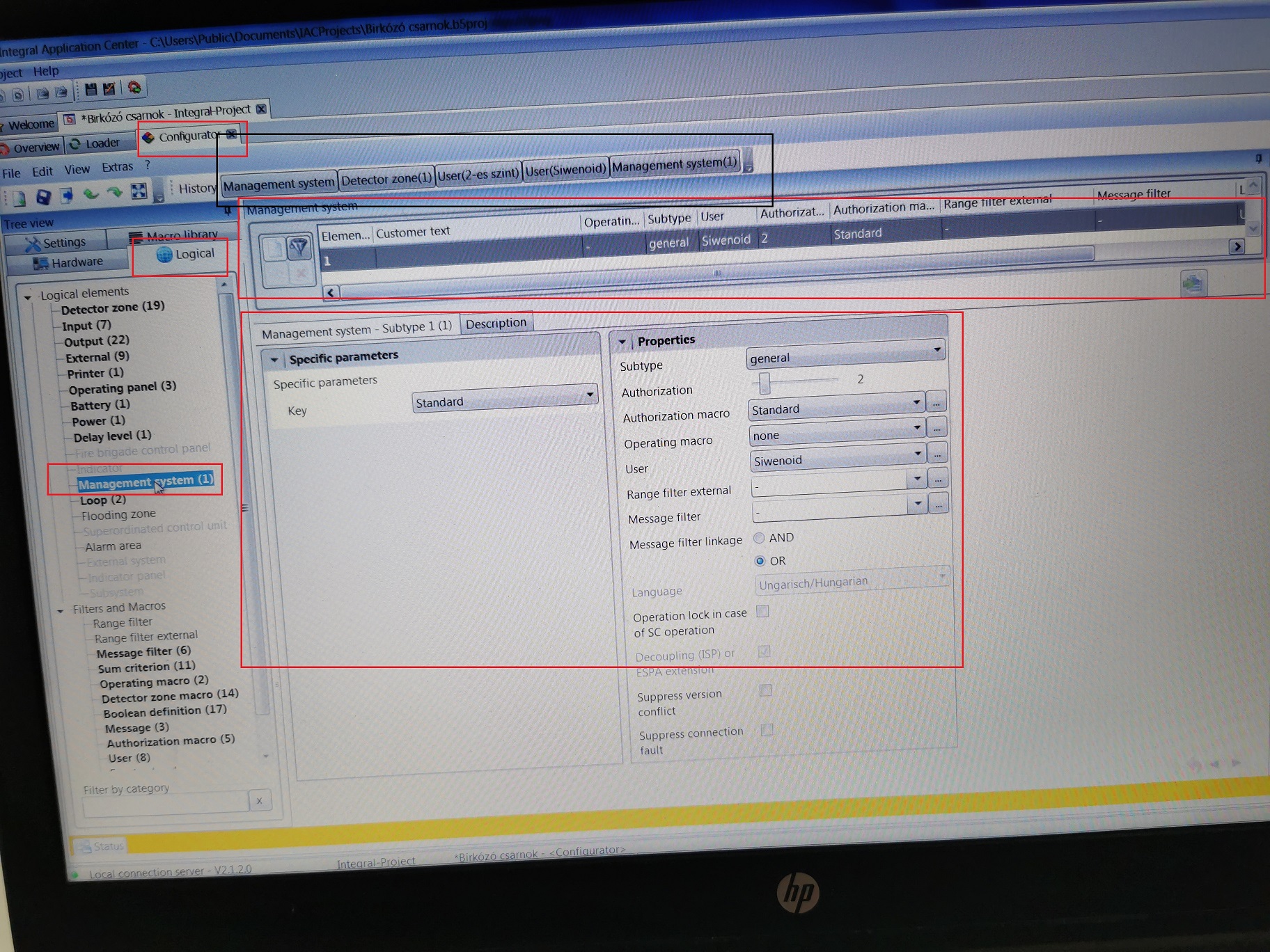
Logical tab: a user account for Siwenoid. -
Set a password for this user. You will enter it in Siwenoid.
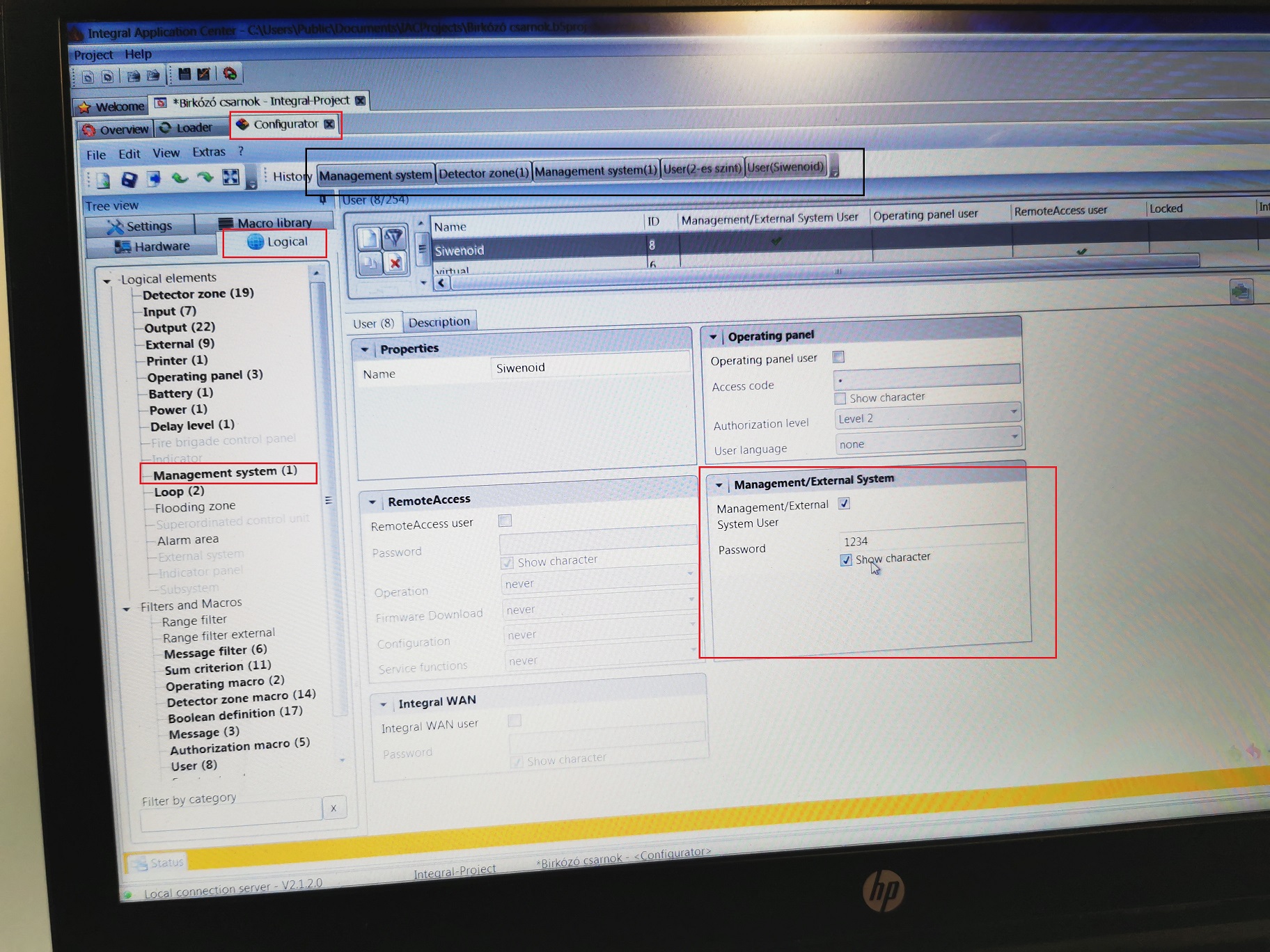
The password of the Siwenoid user. -
Download the configuration to the panel. Until a management system connects, the panel shows an MS (main system) message; it clears once Siwenoid is connected.
-
Export the site as an XML file and copy it to the computer running the Siwenoid client. The datapoints are created from this site XML file: import it with Import metafile of the Schrack container (see Importing the datapoints).
Creating the container
Create the container in Preferences › Physical structure (see Physical structure for the editor in general). Set:
- Handler type: Schrack
- Protocol: Schrack
Then fill in the connection parameters. All four are required.
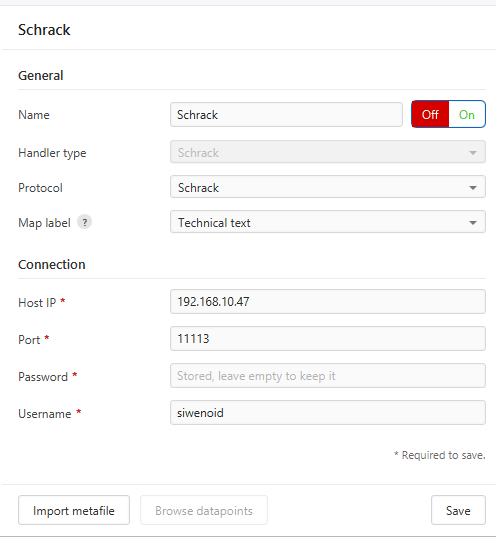
The container editor with the Schrack connection parameters.
| Field | Meaning | Default |
|---|---|---|
| Host IP | IP address of the panel. | |
| Port | The panel's management system port: always 11113. A new container comes with this value; leave it. |
11113 |
| Username | The user created for Siwenoid in the Configurator. | |
| Password | The password of that user. |
Save the container.
Importing the datapoints
Datapoints of a Schrack container cannot be added by hand; they all come from the site's XML file.
-
Select the container and press Import metafile.
-
Choose the site's XML file with Open.
-
Leave Preview changes ticked and press Save.
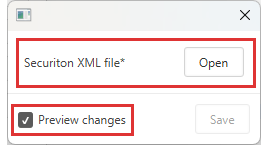
The metafile import of a Schrack container. -
Read the Import preview and press Import. Wait for Metafile import has been finished.
The import creates a System datapoint with the zones and other top-level elements, and the elements of each zone under it. An element is named after its zone and its own description; an element without a description gets a name such as Zone 3 or Element 5.
Switch the container On with the toggle at the top of the editor. The panel's MS message should clear.
Treatments and commands
The Schrack handler comes with a treatment file: the Siwenoid server loads it automatically at its first start, so it need not be imported by hand. The file defines the treatments of every element type (idle, alarm with its kinds, fault, off, revision, test and more) and the panel's commands: zones, zone elements, inputs and outputs can be switched off and on, reset, checked and put in revision, and alarms and faults can be simulated. See Datapoint types, treatments and commands to change them.
Checking the connection
- Check that the panel's MS message has cleared.
- Watch the datapoints in the datapoint hierarchy: their states follow the panel.
- If the container does not connect, check the panel's IP address, the port, and the user name and password created in the Configurator, and that the configuration with the management system was downloaded to the panel.