Satel Integra
Connecting a Satel Integra intrusion panel through the INT-RS module and a serial-to-TCP converter: converter and module settings, container parameters, browsing the datapoints, commands.
| At a glance | |
|---|---|
| Manufacturer | Satel |
| Panels | INTEGRA 24, 32, 64, 128, 128-WRL |
| Connection | INT-RS module (RS-232) through a TCP-to-RS-232 converter |
| Handler type | Satel Integra |
| Protocol | Satel INT-RS |
| Datapoints | Browse datapoints |
| Import | none |
Satel INTEGRA is an intrusion alarm panel family. Siwenoid talks to it through Satel's INT-RS integration module, which gives the panel an RS-232 port. A TCP-to-RS-232 converter (an ATC-2000) connects that port to the network. Siwenoid polls the panel for changes and shows its partitions, zones and outputs as datapoints. They can be controlled from the datapoint hierarchy, from maps and from the intrusion view.
Siwenoid sets the panel clock when it connects.
Preparing the converter
Use an ATC-2000 converter: the ATC-1000 can freeze on a corporate network and is no longer recommended. Open the converter's web interface from a computer in the same subnet.
The menu names and pictures below come from the web pages of an ATC-1000. The ATC-2000's web pages differ: set the same values in its own menus.
-
In the UART menu set:
- Mode: RS232,
- Baudrate: 19200,
- Character Bits: 8,
- Parity Type: none,
- Stop Bit: 1,
- Hardware Flow Control: none,
- Delimiter: leave every box empty.
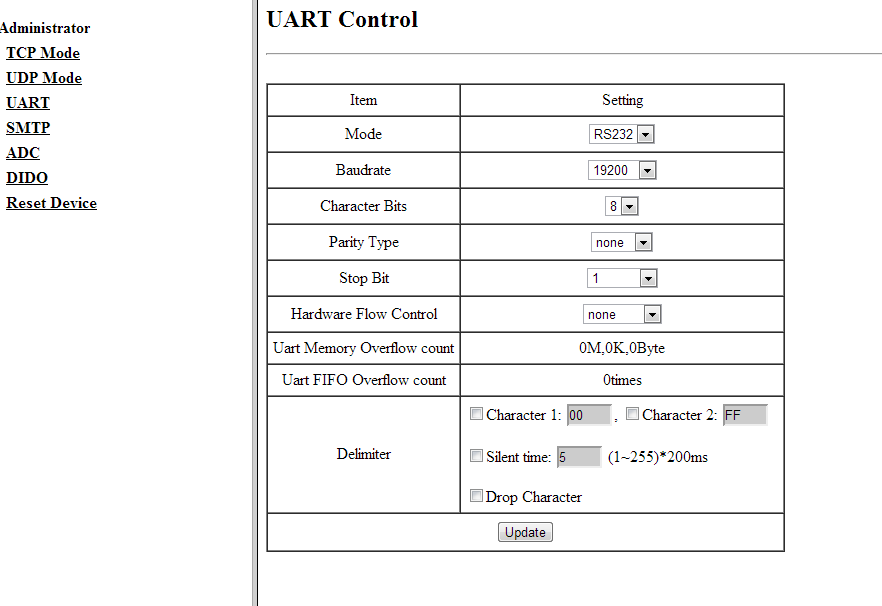
The UART settings of an ATC-1000. -
Under Administrator › System IP Configuration, give the converter a fixed IP address. Under TCP Mode, set the port in Data Port Number. Siwenoid connects to this address and port.
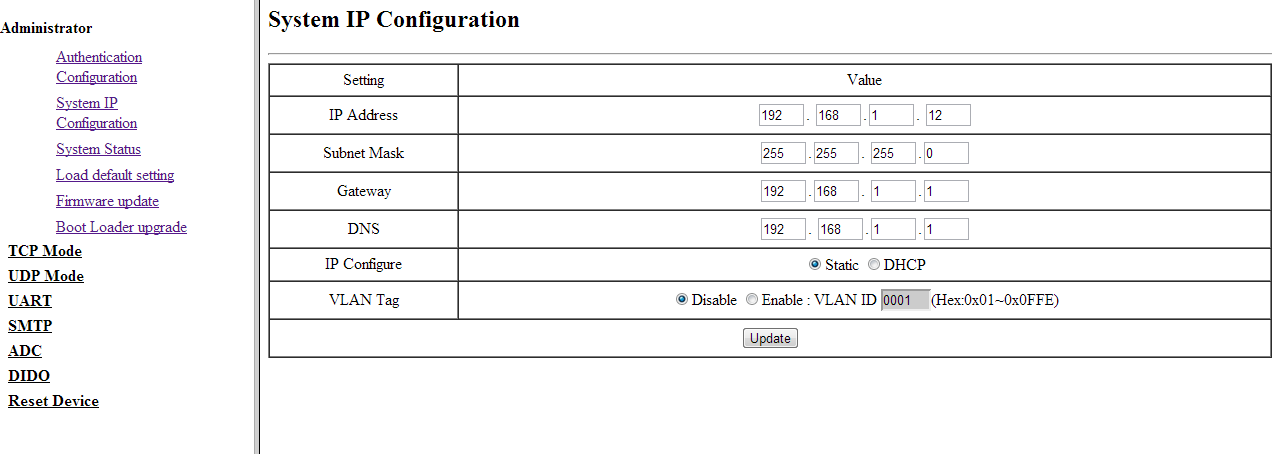
The IP address and the data port of an ATC-1000.
Tip
Use a fixed IP address. With DHCP the converter's address may change, and then the container's Host IP must be changed too.
Connecting the INT-RS module
-
Connect the converter to the INT-RS module with a serial cable that crosses pins 2-3 and 7-8.
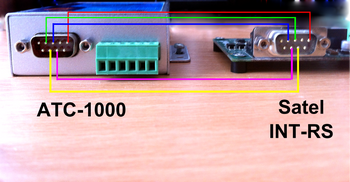
The serial cable between the converter and the INT-RS module. -
Set the DIP switches of the INT-RS module: 1 ON, 2 ON, 3 OFF, 4 OFF, 5 ON, 6 OFF, 7 OFF, 8 OFF.
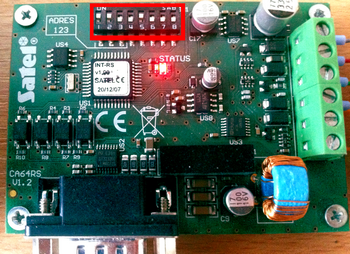
The DIP switches of the INT-RS module. -
Configure the INT-RS module in the panel with Satel's DLOADX programming software.
Creating the container
Create the container in Preferences › Physical structure (see Physical structure for the editor in general). Give it a name, choose Satel Integra as Handler type and Satel INT-RS as Protocol, then fill in the connection parameters. All three are required.
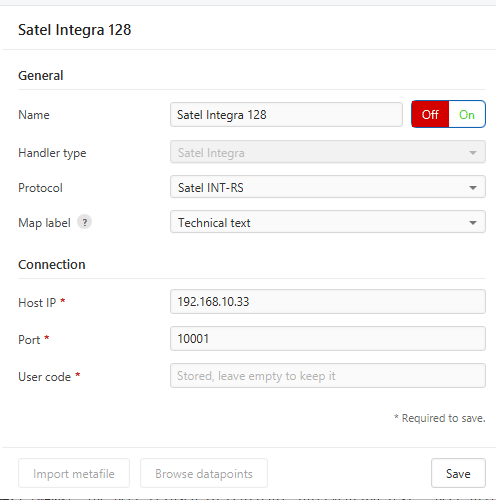
The container editor with the Satel connection parameters.
| Field | Meaning | Default |
|---|---|---|
| Host IP | IP address of the converter. | |
| Port | The converter's data port (Data Port Number). | |
| User code | Code of a panel user who may arm, disarm, bypass and clear alarms. Siwenoid sends every command with this code. |
Use the code of a master user. A service user's code also works, but the panel limits the service user's access in time. With a wrong code the connection works, but the panel does not carry out the commands.
Save the container and switch its connection on.
Getting the datapoints
Satel has no configuration file to import: Siwenoid reads the datapoints from the panel.
- Wait until the container is connected. Browse datapoints works only while the container is online.
- Press Browse datapoints. Siwenoid reads up to 32 partitions, 128 zones and 128 outputs with the names programmed in the panel. The zones are placed under their partition; the partitions and outputs under the panel. An element without a name gets a generic one, for example "Zone #12".
- In Select datapoints to import, untick what you do not need, for example unused zones, and press Import.
The datapoint editor shows what browsing read from the panel; leave these as they are:
- Data number,
- Subtype,
- Partition number.
Treatments and commands
The treatment file of Satel Integra (satel.trt, in the TreatmentTables folder of the Siwenoid server) comes with the handler, and the server loads it by itself at its first start. Before you switch on the first container, check in Preferences › Datapoint types that the handler's types have treatments. If they have none, or you received an updated treatment file, import the file by hand (see Importing a treatment file); without treatments the panel's signals do not appear and there are no commands. The commands of the treatment file:
| Datapoint | Commands |
|---|---|
| Partition | Arm in mode 0, Arm in mode 1, Arm in mode 2, Arm in mode 3, Disarm, Clear alarm |
| Zone | Zone bypass, Zone unbypass, Clear alarm |
| Output | Output on, Output off |
| Door | Open door |
| Panel | Clear Trouble |
Checking the connection
- The panel datapoint shows connected in the datapoint hierarchy.
- Violate a zone, and check that its state changes in Siwenoid.
- If the container does not connect, check the converter's address and data port.
- If it connects but nothing arrives, check:
- the baud rate,
- the cable,
- the DIP switches,
- the INT-RS configuration in DLOADX,
- that the handler's types have treatments (Preferences › Datapoint types).
- If commands have no effect, check the User code and the rights of that user in the panel.