Honeywell Galaxy Dimension
Connecting a Galaxy Dimension intrusion panel through its internal RS232 port and a device server: panel settings, container parameters, Frontshell metafile import, commands.
| At a glance | |
|---|---|
| Manufacturer | Honeywell |
| Panels | Galaxy Dimension |
| Connection | SIA over the panel's internal RS232 port, through an RS232-to-Ethernet device server (TCP) |
| Handler type | Galaxy Dimension Legacy II |
| Protocol | Galaxy Dimension SIA |
| Datapoints | metafile import or created by hand |
| Import | Frontshell .xml |
Galaxy Dimension is an intrusion alarm panel. Siwenoid does not use the panel's own Ethernet interface: it talks to the panel's internal RS232 port with the SIA protocol, through an RS232-to-Ethernet device server. Use an ATC-2000: the ATC-1000 can freeze on a corporate network and is no longer recommended. The panel sends its events to Siwenoid, and Siwenoid polls the state of groups and zones. Groups and zones can be set, unset and omitted from the datapoint hierarchy, from maps and from the intrusion view.
Programming the panel
Do these steps in the panel's programming software (Frontshell or the GD editor tool), then send the program to the panel.
-
In Group Mode, enable groups (program step 63, Options 1-1-1).
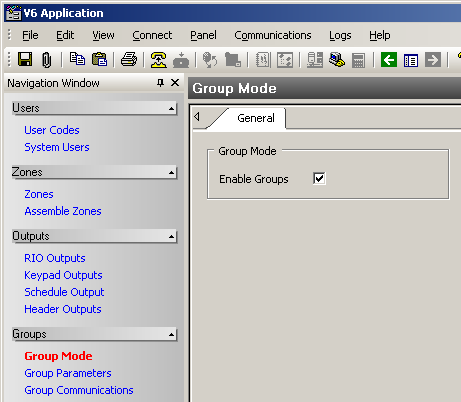
Groups enabled. -
In the Group Communication menu, on the RS232 tab, set the triggers.
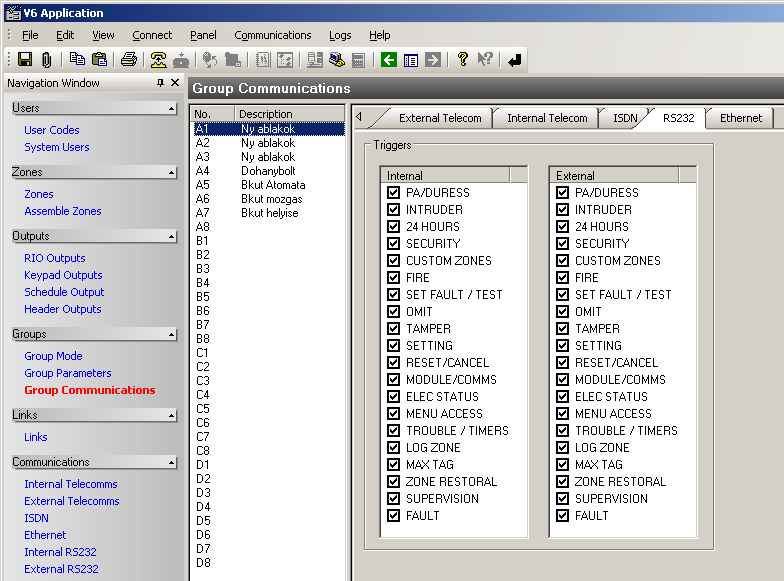
The RS232 triggers of the groups. -
In the Internal RS232 menu, set:
- mode: Direct,
- format: SIA,
- level: 4,
- account: a number of your choice (program step 56.6.3). It is not the PIN field of Siwenoid,
- 9600 baud, 8 data bits, 1 stop bit, no parity.
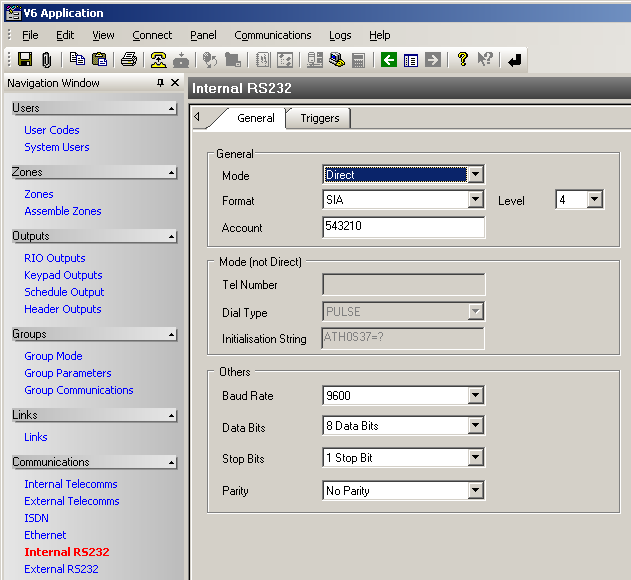
The internal RS232 port. -
On the Triggers tab of the Internal RS232 menu, tick every trigger. Only the ticked events are sent to Siwenoid.
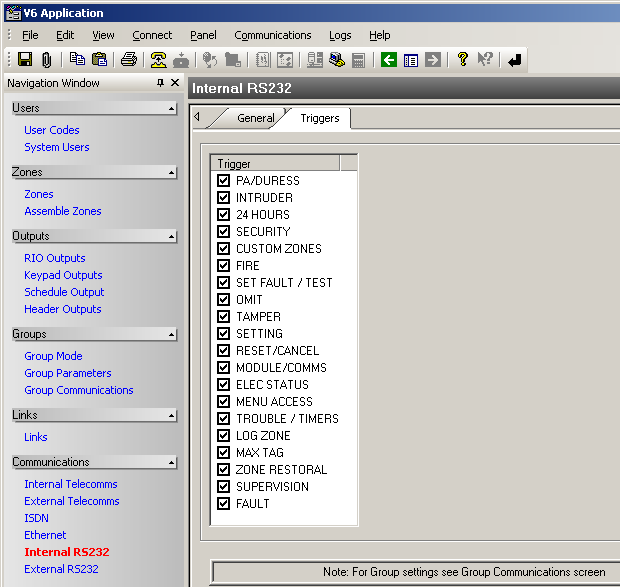
Every trigger of the internal RS232 port ticked. -
In the system parameters (Parameters 1), set these values to 0:
- the number of alarms,
- the disarm limit,
- the arm counter.
These limit how many times a detector of a group may signal without the group being set and unset.
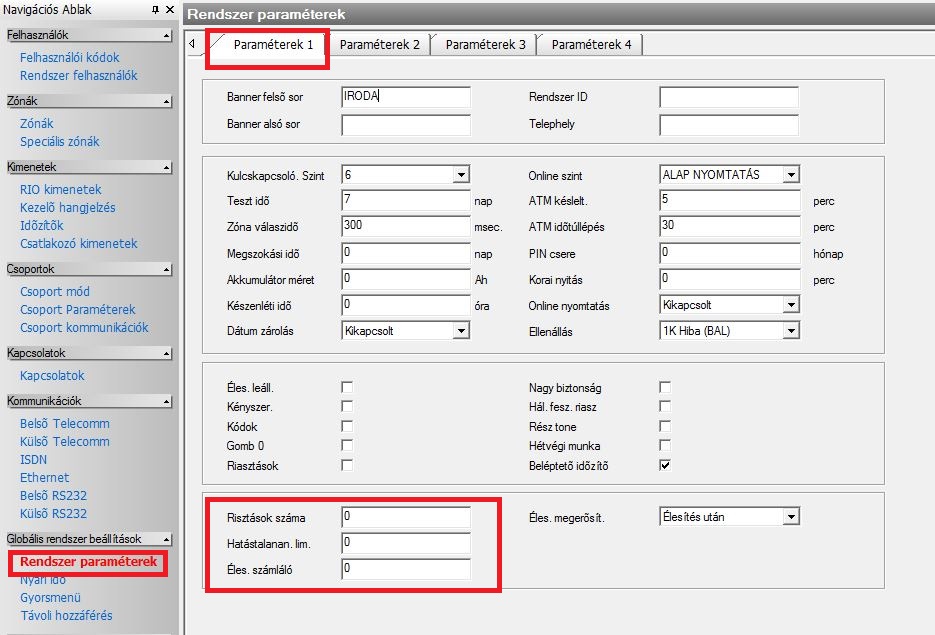
The three counters set to 0.
Connecting the device server
- Wire the device server's RS232 port to the RS232 terminal of the panel: pins 2, 3 and 5 (RX, TX, GND) on the device server side.
- In the device server's web interface, set the serial port to RS232, 9600 baud, 8 data bits, 1 stop bit, no parity, and give the device server a fixed IP address. Note its TCP port: Siwenoid connects to this address and port.
- Unplug the programming cable from the panel. The device server cannot communicate while the programming cable is connected.
Tip
To test the wiring, connect to the panel from Frontshell over Ethernet, with the device server's IP address and port as the remote address. Leave the password empty when it is asked for. If the connection fails, check the settings and the wiring, then restart the panel with the programming cable unplugged.
Creating the container
Create the container in Preferences › Physical structure (see Physical structure for the editor in general). Give it a name, choose Galaxy Dimension Legacy II as Handler type and Galaxy Dimension SIA as Protocol, then fill in the connection parameters.
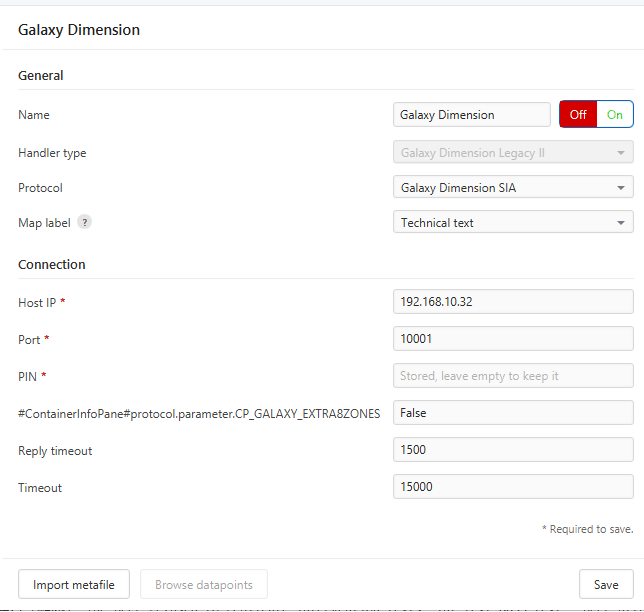
The container editor with the Galaxy connection parameters.
| Field | Meaning | Default |
|---|---|---|
| Host IP | IP address of the device server. Required. | |
| Port | TCP port of the device server. Required. | |
| PIN | The panel's PIN code that Siwenoid logs in with. Its factory value is 543210, but the field is not filled in for you: type the panel's code (543210, or the changed code if you changed it in the panel). It is not the account of the Internal RS232 menu. Digits only. Required. |
|
| Timeout | How long Siwenoid waits for data from the device server, in milliseconds. Between 10000 and 30000. | 15000 |
| Reply timeout | Milliseconds to wait for the panel's reply. Between 100 and 3000. | 1500 |
Check box CP_GALAXY_EXTRA8ZONES |
Alternative numbering of the on-board zones, for panels that use the 8 extra zones. Leave it off otherwise. | off |
Save the container and switch its connection on. With a wrong PIN the connection to the device server comes up, but the panel does not let Siwenoid in, and no state arrives.
Getting the datapoints
Importing the Frontshell metafile
Export the panel program from Frontshell as an XML file. This file is the metafile.
- On the container's page, press Import metafile.
- Press Open, and choose the XML file (file type Frontshell Galaxy Metafile).
- Press Save. This handler has no import preview: when Siwenoid asks whether to import anyway, confirm.
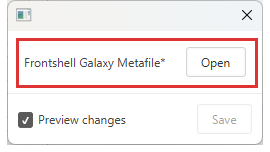
Importing the Frontshell XML file.
The import creates:
- the panel, named after its model and version,
- one datapoint for every RIO module present,
- the groups used by the described zones (group 1 always),
- every zone that has a description and is in use, under its group, named after its description,
- six system zones under group 1 (for example standby battery low, main power fail, lid tamper).
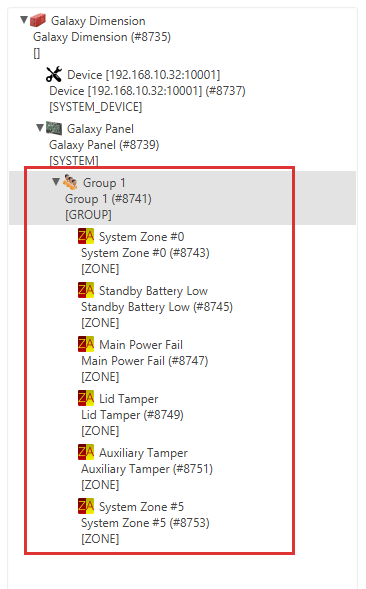
A Galaxy container after the import: the panel, its groups and zones.
Adding datapoints by hand
Datapoints can also be added one by one. Right-click the panel datapoint and choose Add child, then choose the type and fill in the fields:
| Type | Object Id | Group Id |
|---|---|---|
| Group | the group number: A1-A8, B1-B8, C1-C8, D1-D8 are 1 to 32 | empty |
| Zone | the zone number as the panel shows it, for example 1001 |
the group of the zone |
Create a zone only under a group: right-click the group and choose Add child there.
Important
Siwenoid reads which zone belongs to which group when the connection starts. After an import or after adding, moving or deleting zones and groups, switch the container's connection off and on again.
Treatments and commands
The treatment file of Galaxy Dimension (galaxylegacy.trt, in the TreatmentTables folder of the Siwenoid server) comes with the handler, and the server loads it by itself at its first start. Before you switch on the first container, check in Preferences › Datapoint types that the handler's types have treatments. If they have none, or you received an updated treatment file, import the file by hand (see Importing a treatment file); without treatments the panel's signals do not appear and there are no commands. The main commands:
| Datapoint | Commands |
|---|---|
| Group | Set, Unset, Part Set, System Reset, Abort Set, Force Set |
| Zone | Omit, Un-omit, Soak Test On, Soak Test Off, Part Set On, Part Set Off, Force On, Force Off, Force Tamper |
| Panel | Un-omit All, Flush All Events, Set Time and Date, and the queries of set, alarm and ready states |
Siwenoid does not set the panel clock by itself: use Set Time and Date on the panel datapoint.
Checking the connection
- The panel datapoint shows connected in the datapoint hierarchy.
- Open a zone, and check that its state changes in Siwenoid.
- If nothing arrives:
- check these fields:
- Host IP,
- Port,
- PIN (not the account of the Internal RS232 menu),
- check that the handler's types have treatments (Preferences › Datapoint types),
- check that every trigger of the internal RS232 port is ticked,
- check that the programming cable is unplugged and the wiring is right,
- restart the panel.
- check these fields: