DSC PowerSeries NEO
Connecting a DSC PowerSeries NEO intrusion panel over ITv2: server requirements, panel settings, container parameters, browsing the datapoints, commands.
| At a glance | |
|---|---|
| Manufacturer | DSC |
| Panels | PowerSeries NEO |
| Interface | TL240 Ethernet module |
| Connection | ITv2 over TCP, the panel connects to the Siwenoid server |
| Server | Windows only |
| Handler type | DSC NEO |
| Protocol | DSC NEO ITV2 protocol over TCP |
| Datapoints | Browse datapoints or created by hand |
| Import | none |
DSC PowerSeries NEO is an intrusion alarm panel. Siwenoid integrates it over the panel's TL240 Ethernet module with DSC's ITv2 protocol. The connection runs the other way than with most panels: the panel connects to the Siwenoid server, to an address and port that the container opens on the server. Partitions, zones and PGM outputs can be controlled from the datapoint hierarchy, from maps and from the intrusion view.
Server requirements
Important
DSC NEO works only on a Siwenoid server running on Windows. Siwenoid uses DSC's own integration library for this panel, which runs on Windows only.
Install the Microsoft Visual C++ Redistributable on the server before you create the container. Without it the connection to the panel cannot start. Siwenoid installs everything else it needs for DSC by itself when the first DSC container starts.
Preparing the panel
The panel needs a TL240 Ethernet module: the panel connects to the Siwenoid server through it.
Do these steps in the panel's programming (for example with DSC's DLS software).
-
Program the panel's IP integration (ITv2) to connect to the Siwenoid server:
- the address: the Siwenoid server's IP address (the same as Local host in Siwenoid),
- the port: the same as Local port in Siwenoid,
- the integration access code: the same as Integration access code in Siwenoid. Encryption type 2 can also be used; its key is this code.
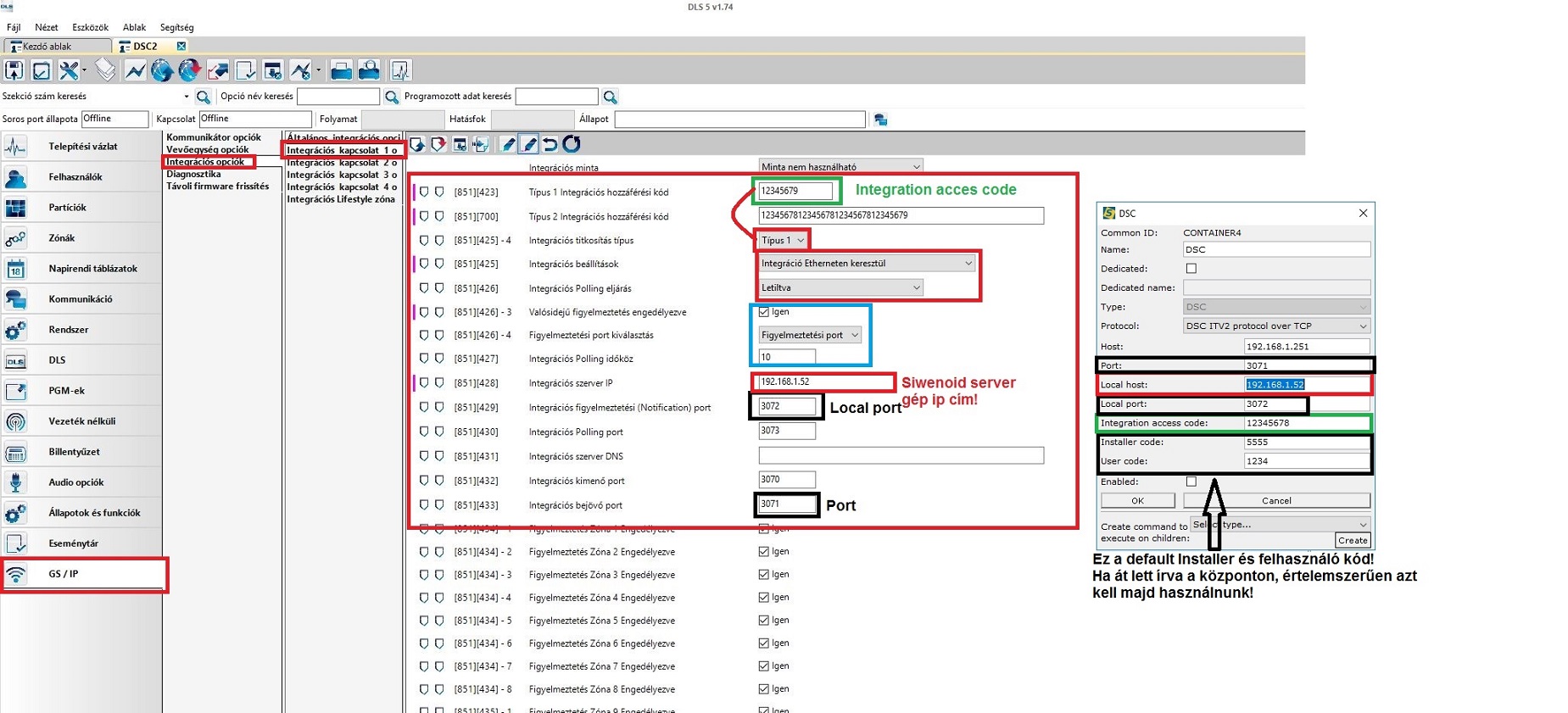
The panel's integration settings for Siwenoid. -
Give names (labels) to the partitions, zones and PGM outputs in the panel. Siwenoid names the datapoints after these labels.
Important
The panel connects to the Siwenoid server. Allow the local port through the server's firewall, and make sure the panel's network can reach the server's address.
Creating the container
Create the container in Preferences › Physical structure (see Physical structure for the editor in general). Give it a name, choose DSC NEO as Handler type and DSC NEO ITV2 protocol over TCP as Protocol, then fill in the connection parameters.
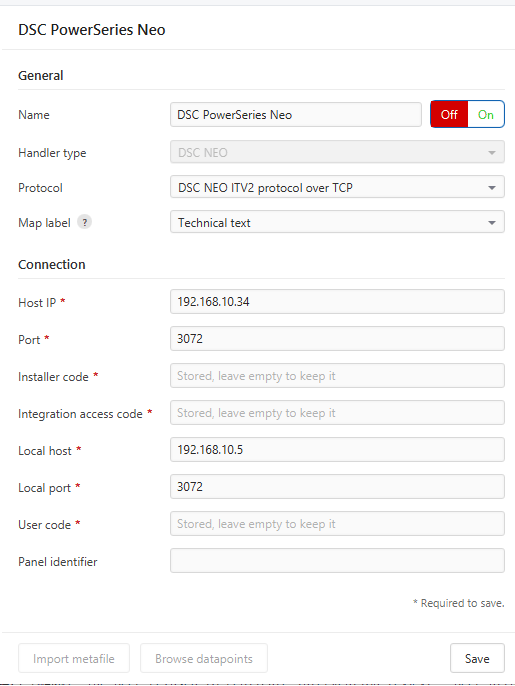
The container editor with the DSC connection parameters.
| Field | Meaning | Default |
|---|---|---|
| Local host | IPv4 address of the Siwenoid server where it waits for the panel. Required. | |
| Local port | TCP port on the Siwenoid server where the panel connects. Required. | |
| Integration access code | The panel's integration access code (the encryption key when encryption type 2 is used). Required. | |
| Installer code | The panel's installer code. Required. | |
| User code | Code of a panel user who may arm, disarm and bypass. Required. | |
| Panel identifier | Identifier of the panel. Fill it in when several panels report to one server. |
The editor also lists Host IP and Port, the general fields of every container. The DSC connection does not use them: fill them in with the panel's IP address and the local port.
Save the container and switch its connection on. The container shows connected once the panel has connected to the server.
Getting the datapoints
- Wait until the panel has connected. Browse datapoints works only while the container is online.
- Press Browse datapoints. Siwenoid builds the hierarchy: the panel, and under it these folders, with the elements named as labelled in the panel:
- Partitions,
- Zones,
- PGMs.
- In Select datapoints to import, untick what you do not need and press Import.
Datapoints can also be added by hand: right-click the parent, choose Add child, choose the type (partition, zone, PGM...) and enter the element's number in the panel in Element no.. Only zones and PGM outputs count toward the datapoint licence.
Treatments and commands
The treatment file of DSC NEO (dsc.trt, in the TreatmentTables folder of the Siwenoid server) comes with the handler, and the server loads it by itself at its first start. Before you switch on the first container, check in Preferences › Datapoint types that the handler's types have treatments. If they have none, or you received an updated treatment file, import the file by hand (see Importing a treatment file); without treatments the panel's signals do not appear and there are no commands. The commands of the treatment file:
| Datapoint | Commands |
|---|---|
| Partition | Stay Arm, Away Arm, Stay Arm No Entry Delay, Away Arm No Entry Delay, Night Mode Arm, Interior Arm, User Arm, Disarm |
| Zone | Bypass, Unbypass |
| PGM | Activate, Deactivate, Toggle |
If a command does not appear in the signal log, on maps or in the intrusion view, switch on its Shown in the interface option in Preferences › Datapoint types (see Datapoint types, treatments and commands).
Checking the connection
- The panel datapoint shows connected in the datapoint hierarchy.
- Open a zone, and check that its state changes in Siwenoid.
- If the panel does not connect:
- check that the panel has a TL240 Ethernet module,
- check that the Visual C++ Redistributable is installed on the server,
- check that the panel's integration points to Local host and Local port, and that the firewall lets the port through,
- check the Integration access code and the encryption setting of the panel,
- switch the container's connection off and on again.