Minimax FMZ 5000
Connecting Minimax FMZ 5000 fire panels through their RS-422 Modbus interface and a serial-to-Ethernet converter: wiring, MxSysCon and converter settings, container parameters, importing the MxSysCon XML file.
| At a glance | |
|---|---|
| Manufacturer | Minimax |
| Panels | FMZ 5000 (programmed with MxSysCon) |
| Interface | Modbus over RS-422 and a serial-to-Ethernet converter (ATC-2000) |
| Connection | TCP |
| Handler type | Minimax |
| Protocol | Modbus RTU |
| Import | MxSysCon XML file (FMZ5000.XML) |
Minimax FMZ 5000 fire panels connect to Siwenoid through their Modbus interface, which is an RS-422 port. A serial-to-Ethernet converter makes it reachable over the network: use an ATC-2000 converter. The ATC-1000 is no longer recommended because it can freeze on corporate networks. Siwenoid shows each panel's extinguishing zones, detector groups, control groups and detectors as datapoints, follows their states, and lets operators reset, switch off and on, and test them.
Several panels of a site can share one container: each panel is identified by its Modbus number.
Preparing the panel and the converter
-
Wire the panel's Modbus RS-422 port to the converter.
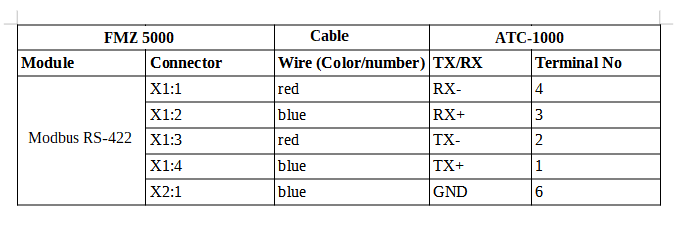
Wiring the RS-422 Modbus port to the converter (the drawing shows an ATC-1000). -
Set the RS-422 jumpers on the panel.
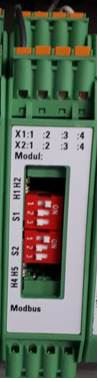
RS-422 jumpers of the Modbus interface. -
In MxSysCon, the panel's programming software, configure the panel's Modbus interface. Note the panel's Modbus number: Siwenoid needs it for the import.
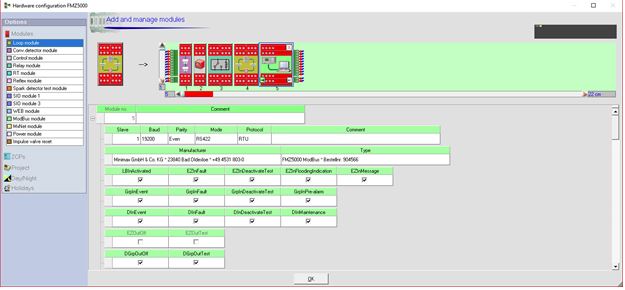
Modbus configuration in MxSysCon. -
Open the converter's web page, change its default password, and give it a fixed IP address and a TCP data port. Its serial (UART) settings:
Setting Value Mode RS422 Baudrate 19200 Character Bits 8 Parity Type even Stop bit 1 Hardware Flow Control none 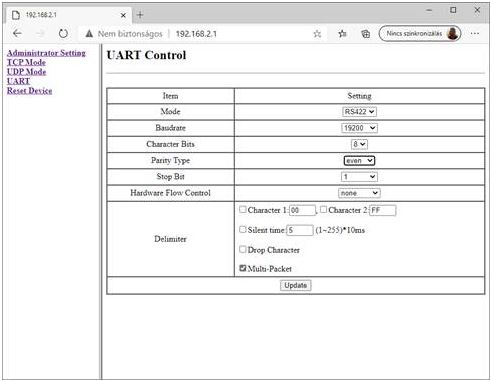
The converter's UART settings for the Minimax panel (ATC-1000 web page shown).
Getting the XML file
Siwenoid imports the panel's program from the XML file that MxSysCon creates.
- In MxSysCon, save the program (with or without writing it to the card). MxSysCon creates the XML file only at this moment, in the project's temporary folder.
- Take the file
FMZ5000.XMLfrom the project'sFMZ5000folder. On Windows 10 with MxSysCon 5.2 the folder isC:\Users\<user>\Documents\MxSysCon\MxSysCon 5.2\TempProj\<project>\FMZ5000. - Copy the file to the computer running the Siwenoid client.
After every change of the panel's program, create the XML file again and import it again.
Creating the container
Create the container in Preferences › Physical structure (see Physical structure for the editor in general). Set:
- Handler type: Minimax
- Protocol: Modbus RTU
Then fill in the connection parameters.
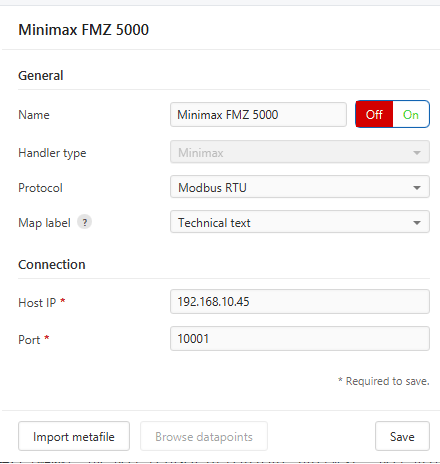
The container editor with the Minimax connection parameters.
| Field | Meaning | Default |
|---|---|---|
| Host IP | IP address of the converter. Required. | |
| Port | The converter's TCP data port. Required. |
Save the container.
Importing the datapoints
-
Select the container and press Import metafile.
-
Choose
FMZ5000.XMLwith Open in the Minimax XML file row. -
In Number of device in site, enter the panel's Modbus number (
1unless you set another one in MxSysCon). -
Leave Preview changes ticked and press Save.
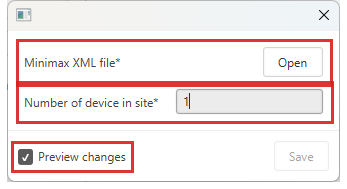
The metafile import of a Minimax container. -
Read the Import preview and press Import. Wait for Metafile import has been finished.
For a second panel on the same converter, import its XML file into the same container with its own Modbus number.
Switch the container On with the toggle at the top of the editor.
Treatments and commands
The Minimax handler comes with a treatment file: the Siwenoid server loads it automatically at its first start, so it need not be imported by hand. The file defines the system, zone, group and detector treatments and these commands (see Datapoint types, treatments and commands to change them):
| Datapoint | Commands |
|---|---|
| Detector groups and detectors | RESET, SWITCH OFF, SWITCH ON, SWITCH ON TEST STATE, SWITCH OFF TEST STATE |
| Control groups | RESET, SWITCH OFF, SWITCH ON |
Checking the connection
- Watch the datapoints in the datapoint hierarchy: their states follow the panel.
- Switch a detector group off from Siwenoid, check it on the panel, then switch it on again.
- If the container does not connect, check the converter's IP address and port, the UART settings (RS422, 19200, 8 data bits, even parity, 1 stop bit), the wiring and the jumpers.
- If the import preview finds nothing, check that the XML file is the current one and that the Modbus number is right.