Esser fire alarm panels
Connecting Esser fire alarm panels through an SEI module and a serial-to-Ethernet converter: converter settings, container parameters and the WINMAG export import.
| At a glance | |
|---|---|
| Manufacturer | Esser (Honeywell) |
| Connection | serial interface of the panel (SEI module) through an RS-232/Ethernet converter, TCP |
| Handler type | Esser |
| Protocol | Esser EDP Protocol |
| Import | WINMAG export (.txt) |
Esser fire alarm panels report to Siwenoid through the panel's serial interface. The panel needs an SEI module, and an ATC-2000 serial-to-Ethernet converter makes the line reachable over the network. The ATC-1000 is no longer recommended because it can freeze on corporate networks. Siwenoid connects to the converter over TCP, shows the alarms, faults and states of the panels as statuses of the imported datapoints, and sends the operators' commands to the panels.
Preparing the panel
- Install an SEI module in the panel. Beyond its ID (1 by default), the SEI module needs no programming.
- Connect the converter's RS-232 port to the SEI module: RX, TX and GND (pins 2, 3 and 5 of the RS-232 connector).
Preparing the converter
Set up the converter in its web interface. The menu names and pictures below come from the ATC-1000's web page; on the ATC-2000, find the same settings in its own web page.
-
Log in with the converter's administrator account and change its default password.
-
Under Administrator › System IP Configuration, give the converter a fixed IP address. With DHCP, the address in Siwenoid would have to be changed every time the converter gets a new one.
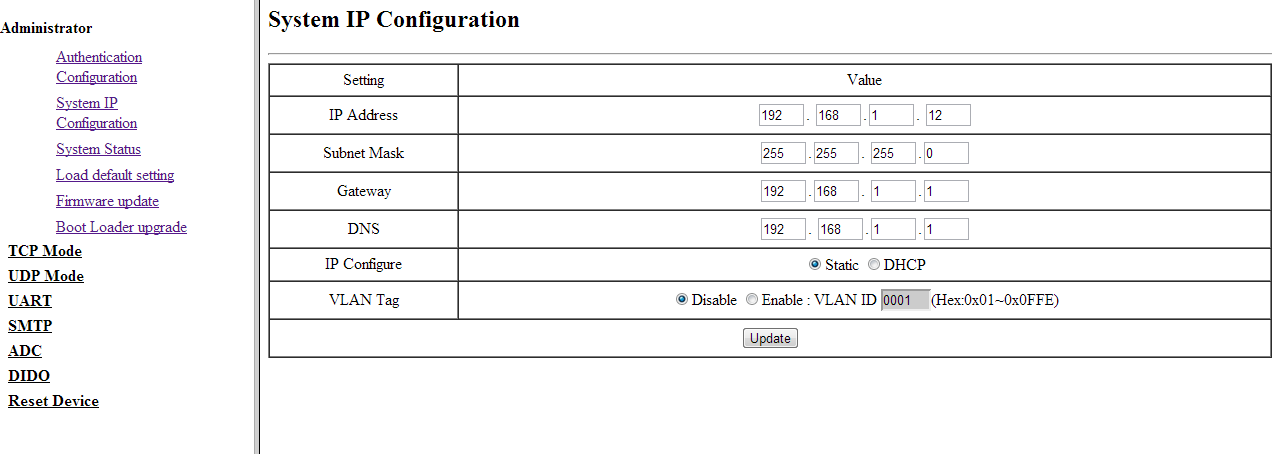
The converter's IP settings (ATC-1000 web page shown). -
Under TCP Mode, set the Data Port Number. Siwenoid connects to this port.
-
Under UART, set the serial parameters (mode RS-232, baud rate, data bits, parity, stop bits, no flow control) to the values of the panel's serial interface, as given in the Esser documentation.
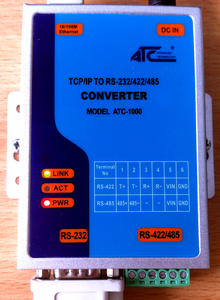
An ATC-1000 serial-to-Ethernet converter (the earlier type, no longer recommended).
Important
Only Siwenoid may connect to the converter's data port. A second client on the same port disturbs the communication with the panel.
Exporting the panel configuration
Siwenoid imports the panel configuration in the WINMAG export format, a text file (.txt). Export it with the Esser programming software. One file may describe several panels: Siwenoid imports one panel at a time, by its number.
Creating the container
Create the container in Preferences › Physical structure (see Physical structure for the editor in general). Set:
- Handler type: Esser
- Protocol: Esser EDP Protocol
Then fill in the connection parameters.
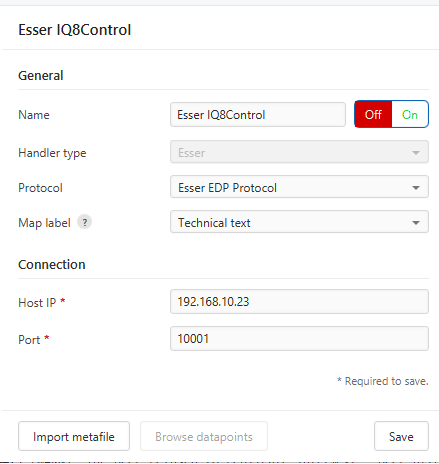
The container editor with the Esser connection parameters.
| Field | Meaning | Default |
|---|---|---|
| Host IP | IP address of the converter. Required. | |
| Port | The converter's data port. Required. |
Save the container. Leave the connection off until the panels are imported.
Note
Connect all Esser panels of a site through one container. Siwenoid addresses the panels by the numbers imported into that container.
Importing the datapoints
- In the container editor, click Import metafile.
- Choose the export file (WINMAG export,
.txt). - In Panel number, enter the number of the panel to import. Without a panel number, nothing is imported.
- Click Save and wait for the progress bar.
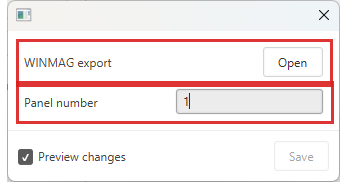
The metafile import with the panel number.
Repeat the import for every panel. Each panel appears under the container by its number (Panel - 1, Panel - 2 and so on), with these groups below it:
- Technical points on panel, Buses on panel and Controls on panel,
- the zones, each with its detectors,
- every other element directly under the panel.
A repeated import updates the existing datapoints.
Siwenoid reads the panel numbers when the connection starts. Import the panels first, then switch the container's connection on. If you import a new panel later, switch the connection off and on again.
Treatments and commands
The Esser handler comes with a treatment file: the Siwenoid server loads it automatically at its first start, so it need not be imported by hand. The file holds the treatments of the panel's events, among them fire alarm, prealarm, technical alarm, disablement, test mode and service mode, each with its ending treatment. A treatment is chosen by its Status code; see Datapoint types, treatments and commands to change the names, categories or colours.
Commands include panel reset, buzzer off, sound silence and sound alarm, switching zones and detectors off and on, test mode on and off, and revision on and off. A command is defined by its Command code and Command value.
Checking the connection
- After switching the connection on, check that the panel datapoint reports its normal state and that the zones and detectors receive their states in the datapoint hierarchy.
- If Siwenoid does not connect, check the converter's IP address and data port, and that the converter's web interface opens from the Siwenoid server.
- If the connection keeps restarting, check the converter's serial settings and that no other client uses its data port.
- If events arrive but a panel's datapoints do not change, check that the panel number of the import is the panel's real number.