Bosch FPA-5000 (FSI)
Connecting a Bosch FPA-5000 fire panel network as an FSI server: the FSP-5000 settings, the network, container parameters, importing the panel configuration.
| At a glance | |
|---|---|
| Manufacturer | Bosch |
| Panels | FPA-5000 (Modular Fire Panel 5000 series) |
| Interface | FSI server node, OPC server licence on the panels |
| Connection | Ethernet, UDP multicast |
| Server | Windows only |
| Handler type | Bosch FSI |
| Protocol | Bosch FSI Protocol |
| Import | Bosch RPS XML file or CSV |
Siwenoid joins a Bosch FPA-5000 fire panel network as an FSI server (Fire System Interface). The panels talk to it over Ethernet through a multicast group, as to any FSI client. Siwenoid shows the panels, their detector groups, detectors, controls and modules as datapoints, follows their states, and lets operators send the panels' commands, such as acknowledge, reset, isolate and bypass.
Requirements
- The Siwenoid server runs on Windows. The handler starts a helper program on the server for the FSI connection; this helper is installed with Siwenoid and runs on Windows only.
- The helper program (
BoschFSICommunicator.exe) needs the Microsoft Visual C++ 2005 and 2008 Redistributable packages on the Siwenoid server. Installing an all-in-one (AIO) Visual C++ Redistributable package, which includes them, is recommended. - An OPC server licence module is inserted in the panel network.
- The Siwenoid server and the panel network exchange UDP multicast: they are in the same subnet, or multicast routing is set up between them, and the firewalls and switches let the multicast traffic on the chosen port through.
Preparing the panel network
Do these steps in FSP-5000, the panels' programming software.
-
Under the nodes, create an FSI server node.
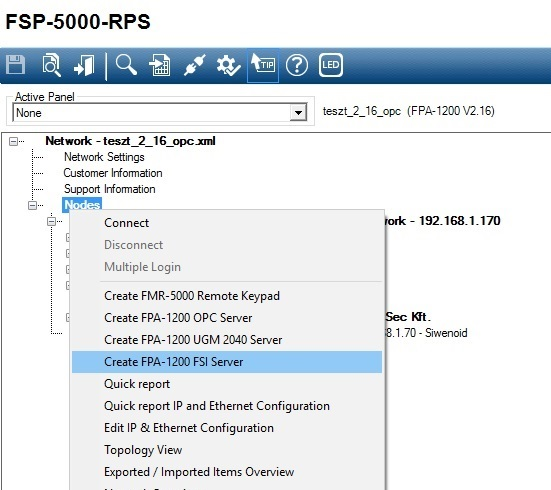
FSP-5000: creating the FSI server node. -
Edit the IP properties of the FSI server node:
- IP Address: the IP address of the Siwenoid server,
- a Multicast Address and a Port Number: Siwenoid needs both.
The node's default Net Node and Group are usually fine; note them, Siwenoid needs them too.
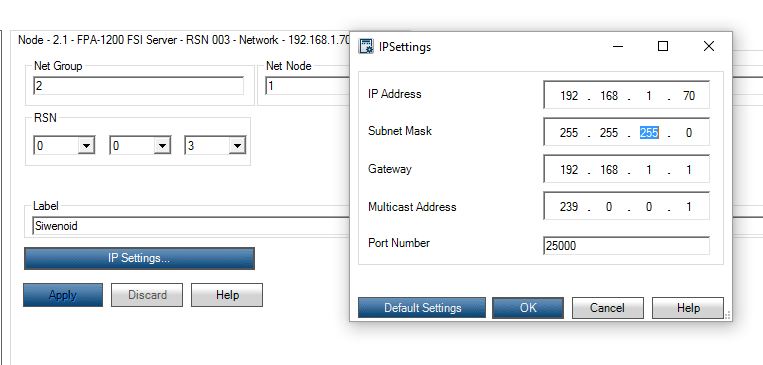
IP properties of the FSI server node. -
Make sure the FSI server is assigned to every node.
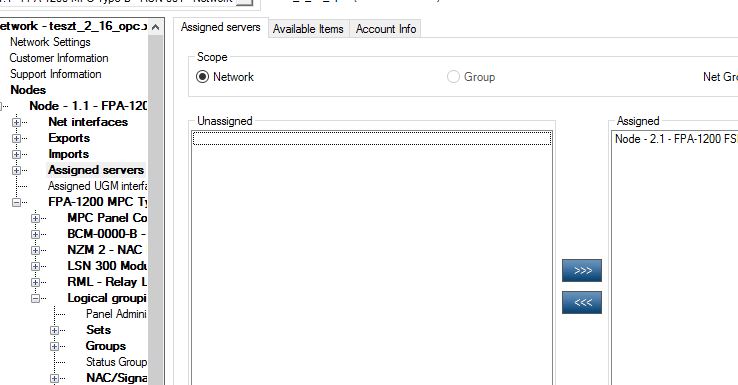
The FSI server assigned to every node. -
On the node into which the Ethernet cable is plugged, set its IP address and the same multicast address and port as on the FSI server. Set the same on the control panel itself.
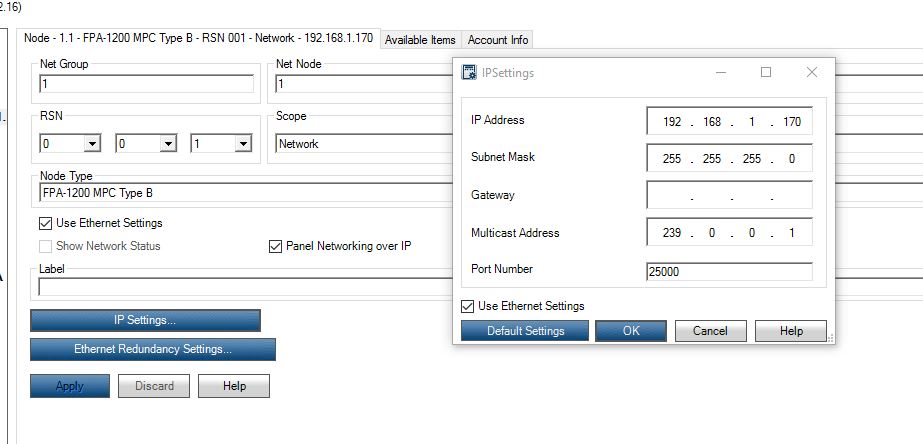
IP address, multicast address and port of the control panel node. -
Assign the inserted OPC server licence to the slot it is plugged into.
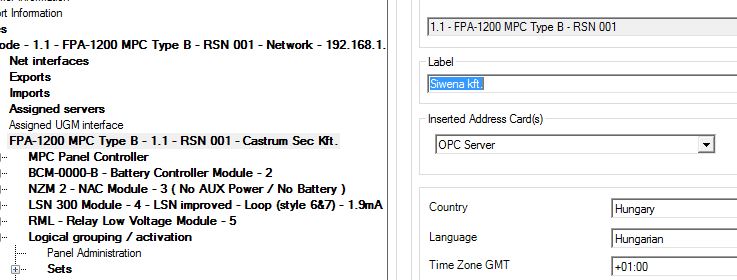
The OPC server licence in its slot. -
Validate the FSI server on every node.
Also check that Panel Networking over IP (right of the context menu in the picture) is ticked: without it there is no communication with Siwenoid. In a system of several panels, switch it on on the panel connected to the network.
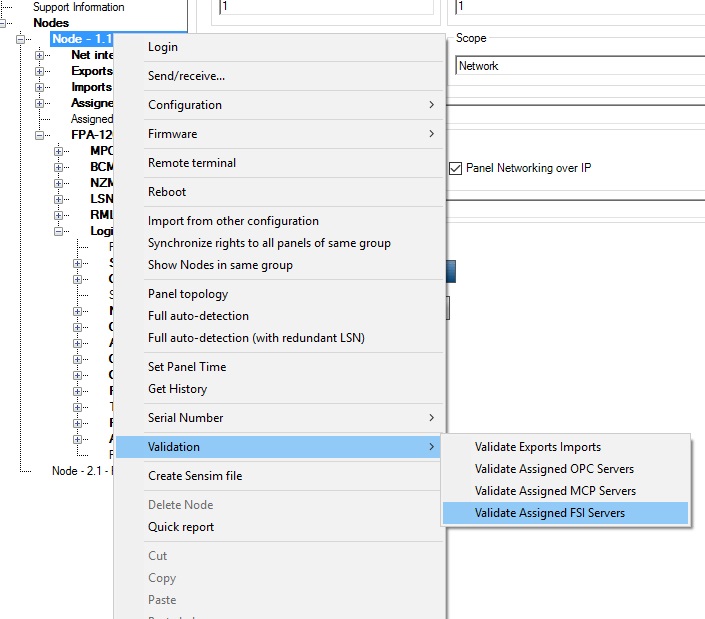
Validating the FSI server of the nodes.
Creating the container
Create the container in Preferences › Physical structure (see Physical structure for the editor in general). Set:
- Handler type: Bosch FSI
- Protocol: Bosch FSI Protocol
Then fill in the connection parameters. This container has no Host IP and Port; all its fields are required.
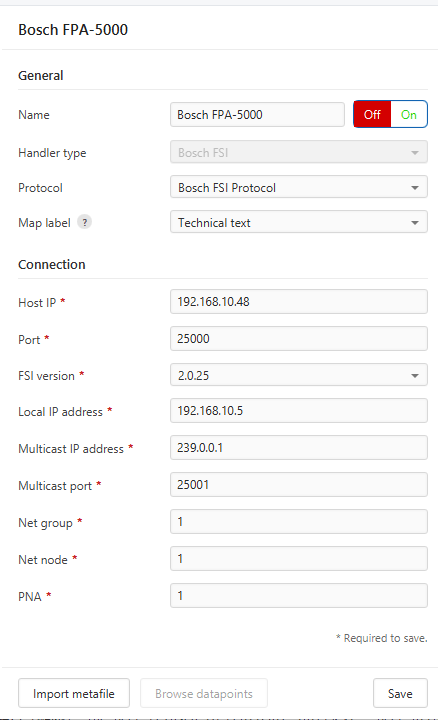
The container editor with the Bosch FSI connection parameters.
| Field | Meaning | Default |
|---|---|---|
| Multicast IP address | The Multicast Address set on the FSI server node. | |
| Multicast port | The Port Number set on the FSI server node. | |
| Local IP address | The IP address of the Siwenoid server: the IP Address of the FSI server node. | |
| Net group | The Group of the FSI server node. | |
| Net node | The Net Node of the FSI server node. | |
| PNA | A parameter of the panel network's site configuration (the site in Bosch RPS); copy its value from there. | |
| FSI version | The FSI version that matches the panels. Choose from 1.3.1 to 3.0.4. | 2.0.25 |
Save the container.
Importing the datapoints
Siwenoid imports the panels from one of these files:
- the panel network's configuration exported from Bosch RPS (
.xml, the Bosch RPS config file row), or - a semicolon-separated CSV file with one row per element (
.csv, the Custom CSV with SIIDs row; columnsNETGROUP,NETNODE,SITYPE,SINUMBER,SUBNUMBER,FTYPE,NAME, then the same for the parent element:PNETGROUPtoPNAME). Prepare such a file with Siwenoid support.
-
Select the container and press Import metafile.
-
Choose the file with Open in its row.
-
To import only some panels of an XML file, list them in Node IDs as group.node numbers separated by commas, for example
1.1, 1.2. Leave it empty to import every panel in the file. -
Leave Preview changes ticked and press Save.
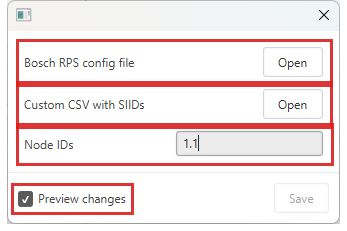
The metafile import of a Bosch FSI container. -
Read the Import preview and press Import. Wait for Metafile import has been finished.
Switch the container On with the toggle at the top of the editor.
Treatments and commands
The Bosch FSI handler comes with a treatment file: the Siwenoid server loads it automatically at its first start, so it need not be imported by hand. The file defines the treatments of every element type and the panels' commands. On a panel: silence on and off, drill on and off, acknowledge, reset, day mode on and off, and set time. On detectors, groups and other elements: acknowledge, reset, isolate on and off, bypass on and off, walk test on and off. See Datapoint types, treatments and commands to change them.
Checking the connection
- Watch the datapoints in the datapoint hierarchy: their states follow the panels.
- Acknowledge a test event from Siwenoid and check it on the panel.
- If the container does not connect, check that the values match the FSI server node in FSP-5000, that the FSI server is validated on every node, that the FSI version matches the panels, and that multicast reaches the Siwenoid server on the chosen port.