Aritech fire panels
Connecting Aritech fire panels (FP2000 serial protocol) through an ATC-2000 converter: panel and converter settings, the cable, container parameters and the print file import.
| At a glance | |
|---|---|
| Manufacturer | Aritech |
| Panels | Aritech fire panels with the FP2000 serial protocol |
| Connection | panel serial port through an ATC-2000 RS-232/Ethernet converter, TCP |
| Handler type | Aritech |
| Protocol | Aritech |
| Import | print file of the panel (ALL), text |
Aritech fire panels report to Siwenoid through their serial port, using the FP2000 serial protocol. An ATC-2000 serial-to-Ethernet converter makes the port reachable over the network, and Siwenoid connects to the converter over TCP. The ATC-1000 is no longer recommended because it can freeze on corporate networks. Siwenoid shows the alarms, faults and states of the panel as statuses of the imported datapoints, and operators can silence, reset and switch detectors off and on from Siwenoid.
Checking the panel settings
On the panel, enter the password, then check these menus:
-
System › Configuration › Communication › Ports:
- Port: Internal
- Speed: 9600
- Assigned: FEP
-
One menu back, Network: under Local Repeaters and Global Repeaters, address 1 with its status enabled.
-
One menu back, ID: note the network address, the panel number and the maximum network configuration. You will need them to create the site in the programming software.
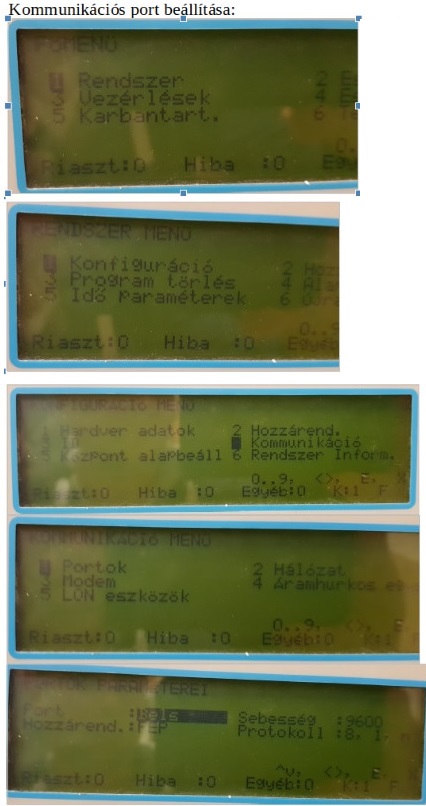
Panel settings (1 of 3).
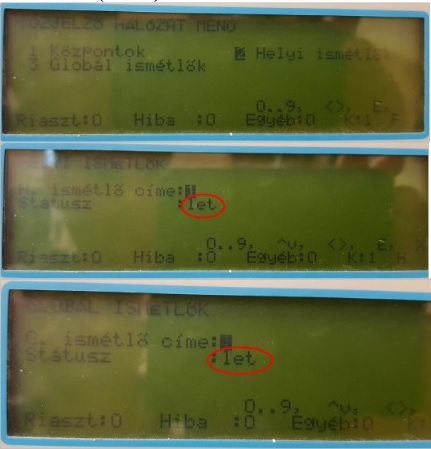
Panel settings (2 of 3).
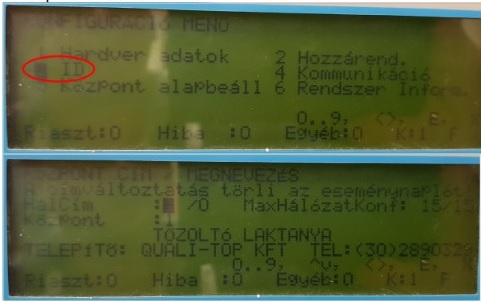
Panel settings (3 of 3).
The cable
The panel's serial port is connected to the converter with a hand-made cable: two 9-pin female D-sub connectors and a cable of at least 4 cores, wired as the drawing shows.
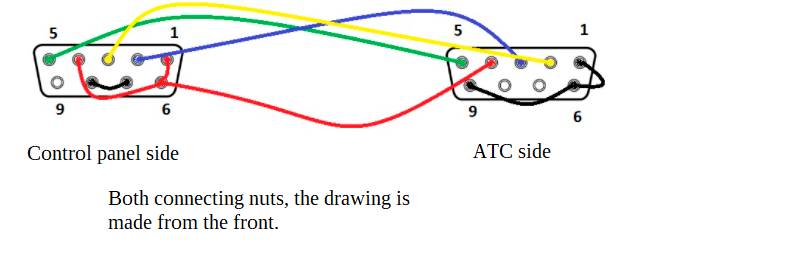
Wiring of the cable between the panel and the converter (the drawing shows an ATC-1000).
Preparing the converter
Set up the converter in its web interface. Log in with its administrator account and change the default password. The menu names and pictures below come from the ATC-1000's web page; on the ATC-2000, find the same settings in its own web page.
-
Serial port (UART) settings:
- Mode: RS232
- Baudrate: 9600
- Parity Type: None
- Stop Bit: 1
- Hardware Flow Control: None
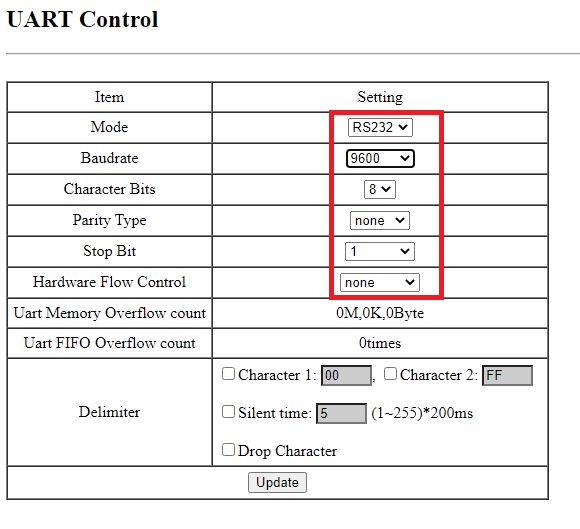
The converter's UART settings (ATC-1000 web page shown). -
Note the converter's TCP port (on the ATC-1000: TCP Mode › Port) or set another one. Siwenoid connects to this port.
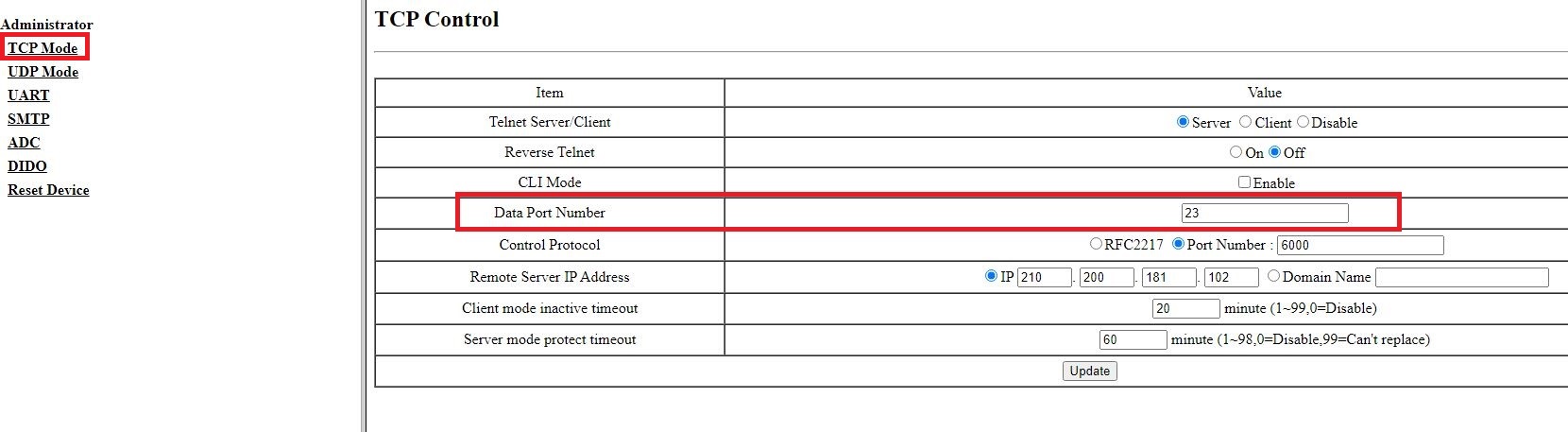
The converter's TCP port (ATC-1000 web page shown). -
Set the IP address, the network mask and the gateway of the converter for the network segment. Siwenoid needs the IP address.
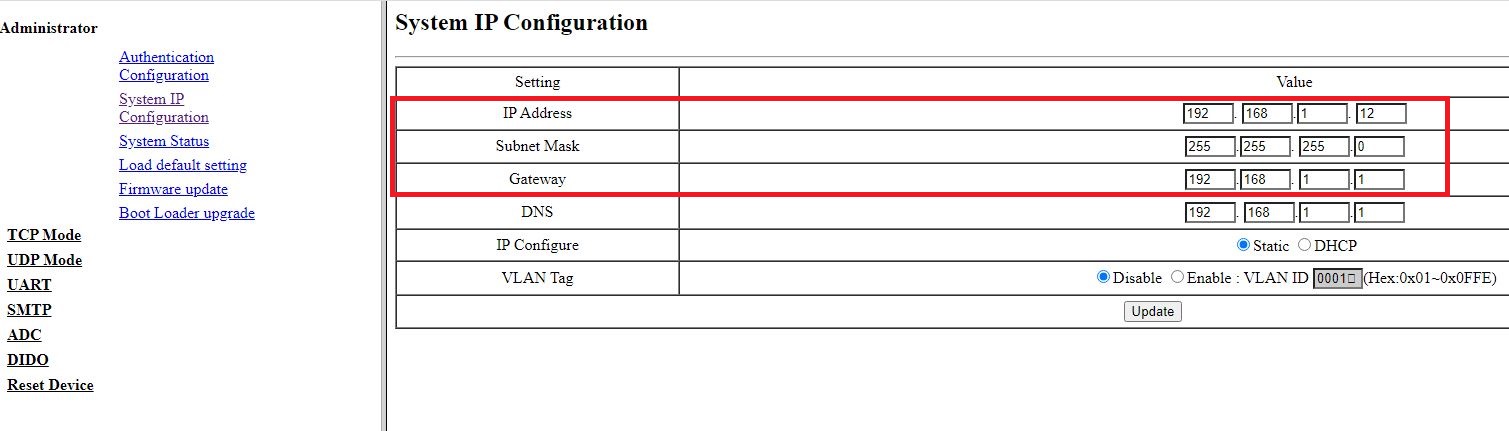
The converter's IP settings (ATC-1000 web page shown).
Important
Only Siwenoid may connect to the converter's TCP port.
Creating the metafile
The metafile is the full print-out of the panel configuration from the Aritech programming software.
-
Create a new site and a new panel in it, with the panel type and the ID data noted on the panel. The host version can be set too; if it is wrong, the software warns during the upload and you can still change it.
-
Choose Data Transfer › Receive data (Panel to PC) and connect the PC to the panel with the programming cable.
-
When everything is green under RS232 Line Status, click Start Upload. If the software reports that the panel version differs from the site version, change it in the panel settings.
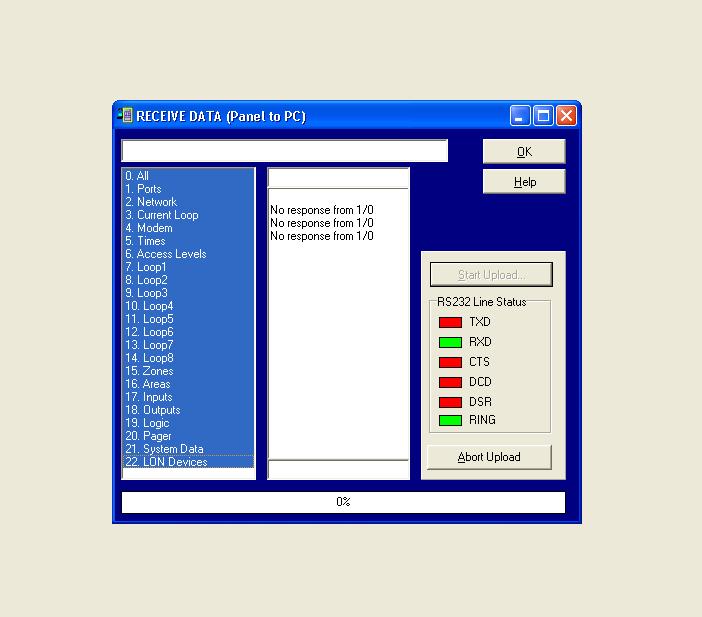
RS232 line status and the upload. -
Open PANEL › Print Files and select ALL.
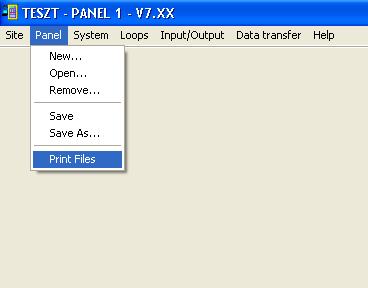
The Print Files menu. -
When the list is complete, select the whole text and copy it (Ctrl+A does not select everything: make sure the selection really covers all of it). Paste it into a new text file and save it as
.txt. This is the metafile.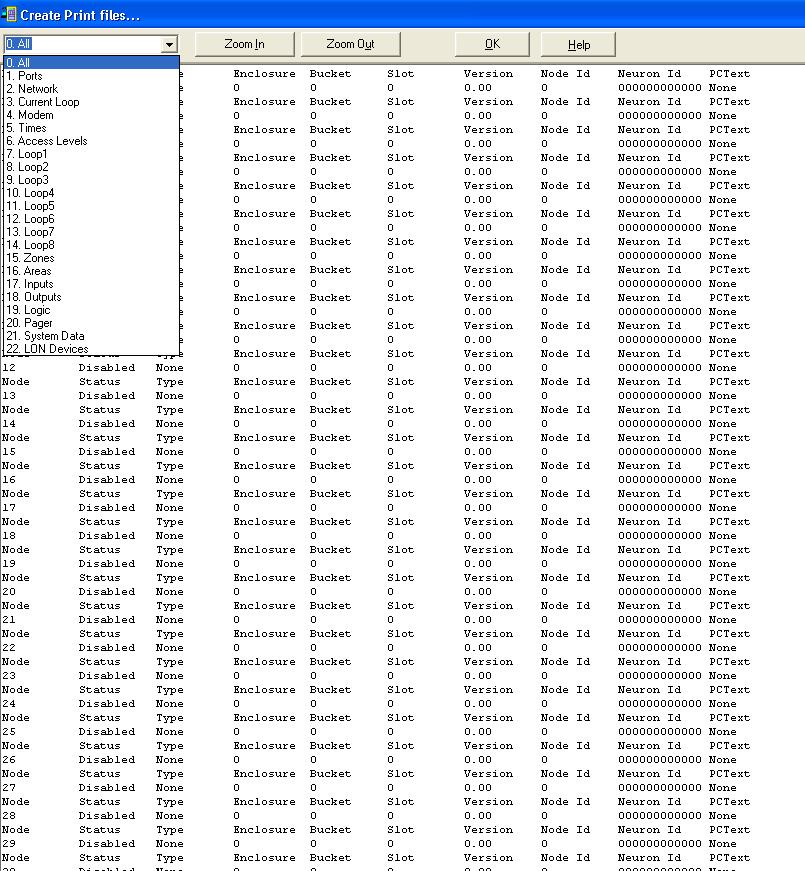
The full listing of the panel configuration.
Creating the container
Create the container in Preferences › Physical structure (see Physical structure for the editor in general). Set:
- Handler type: Aritech
- Protocol: Aritech
Then fill in the connection parameters.
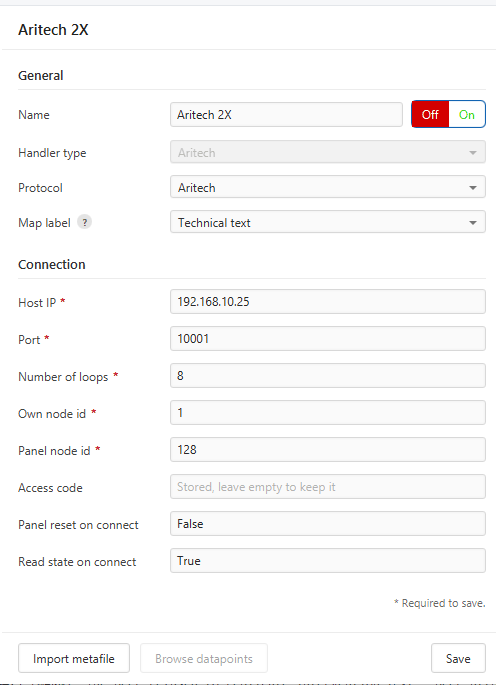
The container editor with the Aritech connection parameters.
| Field | Meaning | Default |
|---|---|---|
| Host IP | IP address of the converter. Required. | |
| Port | The converter's TCP port. A new container comes with 10001; change it if the converter uses another port. Required. |
10001 |
| Own node id | Siwenoid's node address on the panel's link. Required. | 1 |
| Panel node id | The node address of the panel. Required. | 128 |
| Access code | The panel's access code. Siwenoid logs in with it, so the panel accepts commands. A new container comes with a preset code: replace it with the code of the panel. 0 turns the login off; the panel then refuses every command. Once saved, the field stays empty; leave it empty to keep the stored code. |
|
| Number of loops | The number of loops whose state Siwenoid reads when it connects. Required. | 8 |
| Read state on connect | Read the panel's current state after connecting. | on |
| Panel reset on connect | Reset the panel after connecting, so that it reports everything again. | off |
Warning
Panel reset on connect clears every active alarm on the panel each time Siwenoid connects. Leave it off unless you have a reason to use it; Read state on connect gets the current state without a reset.
Save the container.
When the connection is up, Siwenoid logs in with the access code, sets the panel clock to the time of the Siwenoid server and reads the current state. The panel receives local time: switch off the panel's own summer time setting, otherwise the clock is shifted twice.
Importing the datapoints
- In the container editor, click Import metafile.
- Choose the metafile (Aritech print file of All (0-All)). No other data is needed: the panel number and the structure come from the file.
- Click Save and wait for the progress bar.
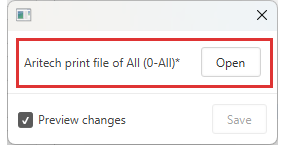
The metafile import with the print file.
The panel appears under the container with these below it:
- Bemenetek (inputs) and Kimenetek (outputs), with the individual inputs and outputs,
- the zones (only the enabled ones), each with its devices; a device's name ends with its zone, loop and element number,
- devices without a zone under their loop (Hurok : 1 and so on),
- the areas (only the enabled ones).
The group names come from the import in Hungarian, whatever the language of the client. Rename them in Siwenoid if needed. A repeated import updates the existing datapoints.
When the import is done, switch the container's connection on.
Treatments and commands
The Aritech handler comes with a treatment file: the Siwenoid server loads it automatically at its first start, so it need not be imported by hand. The file holds the treatments of the panel's own events (for example service mode, tamper, mains and battery faults, earth fault), of inputs and outputs, and of the device types (optical, ionisation and heat detectors, manual call points, input/output modules and others), each with its ending treatment. See Datapoint types, treatments and commands to change the names, categories or colours.
Commands: silence and reset on the panel, zones, areas and devices; switching detectors off and on. The panel executes commands only with a valid access code.
Checking the connection
- After switching the connection on, check that the container is shown as connected and the datapoints receive their states in the datapoint hierarchy.
- If Siwenoid does not connect, check that the Port of the container is the converter's TCP port, that the serial settings are 9600 baud, no parity and 1 stop bit on both the panel and the converter, and that no other client uses the converter's port.
- If states arrive but commands are refused, check the Access code.